If you launched a monster into the air in Elsword and kept the combo going to the end, or turned a PvP match around on almost no health, record with DOR, trim that moment, and send a link. This side-scrolling action RPG from KOG became a DOR 'full-play recording' game in the October 2026 app update. When you launch it, DOR detects the game and keeps everything from launch to exit as one video, so town, dungeons, and PvP all line up in one recording. This guide focuses on finding moments in a game that uses the screen wide from side to side, and on choosing the ratio that suits each one.
Choose which moments go vertical
Elsword's fights play out with characters moving from the left edge of the screen to the right, so most moments look best left in 16:9. A vertical 9:16 cut keeps only the middle, so save vertical for moments where the action gathers in the center, like a skill cast in one spot or a final blow landed right in front of the boss. For general rules on reworking landscape clips into shorts, see how to make a vertical game video.
Finding moments in an Elsword recording and sending them
- 1Turn on full-play recording and launch the gameIn DOR settings, make sure Elsword is on under 'full-play recording,' then launch the game. Automatic detection starts recording, and it continues as one video until you close the game, time spent in town included.
- 2Split runs using the loading and results screensA loading screen appears when you enter a dungeon and a results screen when you finish. Scrub quickly to find these two screens, and you can narrow down which run your moment came from in no time.
- 3Start air combos at the launchAn air combo begins the moment the monster first leaves the ground. Start one second before that and cut until the monster hits the floor, and whoever watches can see at a glance how long the chain lasted.
- 4Find PvP comebacks through the health barsIn a PvP clip, the turning point is where the health bars at the top change sharply. Keep everything from where you were behind and the gap started closing to the end, and even a short clip carries the comeback.
- 5Pick out only the moments that go verticalBefore trimming, check whether the action is gathered in the middle of the screen. Put one-spot skill casts and final blows in 9:16, and combos and PvP that move side to side in 16:9, so nothing gets cut off.
- 6Bundle by who is watchingFor party members who run the same dungeon, one clear is enough; for a friend who doesn't know Elsword, a short video of a few flashy skills lands better. With a friend who was your PvP opponent, you can watch the whole match and talk through each other's choices.
- 7Send it as a dor.gg linkTrim a section in the library and choose a ratio to create a dor.gg link. Paste just the link into a messenger or Discord, and the recipient watches it right away, even on a phone, without installing the app.
Elsword moments: screen width and the right ratio
| Moment | How much of the screen it uses | Ratio and length |
|---|---|---|
| Air combo | Chasing a launched monster left and right to keep the chain going | 16:9, launch to landing, 8 to 12 seconds |
| Flashy skill | A big skill the character casts in one spot | 9:16, from just before the cast, 5 to 6 seconds |
| Final hit on a dungeon boss | A finish in the tight space in front of the boss | 9:16 or 1:1, last 5 seconds |
| Party dungeon clear | Party members fighting all over the screen | 16:9, late boss fight plus results, 30 seconds |
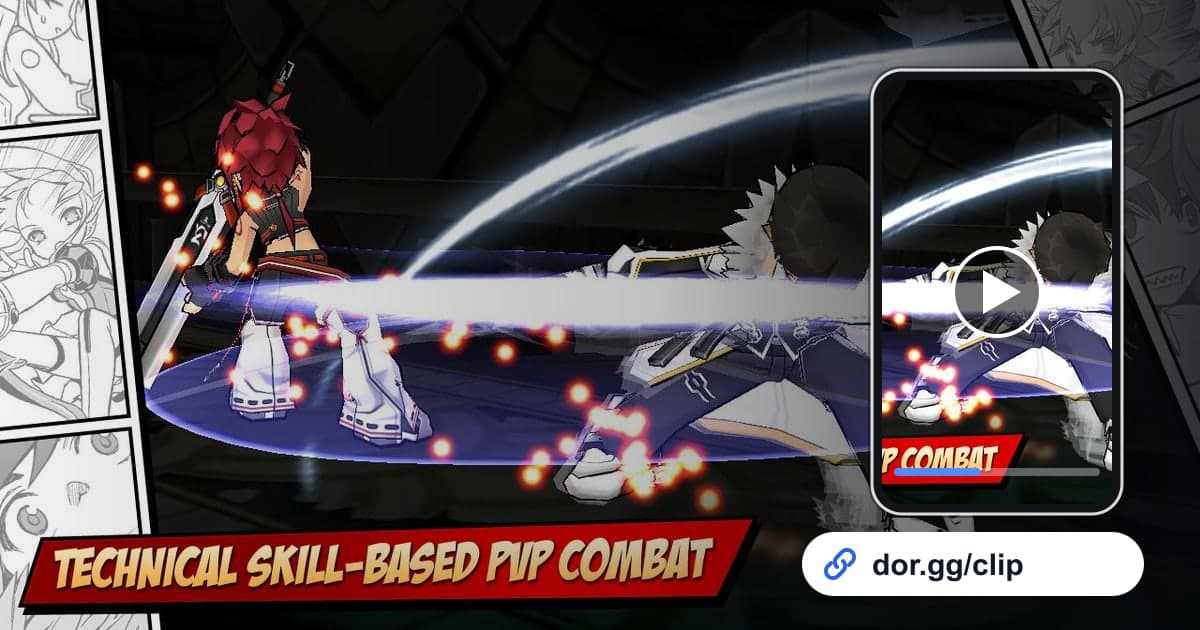
| PvP comeback win | Two characters trading hits from one edge to the other | 16:9, from where the comeback starts, 20 to 40 seconds |
| First use of a new skill after a job change | Trying a freshly learned skill outside town | 1:1, around 10 seconds |
Checklist before you send
- Elsword is on under 'full-play recording' in settings.
- The air combo clip starts just before the monster is launched.
- In vertical cuts, the character and monster stay inside the frame.
- The PvP clip includes the point where the comeback started.
- The dungeon clear clip includes the results screen.
- You have comfortably more than 20GB of free disk space.
How DOR records Elsword
DOR is a free Windows desktop app. When you launch Elsword, it detects the game and records one mp4 until you close it; it doesn't split files by dungeon or PvP match, and it doesn't cut combos out as automatic highlights. Find the moment in the app library, set start and end with the trim tool, pick 16:9, 9:16, or 1:1, and you get a dor.gg link the recipient can play in a browser without the app. For setting start points on moments where one second changes the feel, like combos, see how to trim game clips. Game sound and your mic are recorded together, so what you said to your party stays in the video, and how to record game sound and mic together covers balancing your voice against the game. To gather several flashy skills into one video, open DOR Studio in your browser with no install, merge clips, and adjust text, background music, and volume. On days you don't want to record Elsword, you can switch its full-play recording off in settings, and a confirmation prompt appears when you do.