Eternal Return packs farming, crafting, moving, and fighting into one continuous match, so if you send the whole recording, your friend gets tired before reaching the part you wanted to show. Cutting out just the final fight or the moment you escaped a Restricted Area and sending it as a link gets the point across quickly. This guide covers only one method: record an Eternal Return match with DOR, find the moment in the recording, trim it, and share it through a dor.gg link. Eternal Return is a game where DOR does not create automatic highlight clips, so you will find the moment yourself in the full match recording.
Match the length to the kind of moment
As a rule, trim short for moments that end in a few seconds, like a character skill combo, and trim long for moments where the route matters, like a Restricted Area escape. For a final win, keeping everything from the start of the last fight through the victory screen is enough. Whether the clip is long or short, tips for landing exact start and end points are in how to trim game clips.
Sending an Eternal Return moment as a link
- 1Install DOR and launch Eternal ReturnDOR is a free Windows desktop app. Install it, launch Eternal Return, and DOR detects the game automatically and records the match from start to finish. You do not need to start recording for each match.
- 2Remember your placement and the kind of momentIf you won, the moment is at the end of the recording. Restricted Area escapes and chases usually show up from the middle onward. Right after the match, just remember your final placement and what kind of moment you want to show, and you will know where to start looking.
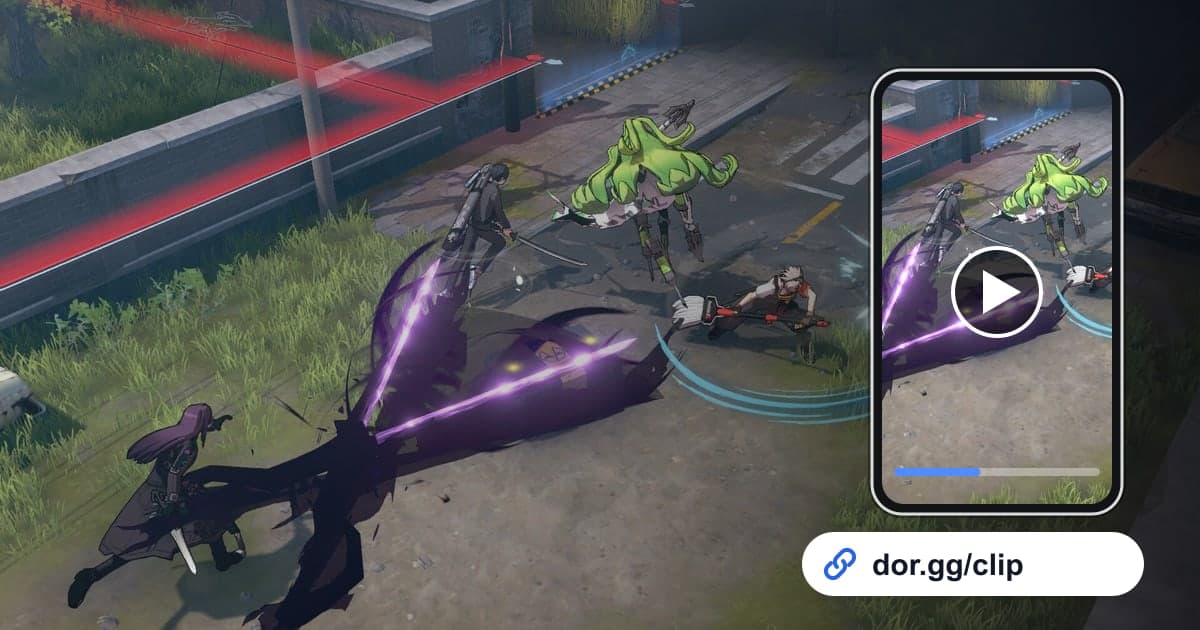
- 3Open the recording and look for clusters of skill effectsRecordings are saved as mp4 files and appear in the DOR app library. Eternal Return uses a top-down view, so as you drag the playback bar, stop wherever the screen fills with skill effects all at once. That is where a fight is. There are no auto clips, so this is where you confirm the spot yourself.
- 4Trim to fit the length of the momentSet the start and end with the trim tool. Keep a skill combo short, from just before the first skill to just after your opponent goes down. For a Restricted Area escape, trim from when the warning appears to when you reach safe ground, route included.
- 5Pick a ratio that suits the top-down viewChoose 16:9, 9:16, or 1:1 as the output. Final fights and team fights spread across a wide area, so 16:9 works well because it keeps the surroundings in view. A skill combo that plays out around your character can keep its core in 9:16 or 1:1, but enemies coming in from the edges might get cut, so check the preview.
- 6Send the dor.gg link to your team chatWhen trimming is done, you get a dor.gg link. Paste it into the chat with the teammates you played with, and each of them can watch it in a phone or PC browser without installing DOR. It is also handy for talking through routes or engage order before the next match.
Where each Eternal Return moment sits in the recording
| Moment | Where to look in the recording | What it shows your friend |
|---|---|---|
| Final win | The very end, the last fight against the remaining team | The tension from the last fight to the victory screen |
| Restricted Area escape | Rushing out of an area just before it becomes restricted | The route and choices you made against the clock |
| Three-person team fight | A stretch where all three teammates' skill effects burst on screen together | The rhythm of who went in first and who finished it |
| Character skill combo | A few seconds where skill effects chain around your character | Your skill order and timing |
| Farming route and finished build | Early in the recording, moving through areas collecting materials | The order in which you moved through areas |
| Shaking off a chase | Running from an enemy team on low health | How you survived and carried on to the next fight |
Before sending your Eternal Return clip
- For a final win, confirm the victory screen is included so the result is clear.
- For a Restricted Area escape, confirm it starts when the warning appears so it is obvious why you were rushing.
- For a team fight, check that all three teammates are on screen during the stretch you kept.
- For a skill combo, confirm it starts just before the first skill so the order is visible from the beginning.
- When trimming to vertical or square, check the preview to make sure enemy teams at the edges or the minimap did not get cut.
- If teammates' voices were recorded, ask them before sharing it outside the team.
How DOR handles sharing an Eternal Return moment
When Eternal Return launches, DOR detects it automatically, records the match as an mp4, and captures game audio and your mic together. On NVIDIA graphics cards, NVENC hardware encoding is applied by default. Trim the moment with the library's trim tool and send it as a dor.gg link. If you want to combine moments or add text and background music, polish it in DOR Studio, which opens in your browser with nothing to install, then share it as a link or download it as an mp4. How to frame a skill combo for vertical video is covered in how to make vertical gaming videos, and finding teammates to review footage with is covered in finding an Eternal Return ranked team.