If you started as a minor nation in Hearts of Iron IV, pushed the front back, and took the enemy capital, and you want to show that campaign to a friend, record it with DOR, trim the decisive moments, and send them as a link. Hearts of Iron IV is a World War II grand strategy game made by Paradox Development Studio and published by Paradox Interactive, played on Windows PC. With the October 2026 app update it became a 'Full play recording' game in DOR: when you launch it, DOR detects it automatically and keeps everything until you quit as a single video. The catch is that a session easily runs for hours, and most of the footage is you studying the map and adjusting production lines. This guide focuses on finding the few minutes where the war actually turned.
Split Sessions by Era Instead of Playing in One Sitting
DOR creates a new video every time you launch the game, so saving, quitting, and relaunching naturally splits your recordings. If you break sessions by era, such as the 1936 buildup, the outbreak of war, and the endgame, scenes are far easier to find later and no single file grows out of control. Leave the game running all weekend and the recording keeps growing until free space drops below 20GB, at which point recording stops automatically. For tips on capturing multi-hour sessions without gaps, see recording long gameplay sessions.
How to Pick Scenes From a Hearts of Iron IV Campaign and Send Them
- 1Check full play recording and free disk spaceIn DOR settings, make sure Hearts of Iron IV is turned on in the 'Full play recording' group, and since you will be recording for hours, leave well over 20GB of free space. Then launch the game and recording starts automatically.
- 2Jot down the in-game dateWhen the front breaks or a capital falls, write one line with the in-game date shown at the top of the screen. When you play the recording back, scrub while watching the date display and you will land near the scene even if you never noted the real time.
- 3Skip past paused stretchesWhile the game is paused, the date stands still and the screen barely changes. When you scrub through the library and hit a stretch where the date does not move, skip ahead and look for the point where it starts ticking again.
- 4Cut around the map zoom changesA breakthrough reads best when the map is zoomed out to show the whole front. Set the start where the zoomed-out map begins to show the line moving and the end where the pocket closes, and even friends who don't play strategy games will follow it.
- 5Trim at 16:9 and create the dor.gg linkIn the library's trim tool, set the start and end points and choose 16:9. A vertical ratio cuts off the sides of the map so the front disappears, which suits this game poorly. When you finish, a dor.gg link is created.
- 6Share the war record with your multiplayer opponentsSend the friend who played the same multiplayer game the front where you clashed, and send the friend who only followed along the peace conference map. Paste the link into a group chat or a Discord channel and they can play it right in the browser.
Where to Find Each Campaign Phase in a Hearts of Iron IV Recording
| Campaign phase | Clue in the recording | How much to keep and who gets it |
|---|---|---|
| First offensive after war breaks out | Right after the war declaration pop-up, when the date at the top starts moving fast | 1–2 minutes from the moment you give orders, for a friend who has played the same nation |
| Breaking the enemy line | The front line on the map shifts sharply in one direction | About a minute from your setup until the encirclement closes |
| Taking the enemy capital | The capital's province turns your nation's color | 30 seconds around the capture, for the friend you played multiplayer with |
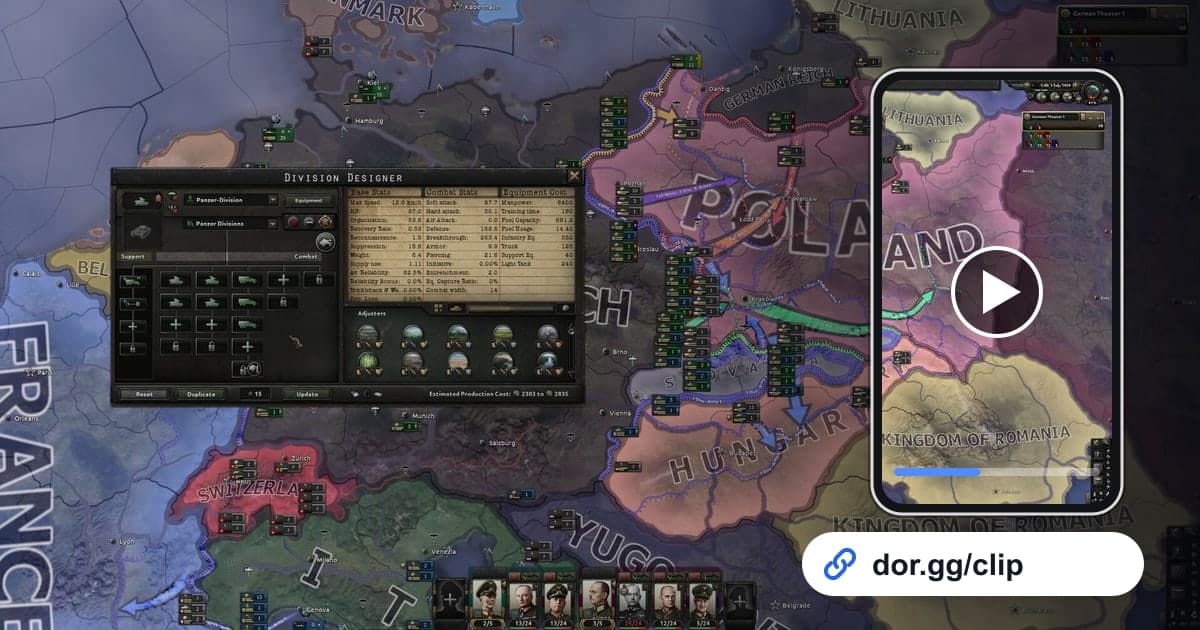
| Designing a division template | The stretch where the division template designer is open | 20–40 seconds showing the finished template, for a friend asking about strategy |
| An alternate-history decision | The event window that appears after picking a political decision or focus | About a minute, from the choice to the change on the map |
| Peace conference | The screen where territory is divided after the war | The last 1–2 minutes showing the final map, for a friend curious about the whole campaign |
Before You Send a Campaign Video
- Hearts of Iron IV is turned on under 'Full play recording' in settings.
- You cleared well over 20GB of free space before a long session.
- You wrote down the in-game date of the scene you want to send.
- Stretches frozen by pausing are cut out of the trimmed video.
- You picked 16:9 so the map is not cropped.
- The first shot makes it clear which nation you played.
How DOR Records Hearts of Iron IV
DOR is a free Windows desktop app. When you launch Hearts of Iron IV, it detects the game automatically and records one mp4 video until you quit; it does not cut breakthroughs or capital captures into automatic highlights. Open the recording in the app library, set the start and end points with the trim tool, choose 16:9, 9:16, or 1:1, and a dor.gg link is created. Tips for choosing those points are in how to trim game clips. To turn scenes trimmed from several sessions, from the outbreak of war to the peace conference, into one war record, open the DOR Studio in your browser with no install, merge the videos, label each scene with its year as text, and add background music. For ordering advice, see merging multiple game clips. Download the result as an mp4 or share it as a link. Your mic is recorded along with the game sound, so the strategy talk from a multiplayer match stays in too. On days you don't want to record, turn the game off under 'Full play recording' in settings; a confirmation window appears when you do.