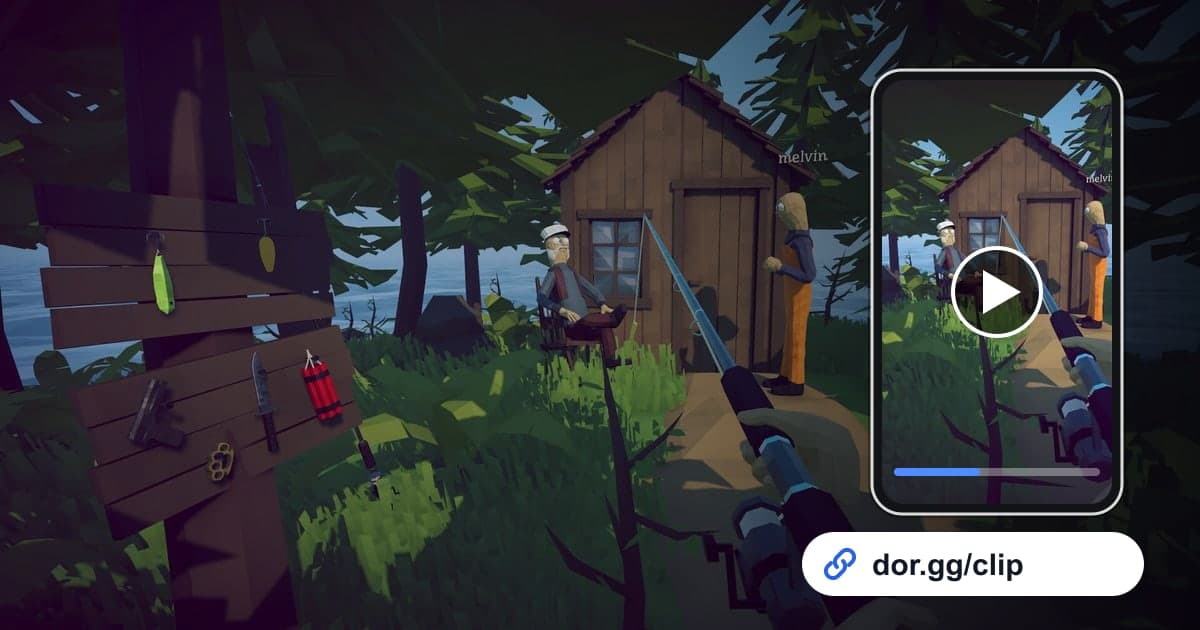
How to Fish runs on physics, so even the same fish fights differently every time, and the moment you finally haul in a monster lands much better as a clip than as a chat message. This guide covers one method only: record How to Fish with DOR, cut out the scene worth bragging about, and send it to friends as a dor.gg link. The game keeps pulling you from island to island through quests and boss fights, so sessions run long and recordings easily stretch to several hours. The real skill is finding the bite inside that long file quickly.
The quick version
Launch How to Fish on a PC with DOR installed and the whole session lands in the library as one mp4. After you quit, open that video, set the start a little before the big fish hooked and the end at the finishing blow or the sale screen, and trim. Paste the dor.gg link it creates into your group chat and you are done. For landing start and end points cleanly, see How to Trim Game Clips.
Steps to send a How to Fish scene as a link
- 1Launch How to Fish with DOR installedInstall the free DOR app on your Windows PC and launch How to Fish. DOR detects the game automatically and starts recording. Nothing is split into rounds or matches; everything from launch to exit becomes one video.
- 2Jot down the time when a big bite hitsWaiting for bites and walking around the island all end up in the recording. When a big fish bites or a boss appears, note the PC clock time on your phone so you can jump straight to it later, even in a multi-hour file.
- 3Use the sale screen as your end pointHow to Fish runs on catching fish, selling them and buying better gear, so the sale result makes a natural ending. Cutting the catch, the kill and the sale as one stretch tells your friend exactly what you are showing off.
- 4Trim it in the libraryOpen that session's video in the library and set a start and end with the trim tool. The tension of reeling is the point, so leave a few extra seconds at the front. Pick 16:9 to keep the PC framing, or 9:16 or 1:1 for a friend watching on a phone.
- 5Send the link to your fishing crewWhen the trim finishes you get a dor.gg link. Drop it into the chat with the friends who shared the boat in 1 to 4 player co-op; each of them plays it in a browser, and anyone who missed the session can watch on a phone.
- 6Join a whole island run in StudioTo show the boss fight and the big catches from the day you opened a new island as one video, merge them in DOR Studio in your browser and add text with fish or island names. Share the result as a link or download it as an mp4.
What to cut in How to Fish, by situation
| Fishing situation | Clue in the recording | Suggested length |
|---|---|---|
| Hauling in a big fish | A long stretch of heavy reeling with the bobber thrashing | 40 seconds to 1 minute |
| First rare variant | Right after an unfamiliar-looking fish hits the deck | 20 to 30 seconds |
| Island boss fight | Just before a new island opens, when an unusually large foe shows up | 1 to 3 minutes |
| Trick shot | The last few seconds of finishing the fish | 10 to 15 seconds |
| First cast with new gear | From the first cast right after buying it | About 30 seconds |
| Co-op mishap | A friend's character flung somewhere odd by the physics | 10 to 20 seconds |
Check before you send
- At least 20GB of free disk space (below that, recording stops automatically)
- Which session recording contains the time you jotted down
- No long stretch of idle casting left at the start of the catch clip
- Nothing your friends would not want shared in the co-op voice chat
- The boss clip runs through to the kill
- An aspect ratio that fits whether your friend watches on a phone
What DOR does in How to Fish
DOR is a free Windows desktop app. With the October 2026 app update, How to Fish became a full-session recording game: launch it and DOR detects it automatically and records everything until you quit as one mp4. There is no feature that spots big catches or boss kills and cuts them for you, so you pull scenes out yourself with the library trim tool. You can switch recording on or off per game in the Full Session Recording group in settings, and turning it off asks you to confirm. Recording stops automatically when free space drops below 20GB. Game audio and your mic are captured together, so the shouting while you reel survives too; see How to Record Game Sound and Mic Together for audio setup and How to Make Vertical Game Videos for phone-friendly clips.