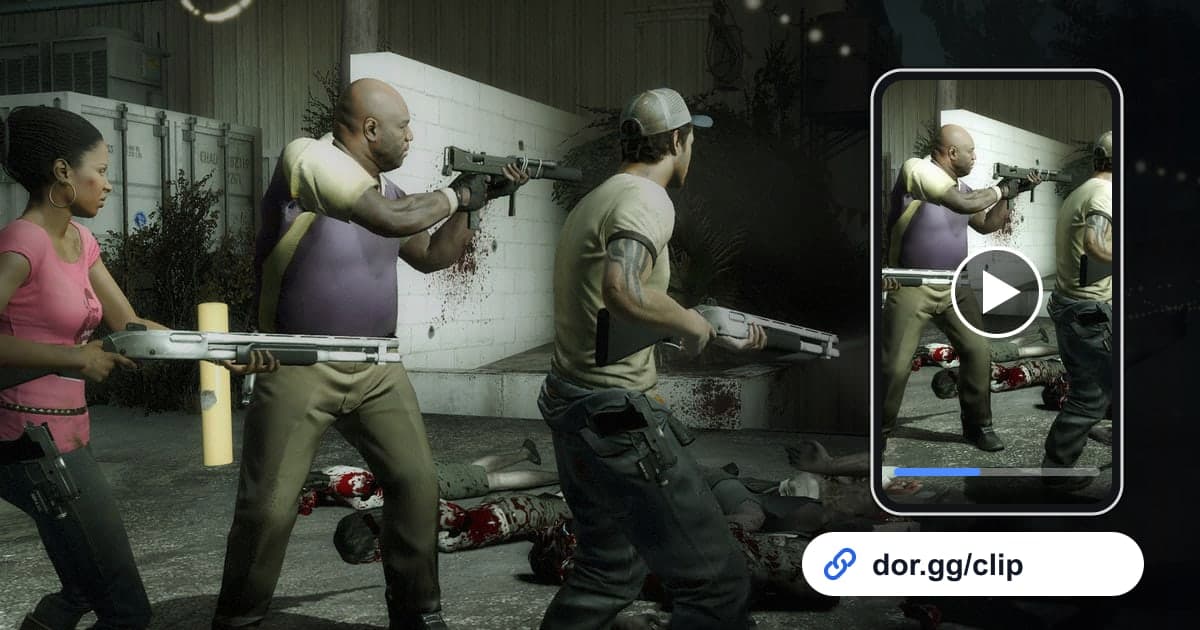
Left 4 Dead 2 is a co-op action horror FPS where four survivors fight through campaign after campaign across a zombie-infested Deep South. The AI Director changes enemy placement and paths each time, so even a familiar campaign brings its own crisis on any given night. The moment four of you barely brought down a surprise Tank, or the last-second save of a teammate being dragged away by a Special Infected, will never play out the same way twice. This guide shows how to record Left 4 Dead 2 with DOR, find just those clutch moments, trim them, and send them as a dor.gg link to the friends who were there.
A whole campaign stays in one video
DOR captures Left 4 Dead 2 as a full-session recording. Everything from launch to exit, including the lobby, chapters, loading screens, and finale, runs together in one video, and killing a Tank does not create an automatic clip. That means you find the moments to share in the recording and trim them yourself. A clutch moment only lands if the tension right before it is included, so where you place the start point matters. Our guide on how to trim game clips covers setting precise start and end points.
Sending a Left 4 Dead 2 clutch moment
- 1Decide which of the four will recordNot everyone needs to record. As the table shows, the best view changes with the situation, so the person who usually leads the way or the one who talks the most on voice chat is a safe pick. If you want two angles, two people can record at once.
- 2Install DOR and start a campaign as usualDOR is a free Windows app that detects Left 4 Dead 2 when it launches and starts recording automatically. Game sound and your mic are recorded together, so even the shout of Tank! makes it into the video.
- 3Remember which chapter it happened inA campaign moves from chapter to chapter through loading screens. After a big crisis, just remember the chapter order, something like halfway through the third chapter, and later you can count loading screens to get there fast.
- 4Narrow it down with loading screens and musicWhen you close the game, the recording is saved as an mp4 and appears in the app library. Split chapters using the loading screens, then within the chapter look for where the Tank music starts or a teammate's scream rings out, and you will land near the start of the crisis.
- 5Trim from the moment tension startsCut a Tank clip from a few seconds before the music changes to the moment it drops, and a rescue clip from just before your teammate gets grabbed to when they are back on their feet. Finales tend to run long, so the last one to two minutes before rescue arrives is plenty. Choose 9:16 if most friends will watch on phones, or 16:9 when a wide view showing all four matters.
- 6Send the link to the friends who held out with youWhen trimming finishes, you get a dor.gg link. Paste it into the Discord channel or group chat where your campaign crew hangs out so all three can watch at once, playing it in a browser without downloading a file.
Clues and best point of view by situation
| Situation | Visual and audio clue | Whose view works best |
|---|---|---|
| Tank takedown | The point where the music changes as the Tank appears | Whoever was closest to the Tank |
| Teammate rescue | A teammate screaming while pinned and voices on the mic getting urgent | The person who ran in to help |
| Horde wipe | Zombies pouring in from every side until the screen fills up | Whoever was covering the rear |
| Finale defense | Holding out for rescue in the last chapter of a campaign | The last one standing |
| Sprint to the safe room | The final few dozen seconds once the safe room door comes into view | Whoever got there last |
| Versus ambush | The moment you jumped survivors while playing as the Infected | The person playing Infected |
Before you send it
- The Tank clip starts before the music changes, so the tension comes through.
- The rescue clip shows clearly who saved whom.
- You checked that your friends' voices are not buried under the gunfire.
- The finale clip focuses on the final stretch instead of running too long.
- On nights with several campaigns back to back, you left well over 20GB of free space on your drive.
- You asked friends whose voices are in the clip whether they are okay with sharing it.
- You picked a ratio with phone viewers in mind.
How DOR records Left 4 Dead 2
DOR is a free Windows desktop app, and the October 2026 app update made Left 4 Dead 2 a full-session recording game. DOR detects the launch automatically and saves everything until you quit as one mp4, using NVENC hardware encoding by default on PCs with an NVIDIA graphics card. For balancing your mic voice against game sound, see how to record game sound and mic together. Playing a campaign start to finish, or several in a row, makes recordings long and fills your drive fast, and recording stops automatically when free space drops below 20GB. Tips for capturing long sessions without interruption are in our long gameplay recording guide. A trimmed moment can be handed over as a single dor.gg address, and whoever opens it needs no install. To turn a campaign's clutch moments into one video, the browser-based DOR Studio needs no install and lets you merge clips and add effect templates, text, and background music, then download an mp4 or share a link.