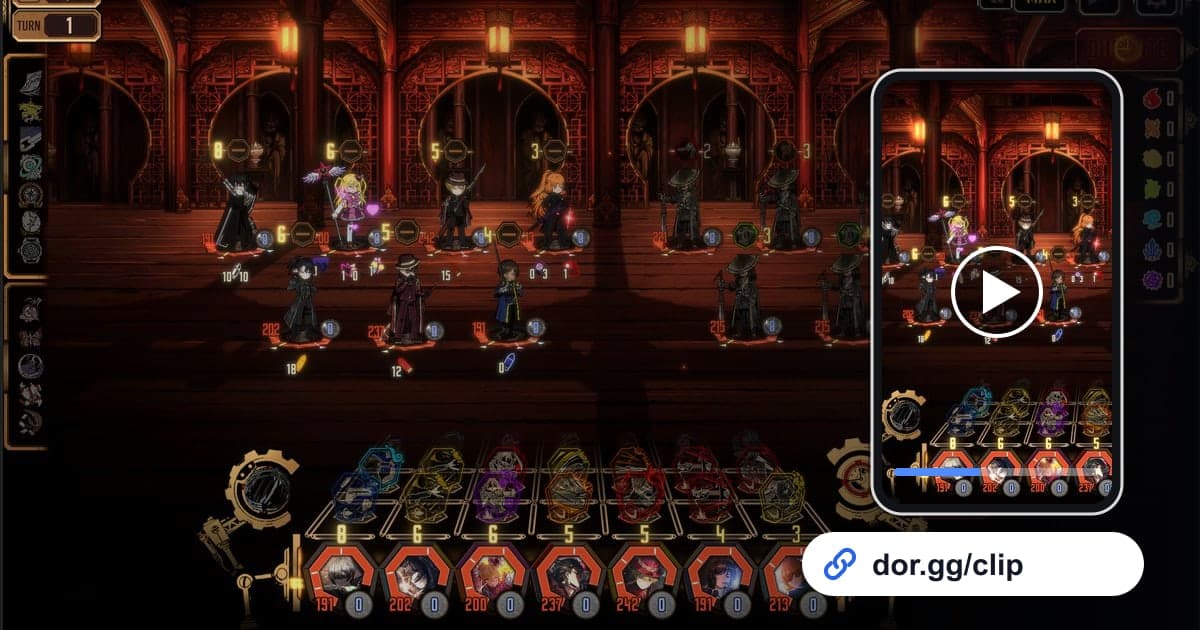
Limbus Company is a turn-based battle game where you lead twelve Sinners into combat with teams of Identities and E.G.O. Characters targeting each other Clash, and the outcome comes down to skill strength plus a little luck, so a turn where Clash after Clash breaks your way is something you really have to see. This guide shows how to record Limbus Company with DOR and send only those turns, fights where you broke an Abnormality, or memorable story scenes as a dor.gg link. The key is trimming away the time you spent thinking over skills.
Keep the turns that played out, not the thinking
DOR captures Limbus Company as a full-session recording. Everything from launch to exit, including team setup, skill selection, battle animations, and story, ends up in one video, and winning a Clash does not create an automatic clip. In a turn-based game, a large share of the footage is selection time where the screen barely changes, and sending it as is wears out whoever is watching. The basic rule is to keep only the stretch from when actions start after you lock in skills to when that turn's result appears. Our guide on how to trim game clips covers setting those start and end points.
Sending a Limbus Company scene
- 1Install DOR and log in as usualDOR is a free Windows app that detects Limbus Company when it launches and starts recording automatically. There is no record button to press, so you do not need to know in advance which fight will be worth sharing.
- 2Mark the fight where something great happenedIn content with back-to-back battles like the Mirror Dungeon, it is easy to forget which fight it was. When a big Clash lands, jot down something like third fight in the dungeon, or just the rough time.
- 3Stay quiet during story scenesGame sound and your mic are recorded together, so if you plan to share a voiced story scene later, it helps to watch that scene without talking over it. During battles, feel free to react out loud if you want that in the clip.
- 4Find the action in the libraryWhen you close the game, the recording is saved as an mp4 and appears in the app library. The skill selection screen changes very little, while the screen shifts noticeably once characters start acting, so use those shifts to step through turns until you reach the fight you marked.
- 5Trim one turn at a timeCut Clash scenes one turn at a time, from right after you lock in skills to the result of that turn. Even if you want to string two or three turns together, trimming each one separately without the selection time in between makes merging them later much easier.
- 6Pick a ratio that shows your teamBattle screens spread both sides and skill info across the width, so 16:9 shows your whole lineup at a glance. If you choose 9:16 for vertical phone viewing, pick a turn where the character you want to highlight sits near the center of the screen.
- 7Send the link with a note on your teamWhen trimming finishes, you get a dor.gg link. When sending it to a friend who plays, add one line listing the Identities and E.G.O you used, and they can watch in a browser without the app while trying out your setup.
What to cut for each kind of scene
| Scene to show | Stretch to cut | One line to send with the link |
|---|---|---|
| Winning Clash streak | From right after skill selection to the result of the turn's last Clash | Which skills you chained and where |
| Abnormality takedown | From the turn its last health stretch begins to the defeat animation | The Identity and E.G.O lineup you used |
| Final Mirror Dungeon fight | From entering the last fight to the completion screen | The Sinners you ran this time |
| Voiced story scene | From the first line of dialogue to just before the scene changes | Which chapter and scene it is |
| A fight you barely lost | The turn where things fell apart plus the turn before it | A question about what would have won it |
What to check before sending
- The clip does not linger on long stretches of skill selection.
- It runs all the way to the moment the Clash result appears.
- You checked that your voice does not overlap the story dialogue.
- On days with several Mirror Dungeon runs, you left well over 20GB of free space on your drive.
- You have a one-line team description ready to send with the link.
How DOR keeps your Limbus Company sessions
DOR is a free Windows desktop app. The October 2026 app update added Limbus Company as a full-session recording game, and when you launch it, DOR detects it and saves everything until you quit as a single mp4. On PCs with an NVIDIA graphics card, NVENC hardware encoding is the default. Turn-based sessions tend to run long, so your drive fills accordingly, and recording stops automatically when free space falls below 20GB. If a recording is missing or cut short, start with the disk space check in how to fix recordings not saving. On days you only want to enjoy the story without recording, you can turn off just this game in the Full Session Recording group in settings, and a confirmation prompt appears when you do. A trimmed scene goes out as a dor.gg link that the other person opens with nothing to install. To join several turns or add text describing your team, the DOR browser clip editor handles merging, text, background music, and volume, then lets you download an mp4 or share a link.