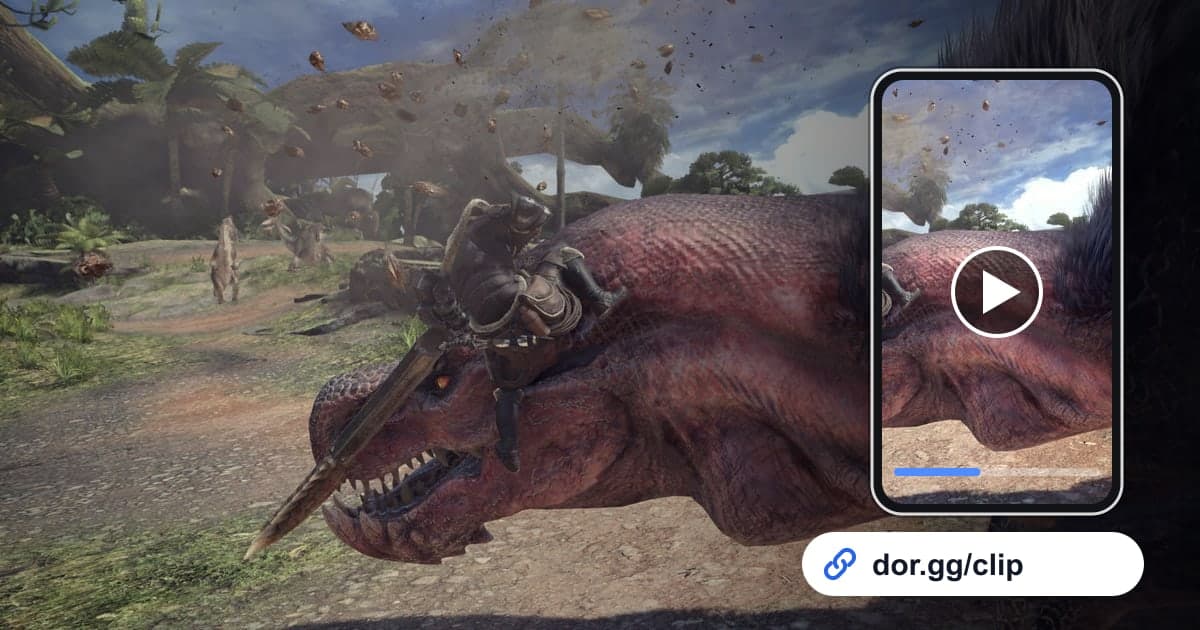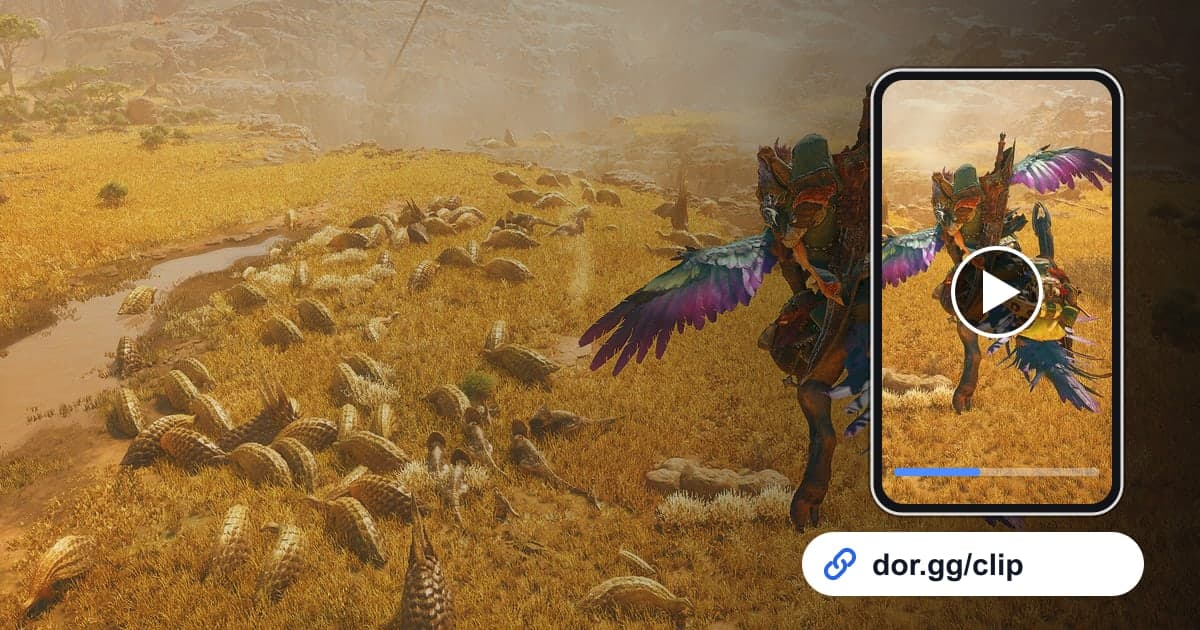
When a weapon combo connects without a break in Monster Hunter Wilds and the monster's tail comes clean off, showing a friend who uses the same weapon one video beats explaining it in words. This guide covers one method: record Monster Hunter Wilds with DOR, trim just that scene, and send it to hunter friends as a dor.gg link. The game strings together tracking a monster, fighting it in hunting grounds where the environment can shift in an instant, and gathering materials after it falls. So the key skill is pinpointing the few seconds when the fight was hottest in your recording.
In short
Launch Monster Hunter Wilds on a Windows PC with DOR installed, and base time, travel, hunts, and material gathering all run into one mp4. After you quit, open the recording in the library, use a time you noted or the quest complete message to find the exchange you want, trim it short, and send your friend the dor.gg link. How to prepare so recording does not break during hours of hunting is covered in how to record long gameplay sessions without stutter.
How to send a Monster Hunter Wilds hunt highlight
- 1Install DOR and launch Monster Hunter WildsInstall the free DOR app on your Windows PC and launch Monster Hunter Wilds. It became a supported game in the October 2026 app update, so DOR detects it automatically, and however many quests you run, the recording does not split; it continues as one until you quit.
- 2Note the real time right after a great momentIf a part break indicator pops or a combo lands perfectly, jot down the real time on your phone. Recording begins when you launch the game, so subtracting the launch time from your note lets you jump close to that scene even in a recording several hours long.
- 3Frame combos by the first and last hitA combo runs from the moment the first hit lands until the last hit ends and your hunter recovers. If the clip is for a friend with the same weapon, include the two or three seconds before it where you created the opening, so they see when you committed, not just what you did.
- 4Start part breaks a few seconds before the indicatorCutting only the moment a horn or tail falls off makes the clip end abruptly. Start from the two or three attacks aimed at that part and keep going through the break indicator and the monster's reaction, and the effort of targeting the part comes through, making the clip far more convincing.
- 5Trim in the library and choose 16:9 or 9:16Open the recording in the library and set the start and end with the trim tool. Scenes that need the whole large monster and your hunter on screen are safest at 16:9, while combo scenes focused on your weapon's movement can go out at 9:16 to fill a phone screen.
- 6Split clips between weapon buddies, party, and newcomersSend combo and part break scenes to friends who use the same weapon, the finish to party members who hunted with you, and an environment shift to friends who have not tried the game yet; each group reacts best to its own cut. Make a separate dor.gg link for each video and paste them into chat.
Recording markers and trimming tips by Monster Hunter Wilds scene type
| Scene | Marker in the recording | Trimming tip |
|---|---|---|
| Weapon combo | The burst of attacks right after the monster goes down or leaves an opening | 10 to 20 sec, from the first hit to the last of the chain |
| Horn or tail part break | The moment the part comes off and a break indicator appears | Include the two or three hits before the break |
| Tracking on your mount | Crossing the hunting ground after a fleeing monster | Keep it short, only until the monster is back in view |
| Sudden environment shift | The hunting ground's mood changes abruptly, shifting the colors and visibility | Show both before and after the change |
| Co-op finish | The final hits with your party and the quest complete message | The last 30 sec to 1 min |
| Close call survival | Dodging a big attack while almost out of health | From just before the hit to your recovery |
Check before you send
- At least 20GB of free disk space is left (below that, recording stops automatically)
- The scene you found near your noted time is the combo you meant
- The part break scene includes the moment the break indicator appears
- At 9:16, the monster's attack range does not look cut off
- You are fine with party members' names or chat being visible
- Anything your mic picked up is okay to share
What DOR does in Monster Hunter Wilds
DOR is a free Windows desktop app, and when you launch Monster Hunter Wilds it detects the game and records it with full-session recording. Everything from launch to quit is one mp4, and this game has no automatic feature that detects slays or part breaks and makes clips, so you trim scenes from the recording yourself. DOR records your own PC's screen, game sound and mic are captured together, and NVIDIA graphics cards use NVENC hardware encoding by default. Long sessions fill the disk quickly, and as the app settings note, recording stops automatically once free space drops below 20GB. When you do not need recording, you can turn off just this game in the full-session recording group in settings, and a confirmation prompt appears when you do. To line up a combo's first and last hit precisely, continue with how to trim game clips.