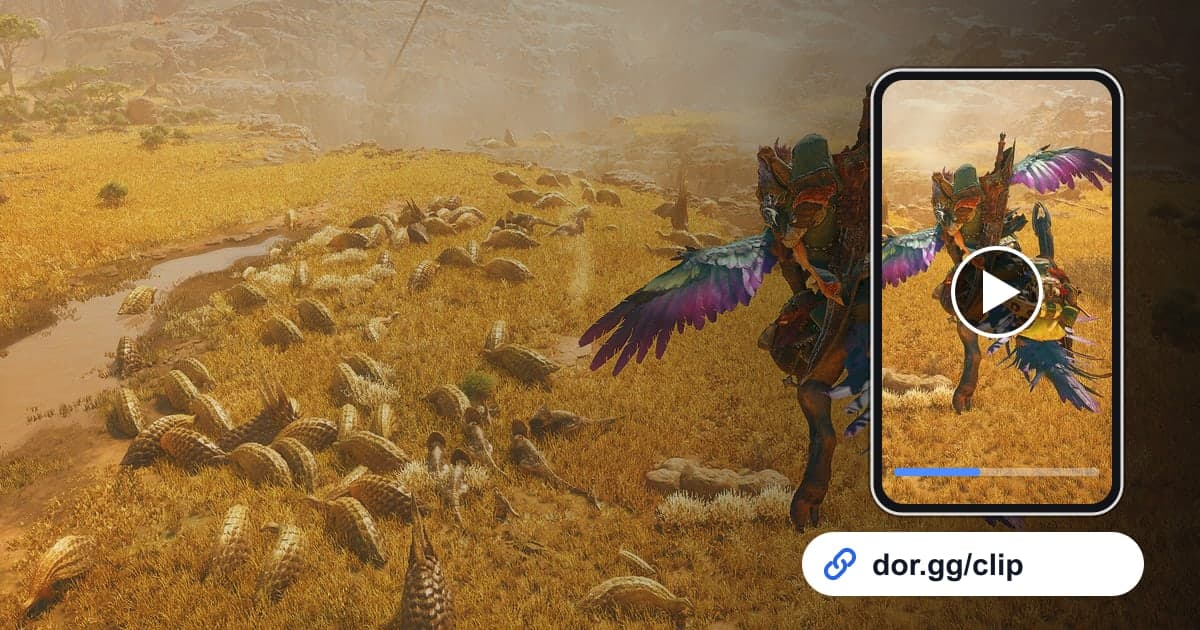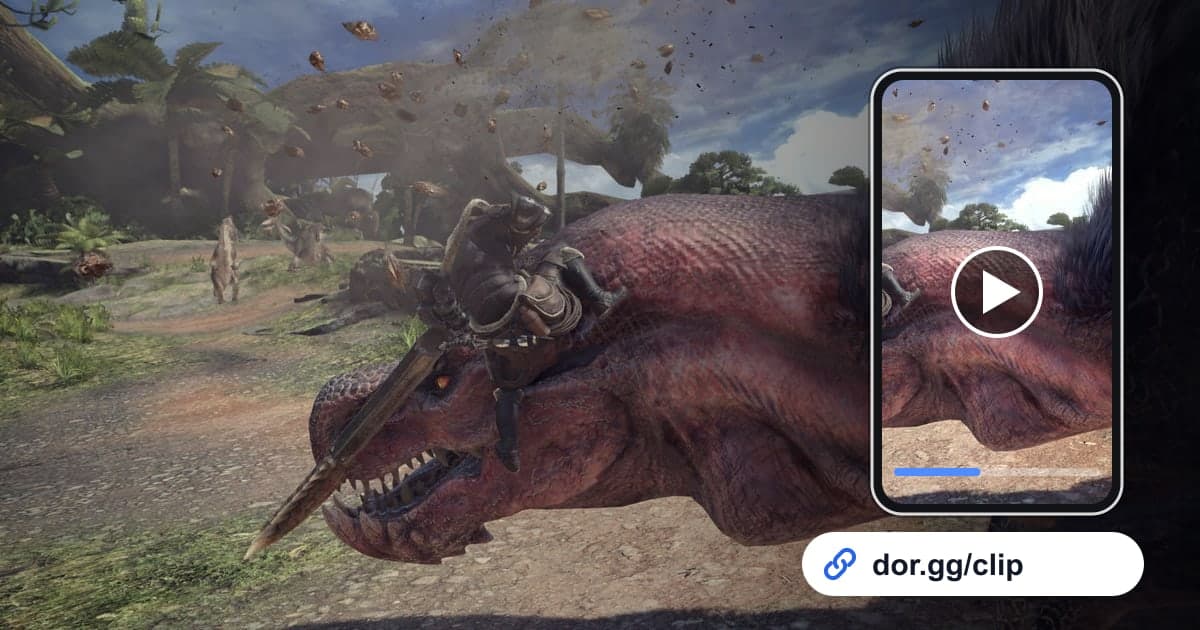
When you finally take down a monster that carted you again and again in Monster Hunter: World, or trap one as it limps away, that is a moment you want to rewatch with your party. This guide covers one method: record Monster Hunter: World with DOR, trim just the decisive moment of the hunt, and send it to your party or friends as a dor.gg link. The game involves long stretches of gearing up at base, heading out on quests, and tracking monsters, so even a single session's recording mixes several hunts with prep time. That is why you first need to know how to spot where one hunt begins and ends in the recording.
The bottom line
Launch Monster Hunter: World on a PC with DOR installed, and base time, quests, and hunts all go into one mp4. After you close the game, open the recording in the library, use the departure loading screens and the quest complete message to find the hunt you want, trim just the slay or capture, and paste the dor.gg link into your party chat. If a recording is missing or stopped partway after a long hunt, start with the disk space checks in how to fix recordings not saving.
Sending a Monster Hunter: World hunt
- 1Install DOR and launch Monster Hunter: WorldInstall the free DOR app on your Windows PC and launch Monster Hunter: World. Since the game became supported in the October 2026 app update, DOR detects it automatically and records it; the recording does not split when a quest ends and runs continuously until you close the game.
- 2Split hunts by departure loading and the complete messageA single recording repeats the same pattern: choosing gear at base, the quest departure loading screen, the hunt, and the quest complete message. Each hunt runs from a departure loading screen to a complete message, so when you scrub, count loading screens to find which quest it was. Jotting down the real-world time after a memorable hunt makes it even faster.
- 3Start slays at the final exchange, captures at the trapA slay keeps its tension when you start from the exchange just before the monster falls and run through the quest complete message. For a capture, treat everything from when the monster starts limping away to when the trap capture finishes as one block. You can drop most of the tracking and running around the map.
- 4Trim the section in the libraryOpen the recording in the library and set a start and end point in the trim tool. The large monster and the hunter need to share the frame for viewers to see what you dodged, so 16:9 is the default output ratio. If you pick a vertical ratio, keep in mind parts of the monster may fall off screen.
- 5Make a dodge compilation for same-weapon friendsFor a friend who uses the same weapon, several clips of dodging a specific attack help more than a single slay. Trim each dodge, merge them in DOR Studio, which opens in your browser, and add a short text line naming the attack to turn it into a practice video.
- 6Paste the link in your party chatAfter a co-op hunt, everyone in the party remembers the same moment from a different angle. Post your view of it as a dor.gg link in the chat, and the whole party can rewatch it without passing around a large original file.
Scenes to find in your recording at each stage of a Monster Hunter: World hunt
| Hunt stage | Scene to find in the recording | Who to send it to |
|---|---|---|
| First encounter | Following tracks until you come face to face with a large monster | A friend who has not met that monster yet |
| Turf war | Two large monsters clashing with each other | A friend just starting Monster Hunter |
| Close dodge | Rolling out of a big attack by a hair | A friend who uses the same weapon |
| Trap capture | Setting a trap in front of a limping, fleeing monster and capturing it | The party member farming capture rewards |
| Co-op slay | The party attacking together and landing the final blow | Everyone who went on that hunt |
| Cart | Getting knocked out and carried back to camp | A friend who will laugh with you |
Check before you send a hunt video
- You left well over 20GB free before a run of back-to-back quests
- The quest you found by counting loading screens is the hunt you noted
- The slay clip includes the quest complete message
- The capture clip starts before the trap is set
- Party members' names or chat are fine to show
- Anything said on your mic is fine to share
What DOR does in Monster Hunter: World
DOR is a free Windows desktop app. When you launch Monster Hunter: World, it detects the game automatically and records it with full-session recording: everything from launch to exit is one mp4, with no splitting by quest and no automatic clips that pick out the slay, so you trim hunt scenes from the recording yourself. What gets recorded is the screen on your own PC, with game audio and your mic together, and with an NVIDIA graphics card, NVENC hardware encoding is the default. Long play fills the disk quickly, and as the app settings note, recording stops automatically when free space drops below 20GB. On days you do not need recording, you can turn off just this game in the full-session recording group in settings, and a confirmation dialog appears when you do. For setting precise start and end points, see how to trim game clips, and for the Studio screen you use to build a dodge compilation, see the DOR browser clip editor.