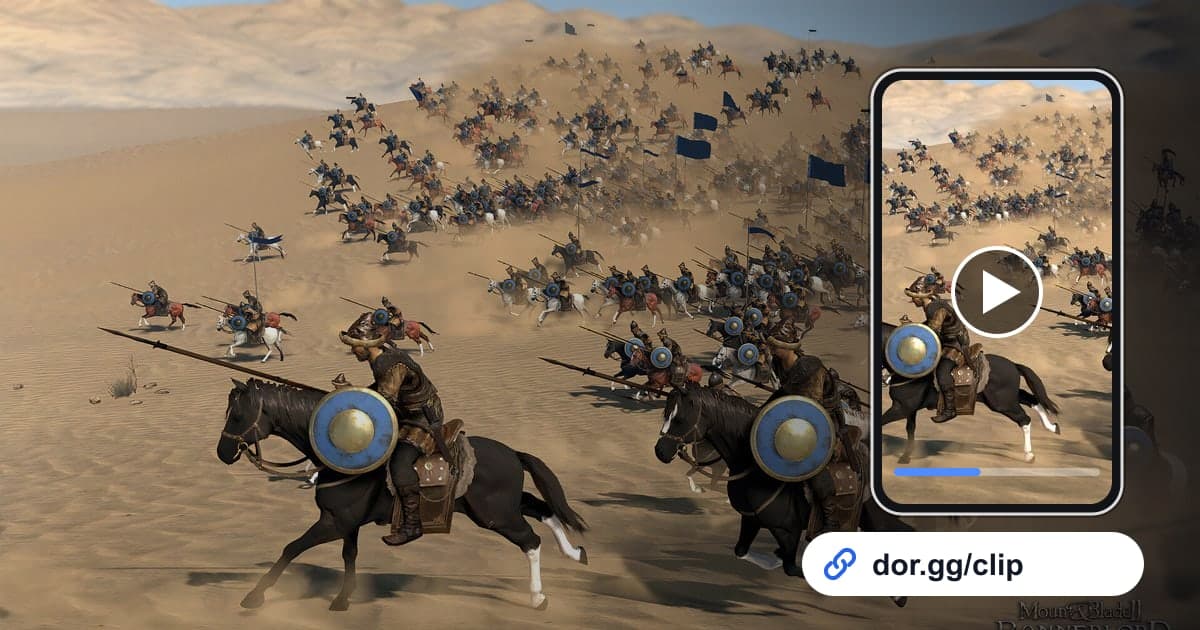
To show a friend the moment you climbed the walls and opened the gate in Mount & Blade II: Bannerlord, or the charge where your cavalry split the enemy line, record with DOR, trim that stretch, and send a link. Bannerlord became a DOR 'full-play recording' game in the October 2026 app update. When you launch the game, DOR detects it and keeps everything until you quit as one video. A Bannerlord campaign involves long stretches of crossing the map of Calradia, recruiting troops, trading and negotiating with lords, so the actual fighting is scattered across the recording in short bursts. This guide covers how to pick out sieges, cavalry charges, tournaments and large field battles and send them.
Send a whole battle, or only the best moments?
A siege is most fun when the flow is intact, from ladders and siege engines reaching the wall to the gate giving way, so it usually works best as a single segment a few minutes long. A field battle with hundreds of soldiers, on the other hand, is mostly lines forming up and marching closer, so trimming just the first clash and the finish and joining them conveys the scale even in a short video. For joining several segments into one, see how to merge multiple game clips.
Picking battle moments from a campaign recording and sending them
- 1Check that Bannerlord recording is on in settingsIf Bannerlord is switched on in the 'full-play recording' group in DOR settings, recording starts automatically the moment you launch the game on your Windows PC. A confirmation window appears when you turn it off, so it is hard to disable by accident.
- 2Use the deployment screen before a battle as your landmarkMost of a Bannerlord recording is map travel and town menus. The point where the game switches to the battle map and you deploy your troops is where the fight begins, so scrub the timeline looking for that screen first. Jotting down roughly when you fought a big battle makes it even faster.
- 3Cut sieges generously, starting before the wallsIn a siege, the ladders going up and soldiers climbing onto the walls are the show. Start about 30 seconds before you reach the walls and end when the gate opens or the walls are taken, so your friend can follow which castle fell and how.
- 4Keep cavalry charges and duels shortThe heart of a cavalry charge is from the moment the horses pick up speed to the moment they hit the enemy line. For a first-person melee duel, keep just 10-20 seconds and trim it to 9:16 or 1:1 so the direction of each swing reads well on a phone screen.
- 5Trim the start and end of field battles and join them in the studioTrim the first collision between the armies and the moment the enemy breaks as separate clips, then merge the two in the browser-based DOR Studio. Adding text with the battle name or the opposing faction helps friends who do not know your campaign understand what happened.
- 6Send the trimmed video as a link to friends who playVideos made with the trim tool in the app library or in the studio can be shared as a dor.gg link. Paste it into your chat and friends play it right away in a phone or PC browser without installing anything.
Picking Bannerlord moments by type of battle
| Battle type | Clue for finding it in the recording | Suggested length and ratio |
|---|---|---|
| Siege wall assault | Ladders and siege engines moving toward the walls | 1-2 minutes around the gate breaking, 16:9 |
| Cavalry charge | Mounted troops riding out in front of the line | 20-40 s from the start of the charge to impact, 16:9 |
| Town tournament final | Entering the arena with your final opponent | The whole final bout, 16:9 |
| Large field battle | Troop deployment and the two armies facing off | Join 30 s of first clash and 30 s of the finish |
| First-person melee duel | The stretch where you switched to first person | 10-20 s of the duel, 9:16 or 1:1 |
| After the battle | The screen where you sort loot and prisoners | 15 s around the results screen, 16:9 |
Before you send
- Bannerlord is on under 'full-play recording' in settings.
- You noted roughly when the big battles happened.
- The siege segment starts as your troops approach the walls.
- Cavalry charges and duels are trimmed to 40 seconds or less.
- The first clash and finish of field battles are trimmed separately.
- You have comfortably more than 20GB of free disk space.
How DOR records and edits Bannerlord
DOR is a free Windows desktop app. When you launch Bannerlord, it detects the game and records everything until you quit as one mp4 video. It does not automatically cut out siege victories or tournament wins, so you find the moment in the app library and set a start and end point with the trim tool. Output ratios are 16:9, 9:16 and 1:1, and tips for choosing your start and end points are in how to trim game clips. To join several segments, use DOR Studio, which opens in your browser with nothing to install: it handles length, merging, effect templates, text, background music and volume, and you download the result as an mp4 or share it as a link. For keeping hours-long campaigns recorded smoothly to the end, see recording long gameplay without stutter. Game sound and your mic are recorded together, so the orders you shouted during the charge stay in the video too.