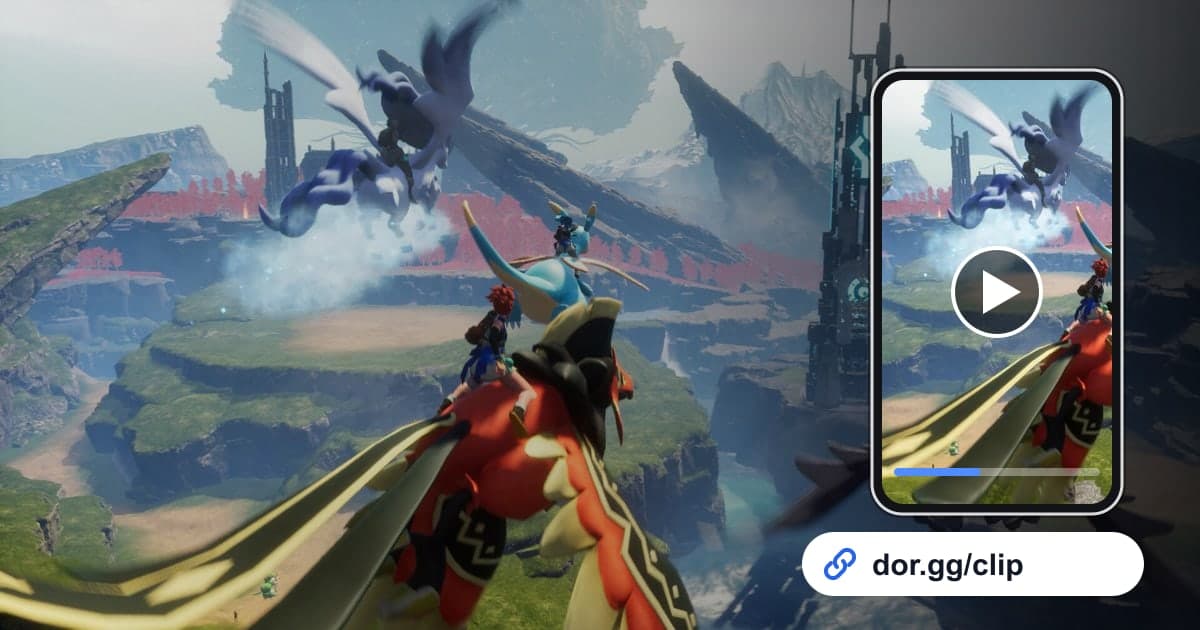
If you finally caught a boss Pal after several attempts, or spent days finishing a base, showing a short clip beats describing it in chat. This guide covers one method only: record Palworld with DOR, cut out the part you want, and send it to friends as a dor.gg link. A single Palworld session can run for hours of gathering, building and exploring, so the recording gets just as long. That means the real skill is not the recording itself but finding the moment worth showing inside a long video and trimming it cleanly.
The short answer
Play Palworld on a PC with DOR installed and the whole session is saved as one video. When you are done, open that video in the library, set a start and end point around the capture or the lap around your base, and paste the dor.gg link it creates into your group chat. Tips for landing the start and end points precisely are in How to Trim Game Clips.
Sending a Palworld moment to friends, step by step
- 1Install DOR and launch PalworldInstall the free DOR app on your Windows PC and start Palworld. DOR detects the game automatically and starts recording. Palworld is not split into matches; everything from launch to exit becomes one video.
- 2Note the time when something worth sharing happensThe recording includes travel, gathering and waiting on builds, so finding one capture in a multi-hour video is hard. Jot down the time on your PC clock or phone right after you catch the boss or finish construction, and you can jump straight to that point later.
- 3Exit and pick the recording in the libraryWhen you close Palworld, that session lands in the library as one mp4. If you launched the game several times that day you will have several videos, so start with the one that covers the time you noted.
- 4Trim just the capture or base segmentSet the start and end points in the trim tool. For a capture, the tension right before the result is the point, so leave a little extra at the front. For a base tour, cut as soon as the lap is done. Pick 16:9 to keep the PC view, or 9:16 or 1:1 if you know your friends will watch on their phones.
- 5Send the dor.gg link to your server friendsOnce trimming finishes, you get a dor.gg link. Paste it into the chat where your server group hangs out or into a direct message. There is no need to pass the large original file around.
- 6Combine several moments in the studioTo show a capture and a base tour back to back, open DOR Studio in your browser, merge the videos and add text such as the Pal or base name. Share the result as a link or download it as an mp4.
What to cut for each Palworld moment
| Moment to show | Where to start and stop | Who to send it to |
|---|---|---|
| Boss Pal capture | From when the boss is nearly out of health until the sphere result appears | The friend who attempted the fight with you |
| First rare Pal capture | From first spotting that Pal in the field to the successful capture screen | The friend hunting the same Pal |
| Finished base tour | One lap from the base entrance past workbenches, Pal assignments and defenses | Server friends who asked to see your base |
| Multiplayer server raid | From the group heading out to the takedown and splitting the loot | Everyone who was online with you |
| Pal-caused mishap | A few seconds before the accident through everyone reacting, kept short | The friend who missed that night |
| Before-and-after build | Two segments of the same spot, before construction and after | The friend who planned the layout with you |
Check before you send
- At least 20GB of free disk space remains (below that, recording stops automatically)
- You know which recording contains the capture or build time you noted
- You are fine with other server members' names or chat showing in the clip
- Your mic did not pick up a private conversation
- The aspect ratio matches whether your friends will watch on a phone or a PC
- The base tour does not drag by repeating the same route
What DOR does with Palworld
DOR is a free Windows desktop app. When you launch Palworld, it detects the game and records it with full-session recording: everything from launch to exit is one mp4. There are no automatic clips that pick out captures or kills, so you find and trim moments yourself. As the app settings note, recording stops automatically when free space drops below 20GB. On NVIDIA graphics cards, NVENC hardware encoding is the default, and game audio and your mic go into the same video. To string several captures into one video, see How to Merge Game Clips, and for a walkthrough of the studio screen, see The DOR Browser Clip Editor.