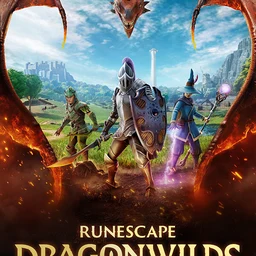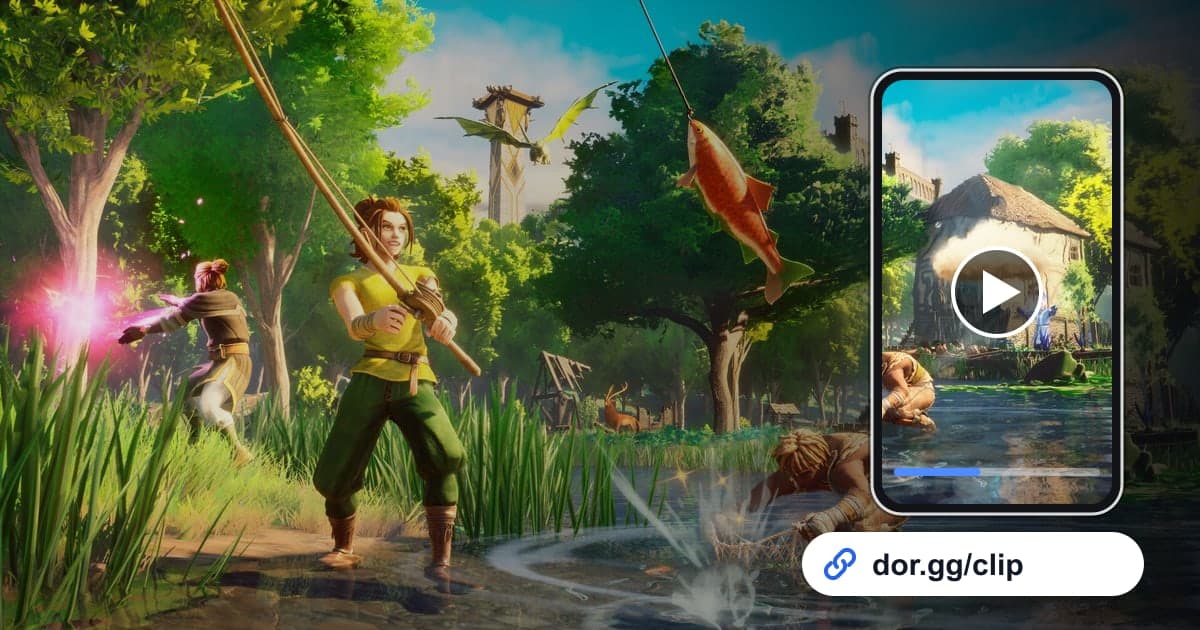
If you spent several days building a base with friends in RuneScape: Dragonwilds and took down some tough monsters, record it with DOR, trim the parts you want to show, and send them as a link. Dragonwilds is a co-op survival adventure from Jagex: on Ashenfall, the forgotten continent of the RuneScape world, you gather, build, and level your skills on the way to facing the Dragon Queen. You can play it on Windows PC alone or with friends. With the October 2026 app update it became a 'Full play recording' game in DOR, so when you launch it, DOR detects it automatically and keeps everything until you quit as one video. Because it is a survival game, most of the footage is repetitive resource gathering, so this guide focuses on picking out the moments worth watching that are hidden in between.
For Co-op Sessions, Check Your Mic First
Half the fun of a Dragonwilds video comes from what gets shouted mid-game. DOR records game sound and your mic together, so before you start, make sure the mic you use is set as the default Windows input device; then the yell when you first spot a monster or what you said while debating where to put the base will be kept as it happened. For balancing mic and game sound, see how to record game sound and mic together. Co-op sessions also tend to run long and fill the disk fast, and recording stops automatically when free space drops below 20GB, so check your space before you begin as well.
How to Pick Scenes From a Dragonwilds Recording and Send Them
- 1Check recording settings and disk space, then log inIn DOR settings, make sure RuneScape: Dragonwilds is on in the 'Full play recording' group and that you have well over 20GB of free space. Launch the game and recording starts automatically, continuing while you join a friend's world to play together.
- 2Film the base before and after from the same angleBefore you start building, show the empty site for a few seconds, and hours later show the same spot again from a similar angle. Trim the two shots and join them, and the change comes across at a glance without showing the whole process.
- 3Skip the resource-gathering stretchesStretches of chopping, mining, and crafting barely change on screen, so you can spot them even while scrubbing quickly. Stop where the screen changes sharply from combat or travel and check what happens around that point.
- 4Use rising voices as a markerWhen you meet a strong monster, your own voice gets louder or you burst out laughing, and the combat audio picks up. Keep the sound on while you play back in the library and you will hear those moments before you see them; set the start point a few dozen seconds earlier.
- 5Use 9:16 for spells and 16:9 for building and fightsA short scene showing off one spell keeps your character centered, so it reads well as a 9:16 vertical clip. Wide views of the base or several people fighting together need room on the sides, so choose 16:9.
- 6Post the link in your party chatPaste the dor.gg link you created by finishing the trim into your group chat with the friends you play with. Friends who could not log in that day can play it right in the browser without the app and see what they missed.
How to Capture Each Kind of Dragonwilds Moment
| Moment | How to find it in the recording | Best ratio and who gets it |
|---|---|---|
| Choosing your first base site | Right after starting a new world, when you place the first walls and floors | 16:9, for the party member who helped pick the spot |
| A tour of the finished base | The stretch where you finish building and walk a loop around it | 16:9, for a friend who could not play with you |
| Casting a new spell for the first time | The first time you use a spell earned by leveling a skill, like felling a tree with a spectral axe | Short 9:16 clip, for a friend thinking about trying the game |
| Fighting Garou or Black Knights | The stretch where your voice or the combat audio suddenly gets loud | 16:9, 1–2 minutes, for the party members who fought with you |
| Taking down a tough foe like a Zogre | Just before you pick up the loot after the kill | 30 seconds around the final hit, for the group chat |
| Facing a dragon | Near the time you wrote in your session notes | 16:9, from just before the encounter to the outcome, for the whole party |
Before You Send a Co-op Video
- RuneScape: Dragonwilds is turned on under 'Full play recording' in settings.
- You cleared well over 20GB of free space before a long co-op session.
- Your mic is set as the default input device so your voice is recorded.
- You filmed the base before and after from the same spot.
- Stretches of nothing but gathering are cut out of the video.
- You chose 9:16 or 16:9 to fit each scene.
How DOR Records Dragonwilds
DOR is a free Windows desktop app. When you launch RuneScape: Dragonwilds, it detects the game automatically and records one mp4 video until you quit; it does not cut boss kills or finished builds into automatic highlights. Open the recording in the app library, set the start and end points with the trim tool, choose 16:9, 9:16, or 1:1, and a dor.gg link is created. To bundle before-and-after base shots or several fights into one video, open the DOR Studio in your browser with no install, merge the videos, add dates as text, and adjust background music and volume. For a tour of the Studio, see editing clips in your browser, and for shaping spell scenes into vertical videos, see how to make a vertical game video. Download the result as an mp4 or share it as a link. When you don't want to record this game, turn it off per game under 'Full play recording' in settings; a confirmation window appears when you do.