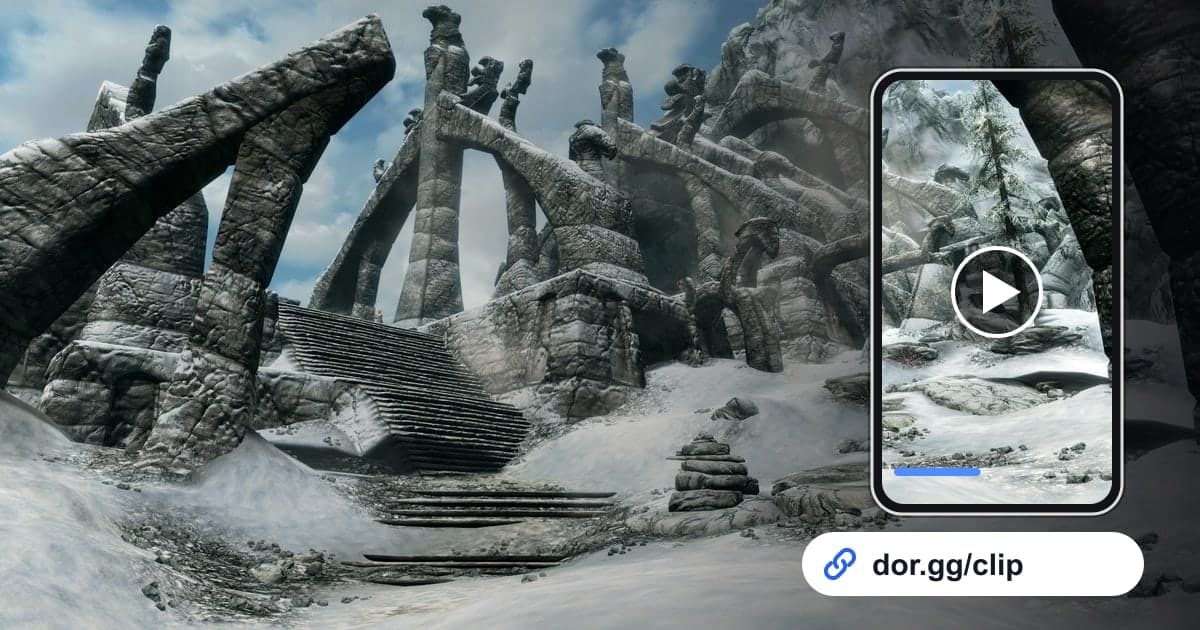
Everyone who plays Skyrim ends up with a different story. The dragon that swooped over a hill and that you barely brought down before absorbing its soul, the Shout that sent an enemy off a cliff, the trap-filled barrow you fought through to reach the treasure at the end: these are the moments you want to show a friend. This guide covers one method only: record The Elder Scrolls V: Skyrim Special Edition with DOR, find that scene in hours of exploration footage, trim it, and send it as a dor.gg link. In an open world where you never know when the next big moment will happen, the focus here is on the clues that help you find scenes fast and the right length for each kind of scene.
Record the whole journey, send only the stories
DOR saves Skyrim Special Edition as a whole-session recording. From loading your save after launch until you quit, everything goes into one video: riding between towns, sorting your inventory at a merchant, combat, and dialogue. DOR does not detect dragon kills or Shouts to make separate clips, so you find each scene in the recording and cut it out with trimming. The basics of keeping only the part you need from a long video are covered in how to trim game clips. Long exploration sessions grow recordings quickly, and recording stops automatically when free space on the drive drops below 20GB.
Sending one scene from your Skyrim adventure
- 1Load your save with DOR runningDOR is a free Windows app that detects supported games when they launch and starts recording automatically. It is a solo game, but if you like talking to yourself or narrating while you explore, plug in a mic. Game sound and your voice are captured together in one video.
- 2Glance at the clock when a dragon appearsDragon fights are the classic scene that can start at any time. When you hear a roar overhead and the combat music changes, glance at the clock on your phone. The soul absorption will be within a few minutes of that time, so it is quick to find in the recording.
- 3Use loading screens as boundaries between placesA loading screen appears every time you enter a city, a barrow, or a house. When scrubbing through the recording in the library, use these screens as landmarks to separate outdoor exploration from dungeons, and start a barrow clip right after the loading screen at its entrance.
- 4Match the length to the sceneShouts and finishing moves look best short, with just a few seconds on either side, around 15 seconds total. A dragon fight runs a little over a minute from the moment it lands to the soul absorption, and vistas deserve 30 seconds or more so the music can breathe.
- 5Trim and create the linkIn the library's trimming tool, set the start and end and choose an output ratio. Wide snowfields and dragons in flight suit 16:9, while a Shout that happens in the center of the screen can be cut to 9:16 for a friend watching on a phone. When it finishes, a dor.gg link is created.
- 6Add one line about where it happenedFor a friend who plays Skyrim, one line about which region or which barrow it was is enough to start a conversation. For friends or family who do not know the game, send a single vista or Shout clip first with no explanation.
Clues in the recording and who to send each scene to
| Scene | Clue in the recording | Send it to |
|---|---|---|
| Dragon kill | Streams of light flowing from the fallen dragon into your character | A friend who also plays Skyrim |
| One big Shout | The Shout's sound and an enemy flying backward | A friend who will laugh even without knowing the game |
| Word Wall | The sound at the wall and the glowing letters | A friend collecting Words of Power |
| Barrow run | From the loading screen at the barrow door to the treasure chest | A friend who loves dungeon crawls |
| Finishing move | The camera change on the final blow | A friend who loves combat scenes |
| Snowy vista | Riding a horse up a snow-covered mountain path | Family, or a friend deciding whether to buy the game |
Checks before sending a Skyrim scene
- The dragon fight clip includes the soul absorption.
- The Shout clip starts just before the Shout and ends when the result is visible.
- The barrow run starts after the loading screen, cutting out pointless walking.
- No inventory-sorting footage slipped into the clip.
- Before a long exploration session, you confirmed the drive has well over 20GB free.
- You opened the link once to make sure the Shout and the music sound right.
How DOR keeps your Skyrim exploration
DOR is a free Windows desktop app. Since the October 2026 app update, The Elder Scrolls V: Skyrim Special Edition is a supported game: when you launch it, DOR detects it automatically and records the whole session as one mp4 until you quit. You can turn whole-session recording on or off per game in settings. Trim a section in the app library to make a dor.gg link, and your friend taps it to watch in a browser without downloading a file. To keep the narration you record while exploring from getting buried under game sound, check recording game sound and mic together for tips on balancing the two. If you want to combine several scenes and lay down background music, the browser-based DOR Studio lets you merge videos and add text and effect templates, and adding music to game videos explains how to pick tracks and set volume.