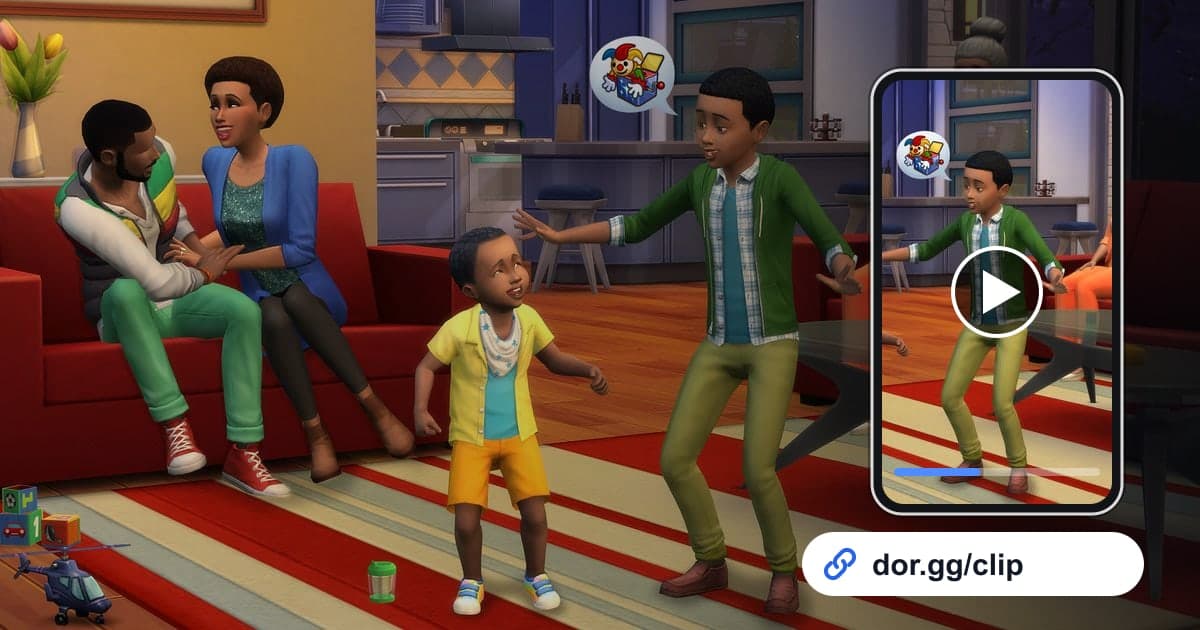
What you want to show from The Sims 4 usually falls into two kinds: the house you spent all evening building, and the things your Sims did when you least expected it. A home that started as an empty lot and grew wall by wall and piece of furniture by piece of furniture deserves a video tour rather than a screenshot, and a sudden kitchen commotion or the moment a child grows into an adult is a story on its own. This guide covers one method only: record The Sims 4 with DOR, find those scenes in a long play recording, trim them, and send them as a dor.gg link. It is split into tips for shrinking a process that takes hours, like a house build, and tips for not missing mishaps that are over in a moment.
Record the whole session, choose only the moments to show
DOR saves The Sims 4 as a whole-session recording. From launch until you quit, everything goes into one video: choosing a hairstyle in Create-a-Sim, swapping wallpaper in Build mode, and your Sims living their day in Live mode. DOR does not detect a finished house or a mishap to make separate clips, so you find each scene in the recording and cut it out with trimming. Many evenings go to building a single house, so recordings get long, and it helps to review recording long gameplay without stutter first to keep them stable to the end. Also remember that recording stops automatically when free space on the drive drops below 20GB.
Sending a finished house or a Sims mishap to a friend
- 1Start the game with DOR runningDOR is a free Windows app that detects supported games when they launch and starts recording automatically. If you want to explain your concept out loud while you build, plug in a mic. Game sound and your voice end up in one video, so there is less to explain later.
- 2Note the time when you start and finish each build stageBuild mode work runs for hours, and similar screens repeat throughout the recording. Jot down the taskbar clock whenever a stage ends, such as starting on the empty lot, finishing the walls, and placing the last piece of furniture, and you can find each stage quickly later.
- 3Pause and check the time when a mishap happensLive mode mishaps pass in an instant. When something funny happens, pause the game for a moment and check the time. Recording keeps going, so the scene before the pause is already saved, and the few seconds right before that time are what you will send.
- 4Cut a few seconds from each stage of the buildSending an hours-long build as is makes it hard for a friend to watch to the end. Trim the foundation going up, the walls and roof appearing, one room being finished, and a walkthrough of the completed house to about 5 to 15 seconds each, and the process becomes short and tidy.
- 5Pick a ratio for the viewer's device and create the linkChoose an output ratio in the library's trimming tool. A full exterior suits 16:9, a scene focused on one room or one Sim suits 9:16 for a friend on a phone, and 1:1 works if you want it to show as a square in a messenger. When it finishes, a dor.gg link is created.
- 6Add one line about the family or the houseSend the link with one line about the concept behind the house or how many generations the family has lasted. If your friend plays too, ask what room you should add next.
Scenes by play mode and what the viewer will enjoy
| Play mode or moment | Clue in the recording | What the viewer will enjoy |
|---|---|---|
| Create-a-Sim | The editing screen with a single Sim standing in the center against a changing backdrop | A before-and-after comparison |
| Build mode foundation | Floors and walls first rising on an empty lot | Watching the frame of the house appear |
| Furnishing | Rooms filling up with furniture one by one | One room that shows off your interior taste |
| Finished house walkthrough | The stretch after building where the camera turns slowly | The exterior and room layout at a glance |
| Live mode mishap | The moment the mood shifts and Sims start scrambling | A laugh that needs only a few seconds |
| Aging up and generations | The moment a Sim's look changes after a birthday | Shared feelings with a friend who followed the family |
Checks before sending a Sims 4 scene
- The build video includes each stage in order, from foundation to finish.
- Long stretches of browsing the catalog and deciding are cut out.
- The mishap clip starts just before the event and includes the reaction.
- The walkthrough of the finished house uses a stretch where the camera moves slowly.
- Before a long build session, you confirmed the drive has well over 20GB free.
- You opened the link once to make sure the house layout is easy to read on a phone.
How DOR keeps your Sims 4 sessions
DOR is a free Windows desktop app. Since the October 2026 app update, The Sims 4 is a supported game: when you launch it, DOR detects it automatically and records the whole session as one mp4 until you quit. You can turn whole-session recording on or off per game in settings. Trim a section in the app library to make a dor.gg link, and your friend just taps it to watch, with nothing to install. To join your stage-by-stage build clips into one piece and add short text and background music to each stage, use the DOR Studio covered in the browser clip editor; the finished video can be shared as a link or downloaded as an mp4. If you plan to polish the finished house into a vertical video for Reels, also check the ratio and length guidance in posting game clips to Instagram Reels.