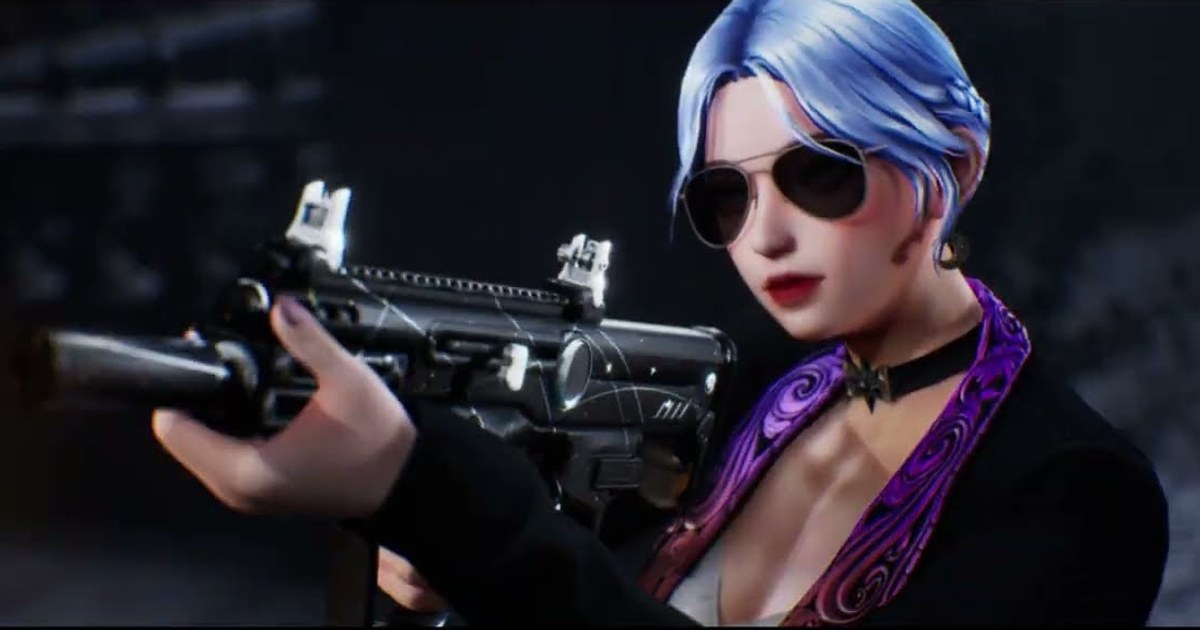
The short answer is that you never have to press a record button for Sudden Attack. Install DOR, launch the game, and DOR detects it and records the whole match, with every recording collected in My Clips inside the app.
Your only job comes after the match: pick the one moment you want to post and set its start and end. A sniper streak, a Bomb Mission clutch or a clan war decider fits easily into a few dozen seconds, and the details of choosing clean start and end points are covered in how to trim game clips.
It helps to think of recording and cutting as two separate jobs. Recording is finished the moment the game is open, and cutting happens once after the match. That means you can stay focused on playing instead of worrying about missing a good moment while it happens.
Bottom line: recording is automatic, cutting happens once after the match
The easiest workflow for Sudden Attack is to let DOR record the full match and then trim only the moments you like. Because the entire match is saved, you can keep the setup before a kill or the last fight of a Bomb Mission with plenty of context on both sides.
All that is left to decide is the length and aspect ratio for wherever you are posting. If you simply want to send a clip to a friend, the quick route is in how to send Sudden Attack videos to friends. This guide stays on the earlier steps: recording settings and cutting the moment.
From recording a Sudden Attack match to saving the moment
- 1Install DOR and launch Sudden AttackDOR is a free Windows desktop app. After installing it, start Sudden Attack and DOR detects the game and records the whole match. You do not press a record hotkey or select a screen area.
- 2Start with the default recording qualityFree quality offers 720p and 1080p at 30 or 60fps, and the default is 1080p at 30fps. Raise it to 60fps only if you want fast sniper fights to look smoother. 1440p, 4K and 120 or 144fps are part of DOR Pro.
- 3Open the recording from My Clips after the matchRecordings collect in My Clips in the app. If you played several matches in a day, note the map and time, then open that recording and drag the playback bar to where the kill feed fills up.
- 4Set the start, end and ratio with the trimmerIn the app trimmer, set the start and end points and choose 16:9, 9:16 or 1:1. For a sniper play, start just before you open the scope, and for a Bomb Mission, end a moment after the round result appears.
- 5Polish it in the studio if you want moreTo join several moments, add text or BGM, or use effect templates such as shake zoom, open DOR Studio at dor.gg/studio. Download the finished video as an mp4 or share it as a dor.gg link.
Length and aspect ratio by where you post
| Where you post | Suggested length and ratio | What to watch when trimming |
|---|---|---|
| Friends or clan chat | 15 to 40 seconds, 16:9 | Start just before the first aim so the fight has context |
| Shorts, Reels or TikTok | 15 to 45 seconds, 9:16 | Vertical keeps only part of the screen, so check the crosshair and kill feed stay inside |
| Regular YouTube video | 1 to 3 minutes, 16:9 | Join several moments together in the studio |
| Community forum post | 10 to 30 seconds, 16:9 | Keep a single short moment to reduce file size |
| Clan review | Whole round, 16:9 | Skip trimming and share the full match recording |
| Sniper streak showcase | From just before the first aim to just after the last kill feed entry | Shorten the quiet stretch in the middle |
Check before you save
- Confirm the clip starts a few seconds before the moment so the context is visible.
- Confirm the kill feed and round result are included at the end point.
- If you switched to vertical 9:16, preview it to see that the crosshair and kill feed stay on screen.
- If your mic or voice chat picked up other people, listen all the way through before posting.
- If you played several matches in a day, label files by map name and time.
Record and edit Sudden Attack in one place with DOR
As of November 24, 2026, DOR detects Sudden Attack when it launches, records the whole match, and keeps game sound and your microphone on a single track.
On supported NVIDIA graphics cards such as the RTX series, it records with NVENC hardware encoding, and if the game stutters you can drop to 720p at 30fps. You trim recordings in the app, then continue in DOR Studio to join moments, add text and BGM or change the aspect ratio. Finished videos carry no watermark. For the whole editing flow in one read, see the complete game video editing guide.