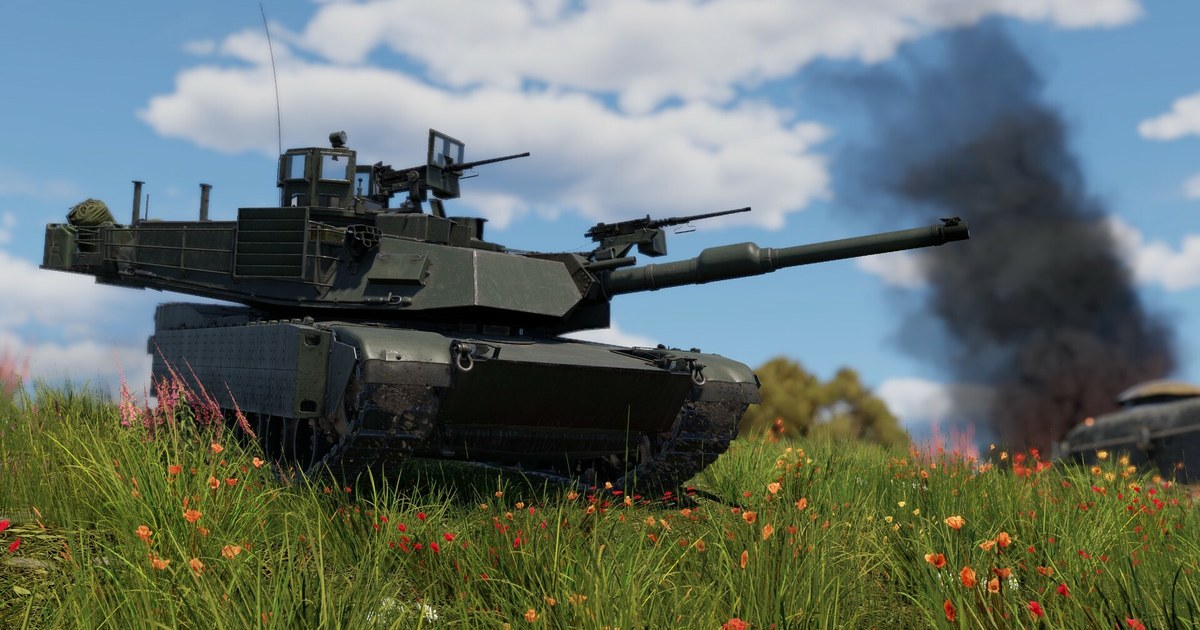

Here is how to watch War Thunder replays. Open the match you just finished from Community > Replays in the top left of the hangar, and use server replays on the official website when you want to see where an enemy shot from or find another player's match.
Both kinds of replay stop opening after a major patch, so the safest way to keep a battle long term is as a video.
If you leave DOR running and launch War Thunder, everything from the moment the game starts until you close it is recorded automatically, and the recording stays as an mp4 video you can rewatch no matter what patch comes next.
This guide is based on the PC (Windows) version as of November 29, 2026, and walks through the difference between client and server replays, the replay location, rewind settings, and what to do when replays will not open after a patch.
Bottom line: client replays to check your own match, server replays to see exactly what happened
Pick the replay type based on what you want to check. A client replay is created on your PC when you leave a match or custom battle, and you can open it straight from the hangar, so it is the fastest option.
Because it is recorded from what your own game received, the official wiki notes that it can lack some data from the battle.
A server replay is recorded by the server for every match, so you can watch the battle from any player's perspective and search for other people's matches by nickname on the official website. When you report a bug, a server replay is sent as a link rather than a file.
So use client replays for a quick look back at your own play, and server replays when you need to verify something precisely, such as a hit, or want to watch someone else's match.
How to watch War Thunder replays
- 1Open client replays in the hangarIn the hangar, open the Community menu in the top left corner and choose Replays. Your replays are listed newest first, so the match you just finished is at the top. Rename any match you want to watch again later so it is easy to find in the list. A client replay is created when you leave a match, so open the list after you have seen the battle results and returned to the hangar.
- 2Open the replay location folderPress the folder button at the bottom left of the replay list to open the folder where replays are saved in File Explorer. Replay files use the .wrpl extension and pile up in the Replays folder inside the game installation folder. These files are game data, not videos, so double-clicking them will not play anything; you have to open them from the in-game replay list. Moving them to another PC does not help if a major patch has come out since the match.
- 3Turn on snapshot recording to rewindWar Thunder replays normally play forward only. Since the Danger Zone update in 2022, turning on snapshot recording in the options places save points throughout a replay so you can jump back and forth on the playbar. The setting is off by default, and you can choose an interval of 10, 30, 60, or 120 seconds. Replays created before you turn it on still play forward only, and weaker PCs may see brief frame drops during intense battles.
- 4Find server replaysOpen the message tab at the bottom right of the hangar, click a battle, and choose View Server Replay to open that match's server replay in your browser. You can also log in to the official website and go to the replay page. Check Find replays with my participation to see only your matches, or type a nickname in the user field to find that player's matches, and filter by Arcade, Realistic, or Simulator mode, battle type, and aircraft or ground vehicles. Click watch replay, then Alt+Tab back to the game to play it.
- 5Save battles as videos before a patchThe official wiki states that a major patch makes all client and server replays invalid. Save any battle you want to keep as a video before the patch arrives. If you play War Thunder with DOR running, everything from launch to exit is recorded automatically and collected as mp4 videos in My Clips, and you can trim and save just the scenes you want.
War Thunder client replays vs server replays (as of November 29, 2026)
| Item | Client replay | Server replay |
|---|---|---|
| When it is created | On your PC when you leave a match or custom battle | On the server for every match |
| How it is recorded | From your own game, so some data can be missing | By the server, viewable from any player's perspective |
| Where to open it | Community > Replays in the top left of the hangar | A battle in the message tab at the bottom right of the hangar, or the replay page on the official site |
| Other players' matches | Only your own matches created on your PC | Search by nickname on the official site |
| Rewind | Only replays recorded with snapshots turned on in the options | Snapshot rewind is for client replays only |
| Storage | .wrpl file, open the folder with the folder button at the bottom left of the list | Shared as a link (copy link) instead of a file |
| After a major patch | Will not open | Will not open |
What to check when a replay is missing
- The match you want was played after the last major patch
- You opened the replay list after leaving the match and returning to the hangar
- If you need to rewind, snapshot recording is turned on in the options
- For another player's view or someone else's match, you searched server replays on the official site
- Your bug report includes the replay (a link for server replays) and the time the problem happened
Keep War Thunder battles as videos with DOR
DOR is a free Windows app. When you launch War Thunder, it detects the game automatically and records the whole session from launch to exit, and the recordings collect in My Clips in the app. Unlike replays, they are mp4 videos, so they keep playing after a major patch.
Scenes worth keeping, like the one shell that detonated an ammo rack or a dogfight kill, can be trimmed in the app and saved in 16:9, 9:16, or 1:1, and in DOR Studio (dor.gg/studio) you can combine several scenes, add text and BGM, and export without a watermark.
The free version lets you choose 720p or 1080p at 30 or 60fps, with 1080p at 30fps as the default. To send saved scenes to your squadron, see share War Thunder kill videos, and to capture sessions that run for hours reliably, see long gameplay recording.