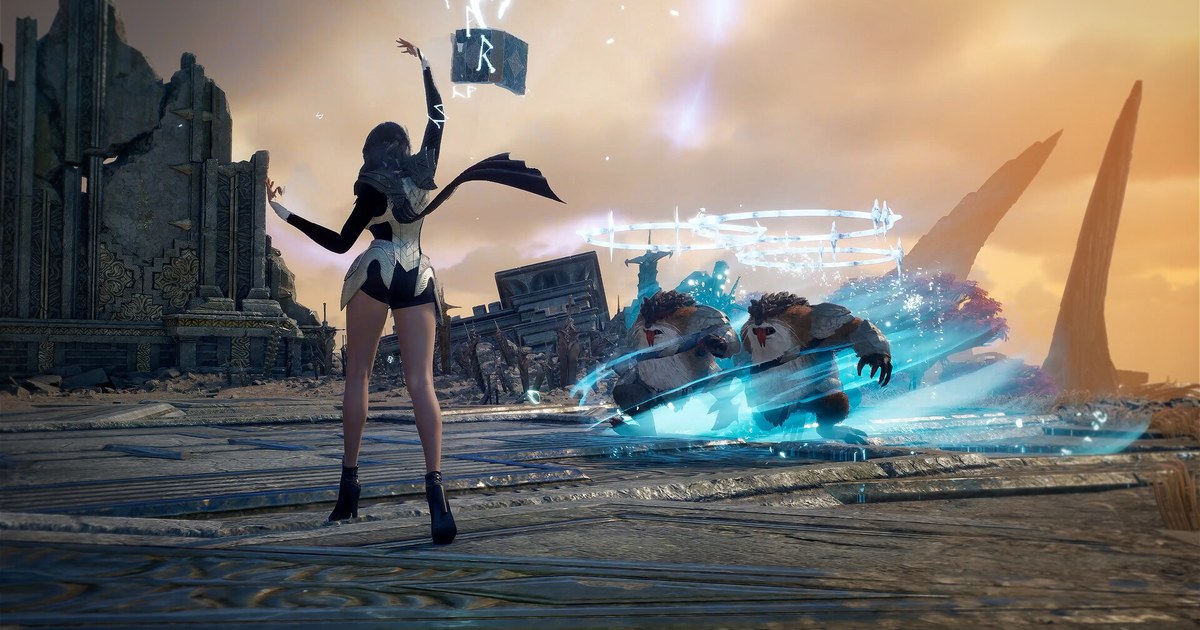

The short answer: to record AION 2, keep DOR running, play as usual, and trim only the scenes you want to keep. DOR is a free Windows app that detects AION 2 when it launches and records automatically from login to exit, and the recordings collect in My Clips inside the app.
The scene you want to show your legion is usually a few dozen seconds out of a multi hour video, so it pays to decide how to cut it rather than fiddle with recording settings.
This guide walks through picking and trimming Abyss battles, dungeon boss finishes, flight combat and gear enhancement wins, choosing a ratio, and sharing the result. The basic cutting steps are covered separately in how to trim game clips.
The answer: let auto recording cover everything and trim only the scene
In AION 2, worrying about when to hit a record button is how you miss the scene. The moment you spread your wings in the Abyss or land the last hit on a boss passes without warning. So do not think about recording while you play.
Close the game, open that day's video in My Clips and look for the scene. Loading screens appear when you enter a dungeon or move to the Abyss, and as you scrub the timeline the points where the picture changes work like boundary markers.
You can post each trimmed clip on its own or gather the scenes from one day into a single video. For where and how to post AION 2 footage, see how to share AION 2 gameplay videos, which goes through it scene by scene.
From AION 2 recording to trimmed clip
- 1Install DOR and launch AION 2 with it runningInstall the free Windows app DOR, leave it open, and launch AION 2 as usual. Recording starts when DOR detects the game, so the character select screen appearing at the start of the video is normal. Recordings carry no watermark.
- 2Play as usual and only remember roughly when scenes happenedWhen you enter a dungeon or head out to the Abyss, note a rough time such as an hour and a half after login. It cuts the search time a lot later. The app does the recording, so you can keep playing right after a boss kill without pressing anything.
- 3Close the game and open the day's video in My ClipsWhen you close the game, that day's recording collects in My Clips in the DOR app. Move the timeline near your noted time and use points where the screen changes, such as loading screens, to find the start and end of the scene. Tap Like on any video you want to keep long term.
- 4Set the start and end and cut the sectionCut from just before the scene begins to just after it ends, and pick 16:9, 9:16 or 1:1 to match where you will post. Leaving 2 or 3 seconds on each side keeps the scene from starting or ending abruptly. To join several scenes into one video, see how to merge game clips.
- 5Polish in Studio and export or share a linkIn DOR Studio (dor.gg/studio) you can combine videos, change the ratio, add effect templates such as Shake Zoom and Punch Zoom, text and BGM, and adjust volume. Export the finished video as an mp4 or send one dor.gg link to your legion's Discord or group chat.
Where to cut each AION 2 scene and which ratio to save
| Scene | Section to cut | Ratio to save |
|---|---|---|
| Abyss fortress battle | From just before the charge to the capture message, around a minute at most | 16:9 for legion chats and Discord |
| Dungeon boss finish | From the start of the last pattern to 2 or 3 seconds after the boss falls | 9:16 for short video platforms |
| Flight combat | From the wing spread approach until the opponent drops | 9:16 works because the character stays centered |
| Gear enhancement win | From just before pressing enhance to 2 seconds after the result message | 1:1 or 9:16 is easy to watch |
| Legion rally and charge | From the rally call to the end of the first clash | 16:9 keeps the whole formation visible |
| Daily recap | Take 10 to 20 seconds from each scene above and combine them | 16:9 or 9:16, whichever fits where you post |
Check before you post
- The clip has 2 or 3 seconds of margin so the scene does not start or cut off abruptly
- It is saved in the ratio that fits where you post: 16:9, 9:16 or 1:1
- Each clip contains only one scene
- Videos you want to rewatch are liked so they stay out of cleanup
- If party or legion members appear on screen, you asked whether it is fine to share
Auto record AION 2 with DOR and trim the scenes
DOR is a free Windows game recording app. When you launch a supported game such as AION 2, it detects it automatically and records your play from login to exit, and the recordings collect in My Clips inside the app.
Trim the scenes you want in the app and save them as 16:9, 9:16 or 1:1, then in DOR Studio (dor.gg/studio) combine videos, change the ratio, use effect templates (Shake Zoom, Punch Zoom, Handheld, Glitch Transition and more), add text and BGM and adjust volume, and finally export an mp4 or share a dor.gg link.
For free, recording quality is 720p or 1080p at 30 or 60fps (default 1080p at 30fps), and audio puts game sound and your microphone on one track. The original PC recording, Studio edits and exports carry no watermark.
Old videos are only cleaned up, oldest first, when you exceed the full play storage share (5GB by default), and recent recordings and liked videos stay.