Here is the short answer: for Battlefield 6, the easiest approach is not pressing a button at the right moment but letting automatic recording keep the whole match, then trimming only the best moments afterward.
Install the free Windows app DOR, launch Battlefield 6, and DOR detects the game, records the whole match on its own, and collects recordings in My Clips.
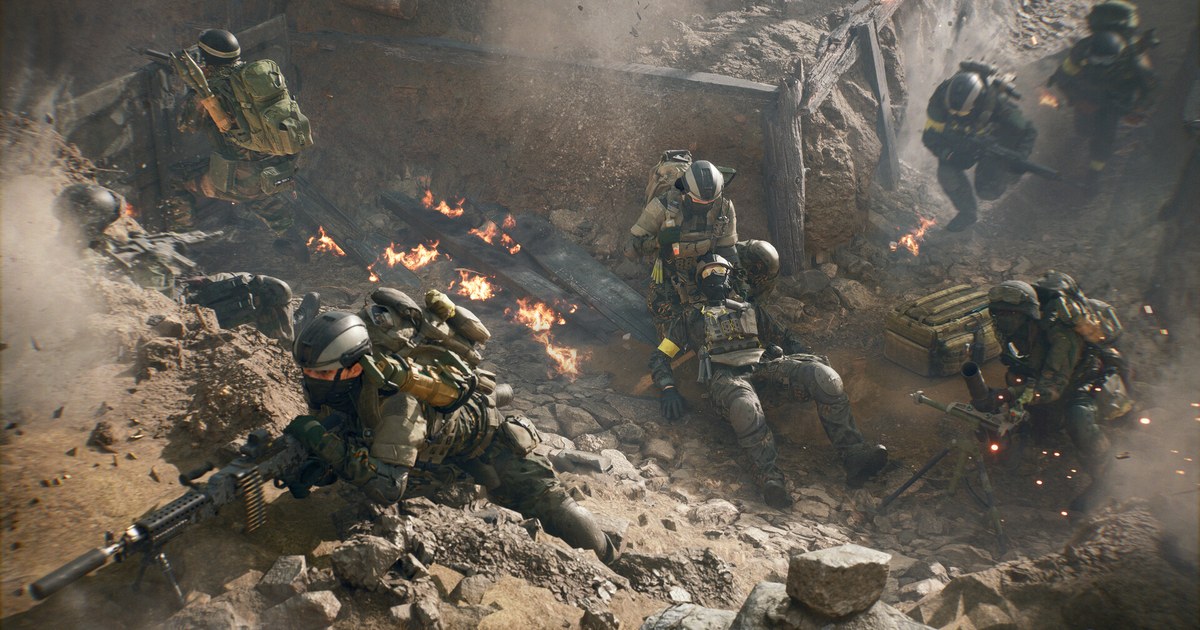
In a large scale battle you cannot predict when a helicopter will pass, a building will collapse, or your squad will flip an objective, and reaching for a hotkey in that moment often means missing it.
If you already have the full match, nothing is lost, and the trimming can wait until after the match. The basics of cutting a segment are in how to trim game clips, so this guide focuses on where to place the start and end points for Battlefield 6 scenes.
The answer: let auto recording keep the match, trim after it ends
The key in Battlefield 6 is not to think about recording during the match. DOR detects the game when you launch it and records the whole match, so while you play you can focus on the fight.
When the match ends, open the recording in My Clips, move to the moment you remember, set a start and an end point, and save only that segment. Even if the scenes are scattered, the whole match is still there to search again.
Two or three scenes per match is usually plenty, so it is fine to start by cutting only the one moment you most want to show. If you want squad calls too, connect a microphone: game sound and your mic are captured on a single track.
From recording a Battlefield 6 match to posting it
- 1Install DOR and launch Battlefield 6Install the free Windows app DOR and launch Battlefield 6. DOR detects the game on its own and records the whole match, so you do not press a record button every match, and recordings collect in My Clips. Free quality options are 720p and 1080p at 30 or 60fps.
- 2Open the recording in My Clips after the matchAfter the match, open the new recording in My Clips and move to the area around the moment you want to show. Start with the scene you remember best; two or three scenes per match is enough.
- 3Trim with some room before and afterUsing the table above, place the start a few seconds before the change begins and the end right after the result is visible, then save only that segment. To bundle several segments into one video, join them in DOR Studio with how to merge game clips.
- 4Set vertical for ShortsWhen you trim in the app, you can choose 16:9, 9:16, or 1:1. Set scenes for vertical Shorts to 9:16, and the steps for turning a wide video into a vertical one are in how to make vertical game videos.
- 5Export as mp4 or send a linkExport the finished video as mp4 or post a dor.gg link in your squad chat. The viewer watches in a web browser with no extra software, and videos made with DOR carry no watermark.
Start and end points by Battlefield 6 scene
| Scene | Where to start | Where to end |
|---|---|---|
| Flying a helicopter along the front line | The moment you board and lift off | Right after landing or being shot down |
| Pushing in with a tank or vehicle | The moment you climb into the vehicle | Reaching the objective or right after the vehicle is destroyed |
| Collapsing a building to open a path | The wall while it is still intact | After the dust settles and the path is open |
| Squad capturing an objective together | Where squadmates start moving in the same direction | The moment the capture finishes |
| Reviving a downed squadmate to keep the match going | When the position where they fell is visible | When the counterattack after the revive ends |
| Hitting a distant enemy with a sniper shot | The moment you start aiming | Right after the kill is confirmed |
Check before you post
- The recording shows up in My Clips after the match
- The start point is a few seconds before the change begins
- The end point is right after the result is visible
- The ratio matches where you post (16:9 or 9:16)
- Both your mic and the game sound made it into the audio
Record and trim Battlefield 6 in one place with DOR
DOR is a free Windows game recording app. When you launch Battlefield 6 it detects the game, records the whole match, and collects recordings in My Clips. There you can trim the segment you want and pick 16:9, 9:16, or 1:1.
In DOR Studio (dor.gg/studio) you can join videos, change the ratio, use effect templates such as shake zoom and punch zoom, add text and BGM, adjust volume, then export as mp4 or share a dor.gg link. Recordings, automatic event clips, and Studio edits carry no watermark.
Free quality is 720p and 1080p at 30 or 60fps, and 1440p, 4K, and 120 or 144fps are part of DOR Pro. On supported NVIDIA graphics cards such as the RTX series, DOR records with NVENC hardware encoding.