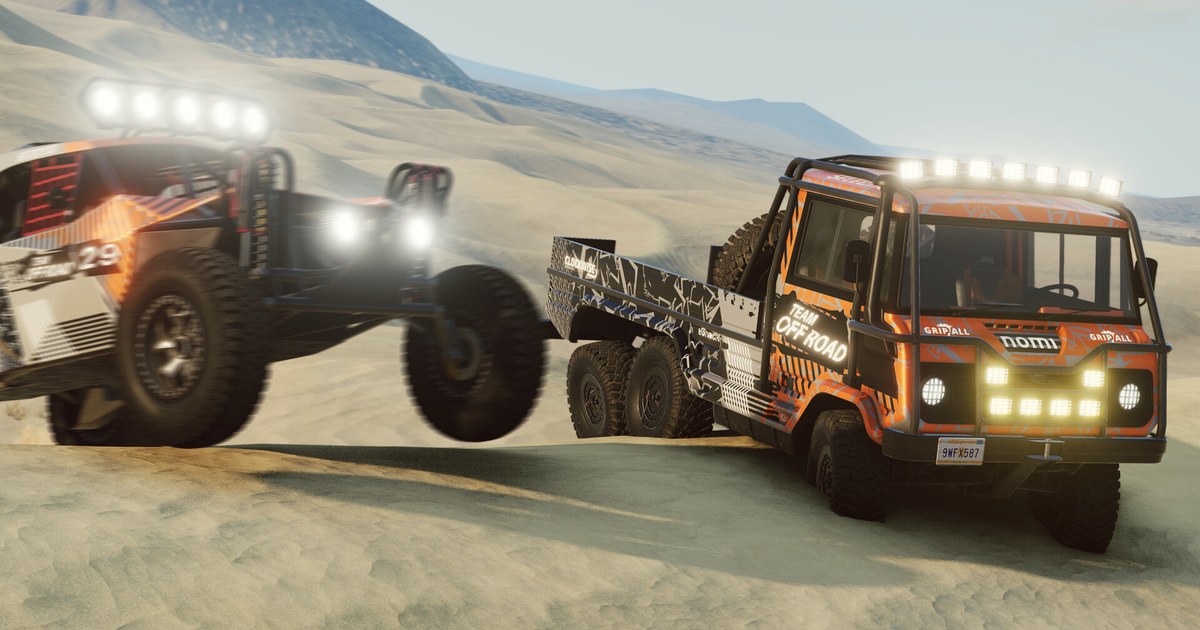

Short answer: the best BeamNG clipping software is the one that records your whole drive on its own once it is running. BeamNG.drive is a vehicle simulator with soft body physics that crumples cars in real time, so the same ramp at the same speed breaks the car differently every time.
Miss the one run that wrecked perfectly and you will struggle to recreate it. The game has a replay feature, but the official documentation says replays are not video files and points you to screen recording software if you want a video.
Tools that save the last few seconds or minutes (NVIDIA app Instant Replay, Xbox Game Bar, Medal's clip hotkey, OBS Replay Buffer) only keep a crash if you press the key right after it, while automatic session recording lets you pick moments after you finish testing.
DOR is a free Windows app that detects BeamNG.drive when you launch it and records from launch to exit, so you just cut the best wrecks in My Clips afterward. Below, a table compares how each tool saves a moment and what to know for BeamNG, followed by the steps to turn a crash into a 9:16 Short. Everything here reflects November 2026.
Verdict: session recording for repeated crash tests, replay tools for a single save
Two questions decide it: can you press a hotkey the moment the crash happens, and can your PC handle the physics and the recording at the same time?
BeamNG sessions usually mean throwing the same car at a ramp again and again, or cruising through AI traffic until something goes wrong, so you never know which attempt will be the keeper.
If missed moments have bothered you, DOR's automatic full session recording fits better; if you only want short saves and want to keep disk use low, a replay style tool fits. We explain how replay buffers work in how to save just the last few seconds as a clip, and you can see how Medal and the NVIDIA app differ in Medal vs ShadowPlay. Performance matters too.
On its Steam store page, BeamNG.drive recommends 32 GB of RAM and a Ryzen 7 3700X or Core i7 9700 class CPU (for 1080p), so it is not a light game. Check that your frame rate holds during your first recorded drive, and if it is tight, drop recording quality to 720p at 30fps and test again.
The official documentation also mentions recording a replay in slow motion to balance out performance issues. Session recording uses more disk space, but DOR only clears older videos once the full play video allowance (5 GB by default) is exceeded, and it keeps recent recordings and videos you liked.
BeamNG clipping tools compared (as of November 2026)
| Tool | How it saves a crash | What to know for BeamNG |
|---|---|---|
| BeamNG.drive in game replay | Alt+R starts recording, and pressing it again stops and saves automatically | Main Menu > Replays lets you play it back and change speed, but it is not a video file, so sharing needs a screen recorder |
| NVIDIA app Instant Replay | Keeps the most recent stretch in memory and saves only when you press a hotkey | An app for NVIDIA GeForce graphics cards, and you choose the replay length in settings |
| Xbox Game Bar | With background recording on, a hotkey saves the last 30 seconds by default | Built into Windows with nothing to install, and length is set in Settings > Gaming > Captures |
| Steam Game Recording | Background recording keeps overwriting within a disk budget you set | Turn a crash into a clip to keep it, and export it when you need an mp4 |
| Medal | A clip hotkey saves a set length, and there is also a full session mode | Uploading a clip gives you a share link right away, so it is easy to send to friends |
| OBS Studio Replay Buffer | Turn on Replay Buffer and press the save hotkey to keep the moments just before | Free and open source, and you build scenes, sources and audio yourself |
| DOR | Detects BeamNG.drive and records the whole session from launch to exit automatically | A free app that records on its own once running, and you cut crashes in My Clips and save them without a watermark |
Check these before choosing a BeamNG clipping tool
- I thought about whether I can press a hotkey the moment a crash happens
- I know the in game replay is not a video file and still needs to be recorded
- I tested once whether my frame rate holds during a crash with recording on
- I checked that I have enough free disk space for session recording
- If I use OBS, I set up the OBS Replay Buffer in advance
How to turn a BeamNG crash into a clip
- 1Open DOR before launching BeamNG.driveInstall DOR and leave it running, then launch BeamNG.drive from Steam and recording starts as soon as the game is detected. There is no record button to press, so everything is captured even while you pick a car and roam the map.
- 2Check frame rate and sound on your first driveDo a short run, crash once on purpose, then open the video in My Clips. Check that engine and impact sounds are there and that the picture does not stutter as the car breaks apart, and if it does, drop recording quality to 720p at 30fps and test again.
- 3Find the best wreck after your testsWhen the session ends, the recording lands in My Clips. If you hit the same ramp many times, jump to the attempt where the body crumpled the most and set the range from a few seconds before launch until the car comes to rest.
- 4Pick a ratio, cut and saveCut the moment in the app at 16:9, 9:16 or 1:1 and save it. If it is going to YouTube Shorts or TikTok, choose 9:16, and see how to make YouTube Shorts from gameplay for vertical framing tips.
- 5Stitch several crashes and shareIn DOR Studio (dor.gg/studio), merge clips, add text, BGM or effect templates like Shake Zoom and Punch Zoom, then export an mp4 or share a dor.gg link. For sending a quick clip to friends, see how to share a BeamNG crash video.
Keep DOR running and BeamNG.drive records itself
DOR is a free Windows game recording app. When you launch BeamNG.drive, it detects the game and records the whole session from launch to exit, and recordings collect in My Clips in the app. You never have to press a hotkey, so even the crash you did not see coming is already in the video.
Cut any moment in the app at 16:9, 9:16 or 1:1, and use DOR Studio to merge scenes or add text, BGM and effect templates. Free recording quality covers 720p or 1080p at 30 or 60fps, and on supported NVIDIA graphics cards such as the RTX series it records with NVENC hardware encoding.
Game sound and your mic are captured on one track, so your reaction at the moment of impact is kept too. Export the result as an mp4 or share it with a dor.gg link, and record, edit and share without a watermark.