The short answer: the free app that asks the least of you as an AMD recording replacement (Record & Stream in AMD Software, formerly Radeon ReLive) is DOR.
Launch a supported game and DOR detects it and records the whole match, with every recording collected in the app's My Clips, so you never need to check whether Instant Replay is on or time a save hotkey.
If you want to control the encoder, bitrate and scene layout yourself, OBS Studio lets you pick the AMD hardware encoder (AMF). If you just record something short once in a while without installing anything, Xbox Game Bar is built into Windows.
The ReLive name first appeared in Radeon Software Crimson ReLive Edition 16.12.1 in 2016, and the feature now lives in AMD Software: Adrenalin Edition as Record & Stream.
That is why the word ReLive is hard to find in the menus, even though the default save folder is still a Radeon ReLive folder inside Videos. Everything below was checked against AMD's official support articles as of November 2026. If you would rather fix AMD recording itself, start with AMD Instant Replay not working: fixes by cause.
The verdict: DOR if you want hands off, OBS if you want hands on
There is really one question: how much do you want to touch your recording setup? If you are dropping AMD recording because pressing a hotkey every match or checking that it is running got tiresome, DOR is the answer.
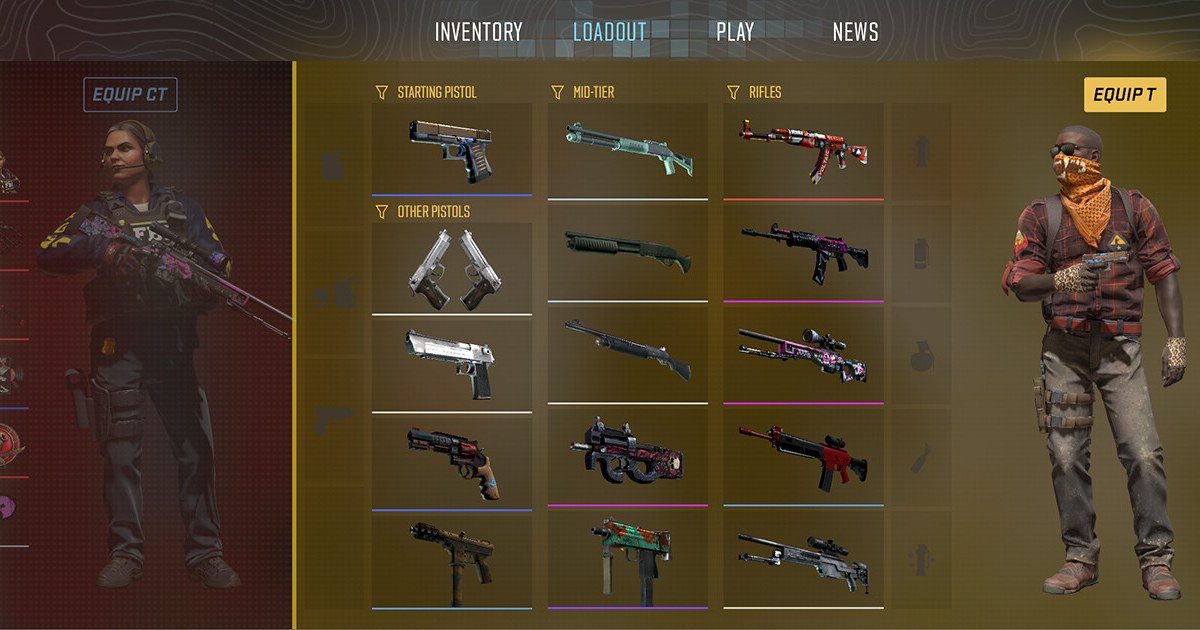
In League of Legends, VALORANT, PUBG, FC Online, Fortnite, CS2 and Overwatch, moments like kills and goals are also saved as automatic highlight clips, and in other supported games you trim the moment you want from the full match recording.
If you would rather set bitrate, resolution and scenes one by one, OBS Studio is the better fit. We compared OBS with automatic recording in OBS alternative: automatic recording. Xbox Game Bar is an option if you want to try something right away with nothing to install.
Keep in mind that AMD says running AMD recording and Windows game recording (Game DVR) at the same time is not supported, so keep only one of them on. If the hotkey is not actually the problem and your saved clips are simply missing sound, check AMD Instant Replay no audio: fix order before you look for a replacement.
Which alternative fits your situation (November 2026)
| Situation | Best fit | Why |
|---|---|---|
| Pressing a hotkey every match is a hassle | DOR | Launch a supported game and the whole match is recorded automatically and collected in My Clips |
| You only want the kill and goal moments | DOR automatic highlights | In LoL, VALORANT, PUBG, FC Online, Fortnite, CS2 and Overwatch, moments are saved as automatic clips |
| The Record & Stream menu is missing | Reinstall with the Default type, or DOR | Per AMD, the Minimal and Driver Only installs do not include recording |
| You want to set the encoder and bitrate yourself | OBS Studio | You can select the AMD AMF hardware encoder, and it has a Replay Buffer |
| Occasional short clips with nothing to install | Xbox Game Bar | Built into Windows, and Win+Alt+R starts a recording |
| OpenGL games or multiple monitors | OBS Studio | AMD recording captures OpenGL games only through windowed desktop recording, and supports a single display or Eyefinity only |
| You also need to capture things outside games | DOR screen recording | Anything that is not a game is captured with screen recording (default hotkey F7) |
Check before you switch
- If the AMD recording menu is missing, whether a Minimal or Driver Only install is the reason
- AMD recording and Xbox Game Bar background recording are not both running
- Your usual games are supported by DOR, and whether they are among the seven automatic highlight games
- Your recording quality is set within the free range of 720p or 1080p at 30 or 60 fps
- The drive you save to has enough free space for recordings
Moving from AMD recording to DOR
- 1Tidy up overlapping recordersDecide whether you still want Instant Replay under Record & Stream in AMD Software, and turn off Xbox Game Bar background recording if you do not use it. Several recorders running at once fill your drive faster, and AMD also says using AMD recording and Windows game recording together is not supported.
- 2Install DORDownload the free Windows app from clip.dor.gg and install it. Once it is installed, just leave the app running; there are no scenes or sources to build for recording.
- 3Launch a supported game as usualWhen you start the game, DOR detects it and records the whole match (or, depending on the game, the session from launch to exit). You do not need to press a record button or a save hotkey.
- 4Pick moments in My ClipsWhen the match ends, the recording lands in the app's My Clips. In the seven games with automatic highlights, moments like kills and goals are saved as separate clips, and in other games you trim the part you want from the full video.
- 5Trim and shareTrim a section in the app and export it as 16:9, 9:16 or 1:1. To merge several videos or add text, music and effect templates, edit in DOR Studio, then export an mp4 or share a dor.gg link.
On a Radeon PC too, DOR records as soon as you launch a game
DOR is a free Windows game recording app. On a PC with a Radeon graphics card too, it detects supported games when you launch them, records the whole match, and collects recordings in My Clips.
In League of Legends, VALORANT, PUBG, FC Online, Fortnite, CS2 and Overwatch, moments like kills and goals are also saved as separate automatic highlight clips, and in other supported games you trim the moment you want from the full recording.
Free recording covers 720p and 1080p at 30 or 60 fps, and recordings and edited videos carry no watermark. Storage is only tidied up when the full match video allowance (5GB by default) is exceeded, oldest videos first, while recent recordings and videos you liked are kept.