The short answer: the fastest way to make a YouTube Short from gameplay is to record the whole match, crop one key moment to 9:16 vertical, and post it at around 15 seconds. According to YouTube Help, Shorts can be up to 3 minutes long (as of November 24, 2026) and are uploaded as vertical video.
That allowance is not a reason to go long. A Short has to show its result in the first scene to hold viewers, so one moment with one thing to see is easier to edit and tends to be watched further.
This guide covers turning 16:9 gameplay into 1080x1920 (9:16) vertical video, mainly with DOR's trimming and DOR Studio, no separate editor needed. For posting to TikTok and Reels as well, see tips for posting game Shorts to TikTok, and for opening a Shorts channel from scratch, see starting a gaming channel with YouTube Shorts.
The answer: 9:16 vertical, one moment, around 15 seconds
Three rules cover a gameplay Short. First, use 9:16 vertical at 1080x1920. YouTube accepts up to 1080p, so there is no reason to export larger.
Second, pick only one moment. A kill, a clutch, or a close escape with a clear result is enough. Third, aim for around 15 seconds and go longer only if the moment needs it.
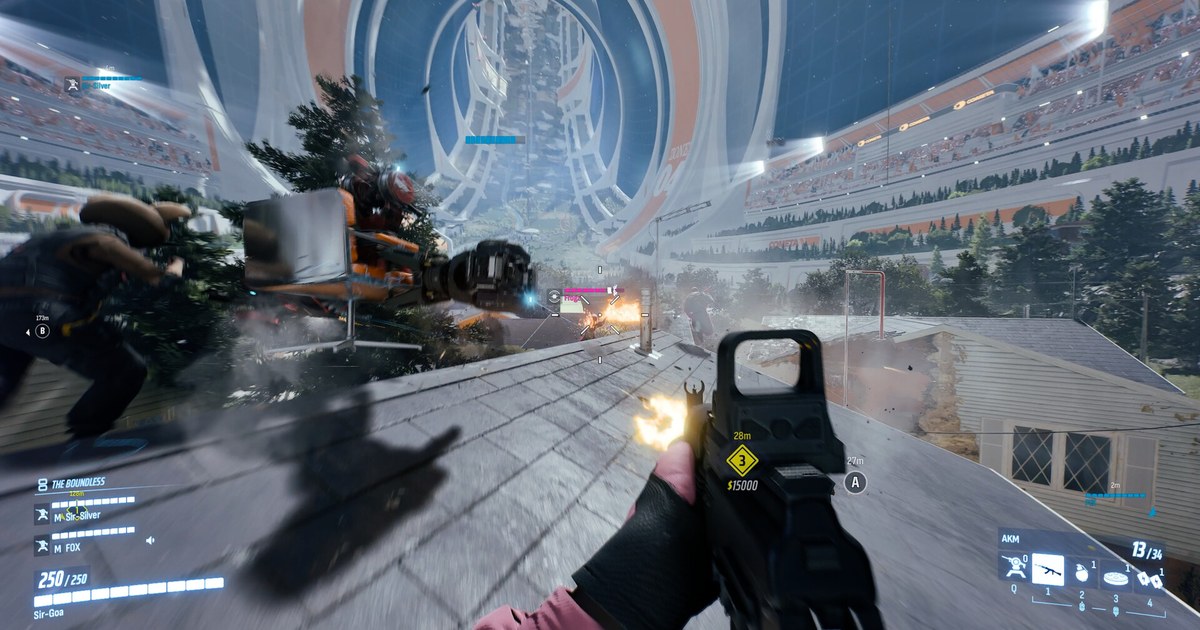
Fifteen seconds is an editing guideline, not a YouTube rule. Because turning a wide screen into a tall one cuts the sides, choose a moment where the action sits in the middle, such as around the crosshair or the character.
If something at the edge matters, like the minimap or health bar, show it separately with text or a zoom effect. For general tips on cropping any wide video to vertical, continue with how to crop video to 9:16 vertical.
How to make a gameplay Short
- 1Record the whole matchThe easiest time to choose Short material is after the match ends. DOR detects a supported game when you launch it, records the entire match automatically, and collects the video in My Clips. The default 1080p at 30fps is enough, and you can switch to 60fps for fast games. For the basic trimming motion, read it alongside how to trim game clips.
- 2Pick one moment with a clear resultScan the recording and choose a moment you can describe in terms of what happens in the first 3 seconds. In League of Legends, VALORANT, PUBG, FC Online, Fortnite, CS2, and Overwatch, events such as kills or goals are saved as automatic highlight clips, so starting from those clips is quick. For other games, find the scene you want in the full recording and trim it yourself.
- 3Trim to 9:16 in the appIn the DOR app's trimming, choose the 9:16 ratio and set the start and end. Begin one or two seconds before the moment to build the flow, and end within a second of the result, which lands you around 15 seconds. Turning the frame vertical cuts the sides, so always check that the key action sits in the middle.
- 4Add text, sound, and effects in the studioTo polish further, use DOR Studio (dor.gg/studio) to adjust text, BGM, and volume and add effect templates. Shake zoom or punch zoom stands out when used once at the kill, and feels busy when repeated. Each effect is explained in how to add a punch zoom effect. Joining several moments into one video is done on the same screen.
- 5Export as mp4 or share by linkWhen it is done, export as mp4 and upload it to YouTube as vertical video. You can also share a dor.gg link first and get a friend's opinion before posting. DOR output has no watermark, so you can upload it as is. If you prefer to edit on a phone, making vertical game clips in CapCut is another option.
One Short, step by step
| Stage | What to do | Standard |
|---|---|---|
| Record | Launch a supported game and record the whole match | 1080p at 30fps or 60fps; recordings collect in My Clips after the match |
| Pick a moment | Find one moment with a clear result | A kill, clutch, or comeback with something to see in the first 3 seconds |
| Trim | Select the range at 9:16 in the app | Around 15 seconds, with the key action in the middle of the frame |
| Polish | Add text, BGM, and effects in the studio | One line of large text, effects in one or two places |
| Export | Save as mp4 | Vertical 1080x1920, saved with no watermark |
| Upload | Post to YouTube as vertical video | Title states the result in one line, length within 3 minutes |
Check before uploading
- The ratio is 9:16 vertical at 1080x1920
- The result or highlight shows within the first 3 seconds
- The key action is in the center so it survives the vertical crop
- Text is one line and effects are used in only one or two places
- Length is within 3 minutes and ends around 15 seconds
DOR: from recording to vertical editing in one flow
DOR is a free Windows game recording app. When you launch a supported game it detects it automatically, records the whole match, and collects the video in My Clips.
In League of Legends, VALORANT, PUBG, FC Online, Fortnite, CS2, and Overwatch, moments like kills or goals are saved as automatic highlight clips, so you can pick Short material right away. Other games are also recorded automatically, and you can trim the scene you want and save it.
Trimming in the app offers 16:9, 9:16, and 1:1, and DOR Studio lets you join videos, change the ratio, add effect templates, text, and BGM, adjust volume, then export as mp4 or share a dor.gg link.
In the app, AI Highlight joins the clips you choose into one video with music and effects added automatically, and its Magazine template builds a 9:16 vertical video. You pick 1 to 4 clips from the 7 supported games, it can only be started from the app, and a Pro prompt may appear.
Recordings and edited results carry no watermark. Free recording quality is 720p and 1080p at 30 and 60fps.