The short answer is to skip the preset and make a few changes in Custom. Keep your monitor's native resolution, turn on upscaling, set Shadow Quality to Low and start everything else at Medium. If you still need frames, lower Reflections, Light, Detail and Foliage Quality one step at a time.
This guide is current as of November 24, 2026. It compares the official Steam requirements with several guides and keeps only the values they agree on; where guides disagree, it says so and shows how to measure it yourself.
The Steam minimum is a GTX 1060 or RX 580 class graphics card, 16 GB of RAM, 6 GB of VRAM and 60 GB of SSD space. The final requirements were reported to assume upscaling on Balanced, so the tighter your hardware, the sooner you should turn upscaling on. If you also want to capture video on a modest PC, read the guide to recording games on a low end PC as well.
Answer: upscaling on, Shadow Low, the rest Medium
Here is where to start by hardware. On a GTX 1060 or RX 580 class card, aim for 30 fps at 1080p with upscaling on Balanced and the Low preset.
One guide reported that an RTX 4060 averaged 50 fps at 1440p on the High preset, and 62 fps after setting Shadow Quality to Low and Light, Foliage and Detail Quality to Medium.
On a high end card such as an RTX 5080, dropping from the Ultra preset to Low roughly doubled output from the 40 fps range to about 80 fps, and Reflections and Shadows did much of that work.
Which option is heaviest depends on the guide: some say Shadows cost the most, while others say Shadows and Foliage are cheap and Reflections and Effects are where the cost lives. Changing one option at a time in the same scene is the most reliable way to find out.
Many guides also advise using the experimental Frame Generation only when your base frame rate is already healthy.
The order for raising FPS
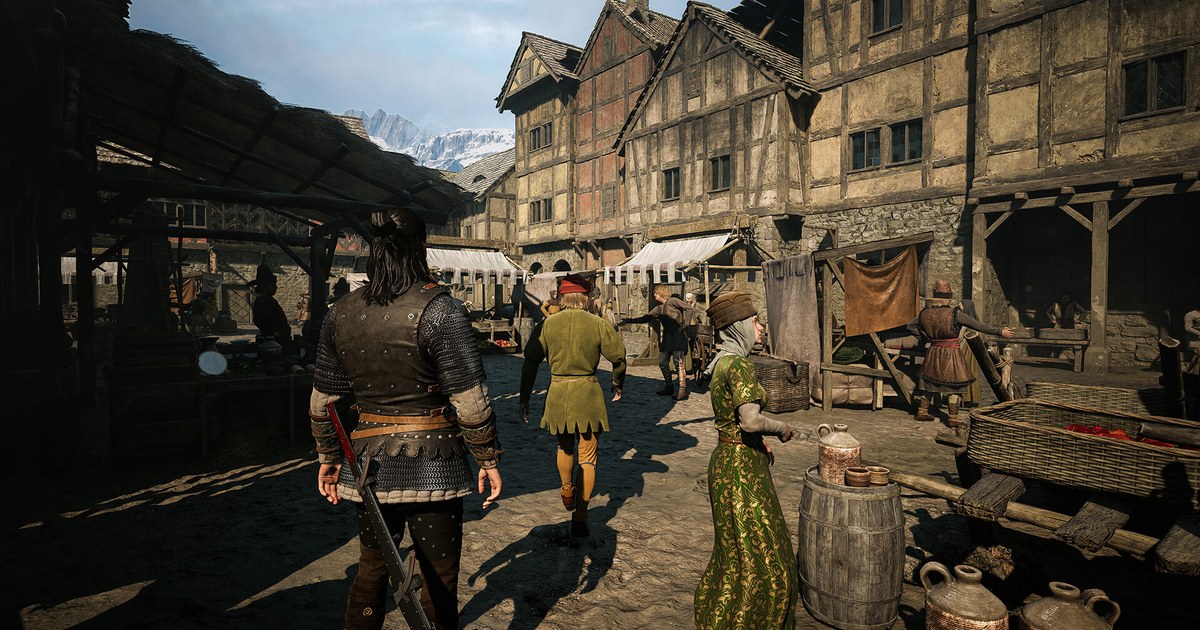
- 1Pick a test scene and measure FPSChoose one heavy scene, such as a crowded town market or a forest entrance, and walk the same path each time. Measuring in the same scene after every change is the only way to know which option actually helped.
- 2Set resolution and upscaling firstKeep your monitor's native resolution and turn on upscaling. Use DLSS on NVIDIA, FSR on AMD and XeSS on Intel Arc; older cards without DLSS can pick whichever of FSR or XeSS looks cleaner. At 1080p start with Quality, because lower modes can make hair and foliage look unstable.
- 3Switch from the preset to CustomChange the preset to Custom, set Shadow Quality to Low and keep Light, Detail, Foliage, Volumetric, Shading and Post Processing on Medium. For Effects Quality, one guide suggests High on strong PCs and Low on weaker or CPU limited ones.
- 4Lower one step at a time if you are shortLower Reflections, Light, Detail and Foliage in that order, one step at a time, and measure the test scene after each change. Lowering everything at once hides which option cost the frames and only costs you image quality. Moving upscaling from Quality to Balanced comes after that.
- 5Treat stutter separately from FPSIf average FPS is fine but the game hitches when you turn the camera or enter new terrain, shader compilation may be the cause rather than your settings. A September 24, 2026 report said traversal and camera stutter was still reported after hotfix 1.05 and that the developer was working on fixes. A stable frame cap and an SSD install can help it feel smoother. If it stutters while you record video, check how to fix game recording lag.
- 6Test Frame Generation lastTurn on Frame Generation only after you know your base frame rate. In one RTX 4060 test, 2x Frame Generation raised a 50 fps average to 73 fps but added occasional visual artifacts and slightly higher input latency. If you already get 60 fps or more, leaving it off gives a cleaner picture.
The Blood of Dawnwalker PC settings table
| Setting | Recommended value | If you need more FPS |
|---|---|---|
| Resolution and display mode | Native monitor resolution, Fullscreen or Borderless Windowed | Use upscaling before lowering resolution by hand |
| Upscaling (DLSS, FSR, XeSS) | Quality or Balanced | Start with Quality at 1080p and Balanced at 4K; keep Ultra Performance as a last resort |
| Shadow Quality | Low | If already Low, move on to the next option |
| Reflections Quality | Medium | Setting it to Low gave the biggest single gain in one guide |
| Light, Detail and Foliage Quality | Medium | If frames drop in forests or towns, lower Foliage and Detail to Low |
| Texture Quality | As high as your VRAM allows | Lower it one step only if VRAM runs out |
| Motion Blur and Chromatic Aberration | Off | Leave Bloom and Depth of Field to taste |
Check before you finish tuning
- Resolution is native and upscaling is on
- Shadow Quality is Low and you re-measured the same scene
- You changed Reflections, Light, Detail and Foliage one at a time
- Texture Quality is the highest value your VRAM allows
- Motion Blur and Chromatic Aberration are off and a stable frame cap is set
Keep before and after videos of the same scene with DOR
DOR is a free Windows game recording app. When you launch a supported game, it detects it automatically and records the whole match, or the whole session from launch to exit, and recordings collect in My Clips.
Run through the same scene after each settings change and you build up before and after videos, so you can compare frame rate and image quality side by side later. Free recording offers 720p and 1080p at 30 or 60 fps, with 1080p at 30 fps as the default.
On supported NVIDIA graphics cards such as RTX series, DOR records with NVENC hardware encoding. You can record, edit and share without a watermark, which also makes it easy to show friends or a community the settings you found.
If frames are tight while recording, keep recording at 1080p and 30 fps and lower the in game options first. Settings for 60 fps capture are covered in 60fps game recording settings.