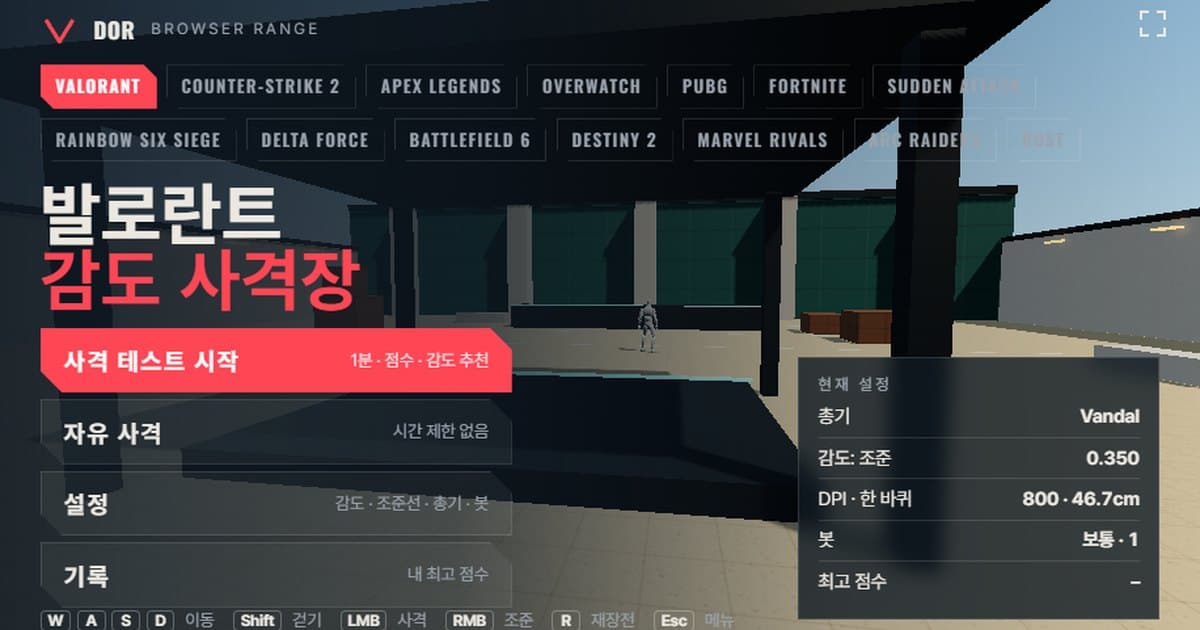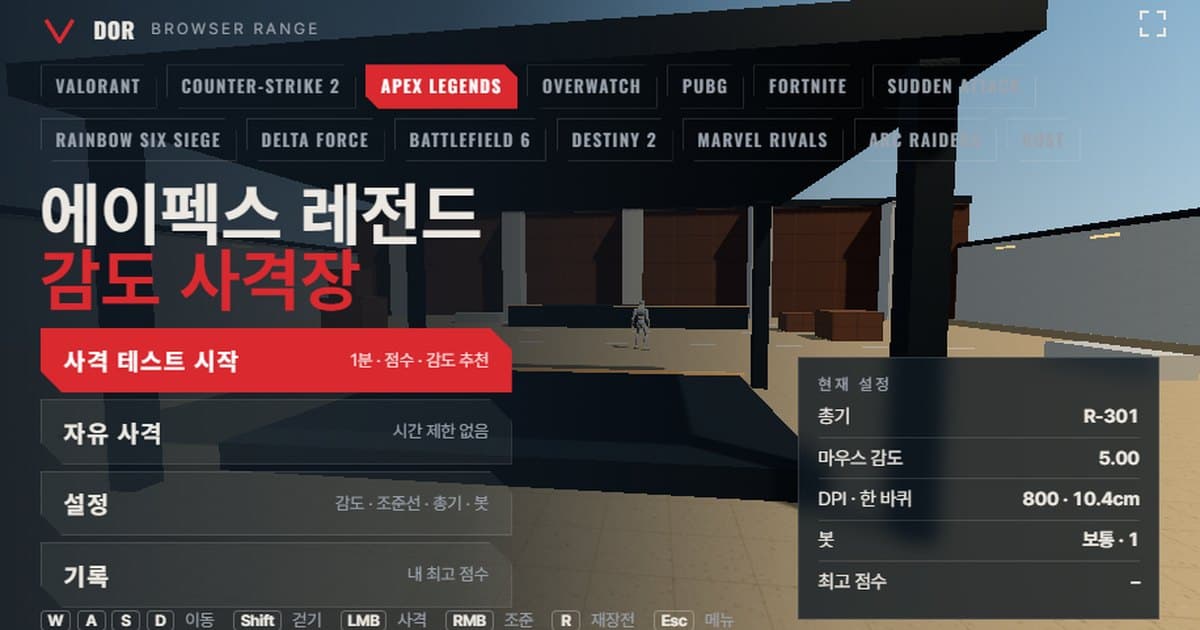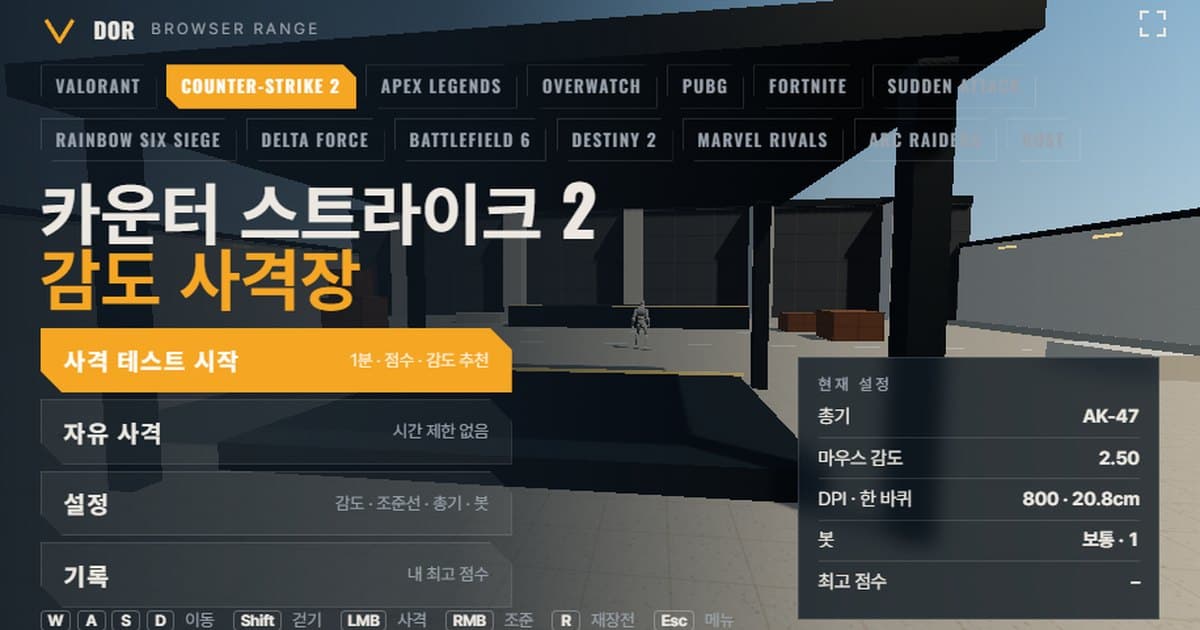
This CS2 sensitivity test is a one-minute browser drill that measures your accuracy, headshot rate, time to kill and whether your crosshair overshoots or stops short of bots, then tells you whether to move your sensitivity by 10%; with the 3-second countdown, a round takes just over a minute. The screen above is the browser sensitivity range opened with the Counter-Strike 2 profile. The turn per mouse count and the 16:9 field of view match CS2, so if you enter the sensitivity number you use in the game, the mouse distance needed for one full turn (cm/360) is the same as in the game. Press Start test in the menu and bots appear for one minute; when time is up, you get a score, accuracy, headshot rate, the average time from spawn to kill, and a suggestion to raise or lower your sensitivity based on your overshoot/undershoot ratio. It needs mouse lock and WebGL2, so it only opens in Chrome or Edge on PC, and there is nothing to install. You can pick other game profiles in the browser sensitivity range hub.
What matches Counter-Strike 2 settings and what differs
The range reproduces the parts that directly affect sensitivity judgment: turn rate, field of view and target health. CS2-specific combat rules such as recoil patterns and armor penetration are simplified. Check the table below first to see what is the same and what is different.
| Item | Counter-Strike 2 | Browser range |
|---|---|---|
| Turn rate | Sensitivity × 0.022°/count (m_yaw and m_pitch default 0.022) | Same formula. Sensitivity 2.5 at 800 DPI gives 20.78 cm per turn |
| Field of view | 90° in 4:3 terms, which is 106.26° horizontal (73.74° vertical) at 16:9. The camera FOV cannot be changed in matchmaking | Fixed at 106.26° horizontal for 16:9. 4:3 stretched is not supported |
| Movement speed | Varies by weapon. 215 units/s holding an AK-47, walking is 52% of running | Fixed at 4.1 m/s running, 2.5 m/s walking (Shift) |
| Bot health and armor | 100 HP. Armor does not add health; it reduces damage by a per-weapon penetration rate (AK-47 77.5%, M4A4 70%, AWP 97.5%, USP-S 50.5%) | 100 HP. Setting bot armor to Heavy is simplified to 150 HP |
| Weapon list | Many pistols, SMGs, rifles, sniper rifles and more | Five weapons: USP-S, Desert Eagle, AK-47, M4A4, AWP |
How to run the 1-minute CS2 sensitivity test
The menu has four buttons: Start test, Free fire, Settings and Records. Settings is split into five tabs, General, Crosshair, Weapons, Bots and Audio & Video, and any change is saved in this browser. If your goal is to settle on a sensitivity, the order below is the shortest route.
- 1Enter sensitivity and DPIIn the General tab of Settings, type the mouse sensitivity value exactly as it appears in your game settings. Mouse DPI does not affect turning; it is only used to calculate and display eDPI and cm/360, so entering your real mouse DPI makes results easier to compare.
- 2Pick a weaponIn the Weapons tab choose one of AK-47, M4A4, USP-S, Desert Eagle or AWP. The scoped sensitivity multiplier only applies to the AWP, the one weapon with right-click aim, and defaults to 1.0. Turning on movement and firing error makes the crosshair bloom while moving or spraying.
- 3Set the bot conditionsIn the Bots tab set bot speed (Easy, Normal, Hard), bot armor (None, Heavy), targets at once, and bot movement (Still, Strafing). Leave the defaults at first, and do not change these conditions while you are comparing sensitivities.
- 4Start the testReturn to the menu and press Start test. The mouse locks, a countdown runs, and the one-minute round begins. Press the Fullscreen button at the top right of the screen first, and on a 16:9 monitor you shoot at the same aspect ratio as the game.
- 5Read the resultWhen the minute ends, the round result screen shows score, accuracy, headshot rate, spawn → first shot average, shots per kill and overshoot/undershoot counts, with a sensitivity recommendation underneath. Press Retry with suggested sens and the next round starts right away at the suggested value.
- 6Repeat 2-3 times the same dayRun two or three more rounds with the same setup and see whether the results overlap. The Records tab keeps the best score for each setup combination, so if you alternate between two values such as 2.0 and 2.2 you can see right away which one is more stable.
Pressing ESC during a round pauses it, the mouse cursor reappears, and you can choose Resume or Quit. Quitting discards that round from the records. If a message says mouse lock failed, wait a second or two and press Resume again. Browsers embedded inside apps, such as Discord or KakaoTalk previews, block the lock itself, so use the Open in a new window button to launch a Chrome or Edge window.
How to read the result screen
The round result shows the items below. Overshoot/undershoot matters most for judging sensitivity; the rest helps you read your weapon choice and aiming habits.
- Accuracy: the share of shots fired that hit a bot. Tapping single shots with the AK-47 gives a high number while spraying gives a low one, so only compare runs with the same weapon and the same firing style.
- Headshot rate: the share of your hits that landed on the head. In CS2 a single AK-47 headshot drops even a helmeted opponent (36 × 4 × 77.5% penetration ≈ 111), while the M4A4 leaves them alive at 92 under the same conditions. The range replaces penetration with plain health, so treat the rate itself only as a trend.
- Spawn → kill average (Avg kill): the average time from a bot appearing to it going down. The better the sensitivity fits your hand, the fewer aim corrections you make and the shorter this gets.
- Spawn → first shot average: the average time from a bot appearing to your first shot. It is close to reaction time, so it depends more on your focus than on sensitivity.
- Shots per kill: rounds spent per kill. With the AWP it should be close to 1, and rifle spraying naturally pushes it up.
- Overshoot / undershoot: the range watches the horizontal error while your crosshair tracks a bot; if you pass the target and come back it counts an overshoot, and if you stop short and stay there it counts an undershoot. Each kill gets one verdict, and if the two together are under 5, the sample is considered too small and no suggestion is made (the screen shows this as under 5 kills). Over 60% overshoot means your sensitivity is on the high side, so it suggests a value 10% lower; over 60% undershoot suggests 10% higher; in between, it tells you to keep your current sensitivity.
- Missed targets: bots that vanished before you killed them within the time limit. Raising bot speed to Hard increases this, so keep bot speed fixed while comparing sensitivities.
Counter-Strike 2's sensitivity system: where it lives, range and cm/360
CS2's sensitivity is at the main menu gear icon > Settings > Keyboard / Mouse > Mouse Sensitivity, and you can also type it directly in the developer console, for example sensitivity 2.0. The slider shows two decimal places. The range and default differ by source. No official Valve document listing the slider range has been confirmed; client file analysis shows a slider of 0.1 to 8.0 and a default of 1.25 registered on the console variable. Community command sites, on the other hand, list the CS:GO-era value of 2.5 as the default. The range sets the input range to 0.3-5 and the default to 2.5 following community command sites, so type a number directly if you need to. The common band cited by guides is 0.5 to 4.0. The full set of in-game settings is covered separately in the CS2 sensitivity settings guide.
0.022 is the default m_yaw (degrees per count). Compute the numerator first and it collapses to 41,563.6 ÷ (DPI × sensitivity), which is easy to do in your head.
| Sensitivity (800 DPI) | eDPI | Distance per turn (cm/360) |
|---|---|---|
| 1.25 (client-registered default) | 1,000 | 41.56 cm |
| 2.0 | 1,600 | 25.98 cm |
| 2.5 (range default, per community command sites) | 2,000 | 20.78 cm |
Three console variables: sensitivity, zoom_sensitivity_ratio, m_rawinput
sensitivity is the value in the formula above; multiplied by m_yaw 0.022 it sets the turn angle per count. zoom_sensitivity_ratio is the multiplier applied while the scope is open, default 1.0, and was named zoom_sensitivity_ratio_mouse in the CS:GO days. In the settings screen it appears as Zoom Sensitivity Multiplier. m_rawinput takes mouse counts directly without going through Windows pointer speed and is on by default in CS2. The range requests raw input through pointer lock in the same way, and if the browser cannot provide raw input, the menu shows a notice that OS acceleration is included.
Scope sensitivity and rifles with no right click
CS2's scoped sensitivity is reduced first by the engine in proportion to field of view, then multiplied by the ratio. Aim sensitivity = sensitivity × (zoom FOV ÷ 90) × zoom_sensitivity_ratio, so with the AWP's first zoom at FOV 40 it is 40/90 of normal, that is 2.25 times slower. Values such as FOV 10 for the second zoom and 40 and 15 for the SSG 08 come from community analyses in 2015 and 2019 and are not confirmed by official documents; a difference of about 4% on the AWP's second zoom has been reported. The 0.818933 figure the community often uses matches the AWP's first zoom to the monitor distance 0% method on a 16:9 screen, and community tallies of pro settings show most players leave the default 1.0 alone. In the range the AWP opens a 2.25x scope, and the scoped sensitivity multiplier in the Weapons tab plays the role of zoom_sensitivity_ratio. The AK-47 and M4A4 are hip-fire-only rifles with no aim mode in the game, so in the range they do not respond to right click either. The two pistols are also at 1x, so no aim multiplier applies. The 0.022 turn coefficient is the same as Apex Legends, so the same number carries over directly, and you can compare at the same sensitivity in the Apex Legends range.
CS2 weapons in the range
| Weapon | Fire rate (rpm) | Mag | Reload (s) | Head · body damage | Aim multiplier |
|---|---|---|---|---|---|
| USP-S | 352 | 12 | 2.2 | 140 · 35 | 1 (none) |
| Desert Eagle | 267 | 7 | 2.2 | 212 · 53 | 1 (none) |
| AK-47 | 600 | 30 | 2.43 | 143 · 36 | 1 (no right-click aim) |
| M4A4 | 666 | 30 | 3.07 | 132 · 33 | 1 (no right-click aim) |
| AWP | 41 | 10 | 3.67 | 459 · 115 | 2.25 (scope) |
For one-tap practice use the AK-47 or Desert Eagle with bot armor set to None. Head damage of 143 and 212 exceeds 100 HP, so one headshot drops the bot and the headshot rate becomes a direct measure of aim precision. The M4A4 suits spray feel. At 666 rpm with a 30-round magazine it trains you to hold the crosshair on the bot while spraying, and turning on firing error adds bloom during sustained fire. Practice flicks with the AWP, but also check whether shots per kill is close to 1 and whether overshoot rises after opening the scope. If you overshoot a lot while scoped, lower the scoped sensitivity multiplier before touching the base sensitivity.
Limits of a browser range and how to work around them
- Raw input: CS2 has m_rawinput on by default, so Windows pointer settings have no effect. The range requests raw input through pointer lock, but if the browser refuses, OS acceleration gets mixed in. In that case turn off Enhance pointer precision in Windows mouse settings to match the game.
- Input timing: browsers batch mouse movement per display refresh frame, so the benefit of an 8000 Hz polling mouse shrinks and input lag may feel slightly higher than in the game. If you use the range only for relative comparison between sensitivity A and B rather than absolute scores, this difference has little effect on the result.
- No recoil patterns: the AK-47 and M4A4 spray patterns are not reproduced, only simple recoil and spread. Learn spray control in the game's practice mode and use the range for first-shot and tap accuracy.
- Simplified movement accuracy: the game has per-weapon movement speed, landing accuracy after jumps and counter-strafing timing, but the range only imitates how much the crosshair blooms when movement and firing error are on. When comparing sensitivities, keep the movement error setting the same across runs.
- FOV fixed at 16:9: the range only offers 106.26° horizontal. If you play 4:3 stretched, the horizontally stretched models and narrower view are not reproduced. cm/360 does not depend on aspect ratio, though, so the sensitivity number itself still applies.
- Simplified armor: in the game, armor reduces damage by a per-weapon penetration rate, but Heavy armor in the range simply raises health to 150. Do not use it to judge one-taps against helmets; use it only to see whether your aim wobbles when kills take longer.
- DPI changes and conversion: the range does not apply the DPI value to turning. When you change DPI or move another game's sensitivity to a CS2 value, match cm/360 first with the sensitivity and DPI converter, then enter it in the range.
Valve's March 18, 2026 update notes state that reloading a magazine-fed weapon now discards the rounds left in the magazine and takes a full magazine from reserves; when weapon rules change like this, the range's figures are adjusted to follow.
After settling on a sensitivity, check it in real matches: DOR
Once you have locked in a sensitivity in the range, the next step is to see how your aim looks in real matches at that sensitivity. When DOR detects CS2 it records the match automatically, detects kills, deaths and assists, and saves clips on its own. Clips can be trimmed in the browser editor and shared as a dor.gg link. Free, Windows. After a few matches at the new sensitivity, lining up kill clips next to death clips lets you check whether the range's overshoot/undershoot result shows up in the same direction in real play. Installation and supported scope are listed on the Counter-Strike 2 recording page.
 #Counter-Strike