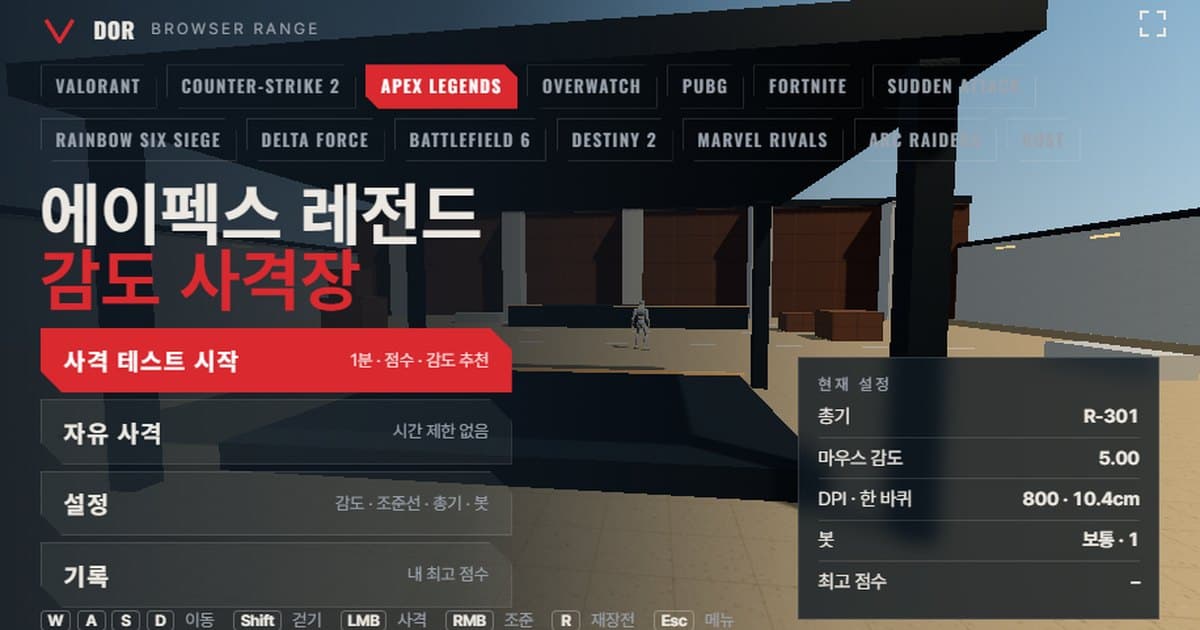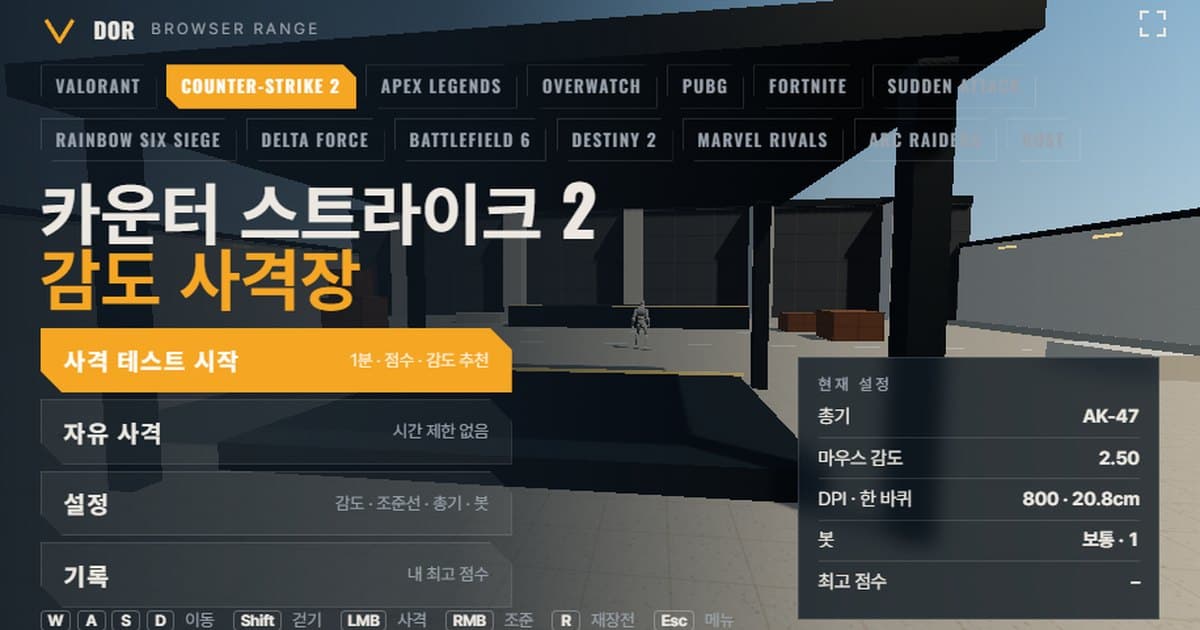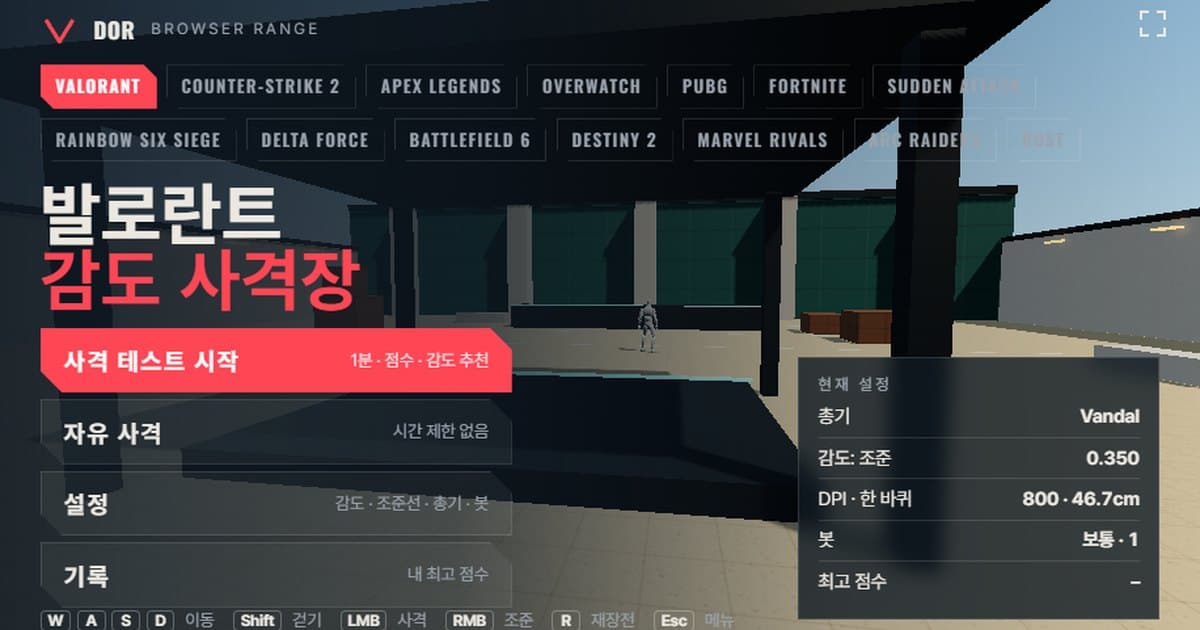
This sensitivity test takes 1 minute: you shoot targets at your in-game sensitivity, and it measures how often your crosshair overshoots or stops short of each target, along with accuracy, headshot rate and time to kill. It runs as a browser shooting range in Chrome or Edge on PC with no download or install, and picking a game sets the scene to that game's mouse turn rate (degrees per count) and field of view. When the round ends you get your results plus a suggestion to raise or lower your sensitivity by 10%, and the Calculated box in Settings shows the cm/360 of your current setting. The profile open above is VALORANT; the game tabs in the menu switch to the other 13 games.
It is built for players who want a quick check after changing sensitivity and before queuing for real matches, players starting a new game who want a sense of where their usual sensitivity should land, and anyone who wants a browser aim trainer instead of installing a separate one. If you only need to convert numbers, the sensitivity and DPI converter is enough; use this range when you want to shoot at that sensitivity and see how it plays. There is no sign-up or payment, and your settings and best scores are saved only in the browser you are using. Because it needs mouse lock and WebGL2, it does not open on mobile or in browsers built into other apps.
Ranges by Game
There are 14 game profiles right now. Turn rate is handled in one of two ways: in some games, multiplying the sensitivity value by a fixed coefficient (yaw) gives degrees per count, while in others the setting has to go through a formula before it becomes an angle. Field of view is the horizontal angle on a 16:9 screen, and the weapon count is the number of weapons in that game's range. Each game's full formula, weapon table and settings menu location are covered in the post linked in the last column.
| Game | Turn rate method | Range FOV (16:9 horizontal) | Weapons | Post |
|---|---|---|---|---|
| VALORANT | yaw 0.07°/count × sensitivity | 103° | 7 | [VALORANT sensitivity range](valorant-sensitivity-range) |
| Counter-Strike 2 | yaw 0.022°/count × sensitivity | 106.26° | 5 | [CS2 sensitivity range](cs2-sensitivity-range) |
| Apex Legends | yaw 0.022°/count × sensitivity | 90° | 5 | [Apex Legends sensitivity range](apex-sensitivity-range) |
| Overwatch (formerly Overwatch 2) | yaw 0.0066°/count × sensitivity | 103° | 5 | [Overwatch sensitivity range](overwatch-2-sensitivity-range) |
| PUBG: BATTLEGROUNDS | Setting → angle formula (0.00005555 × FPP FOV × 10^(sensitivity/50), log scale) | 90° | 7 | [PUBG sensitivity range](pubg-sensitivity-range) |
| Fortnite | yaw 0.005555°/count × sensitivity (%) | 80° | 7 | [Fortnite sensitivity range](fortnite-sensitivity-range) |
| Sudden Attack | Setting → angle formula (0.04°/count at step 0, roughly ×1.15 per step) | 90° | 7 | [Sudden Attack sensitivity range](sudden-attack-sensitivity-range) |
| Tom Clancy's Rainbow Six Siege | Setting → angle formula (1 slider step = 0.00573°/count) | 91.5° | 7 | [Rainbow Six Siege sensitivity range](r6s-sensitivity-range) |
| Delta Force | yaw 0.022°/count × sensitivity | 90° | 7 | [Delta Force sensitivity range](delta-force-sensitivity-range) |
| Battlefield 6 | Setting → angle formula (1 slider step ≈ 0.00174°/count) | 90° | 7 | [Battlefield 6 sensitivity range](battlefield-6-sensitivity-range) |
| Destiny 2 | yaw 0.0066°/count × sensitivity | 85° | 7 | [Destiny 2 sensitivity range](destiny-2-sensitivity-range) |
| Marvel Rivals | yaw 0.0175°/count × sensitivity | 90° | 6 | [Marvel Rivals sensitivity range](marvel-rivals-sensitivity-range) |
| ARC Raiders | Setting → angle formula (0.001361° × sensitivity × in-game FOV slider / 70) | 102.4° | 7 | [ARC Raiders sensitivity range](arc-raiders-sensitivity-range) |
| Rust | yaw 0.1125°/count × sensitivity | 107.5° | 7 | [Rust sensitivity range](rust-sensitivity-range) |
How the Range Reproduces Each Game
Every game turns the view by a different angle for each count of mouse movement. VALORANT uses sensitivity × 0.07°, CS2, Apex Legends and Delta Force use sensitivity × 0.022°, and Overwatch and Destiny 2 use sensitivity × 0.0066°. The range converts your mouse input into rotation with the same coefficient, so a VALORANT sensitivity of 0.35 at 800 DPI gives about 46.7 cm/360 (the distance your mouse travels for one full turn), just as it does in the game. For games whose setting runs on a log scale, like PUBG, or where one slider step equals 0.00573°, like Rainbow Six Siege, the range applies the setting-to-angle formula as it is.
- Field of view: each game gets one fixed 16:9 horizontal FOV. Games where you cannot change it, such as VALORANT (103°), CS2 (106.26°) and Fortnite (80°), use that value, and games with a slider, such as PUBG (FPP default 90°) and Rainbow Six Siege (default 60° vertical, about 91.5° horizontal), use the default. Apex Legends uses 90°, a little wider than its default (slider 70, about 86° at 16:9), so if you have changed FOV in the game, target size and perceived turn speed may differ slightly from the range.
- Movement speed: the run and walk (Shift) speeds of your own character, moved with WASD, are entered in m/s. They vary a lot between games (VALORANT 6.75 m/s, Apex Legends 7.4 m/s, Destiny 2 8.3 m/s) and are mostly approximations from wiki and community measurements; the Apex Legends value sits between the wiki's roughly 7.59 m/s with weapons holstered and about 6.6 m/s with a weapon out. That is why the scene slides past at a different speed in each game when you shoot on the move.
- Bot health: set to the health you usually face in each game. VALORANT, CS2 and PUBG use 100, Destiny 2 uses 200 (a community measurement), Overwatch and Marvel Rivals use 250, the most common hero health, and Apex Legends uses 200, which is 100 health plus shields. Turning on bot armor switches to an armored total set per game (for example 150 in VALORANT and 250 in Apex Legends).
- Weapons: fire rate, magazine size, reload time, head and body damage and aim zoom come from public data. The 14 games hold 91 weapons in total. Weapons with a scope zoom in on right click, and weapons with no right-click aim, like CS2 rifles, behave the same way here.
- What is simplified: recoil and spread are imitated with one size value per weapon, and game-specific recoil patterns and movement-accuracy penalties are left out. The turn rate and field of view you need to judge sensitivity took priority.
What the 1-Minute Test Tells You
- 1Enter sensitivity and DPIIn Settings > General, enter the same sensitivity value you have on the game's settings screen and type in your mouse DPI. DPI does not affect turning; it is only used to calculate eDPI and cm/360, so enter your mouse's real DPI for those numbers to be right.
- 2Pick a weapon and botsIn the Weapons tab pick the gun you use most, and in the Bots tab set bot speed, bot armor, targets at once and whether bots strafe. Keep this combination the same while you compare sensitivities so the results can sit side by side.
- 3Start testPress Start test in the menu; the mouse locks to the screen and a 1-minute round begins. ESC pauses the round and gives your cursor back, and the Fullscreen button lets you play at full size, like in the game.
- 4Read the resultsWhen the round ends you see score, kills, accuracy, headshot rate, average spawn → kill time, average spawn → first shot time, shots per kill, overshoot/undershoot and missed targets, with a sensitivity suggestion underneath.
- 5Retry with the suggested sensIf you get a suggestion, press Retry with suggested sens to go again right away. If the result says you are balanced, press Retry same setup and repeat 2–3 times that day to see whether the results line up.
Each number on the result screen measures something different. Overshoot/undershoot is the one tied directly to sensitivity; the rest are supporting metrics that show whether your shooting got better overall after a sensitivity change.
- Score: the number of targets you kill in one minute. The best score in the Records tab is this value, and scores from different bot settings should not be compared.
- Accuracy: the share of shots fired that hit a target. If it is low, shot timing or weapon choice may be the cause rather than sensitivity.
- Headshot rate: the share of kills finished with a headshot, which shows whether your fine vertical adjustment is working.
- Average spawn → kill and average spawn → first shot: the average time from a target appearing to going down, and the average time until your first shot. A big gap between the two means you are spending time correcting after the first shot.
- Shots per kill: the average number of rounds used per target, which reflects recoil control and how steadily you hold your aim with automatic weapons.
- Overshoot / undershoot: how many times your crosshair went past the target and how many times it stopped short as you moved onto it. The sensitivity suggestion is based on these two values alone.
The suggestion rule is simple. If overshoots and undershoots add up to fewer than 5, the sample is too small and no suggestion is given. If overshoots make up more than 60% of the total, your sensitivity is judged to be on the high side and a value 10% lower is suggested; if undershoots make up more than 60%, you get a value 10% higher. Anything in between tells you to keep your current sensitivity. 10% is a step you can feel right away without wrecking the muscle memory your hand already has. Suggested values are rounded to each game's sensitivity input unit, and games that move in whole steps, like Sudden Attack, move at least one step.
In What Order to Change Sensitivity
The range quickly shows which way to go, higher or lower, but locking that result straight into your game settings often means changing it again a few days later. Working through the steps below one at a time changes only one variable at once, so you can trace what caused any difference.
- Lock in DPI: settle on your mouse DPI first and leave it alone for the rest of the process. Whichever of 400, 800 or 1600 you normally use is fine; if you ever have a reason to change it, start measuring again from scratch.
- Adjust sensitivity: change only the game sensitivity value in the range. When a suggestion appears, follow it in 10% steps; when there is none, use the overshoot/undershoot numbers only to pick a direction.
- 2–3 runs on the same day: do not decide on a single result. Run the test 2–3 times with the same weapon and bot settings, and only shortlist a sensitivity when the score and overshoot/undershoot point the same way each time. The Records tab lets you compare best scores for each setup combination.
- 10 real matches: put the candidate sensitivity in the game and leave it alone for at least 10 matches. The range matches turn rate only, while enemy movement, recoil and pressure are all different, so adjust one more step only if overshooting or stopping short keeps happening in real matches.
Where to Find Your Sensitivity Value
The range's sensitivity field uses the same name and unit as each game's settings screen: Fortnite takes a % value, PUBG a general sensitivity from 1 to 100, Sudden Attack a step from -10 to 10, and Rainbow Six Siege the horizontal sensitivity slider value. Here is where each game keeps that value. Menu names follow the English client and can change with patches, so also check the patch notes on each game's official site, such as the VALORANT patch notes or the PUBG patch notes.
- VALORANT: Settings > General > Mouse > Sensitivity: Aim
- Counter-Strike 2: Settings > Keyboard / Mouse > Mouse Sensitivity (same as the console sensitivity value)
- Apex Legends: Settings > Mouse/Keyboard > Mouse Sensitivity
- Overwatch: Options > Controls > Mouse > Sensitivity
- PUBG: BATTLEGROUNDS: Settings > Control > Mouse Sensitivity > General
- Fortnite: Settings > Mouse and Keyboard > Sensitivity > X-Axis Sensitivity
- Sudden Attack: Options > Control > Mouse Sensitivity (the [ / ] hotkeys also adjust it)
- Tom Clancy's Rainbow Six Siege: Options > Controls > Mouse > Mouse Sensitivity Horizontal
- Delta Force: Settings > Keyboard & Mouse > Sensitivity > Mouse Sensitivity
- Battlefield 6: Settings > Mouse & Keyboard > Infantry > Mouse Aim Sensitivity
- Destiny 2: Settings > Mouse & Keyboard > Look Sensitivity
- Marvel Rivals: Settings > Keyboard > Combat > Mouse Horizontal Sensitivity
- ARC Raiders: Settings > Mouse and Keyboard > Horizontal Sensitivity
- Rust: Options > Input > Mouse Sensitivity (same as the console input.sensitivity value)
After the Range, Record with DOR
DOR is a free recording app for Windows that records matches automatically when it detects a supported game (more than 30 of them). VALORANT, Counter-Strike 2 and Fortnite get clips made automatically from events such as kills, while in Overwatch and PUBG: BATTLEGROUNDS an AI picks out highlight moments and saves them as clips. The other FPS games, including Apex Legends, Sudden Attack, Rainbow Six Siege, Delta Force, Battlefield 6, Destiny 2, Marvel Rivals, ARC Raiders and Rust, get full-match recording automatically, and one hotkey press saves a clip of any moment you want. Saved clips can be trimmed in the browser editor and shared as a dor.gg link.
Put the sensitivity you settled on in the range into the game and leave DOR running, and every match from the next one on is saved automatically. Keeping the clips from the day you changed sensitivity lets you check, by the same standard, whether you still overshoot or stop short in real matches, which makes it easier to spot where range results and real play disagree.
Limits of a Browser Range
- Raw input: Chrome and Edge get raw input under pointer lock, but when a browser does not support it, Windows pointer acceleration gets mixed in. The range shows a notice when this happens, and turning off Enhance pointer precision in Windows makes it match the game.
- Input timing: browsers batch mouse events per frame, so the fine input differences of a 4,000–8,000 Hz mouse do not show up the way they do in a game. That is enough for judging sensitivity, but the range is not a tool for comparing polling rates.
- Recoil and spread: only each weapon's recoil size and maximum spread are modeled, with no game-specific recoil patterns. Spray practice is better done in the game's own practice range.
- Movement accuracy: turning on Movement & firing error in Settings makes the crosshair bloom while you move or spray, but the range does not reproduce each game's own movement-accuracy rules.
- Field of view: only 16:9 horizontal FOV is supported. If you play 4:3 stretched or on a 21:9 screen, turning may feel faster or slower than in the range, so compare by the cm/360 number.
- Environment: because it needs mouse lock and WebGL2, it opens only in Chrome or Edge on PC. On mobile you only get the written sensitivity guide, and in a messenger's or app's built-in browser on PC, use the Open in a new window button to launch a Chrome or Edge window.
 #Valorant