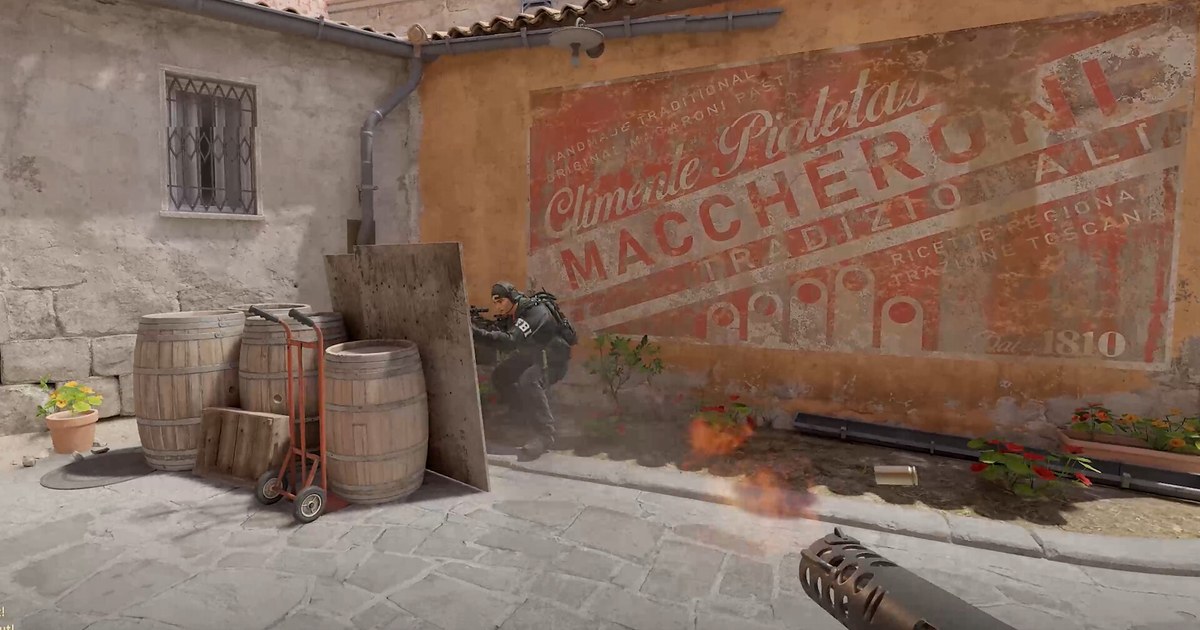
If you searched for 'cs2 stretched res' or 'how to play 4:3 stretched cs2', you most likely want one thing: a 4:3 image filling your whole 16:9 monitor so player models look wider, the way most pros play.
Stretched simply means the game renders at a 4:3 resolution and the image is then widened to fit the panel. Put 1280x960 on a 1920x1080 monitor and the picture grows 1.5x horizontally but only 1.125x vertically, so everything ends up about 1.33x wider than its true shape.
Leave the image at its original shape instead and you get black bars on both sides, a look usually called 4:3 black bars, which some players prefer on purpose. The key thing to know before you start: CS2's video menu only has an aspect ratio setting and a resolution setting.
There is no stretch switch inside the game. The stretching is done by your graphics driver (NVIDIA Control Panel or AMD Software) or by the monitor itself, which is why the most common complaint is that 1280x960 is selected in game and the black bars are still there.
This guide walks through choosing a resolution, setting driver scaling, applying it in game and checking for black bars, using only the game menu and official driver settings, with no config edits or third party tools.
If you want more frames across the board rather than just a resolution change, our CS2 FPS boost settings guide. Menu names are as of November 10, 2026 and can differ slightly by driver version and language.
Should you play stretched? What you gain and what you give up
4:3 stretched is especially common in Counter-Strike. A settings database covering 950 pro players, last updated September 25, 2026, has 1280x960 at 53%, 1024x768 at 15%, 1920x1080 at 13%, 1280x1024 at 6% and 1152x864 at 5%.
Of those top five, only 1920x1080 is a native 16:9 resolution, and the same database notes that the vast majority of pros play stretched. That is why almost every answer to 'best cs2 resolution' starts with 1280x960. Players pick stretched for three reasons.
First, models look about 1.33x wider, so they stand out more. The hitboxes do not change, though: only the picture on your screen gets wider. Second, you render fewer pixels.
1280x960 is about 59% of the pixels of 1920x1080, so on a PC where the graphics card is the bottleneck you may gain frames. If your CPU hits its limit first, the difference can be small. Third, many players learned to aim on 4:3 back in CS:GO and want to keep that feel.
The costs are real too. CS2 widens your horizontal view as the screen gets wider, so on 4:3 you see less at the left and right edges than on 16:9.
A lower resolution stretched across the panel also looks softer, especially distant enemies and text, and turning left and right can feel faster because the image is wider. In the end the right answer is the one that suits your aim.
Record a few matches on 16:9 and a few on 4:3 stretched in the same mode, then watch the fights side by side. The footage shows whether you spotted enemies first and whether your crosshair kept up on big turns, which tells you more than how it felt in the moment.
How to set up 4:3 stretched in CS2 (NVIDIA and AMD)
- 1Start with 1280x960 on a 1080p monitorIf this is your first time, start with 1280x960. It is the most used resolution among pros. If it looks too blurry, 1440x1080 keeps the full 1080 vertical lines and is sharper; if you need more frames, 1024x768 is the next step down. On a 1440p monitor, try 1920x1440 or 1440x1080. Every 4:3 resolution stretches by the same amount, so what changes between them is sharpness and how many pixels your PC has to draw. Only if your pick is missing from the list do you need to create it in the next step.
- 2NVIDIA: create a custom resolution if it is missingSkip this if the resolution already appears in CS2 or in the Windows display settings list. Otherwise open the NVIDIA Control Panel, go to Display > Change resolution, select your monitor and click Customize > Create Custom Resolution. Enter 1280 and 960, set the refresh rate to what you normally use, such as 144 Hz or 240 Hz, run the test and save it. If your refresh rate drops to 60 Hz afterwards, follow our guide on changing your refresh rate in Windows 11 to set it back.
- 3NVIDIA: set scaling to Full-screen and perform it on the GPUIn Display > Adjust desktop size and position, open the Scaling tab and choose Full-screen. Aspect ratio keeps the original shape and leaves black bars, and No scaling shows a small image in the middle. Then set Perform scaling on to GPU, tick Override the scaling mode set by games and programs if it is shown, and click Apply. The screen may go black for a moment while it applies.
- 4AMD: turn on GPU Scaling and pick Full panelIn AMD Software: Adrenalin Edition, open Settings > Display and turn on GPU Scaling. Then set Scaling Mode to Full panel. Preserve aspect ratio keeps black bars on the sides, and Center shows the image unscaled in the middle. If your resolution is missing, create a new profile under Custom Resolution on the same Display page. A brief blackout while the change applies is normal.
- 5Apply 4:3 in the CS2 video settingsOnce the driver is set, close CS2 completely and launch it again. In Settings > Video > Video, set Display Mode to Fullscreen, set Aspect Ratio to Normal 4:3, pick 1280x960 under Resolution and apply. Fullscreen Windowed often follows your desktop resolution, which stops the driver from stretching, so try Fullscreen first. Labels can vary slightly with the client language.
- 6Check your crosshair and sensitivity in a practice mapOn a stretched screen your crosshair also looks wider, so recheck the horizontal line length and thickness. Your sensitivity value still turns you the same angle for the same mouse movement, but because the image is wider, left and right turns can feel faster. Give it a few days before changing anything, then confirm your cm/360 with our CS2 sensitivity test.
Best CS2 resolutions compared (1080p monitor, checked November 10, 2026)
| Resolution (ratio) | Pixels drawn and stretch | What to expect |
|---|---|---|
| 1280x960 (4:3) | About 59% of 1920x1080, about 1.33x wider | The most used resolution among pros (53%). A good balance of sharpness and frames, and the easiest place to start. |
| 1024x768 (4:3) | About 38%, about 1.33x wider | Second among pros (15%). Helps when you need frames, but distant enemies and text look noticeably blurry. |
| 1440x1080 (4:3) | 75%, about 1.33x wider | Keeps all 1080 vertical lines, so it is the sharpest 4:3 option on a 1080p panel. The frame gain is smaller. |
| 1152x864 (4:3) | About 48%, about 1.33x wider | Used by 5% of pros. A middle ground between 1280x960 and 1024x768. |
| 1280x1024 (5:4) | About 63%, about 1.42x wider | Used by 6% of pros. It stretches more than 4:3, so models look even wider, and only a small group plays it. |
| 1920x1080 (16:9) | 100%, no stretch | Third among pros (13%). The sharpest image and the widest view to the left and right. |
| 1920x1440 (4:3, 1440p monitor) | 75% of 2560x1440, about 1.33x wider | The 4:3 pick for 1440p monitors. It keeps all 1440 vertical lines, so it stays fairly sharp when stretched. |
CS2 black bars will not go away: checklist
- On NVIDIA, the scaling mode is Full-screen rather than Aspect ratio or No scaling, and Perform scaling on is set to GPU.
- On AMD, GPU Scaling is on and Scaling Mode is Full panel rather than Preserve aspect ratio or Center.
- The CS2 display mode is Fullscreen rather than Fullscreen Windowed, and you fully restarted the game after changing driver settings.
- If your monitor's own menu (OSD) has an aspect or display mode option, it is set to a full or fill option rather than keeping the original ratio or 1:1.
- If the bars remain, set the Windows desktop resolution to 1280x960 first, launch CS2, and switch the desktop back to native when you are done.
Record your stretched matches with DOR and compare
DOR is a free game recorder for Windows. When you launch CS2 it detects the game and records the whole match, and it saves kills, deaths and assists as automatic clips in My Clips in the app.
After switching to 4:3 stretched, play back your first recording in My Clips to make sure the screen was captured the way you want, then put fight clips from your 16:9 matches next to clips from your stretched matches and compare them.
For moments you want to post as Shorts, trim the segment in the app and save it as 16:9, 9:16 or 1:1; our guide on how to make CS2 Shorts walks through the vertical format.
In DOR Studio (dor.gg/studio) you can merge several clips, add text, BGM and effect templates such as shake zoom, then export an mp4 or share a dor.gg link. To send a clutch to your teammates, see how to share CS2 clips with friends.