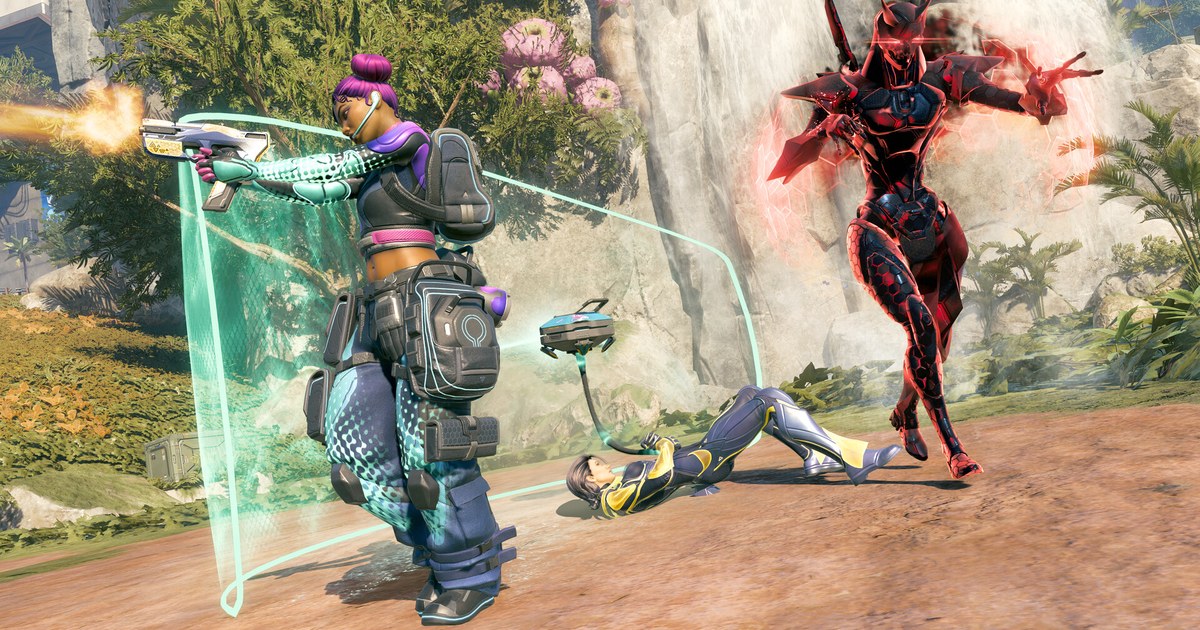

Deadlock is Valve's team-based hero shooter and MOBA, and as of November 10, 2026 it is still in playtest: the Steam release date reads To be announced and you need an invite from a friend who already has access. If you are still waiting on one, How to Play Deadlock covers invites and installation.
As of the same date the Steam page shows no price and no purchase button, so access comes through the invite rather than a payment. The game supports 17 interface languages, with full voice audio in English only.
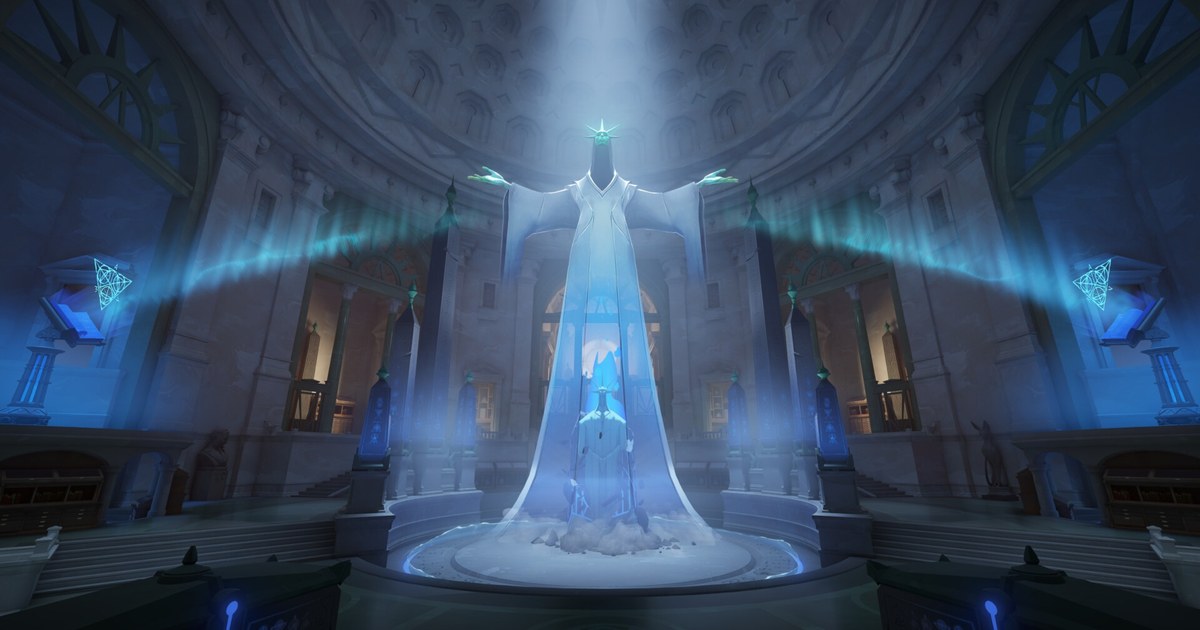
Since the City Never Sleeps update on September 29 gave the map and neutrals a major visual overhaul, searches for Deadlock best settings and Deadlock FPS boost have climbed. Before you touch any slider, figure out which problem you actually have.
If your average FPS drops hard every time a team fight breaks out, the graphics options are the place to start. If your average looks fine but the screen freezes for a split second now and then, the cause is usually shader preparation or the driver, and lowering settings will barely help.
This guide splits those two cases first, then walks through what each option costs and the order to change them. Deadlock is still in development, so option names and layouts can shift between patches. Names below follow the English menu, and everything is current as of November 10, 2026.
Deadlock graphics options: FPS cost and starting values (as of November 10, 2026)
| Option | What it does to FPS and the picture | Start here |
|---|---|---|
| Upscaling Technology | Renders at a lower internal resolution and scales up. It looks cleaner than simply lowering resolution. DLSS needs an RTX 20 Series card or newer. | Only when you are short on FPS. DLSS on RTX, FSR otherwise |
| Render Quality | The render resolution scale. Lowering it raises FPS but softens the image. | Keep at 100 and try upscaling first |
| Shadow Quality | Shadow detail. Going too low can make shadows inconsistent, which some players say makes enemies harder to spot. | Medium |
| Screen Space AO | Ambient occlusion shading in corners and crevices. One of the more expensive options. | Low |
| Fog Quality | Atmospheric fog. Higher values can make long sightlines murkier. | Low |
| Post Process Bloom and Effects Bloom | Light glow. When abilities stack up in a fight, bloom can wash out the screen. | Off |
| V-Sync | Stops screen tearing but adds input lag. | Off, and cap In-Game Maximum FPS instead |
| In-Game Maximum FPS | Frame rate limit. Capping near your refresh rate keeps frame pacing even and lowers heat. | Your refresh rate or slightly above |
No official system requirements: how to set your own baseline
As of November 10, 2026, the system requirements on Deadlock's Steam page say only that it requires a 64 bit processor and operating system. The OS, processor and graphics lines all read TBD, and Windows is the only listed platform.
Most minimum and recommended spec tables you will find online are estimates, not numbers Valve has published, so measuring on your own PC is far more reliable than buying parts off a chart. Start by noting your CPU, RAM and GPU with How to Check Your PC Specs on Windows 11.
Next, open the Game tab in Deadlock's settings and enable the Telemetry HUD, which Valve added in December 2024 to show frame rate and network conditions on screen. Then play a real match, not bots or the sandbox, and watch two moments: a quiet lane phase and a team fight packed with ability effects.
If your lowest FPS in fights sits well below your monitor's refresh rate, it is time to lower graphics options. If GPU usage stays low and FPS still will not climb, look at your CPU and background apps instead.
If the numbers look healthy but the picture freezes for an instant, deal with shaders and drivers before the table below.
Since November 2024, Valve has precompiled shaders and map resources on the main menu to cut load times and in match hitching, and in February 2025 it changed how units are preloaded so shaders are not compiled mid game.
After a patch, simply waiting on the main menu until that prep finishes often removes the stutter in your first match.
How to boost FPS in Deadlock, step by step
- 1Diagnose the symptom firstPut a counter on screen with the Telemetry HUD or one of the tools in How to Show FPS in Games, then play a real match. Low average FPS points to settings. Healthy numbers with sudden freezes point to shaders or drivers.
- 2Enable Advanced Settings and cut the heavy optionsIn the Video tab, open the advanced options and turn down or off the settings that do little for competitive play: Screen Space AO, Fog Quality, both bloom options, Depth of Field and Area Lights. Leave shadows around Medium for a good balance of visibility and FPS.
- 3Turn on upscalingIf team fights still dip, enable Upscaling Technology. Valve's February 2025 update added DLSS for RTX 20 Series cards and newer as an alternative to FSR2, and upgraded Vulkan users to FSR3. Start at the quality focused setting and step down one level at a time.
- 4Set your frame cap and latency optionsTurn V-Sync off and cap In-Game Maximum FPS near your refresh rate. The same update enabled NVIDIA Reflex and AMD Anti-Lag 2.0, so switch them on if your card supports them. For driver side options, use NVIDIA Control Panel Best Settings for Gaming so the two layers do not fight each other.
- 5Wait on the main menu after a patchIf your first match after a big update stutters badly, sit on the main menu until precompiling is done before you queue. If stutter continues, update your graphics driver and run Steam's verify integrity of game files.
Check these after changing settings
- Your lowest FPS in team fights is close to your monitor's refresh rate
- V-Sync is off and In-Game Maximum FPS is capped
- With upscaling on, troopers and hero outlines are still sharp enough to read
- After a patch, you waited for the main menu prep before queuing
- Browsers, overlays and other background apps are closed
Recording Deadlock without giving up frames
DOR is a free Windows app that detects Deadlock at launch and records your whole session until you quit. Recordings land in My Clips in the app, where you can trim out just the team fight you want and save it. On supported NVIDIA cards such as the RTX series, DOR records with NVENC hardware encoding.
When recording alongside the game, leave a little FPS headroom. Free recording quality is 720p or 1080p at 30 or 60 fps, with 1080p at 30 fps as the default, so you can play at 144 Hz and record at 30 or 60 fps. How to Record at 144Hz Without Losing Frames explains that split in detail, and Share Deadlock Team Fight Clips covers sending your trimmed clip to friends.