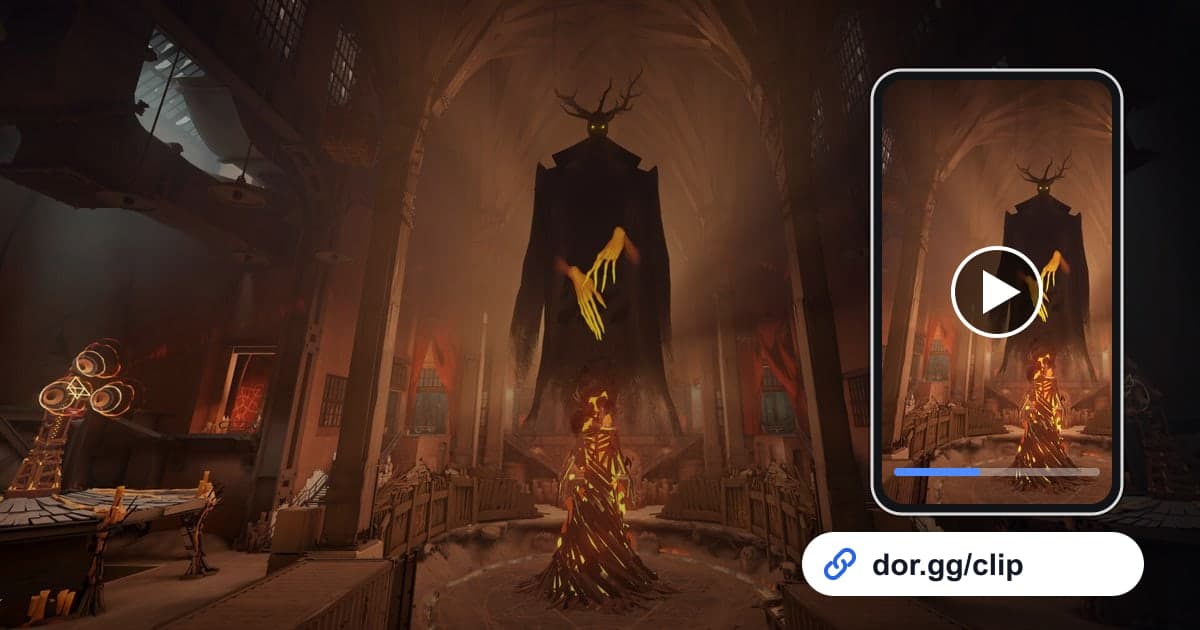
If you flew in off a zipline to catch someone from behind, or flipped a losing match with one team fight and went on to break the Patron, you want to show it both to friends who play and to friends who have not tried the game yet. This guide covers one method: record Deadlock with DOR, trim only the moment you want, and send it as a dor.gg link. Deadlock alternates between collecting souls in lane and fighting, so even within one match there are only a few moments worth showing. That is why this guide focuses on the boundaries that split a multi-match recording into matches, cues for finding moments at each stage of a match, and what to keep in mind when sending to friends who do not have the game.
Right to the Point
Launch Deadlock and DOR starts recording automatically; close the game and every match from that session goes into your library as one mp4. Find the match by its hero select and match end screens, trim only the team fight or ambush inside it, and send the resulting dor.gg link to a friend. Tips like how many seconds before a fight to start so the situation makes sense are in How to Trim Game Clips.
Sending a Deadlock Moment to Friends
- 1Install DOR and launch DeadlockInstall the free DOR app on your Windows PC and launch Deadlock from Steam; the game is detected and recording starts automatically. Waiting screens, hero select, and the matches themselves all continue in one video until you quit.
- 2Remember only which match had the highlightWhen you play several matches in a session, it is easy to lose track of which one it was. Note just the order, like "second match, Patron kill," and later you can count how many times hero select appears to jump straight to that match.
- 3Find team fights where ability effects pile upWithin that match, the point where several heroes' ability effects start overlapping on screen is where a team fight begins. Zipline ambushes are shorter, so look for the moment a fight breaks out right after you jump off a zipline.
- 4Trim in your library and pick a ratioOpen the session in your library and trim it by setting a start and end. Because the game is third-person with your hero in the center, a 9:16 vertical cut still shows the main character well, but scenes like team fights where heroes spread out work better at 16:9. A dor.gg link is created when the trim finishes.
- 5Send the link even to friends without the gameA dor.gg link plays in a browser, so friends who have not received an invite and never played Deadlock just need to open it. For first-time viewers, add a quick note like "I'm the hero on the zipline" so they can follow the video.
- 6Combine highlights from several matches in the StudioTo collect a week of ambushes and team fights into one video, open DOR Studio in your browser, merge the clips you trimmed, and separate scenes with effect templates and text. Share the finished video as a link or download it as an mp4.
Deadlock Moments by Match Stage, With Editing Ideas
| Match stage | Cue to find it in the recording | Editing idea |
|---|---|---|
| Early lane soul farming | Right after hero select ends and you reach your lane | Only the lane phase that went well, kept to 30 seconds, for lane advice with a friend |
| Zipline ambush | A fight that starts right after you drop off a zipline | 15 to 25 seconds from the moment you hop on, so the ambush route shows |
| Team fight after taking a lane | A stretch where several heroes' ability effects overlap on screen | 40 to 90 seconds, from positioning just before the fight to the cleanup |
| The fight that turned the match | The point where your team's voice chat erupts in cheers | 1 to 2 minutes with context on both sides, plus text explaining the situation |
| Breaking the Patron to end the match | Just before the match end screen | 30 to 60 seconds from the final push to the end screen |
| A painful loss | The last few minutes before the end screen of a match you lost | For a friend who will review it with you, 2 minutes around the deciding fight |
Before You Send a Deadlock Clip
- If the friend does not have the game, a scene or note makes clear which hero is you
- A team fight clip shows the outcome, not just flashing ability effects
- Team voice or chat contains nothing awkward to share
- In a vertical cut, enemy heroes are not pushed out of frame
- You have at least 20GB of free disk space on days you play matches back to back
- A Patron kill clip ends with the match end screen
How DOR Records Deadlock
Deadlock became a DOR-supported game with the October 2026 app update, and it is recorded with full-session recording. DOR, a free Windows desktop app, automatically detects when Deadlock starts and saves everything from launch to exit as one mp4; it does not split the video by match or detect kills and team fights to build highlights. So you find the moments in the recording yourself and cut them out with the trim tool in your library. For joining scenes from several matches into one, see How to Merge Multiple Game Clips. On NVIDIA graphics cards, NVENC hardware encoding is the default, and game sound is captured in the same video as your mic during team calls. Playing match after match makes the recording grow and fills the disk quickly, and recording stops automatically when free space drops below 20GB, so if a recording is missing, start with How to Fix Recordings Not Saving. To turn off recording for Deadlock only, switch the game off under the full-session recording group in settings; a confirmation dialog appears once when you do.