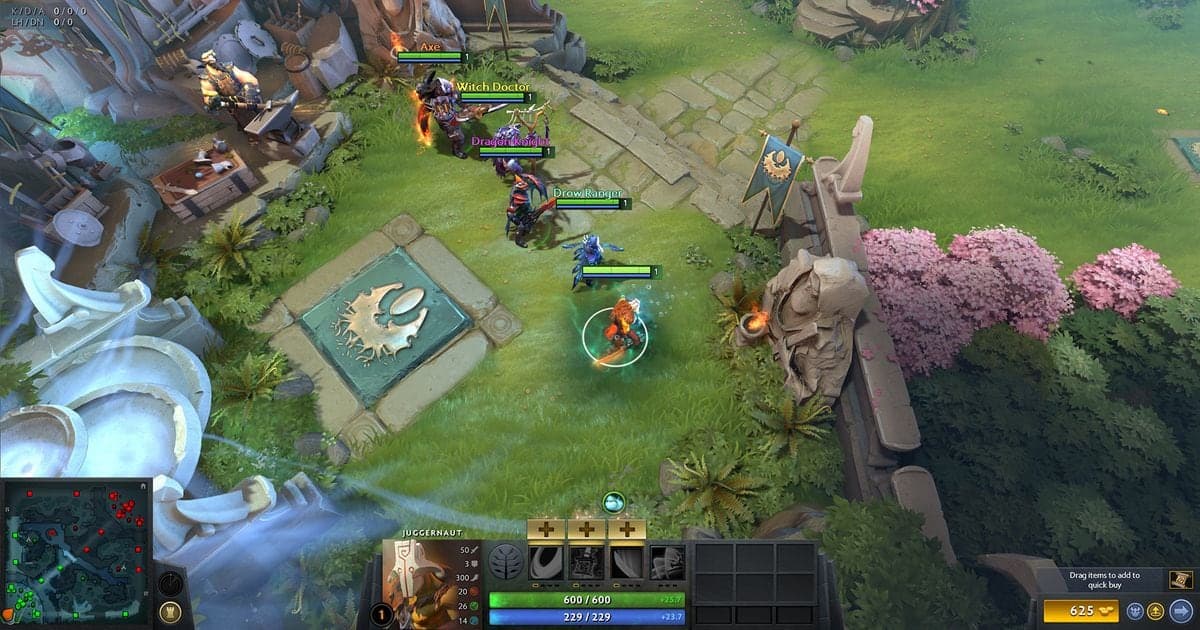
To boost Dota 2 FPS, three changes have official backing: set Game Screen Render Quality below 100% (per Valve's 2021 notice), lower the graphics quality options in Video settings, and keep the client fully updated. Which one comes first depends on what Steam's Performance Monitor shows for your GPU, video memory and RAM, and because Valve publishes no per-option FPS gain, this guide promises no numbers. If recording is what makes your frame rate drop, read how to fix FPS drops while recording games next. The DirectX 11 note and the Steam Performance Monitor path were checked on October 6, 2026, and everything here applies to PC (Windows) only.
The short answer before you touch a slider
The short version: if GPU usage sits near 100% or the video memory reading turns red, lower rendering settings; if system RAM is nearly full, close other apps. Hitches that come from the server side, like the ones Valve fixed in the January 30, 2026 update, are patch items rather than options, so update the client before you adjust anything. If you care about how responsive the game feels and not just the frame counter, pair this guide with how to reduce input lag in games.
Order to apply the changes
- 1Check the client and installed files first — Valve ships Dota 2 performance work through client updates. The 2025 Spring Forward update page lists faster startup, quicker load times and smoother in-game performance with higher FPS under its performance heading, with no percentage given, so staying on the latest client is the precondition rather than a setting you tune. In your Steam library, right-click the game, open Properties..., go to Installed Files and choose Verify integrity of game files. Steam notes that a few files failing verification can be normal when they are local configuration files, and that you should not run the check during heavy tasks such as defragmenting or virus scans.
- 2Turn on Steam's Performance Monitor — Open Settings > In Game in Steam and enable the Performance Monitor (also called the Performance Overlay), then pick a detail level. There are four, from a single FPS value up to full FPS, CPU, GPU and RAM details, and the last one gives you the most to work with when you are hunting for a bottleneck. Detail level, screen position, contrast and saturation, and background opacity can all be adjusted in the same menu. Steam's article says the full set of metrics was first made available on Windows PCs, and some readings, such as GPU temperature, appear only on supported vendors' cards.
- 3Record a baseline in one repeatable scene — Before changing anything, note average FPS, the Min value, GPU usage, video memory and RAM in a situation you can repeat, such as a crowded teamfight. Steam turns the Min number red when the lowest frame rate is under half of the average, which signals micro stutter even when the average looks healthy. Without this baseline you cannot tell whether a later change actually helped.
- 4Lower Video options one at a time — Open the Video options in Dota 2 settings; if an item is hard to find, use the Search Settings feature added in the 2025 update. Valve's June 23, 2021 notice says that setting Game Screen Render Quality below 100% and ticking the FidelityFX Super Resolution checkbox renders at a lower resolution and upscales the result, giving higher frame rates even on weaker graphics cards, on any GPU that supports DirectX 11 or Vulkan. That is the 2021 wording, so check whether the same items exist on your screen today. Texture, shadow and similar items have no current official name or effect size to quote, so this guide claims none. After each change, measure the same scene again.
- 5Re-measure and read the DirectX 11 notice — Keep the changes that moved the numbers and revert the ones that did not. Also note that in the 7.41 patch post of March 24, 2026, Valve deprecated support for GPUs without DirectX 11/SM5 and said a future update will remove older devices, adding that 99.96% of active players have capable hardware. We found no follow-up confirming removal as of October 6, 2026, so if your GPU is very old, check the latest Dota 2 news for its support status.
Symptom-by-symptom guide to the Performance Monitor
| Symptom | What to read in the Performance Monitor | Direction to adjust (official basis) |
|---|---|---|
| Average FPS is low overall | GPU usage is close to 100% | This is a GPU bottleneck. Steam's document names upgrading the GPU or changing rendering settings, so lower quality and render resolution in Video settings. |
| Average looks fine but the game hitches | The Min value turns red (under half the average) | Judge by Min, not the average. Change one option at a time in the same scene and see whether Min recovers. |
| Everything slowed down after raising graphics | GPU memory turns red because it exceeds dedicated memory | Check whether another app is using video memory; if not, your current graphics settings demand more than the card has, so lower the quality options. |
| Slowdowns when many programs are open | System RAM is close to its limit | Close other apps. It is the simplest fix and comes before touching any option. |
| Server-side hitching, or slowing down as a match goes on | When GPU, VRAM and RAM readings do not explain it | The January 30, 2026 update fixed server hitch frames and a cosmetic-item slowdown bug, so keep the client updated instead of tuning options. |
Before-and-after checklist
- The Dota 2 client is updated to the latest version.
- You noted both average FPS and the Min value in the Performance Monitor.
- You identified whether GPU usage, video memory or RAM is the limit.
- You changed one Video option at a time and re-measured the same scene.
- You did not use registry edits, third-party optimizer programs or unofficial config-file tweaks.
If you also want to record Dota 2 while protecting frames
Dota 2 is a game DOR supports, and DOR automatically records a whole match and saves it as an mp4. It does not make automatic highlight clips of kills in Dota 2, only full-match recordings. DOR is not a tool that raises FPS, so the sensible use is replaying a recording to work out which teamfight the stutter happened in. On an NVIDIA graphics card, NVENC hardware encoding is the default, so encoding runs on the card. Recording still adds some load to a PC, and how much it affects your actual FPS varies, so no figure is given here; compare the same scene with recording off and on. Game sound and your microphone are recorded together, so your own commentary stays in the same video. For the encoder differences, read NVENC vs x264.
Official sources
This guide relies on Valve's Dota 2 Spring Forward 2025 update page, the Steam support article Understanding the In-Game Overlay Performance Monitor and the June 23, 2021 Steam announcement Nemestice Falls and New Powers Rise. The 7.41 patch and the January 30, 2026 update are in the Dota 2 news on Steam, and the Performance Monitor path and the 7.41 DirectX 11 note were checked on October 6, 2026.