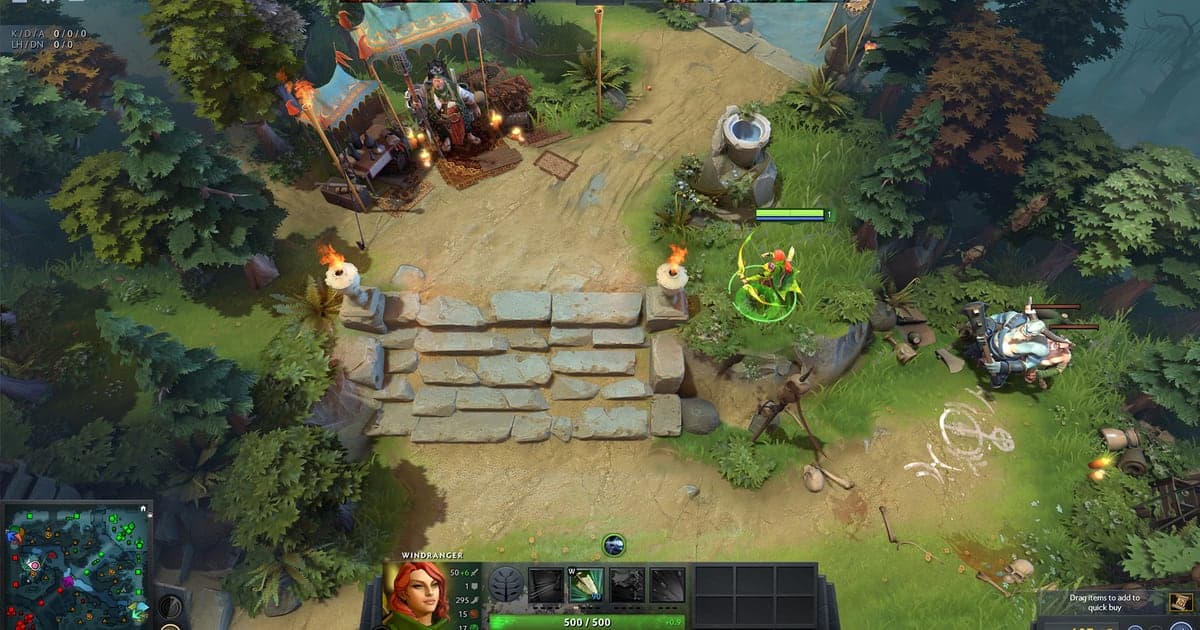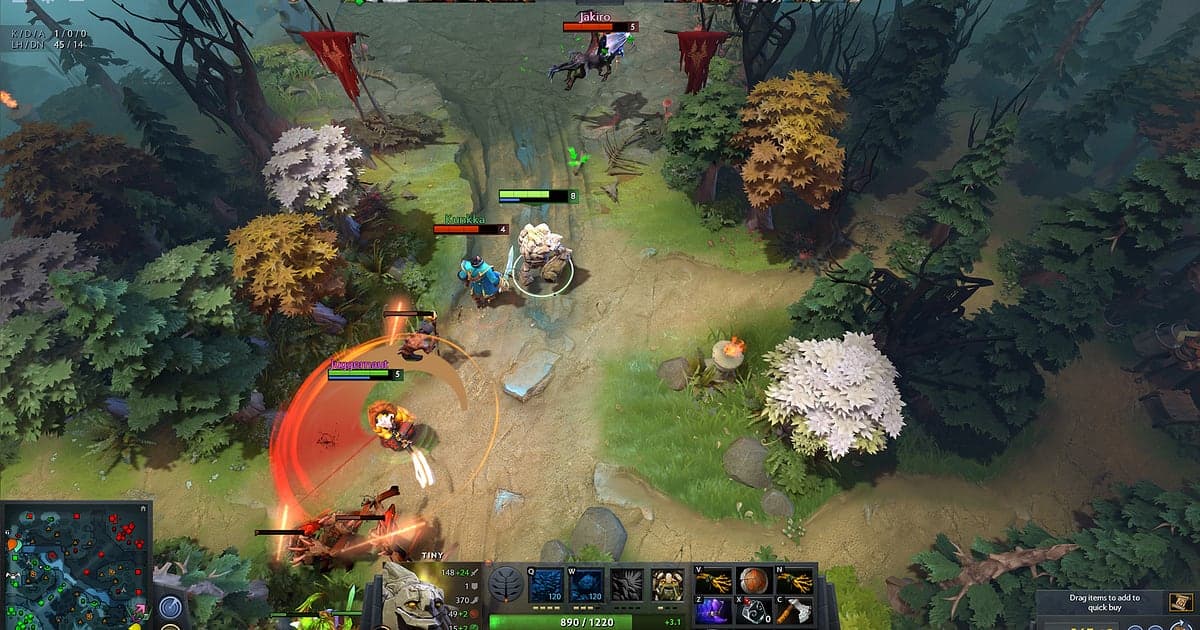
Dota 2 records automatically: install DOR, launch the game, and AI starts recording without a button press. DOR detects the Dota 2 client as it opens and keeps one continuous video running through matchmaking, the draft, the match itself and the post game screen, then stops when you quit. A 50 minute game is usually decided by a handful of teamfights that each last under a minute, so this guide focuses on pulling those moments out of a long recording quickly. Follow it in order to set up DOR, save the plays you care about, record a replay as video, find your party's calls, cut a montage, share it, and fix frame rate or black screen problems.
- Keep an entire Dota 2 game on video, from the first pick in the draft to the last building on high ground.
- Save an Echo Slam teamfight or an Aegis steal in the Roshan pit seconds after it happens with the clip save shortcut.
- Play a downloaded replay in the client and record that screen as an ordinary video file.
- Jump to the minute someone said "BKB and jump into the Chrono" using AI Voice Notes.
- Turn a Black Hole or Chronosphere into a 9:16 short and send it to your stack with one dor.gg link.
Before you record Dota 2: install and recording mode
The only thing to set up is DOR itself. It is a free Windows app and it adds no watermark to your videos. This guide covers the PC (Windows) version of Dota 2 that you launch through Steam. Dota 2 uses session recording: instead of splitting files by match, DOR records everything from the moment the client opens until it closes as a single video, so a night of five ranked games ends up as five matches inside one recording, in the order you played them. Dota 2 is light on hardware, so the default 1080p at 30fps is a good place to start, and older laptops can switch to the lighter 720p/30fps mode. More ways to keep recording light on modest hardware are in record games on a low end PC.
| Item | For Dota 2 | Notes |
|---|---|---|
| Install DOR | Free Windows app, ready as soon as it is installed | No watermark on recordings |
| Game version | Dota 2 for PC (Windows), launched from Steam | DOR detects the client when it opens |
| Recording mode | Session recording: one video from launch to exit | Back to back matches stay in the same recording |
| Display mode | Fullscreen, windowed and borderless all record | Switches to monitor capture if game capture is blocked |
| Resolution and frame rate | 1080p at 30fps by default, 60fps available | Lighter 720p/30fps mode for older PCs |
| Storage | About 30MB for a 30 second 1080p clip | Full session videos are managed in a 5GB allowance by default, and liked videos are kept |
Record Dota 2 with DOR: step by step
- 1Install DOR and leave it runningInstall DOR and open it once. From then on it waits in the background for a game to start, so there is no capture source or screen region to pick for Dota 2. If you play with a Discord stack, check that the microphone selected in DOR is the headset you actually talk into.
- 2Launch Dota 2 from SteamStart Dota 2 from your Steam library. DOR notices the client and begins recording right away, while you are still in the main menu or waiting in queue, so you never scramble to hit record after the match is found. The draft screen is captured too, and later it becomes the easiest marker for where each game starts.
- 3Check that recording is runningIn your first game, open the DOR app once during a quiet moment in the laning stage, confirm that Dota 2 is being recorded, then return to the game and play normally. Recording uses GPU hardware encoding, so the extra load during a ten hero teamfight stays small.
- 4Save a clip right after a big playWhen you finish Roshan and pick up the Aegis, or an Echo Slam swings a fight your way, press the clip save shortcut. The last 30 seconds become a clip by default while the full session recording keeps rolling. You can remap the shortcut to any key in DOR settings.
- 5Record a replay as videoTo revisit an older game, open the Watch tab, go to Replays, enter the match ID in Search for Match ID and press Download Replay, then play it. With DOR running, the replay screen is recorded as well, so you can trim the fight you want and export it. Replay folders and stuck downloads are covered in Dota 2 replay download.
- 6Close the game and review in My ClipsWhen you quit Dota 2, that session's recording appears in My Clips next to the clips you saved during play. Open it straight away to confirm tonight's teamfights were captured, so you are not hunting for them tomorrow.
Find your recordings
Every recording lands in My Clips, the library in the DOR app. Each time you open and close Dota 2 you get one session recording, and the clips you saved during that session are listed separately. If you played three games back to back, all three are inside that one recording, so scrub through it and look for the draft screen: wherever it appears, a new game begins. Inside a game, use the match clock at the top of the screen. If you remember the Roshan fight happened around minute 25, jump to roughly that point and nudge forward or back until the clock matches. Once you find the fight, set a start and an end to trim it, then export in 16:9, 9:16 or 1:1. Like the games you want to keep for good. When space fills up, older videos you have not liked are cleared first, so a liked comeback game stays where it is. Trimming tips are in how to trim game clips, and to keep recordings on a different drive, see change the recording save location.
Save the moments you want to keep
The clip save shortcut keeps the stretch of play just before you press it. The default length is 30 seconds, and you can choose 15, 30, 45 or 60 seconds in settings. Dota 2 moments vary a lot in length, so it helps to decide in advance. A Rapier rampage or a quick solo kill in lane fits easily in 30 seconds. A Roshan sequence runs longer: the smoke into the pit, the hits on Roshan, the Aegis pickup and the fight that breaks out right after usually need 45 or 60 seconds to be captured from the start. Press the shortcut once the fight is over and the kill feed has settled, or right after a buyback saves your high ground, rather than in the middle of the fight, so the ending makes it in. If you forget, nothing is lost: the full session recording still has it, and you can trim it from the library later. How the shortcut works and how to pick a length is explained in save the last few seconds instantly.
Find what was said with AI Voice Notes
AI Voice Notes writes down what you and your party say and pins each line to the matching point on the recording timeline. In a game where a single call decides a fight, that makes review much easier. Lines like "Rosh now, their support is dead", "Keep buyback, we have to hold high ground" or "Ward's up, they're smoking into our jungle" appear as text at the minute they were said, and selecting one takes you straight to that moment in the video. After a loss, you can read when the smoke gank was called and watch how it played out side by side, without scrubbing through the whole game. To find something, look for the words your stack actually used, such as Roshan, buyback or ward. Game audio and your microphone are recorded together; to balance your voice against the game, see record game audio with your mic.
Build a montage with AI Highlight
AI Highlight joins the clips you check in your library into one montage. Say you saved a five man Black Hole, an Aegis steal in the pit, an Echo Slam that turned a fight and the final push against mega creeps. Check those four clips and press AI Highlight, and you get a single video of the plays that decided the game, with the long laning stage and farming time left out. It works across games too: check the best clip from each match you played this week and you have a weekly highlight reel. If you check the Roshan fight, the mid game teamfight and the high ground push together, viewers can follow how the game turned. If you would rather set the exact order by hand, see merge game clips.
Edit in DOR Studio
DOR Studio opens in your browser with nothing to install. It merges several clips, trims them, adds text, background music and effect templates, and exports in 16:9, 9:16 or 1:1 as an mp4 download or a share link. For Dota 2, cut the standoff before the fight, add a punch zoom on the frame where the Chronosphere lands and a shake zoom as the Echo Slam goes off, and even a short clip reads clearly. Use a glitch transition between fights and a text label like "25 min Roshan" so viewers keep track of the game. Keep 16:9 for review videos where the minimap and the whole fight matter, and use 9:16 for a short that follows one hero. The full feature list is in the DOR browser clip editor, and vertical editing is covered in record vertical shorts from games.
Share with a dor.gg link
Send any trimmed clip or finished edit as one dor.gg link. Whoever opens it watches in a browser on PC or phone without installing anything. Drop the link in your stack's Discord channel right after the game and all five of you can rewatch that buyback before the next queue pops, or post it in a Reddit thread or your Steam group without uploading the file somewhere else first. Picking scenes out of a long match and sending them is walked through in how to share Dota 2 gameplay videos.
Dota 2 recommended settings and troubleshooting
Dota 2 records in any display mode, so keep whatever you normally play in, fullscreen or borderless window. Recording starts at 1080p and 30fps; switch to 60fps when you want smoother footage for shorts or a rampage montage. If the game itself is short on frames, tuning Dota 2 does more than tuning the recorder. Turn on the Performance Monitor in Steam's in game settings, check whether GPU usage, video memory or RAM is the limit, then lower one Video option at a time and measure again in a similar teamfight. Keeping the client fully updated matters too, because Valve ships performance fixes through patches. The full order is in Dota 2 best settings for FPS, and if frames drop only while recording, start with fix FPS drops while recording. Common symptoms are listed below.
| Symptom | What to check | Fix |
|---|---|---|
| Frame rate drops in teamfights while recording | GPU usage and video memory in Steam's Performance Monitor | Lower Dota 2 Video options one at a time; if it still struggles, switch DOR to 720p/30fps mode |
| The recording is a black screen | Your Dota 2 display mode and any other capture or overlay software | DOR records fullscreen, windowed and borderless, and switches to monitor capture when game capture is blocked. Close other recorders and relaunch the game |
| No game sound or party voices | The Windows output device and the microphone selected in DOR | Match both to the devices you actually use, then record a short test and play it back |
| Recording does not start when Dota 2 opens | Whether DOR was running before you launched the game | Open DOR first, then relaunch Dota 2 from Steam |
| Worried a recorder could get your account banned | What the recorder touches | DOR records only the screen, never changes game files or gameplay data, and has no cheat features |