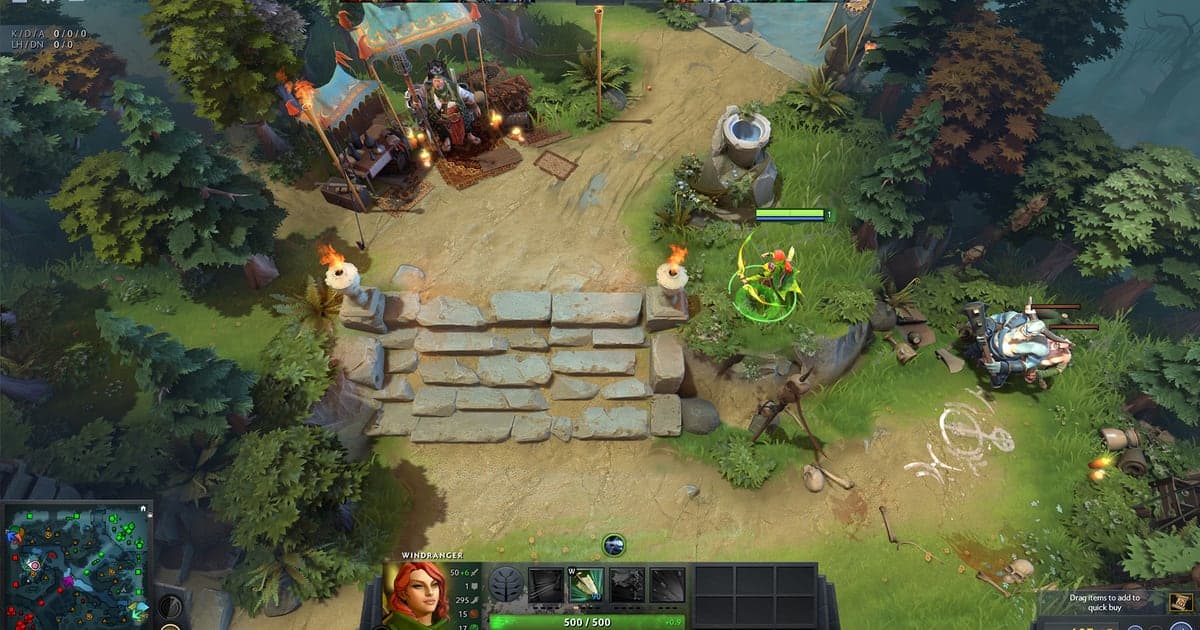
Most Dota 2 replay searches come from one of three moments. You just played a game with a teamfight worth watching again and need to know where replays are downloaded. You already downloaded one and want to find the dota 2 replay folder on your PC to copy or share the file. Or you pressed Download Replay and it sits at 0%, says pending, or the match never shows up at all. Dota 2 keeps match replays on Valve's servers and lets anyone pull them into the client by match ID, which is great for reviewing your own games or studying someone else's. The catch is that a replay is not a video. It is a .dem file the game plays back, so if you want a clip for a friend, a coach or YouTube, you have to record the screen while it plays. This guide walks through the download, the current save location, playing a .dem offline with the console, what community guides suggest when replays are not downloading, and the cleanest way to record a replay as video. Menu labels can shift between patches, so treat what you see in your own client as the final word. At the end you will see how DOR keeps every teamfight as an mp4 already, so you never have to chase a replay before it expires.
Short answer: Download Replay by match ID, find the .dem in game\dota\replays, record it while it plays
There is one place to get replays: the Replays screen under the Watch tab. Type the match ID into the Search for Match ID box in the top right, open the match and press Download Replay. When the bar fills, the same button lets you watch it right away. You do not need to write match IDs down, because your own ID is shown on the post game screen and again in your match history. Once downloaded, the file is widely reported to live in steamapps\common\dota 2 beta\game\dota\replays inside your Steam library, named after the match ID with a .dem extension. If a guide tells you to look in dota 2 beta\dota\replays, it predates the current folder layout; the game folder is now part of the path. Replays become available a few minutes after the match ends. Valve has never published how long they stay downloadable, and community reports put it at roughly a week to 10 days, so grab the games you care about on the same day. A .dem you already downloaded stays on your PC after it is gone from the server. Finally, Dota 2 has no option to export a replay as a video file. If you need an mp4, the only route is to play the replay and capture it with screen recording software.
How to download a Dota 2 replay and record it as video
- 1Get the match ID from your match historyWhen a game ends, the post game screen shows its match ID. If you already closed it, open your profile, go to your match history and click the game; the ID is listed there. You can download anyone's public match the same way as long as you have its ID, which is handy for studying a friend's game or a pro match. If you search right after the game and nothing comes up, the replay is probably still being prepared. Give it a few minutes and try again.
- 2Download it from Watch > ReplaysClick the Watch tab at the top of the main menu and open Replays. In the top right you will find Search for Match ID. Paste the ID, open the match and press Download Replay. A progress bar fills, and when it finishes the button switches to a watch option so you can start it immediately. Opening the game from your match history often shows the same download button, so either route works.
- 3Check the .dem in the replay folderCommunity guides consistently place downloaded replays in steamapps\common\dota 2 beta\game\dota\replays inside your Steam library, one .dem file per match named after the match ID. The quickest way there is to right click Dota 2 in Steam, choose Browse local files, then open game, dota and replays. If you followed an older guide to dota 2 beta\dota\replays and found nothing, that is why: the game folder is part of the current path. Copy the .dem files you want to keep to another folder so they survive cleanups.
- 4Play a .dem offline with playdemoAny .dem in that folder can be opened from the console. With the console open, type playdemo replays/ followed by the match ID, and the replay loads, as widely reported in community guides. This is how you watch a game that has already expired on Valve's servers, or a .dem a teammate sent you after you drop it into the replays folder. If you have never used the console in Dota 2, you need to enable it first.
- 5Clean up the HUD and pick speed and cameraReplays use the normal game HUD, which clutters a recording. Community guides list dota_hud_hide_minimap 1 to hide the minimap and dota_hud_hide_topbar 1 to hide the top bar; set them back to 0 to restore them. The replay panel also lets you change playback speed and camera, and the exact options are worth checking in game rather than trusting an old list. Scrub to just before the fight, choose your view, then start recording so you have less to trim later.
- 6Screen record the replay to make a videoDota 2 cannot export a replay as an mp4, so to record highlights in Dota 2 from a replay you play it back and capture the screen. If you use OBS and get a black screen, the capture source is usually the reason; read game capture vs window capture before you start. Afterward, trim the recording down to the fights you want and share only those.
Dota 2 replays: where to go and what to check
| Situation | Where or how | What to check |
|---|---|---|
| Download a replay | Watch tab > Replays > Search for Match ID (top right) > Download Replay | When the download finishes you can watch it from the same screen. |
| Find your match ID | Post game screen, or your match history | Open the match in your history and the ID is listed there. |
| Replay save location | steamapps\common\dota 2 beta\game\dota\replays | The path community guides agree on. Files are .dem; paths without the game folder are outdated. |
| Watch offline | Console: playdemo replays/<matchid> | Works once the console is enabled in your client. |
| Replay pending or not listed yet | Wait a few minutes after the match ends | Searching right after the game can show it as not ready. |
| Stuck at 0% or failing | Delete the replays folder and recreate it | A widely shared community fix; results vary. Some regions sometimes have no replay for a match. |
| Old match | Gone once server retention runs out | Valve publishes no number; community reports say about a week to 10 days. Downloaded .dem files stay. |
| Turn it into a video | Screen record while the replay plays | There is no built in video export. |
Before you download a Dota 2 replay
- Download matches you care about on the same day, before server retention runs out.
- Take the match ID from the post game screen or your match history.
- If the match is not found right after the game, wait a few minutes and search again.
- Look for the file in dota 2 beta\game\dota\replays, saved as a .dem.
- If the download is stuck at 0%, delete and recreate the replays folder, then try again.
- Back up .dem files you want to keep to another folder or drive.
- If the replay stutters while you record, lower the graphics load first with Dota 2 best settings for FPS.
Skip the replay hunt: keep every Dota 2 teamfight as an mp4 with DOR
Just launch the game and DOR's AI records it automatically. DOR is a free Windows app that detects Dota 2 when it starts and records your whole session in the background as mp4 until you quit. That means the teamfight is already a video when the match ends: no hunting for the match ID, no worrying about how long the replay stays on the server, no Download Replay stuck at 0%. Game audio and your mic are captured together, and AI Voice Notes turns what you and your party said into text on the recording timeline, so you can read who called the smoke or the Roshan attempt and jump straight to that moment. It is an easy way to review calls after a loss. Trim the part you want in the app library and export it as 16:9, 9:16 or 1:1, or check the clips you saved and press AI Highlight to join them into one montage. For text, background music and effect templates such as shake zoom and punch zoom, open DOR Studio in your browser with nothing to install and download the result as mp4. Share it with one dor.gg link that opens in any browser. See how to share Dota 2 gameplay video for the sharing flow and the DOR browser editor for editing.