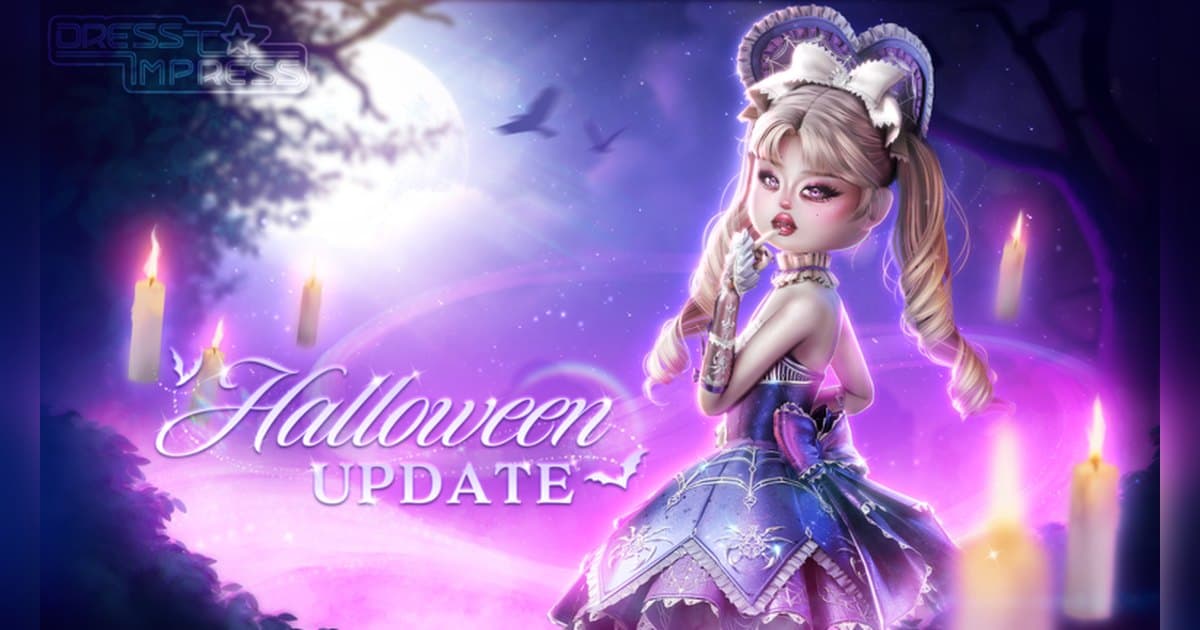
Dress To Impress does exactly what its official description says: you create outfits, then strut the runway to show off your style, collaborating and competing with friends in a world of glamour. The creator is Dress To Impress Group, a Roblox group with a verified badge, the experience went live on 18 October 2023, and an update landed as recently as 19 October 2026. A server holds up to 13 players, so thirteen people solve the same theme in thirteen different ways every round. As of 19 October 2026 about 65,000 people were playing at the same time, against roughly 11.1 billion lifetime visits. If your Roblox language is set to something other than English, the name may appear machine-translated in the experience list, so search for the English title Dress To Impress or the short form DTI and confirm the creator name before you join. This guide covers the order that actually gets an outfit finished before the timer runs out, and then what to do so the look you built still exists after the round ends. The outfit itself resets, but a recording of the runway walk and the placement screen is a finished short on its own. General PC recording setup for Roblox lives in record Roblox gameplay; here the focus is what is worth keeping inside one Dress To Impress round. Experience details were checked on 19 October 2026, and because new items and seasonal events arrive often, specifics can change.
The short answer: break the theme into keywords, dress big pieces first, and pull the runway and results out of a full-round recording
When a round starts, read the theme and cut it down to two or three keywords, such as mood, colour and material. A theme you try to reproduce word for word eats the whole timer; a theme reduced to keywords narrows the wardrobe search instead. Then pick the big pieces that decide the silhouette, the dress or the top and bottom, and spend what is left on hair, shoes, accessories and makeup. Swapping a big piece at the end throws off every colour you already matched. The official description says you can use poses on the runway and vote for your favourite outfits, so walking out and posing with a slightly unfinished fit beats missing the walk. For a sense of what counts as a goal here, look at the badge list: there is a 🏆 Winner! badge for placing first, second or third, a Style Showdown Winner badge, and a Scarlet's Secret badge for players who discover a hidden piece of the experience. The in-experience shop lists passes such as a VIP Pass that opens a VIP Room with exclusive outfit items, a Custom Makeup pass for personalised lip colours and eyebrows, and an increased item limit; prices and contents change with updates, so check the current terms in the shop. New items, seasonal themes and codes are announced through the official community group, and joining one is covered in find and join a Roblox group. Recording splits by platform. Roblox has a built-in Capture in the in-experience menu that saves a video of up to 30 seconds; per the official help pages it records the screen, the file is held in the Roblox app's storage first, and exporting moves it to your PC Videos folder or your phone's camera roll. A full round, from theme to results, usually takes several minutes, so on PC it is easier to record the whole thing with sound and choose the moments afterwards. The same habit of keeping a screen you will want to re-check later shows up in the Adopt Me trading guide.
From theme reveal to a finished clip, in order
- 1Decide how you are recording, and how long clips should beThe wardrobe resets when the next round starts, so settle recording before you join rather than after. On PC with DOR, leave the app running and launch the PC build of Roblox from roblox.com. The hotkey clip length can be set to 15, 30, 45 or 60 seconds; 45 or 60 is comfortable if you want the runway walk and the placements in one clip. On a phone, the in-experience Capture menu saves a video of up to 30 seconds that you can export to the camera roll.
- 2Find the experience and check the creatorSearch Roblox for Dress To Impress or DTI, confirm the creator is Dress To Impress Group, then join. Plenty of dress-up experiences use similar names, so the creator line is the reliable check. In non-English languages the title may show up machine-translated in the list, which was still the case on 19 October 2026. A server holds up to 13 players, so to play with a friend, join through their server rather than searching separately.
- 3Reduce the theme to two or three keywordsRead the theme first. Instead of reproducing the phrase literally, cut it to a mood, a colour and a material so the wardrobe search gets small. If several ideas fit, take the one with the clearest colour, because colour reads best from the runway camera. Each round is on a timer and the time left is shown inside the experience, so treat the first few rounds as practice for how long your own process takes.
- 4Dress the big pieces that set the silhouetteChoose the dress, or the top and bottom, before anything else. Changing a big piece late undoes the colours and accessories you already matched and costs you the rest of the timer. Keep the palette to two or three colours and drop loud props that have nothing to do with the prompt. If you want more items staged at once, the shop lists a pass that raises the item limit, so check its current terms.
- 5Spend the rest of the timer on hair, shoes and makeupWith the silhouette set, finish with hair, shoes and accessories, then makeup if time allows; the shop lists a Custom Makeup pass for personalised lip colours and eyebrows, with contents and price subject to updates. Use the last few seconds to confirm the combination you are already wearing rather than grabbing something new.
- 6Finish on the runway with poses, then watch the votingWhen the timer ends you move to the runway. The official description confirms you can use poses there to show off the outfit, and that players vote for their favourite fits. On camera, two or three pose changes read better than holding one pose for the whole walk. Leave the recording running through everyone else's turns as well: thirteen takes on one prompt, back to back, is a segment you can post as is.
- 7Save the clip at the results, then edit after the roundPress F8 right after the placements appear and the preceding seconds are saved as their own clip. Once the round ends, open that round's recording in the library and trim only what you need, in order: theme reveal, build, runway, results. Export 9:16 for shorts or reels, and if you want the build and the walk as one piece, stitch the segments in the browser editor and add music and text.
Dress To Impress moments worth keeping, and how to keep them
| Moment | Why it is worth keeping | How to keep it |
|---|---|---|
| Digging through the wardrobe right after the theme appears | The build from nothing to a finished look is the most watchable stretch of a round, and it holds viewers longer than a result-only clip. | It runs for several minutes, so cut it out of the full-round recording starting at the theme reveal and keep only the few short stretches where the look changes most. |
| The runway walk with pose changes | Poses are named in the official description, and the walk is the one part of the round that already fits a vertical frame. | Raise your clip length to 45 or 60 seconds before the walk begins, then press F8 as soon as you step off and the walk is saved. |
| The placement and vote results appearing | Placing first, second or third is badge-worthy in this experience, so the results screen is the round's conclusion, reactions included. | Press F8 straight after the placements show and the last 30 seconds are saved; a longer clip length also catches the wait beforehand. |
| Thirteen players answering one theme differently | A server holds up to 13 people dressing for the same prompt, so the comparison itself is the content. | Other players pass one at a time on the runway, so lift the whole runway segment out of the full-round recording in one cut. |
| A round where a friend talked you through the fit | The decisions said out loud become the commentary track, and the reaction to a swap is livelier than anything you would narrate later. | Record with game sound and mic captured together in one track, and get your friend's agreement before you post it. |
| The first look you build on the day new items drop | The official description keeps a standing new-items line, and a first reaction to a drop can only be filmed on the day it lands. | Keep recording on from the moment you join after an update, and press F8 on the spot when a combination clicks. |
Check before you record Dress To Impress
- Roblox is running from the PC build downloaded at roblox.com.
- The recording app is running with room for several rounds back to back; over 30GB free is comfortable.
- Clip length is raised to 45 or 60 seconds so the runway walk and the placements land in one clip.
- If you are playing with friends, you joined the same server, which holds up to 13 players.
- Friends know the call you make while picking outfits is recorded alongside the game.
- The vertical cut is planned around the runway walk, with the wardrobe view kept short.
Keeping the build, the runway and the results in one recording with DOR
DOR is a free Windows PC app. It detects the PC build of Roblox downloaded from roblox.com, starts recording the moment you enter an experience and stops when you leave it, and that behaviour is on by default and adjustable under the full-game recording setting. One Dress To Impress round therefore arrives in the library as a single mp4. The build takes minutes while the runway and the results take seconds, lengths that vary from round to round, and with the whole round on file you only have to choose the parts afterwards. For a moment you want set aside immediately, such as the placements, press F8 (remappable) and the previous 30 seconds are saved as a separate clip, with 15, 30, 45 and 60 seconds available as lengths; the hotkey works while recording inside an experience. Game sound and your mic are recorded together in one track with noise suppression on by default, so the back-and-forth while you pick a combination stays in the video. Quality is 1080p at 30fps by default with 60fps available, and these are chosen before recording begins. Afterwards, the trim tool in the app library sets a start and an end and exports 16:9, 9:16 or 1:1, with text available on the 1:1 output, and a dor.gg share link plays straight in a phone browser. DOR Studio runs in the browser with nothing to install: stitch several segments, add text, background music and effect templates such as punch zoom, shake zoom, handheld and glitch transitions, then download the mp4, which suits a theme-build-runway-results edit. A warning appears when free space drops under 30GB, so tidy up before a session where you plan to run many rounds back to back. For keeping a whole scripted scene with friends rather than a round, see set up Berry Avenue roleplay.
 #Roblox