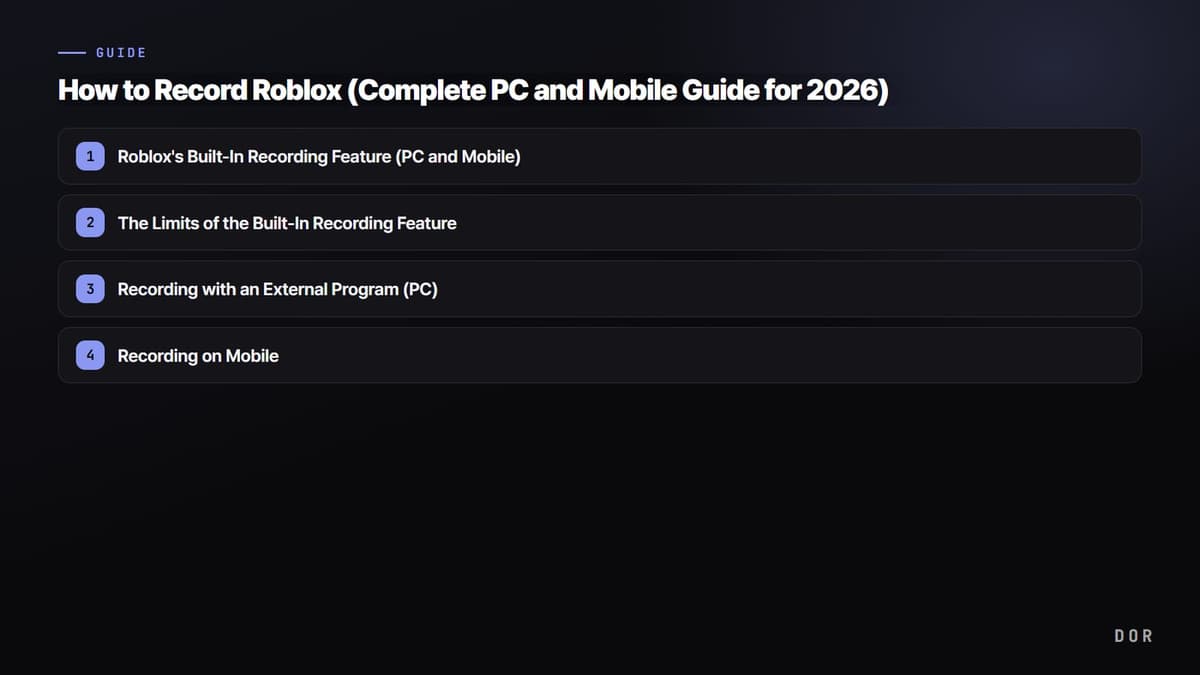
Bottom line, to quickly capture a short moment, Roblox's built-in recording is enough, but if you need video for YouTube or Shorts, or you need voice and length, you have to use an external recorder. That's because the built-in feature has clear limits: 480p quality, a 30-second max, and no voice capture. Below, we lay it out step by step, split into PC and mobile.
Method 1. Roblox's Built-In Recording Feature (PC and Mobile)
Roblox includes a basic recording feature you can use with no separate installation. It's the most convenient for quickly capturing an impressive moment on the spot while you're playing.
- Click the Roblox menu icon at the top left of the game screen.
- Select the Captures item from the menu.
- Click the video capture icon to start recording. An indicator showing it's in progress appears.
- Click the same icon again to stop recording, and the video is saved.
- On PC, find the saved video in a folder; on mobile, find it in your device gallery.
The Limits of the Built-In Recording Feature
Built-in recording is fast and easy, but it falls short in many ways for serious video production. Here are the limits you'll actually run into.
- Quality is fixed at 480p. You can't choose the resolution or bitrate yourself, so it looks blurry and rough.
- It only records up to 30 seconds at a time. It's not suited to long gameplay videos.
- Voice chat and in-game sound aren't recorded. You can't add voice commentary.
- Only the full screen is recorded, with no fine control like pausing or selecting a specific region.
- Mobile has essentially no built-in video recording, so you have to rely on your OS's screen recording feature.
Method 2. Recording with an External Program (PC)
If you need high quality, long videos, or voice, use a PC screen recorder. Windows has the Game Bar you can use with no separate installation, and if you need finer settings, we recommend OBS Studio.
Recording with the Windows Game Bar
- With Roblox running, press Win + G on your keyboard to open the Game Bar.
- Press the round record button in the capture widget or use the Win + Alt + R hotkey to start recording.
- Turn on the microphone icon to record voice commentary as well.
- Press the same hotkey again to stop recording, and the video is saved to the Captures folder.
Recording with OBS Studio
- Install and run OBS Studio. It's free and lets you set resolution, frame rate, and audio yourself.
- Under Add Source, choose Game Capture or Display Capture and specify the Roblox window.
- In settings, choose your desired quality and frame rate, such as 1080p, 60fps.
- Press the Start Recording button, play, then finish with Stop Recording.
Method 3. Recording on Mobile
Since mobile has essentially no built-in video recording, you use your smartphone's own screen recording feature.
- On iPhone, add the Screen Recording button to the Control Center, then with Roblox running, press that button to record.
- On Android, turn on screen recording from the Quick Settings panel, check the sound and microphone options, then start.
- When you stop recording, the video is saved to your gallery. The length depends on your device's storage space.
Automatic-Detection High-Quality Recording with DOR
To solve the built-in recording's quality, length, and voice limits all at once, we recommend DOR. DOR automatically detects Roblox, records it in high quality, and when it's done, cuts it right into clips so you can continue into editing. You don't have to manage the recording timing yourself every time, so you can focus purely on playing.
- Leave DOR running and it automatically detects when Roblox launches and gets ready to record.
- It records in high quality with no 480p limit, and captures long sessions with no 30-second cap.
- You can cut just the highlights from your recorded video right into clips.
- Not only Roblox but other games like Minecraft are recorded and edited the same way.
Summary
The basic principle is to capture short, light moments with Roblox's built-in capture, and to record videos that need voice, length, or high quality with an external program. And if you want to finish everything from recording to clipping and editing in one go, DOR, which automatically detects Roblox and records it in high quality, is the most convenient choice.