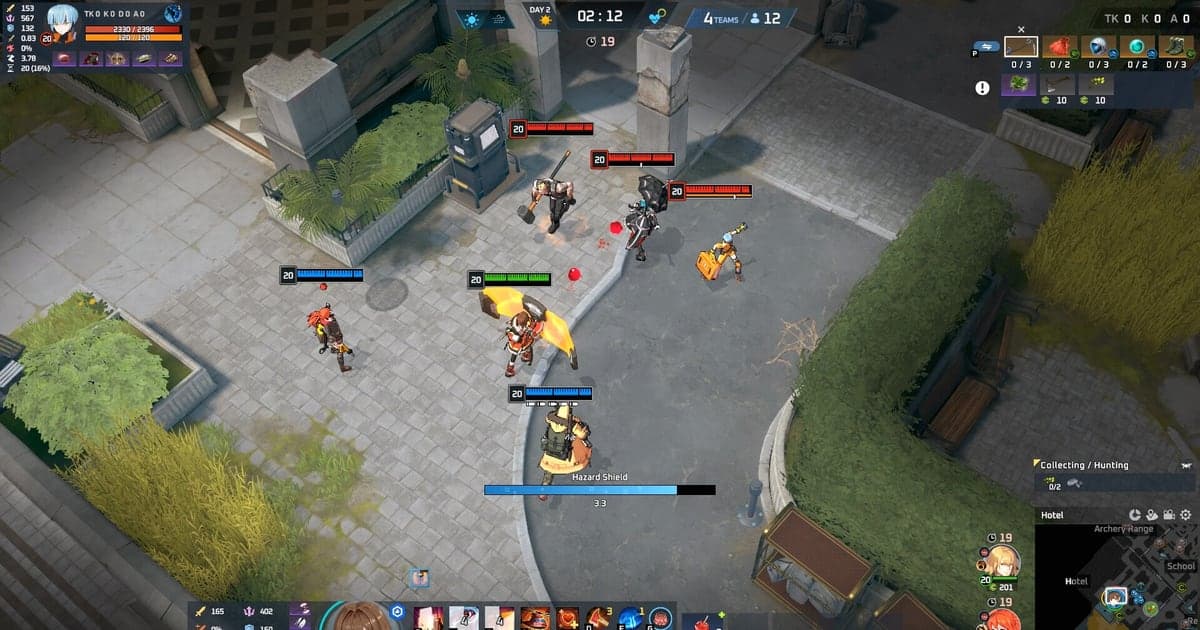
The word on Lumia Island is that the game runs on anything — and that is only half true. Eternal Return does have modest official minimum requirements, around a GTX 660-class card, but running the game and recording your matches at the same time are two different workloads. This guide lays out the official minimum and recommended specs in one table, then covers what they mean for laptops with integrated graphics and how much headroom you need if you want to keep your best plays.
The short answer: judge your PC in 30 seconds
At or above the recommended tier (i5-6600K, GTX 1060, 16 GB RAM), you can play and record together without compromising settings. Near the minimum tier (i5-2500, GTX 660, 8 GB RAM), the game itself runs, but your choice of recording software decides how it feels. On an integrated-graphics laptop, remember the official minimum already assumes a dedicated GPU, so plan on lowering resolution and graphics options. For a deeper walkthrough of capture settings on weak hardware, see our guide to recording games on a low-end PC.
Eternal Return official minimum vs. recommended requirements
| Item | Minimum | Recommended |
|---|---|---|
| OS | Windows 10 64-bit | Windows 10 64-bit |
| CPU | Intel Core i5-2500 / AMD FX-6200 | Intel Core i5-6600K / AMD Ryzen 5 1600 |
| RAM | 8 GB | 16 GB |
| Graphics | NVIDIA GeForce GTX 660 / ATI Radeon HD 7850 | NVIDIA GeForce GTX 1060 / AMD Radeon RX 580 |
| DirectX | Version 11 | Version 11 |
| Storage | 15 GB (SSD install recommended) | 20 GB (SSD install recommended) |
Checklist before you buy or upgrade
- 16 GB RAM: on 8 GB, running the game, a browser, and a recorder together gets tight
- SSD headroom: budget for the 20 GB install plus space for recordings to pile up
- A GPU hardware encoder: GTX 16-series and every RTX generation include NVENC for low-overhead capture
- On a laptop, plug in and mind the heat: battery mode throttles performance
How to check your specs with recording in mind
- 1Check what your PC has — Type dxdiag into the Windows search bar and run it to see your CPU, RAM, and graphics card at a glance. Check free disk space in File Explorer.
- 2Place yourself on the table — Compare against the minimum and recommended columns above. If both CPU and GPU clear the recommended tier you have headroom; if either sits near the minimum, plan to adjust settings.
- 3Set your in-game graphics baseline — Near the minimum spec, lower the frame cap and graphics quality before dropping resolution. Eternal Return's top-down view means lower settings cost you very little play-relevant detail.
- 4Decide your recording headroom — Recording adds an encoding load on top of the game. Near the minimum spec, choosing hardware encoding (NVENC) over software encoding (x264) is the single biggest factor in protecting your framerate.
If recording still feels heavy: DOR
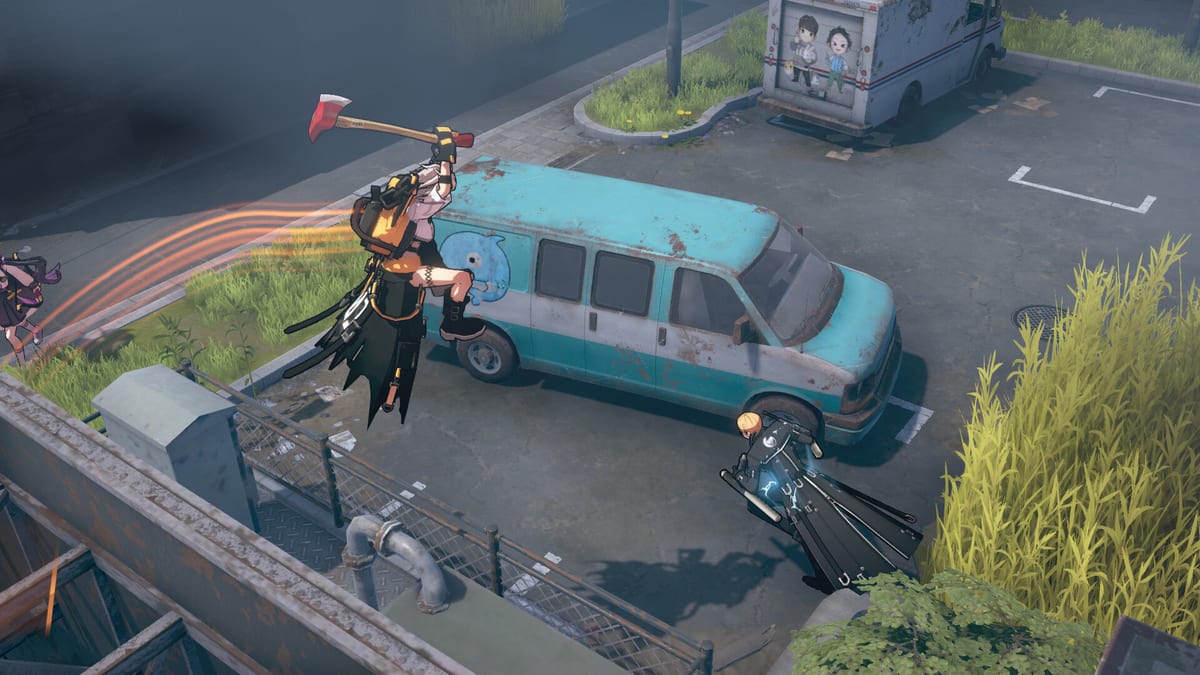
DOR is a free recorder for Windows that detects Eternal Return automatically, starts capturing the full match, and saves it to the in-app library. It uses NVENC hardware encoding by default, so the encoding load runs on dedicated GPU circuitry and the hit to your in-game framerate stays small even on a PC below the recommended specs. Leave full-match recording on and the whole game is kept, replay-style; to keep a kill or highlight, cut that section yourself in the browser editor and check or share the result on the dor.gg web app. For using it as a replay tool, see the Eternal Return replay recording guide.
Official source
The spec figures in this article were verified on August 21, 2026 against the official Eternal Return Help Center article Minimum and recommended requirements to play Eternal Return. The official page also recommends installing the client on an SSD; requirements can change with patches, so double-check the original before buying hardware.