Which tool replaces Fraps depends on whether you need recording, an on-screen FPS counter, or both: per official pages, OBS, the NVIDIA app, Xbox Game Bar and AMD Software all record, and the NVIDIA app and AMD Software document an FPS overlay. As checked on September 30, 2026, Fraps' own site lists 3.5.99 (February 26, 2013) as the latest release and its download page names Windows XP, 2003, Vista and 7 only, with no mention of Windows 10 or 11, so this article does not claim whether it runs on Windows 11. This guide covers only recording plus an FPS overlay; for NVIDIA ShadowPlay replacements, see ShadowPlay alternatives.
Bottom line: it depends on what you need
Rather than naming a winner, it is more accurate to choose by condition. If you want recording and an FPS overlay in one program, look at the NVIDIA app on an NVIDIA graphics card or AMD Software on an AMD Radeon card. If you want to control scenes and audio in detail, OBS Studio is a candidate, and if you are weighing alternatives to OBS itself, see OBS alternatives. If you just want a one-shortcut recording, Xbox Game Bar in Windows is worth checking, and if you plan to stay with Fraps, read the supported-OS listing on its official page first and test it briefly on your own PC.
Official listings compared (as checked September 30, 2026)
| Tool | What the official pages state | Not confirmed, or worth knowing |
|---|---|---|
| Fraps | Latest release 3.5.99 (February 26, 2013). Made for DirectX and OpenGL games, with an on-screen FPS counter in a screen corner, frame rate measurement between two points, video capture and screenshots. The default video capture hotkey is F9. The registered version is listed at $37, with unlimited recording time, no watermark on your movie and free updates. The download page lists Windows XP, 2003, Vista and 7. | No Windows 10 or 11 is listed. Specific limits of the free version are not stated on the official site. The official FAQ says video files are big and that recording can have a noticeable impact on the game. |
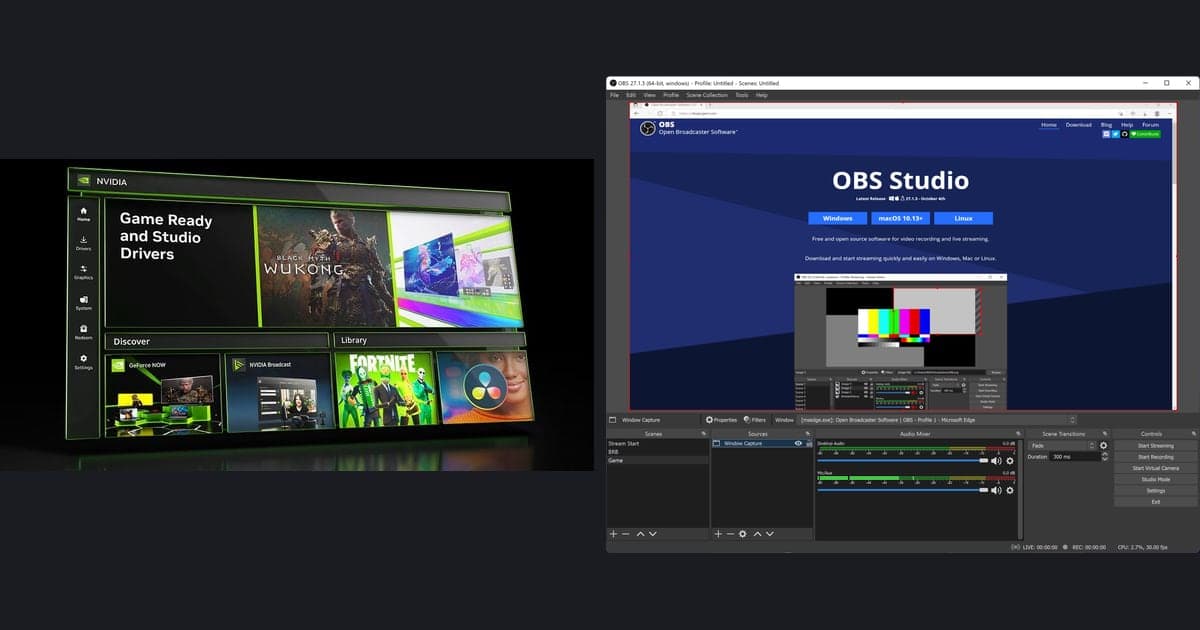
| OBS Studio | Free and open source software for video recording and live streaming. Current version 32.2.2, Windows 10 and 11, and a DirectX 10.1 compatible GPU. The Quick Start Guide mentions Game Capture (Windows only), desktop audio and microphone captured by default, and an Auto-Configuration Wizard. | A compatible system does not guarantee recording, and CPU needs vary widely with encoder, resolution, frame rate and scene complexity. A Stats dock exists, but what it shows was not confirmed in official documentation. |
| NVIDIA app | An overlay shows real-time FPS and performance statistics, and you can customize items such as GPU and CPU usage and FPS 1% Low. It offers ShadowPlay recording, DVR-style Instant Replay and screenshots, with manual recording listed up to 8K HDR at 30fps or 4K HDR at 120fps. | Hotkeys come from the November 2024 launch post (overlay Alt+Z, record Alt+F9), so verify them in the current overlay. Supported GPU generations and system requirements were not confirmed. |
| Xbox Game Bar | Open it with Windows key+G, start or stop recording with Windows key+Alt+R, and toggle the microphone during recording with Windows key+Alt+M. Clips are saved as MP4 in the Captures folder inside Videos, with the game or app name and date and time in the file name. | An FPS display, recording time limits and quality options could not be confirmed from an approved official source, so they are not listed. |
| AMD Software: Adrenalin Edition | Record is built in and available with a full install. Frame rate, frame time and GPU and CPU usage can be shown as an overlay or logged to a file, and the default overlay toggle hotkey is Ctrl+Shift+O. Recording profiles are Low, Medium, High and Custom, encoding is AV1, HEVC or AVC, and Instant Replay and a separate microphone track are available. | It targets AMD Radeon graphics. The documents were updated in November 2024 and describe Adrenalin 23.9.1, so current screens may differ, and some resolutions and 60fps are unavailable on certain GPUs. |
| DOR | A free Windows desktop app. It detects supported games automatically and records the full match as mp4, uses NVENC hardware encoding by default on NVIDIA graphics cards, records game audio and microphone together, and keeps clips in an in-app library. | Not an FPS counter. Automatic highlight clips work only in some supported games, and games outside the supported list are not recorded. |
Checklist before you choose
- I decided whether I need recording, or only an on-screen FPS counter.
- I checked whether my graphics card is NVIDIA or AMD Radeon and added that vendor's tool to my shortlist.
- I checked that the candidate's official page lists my version of Windows.
- I made a one to two minute test recording and heard both game audio and microphone.
- I confirmed that the save folder and file format suit how I edit and share.
- I compared frame rate on the same scene with recording on and off.
What to carry over when leaving Fraps, and what to set again
- 1Write down your current Fraps values — There is no official basis for moving Fraps settings files into another tool, so treat this as copying values by hand. Note your video capture hotkey (default F9), frame rate, Half-size or Full-size, whether Record Sound is on, and the recording folder, so you know which equivalent to look for in the new tool.
- 2Assign new start and stop recording hotkeys — F9 is a Fraps value, so other tools use their own. In OBS you assign hotkeys yourself in the settings, Xbox Game Bar uses Windows key+Alt+R, and the NVIDIA app used Alt+F9 in its launch post, which you can confirm in the overlay. Also check that none of them clash with keys the game uses.
- 3Match frame rate and sound — Pick the same frame rate you used in Fraps in the new tool's recording settings. OBS runs an Auto-Configuration Wizard on first launch that you can reopen from the Tools menu, and AMD Software lets you choose Low, Medium, High or Custom recording profiles. For sound, find the counterpart of Fraps' Record Sound option and confirm that both game audio and microphone are captured.
- 4Confirm the save folder and file format — Fraps lets you change the recording folder, Xbox Game Bar saves MP4 files into the Captures folder inside Videos, and AMD Software defaults to Radeon ReLive under Videos. In OBS, look at the recording items on the Output screen of Settings. After the first recording, open the folder and check where the file went and what format it has.
- 5Check where the FPS counter sits and whether it is recorded — Fraps shows FPS in one of the four screen corners. The NVIDIA app lets you choose overlay items, while AMD Software lets you pick the overlay position from Top Left, Top Right (default), Bottom Left, Bottom Right or Custom, and set whether the overlay appears in the recorded video. Record a short clip and see whether the FPS numbers are burned into it.
If you want recording without configuring anything
If you would rather not choose hotkeys and profiles and simply want recording to happen once a game starts, DOR can be a third option. It is a free Windows desktop app that detects supported games automatically and saves the full match as mp4. On an NVIDIA graphics card, NVENC hardware encoding handles the encoding by default. Game audio and microphone are recorded together, and you can trim in the app library or in DOR Studio, which opens in the browser without an install. DOR is not an FPS counter, so if you need one you would still pair it with a tool above, and automatic highlight clips exist only for League of Legends, Valorant, PUBG, FC Online, Fortnite, Counter-Strike and Overwatch, while other supported games get full-match recording only. For the basics, see how to record gameplay for free, and for choosing a recorder, see how to choose a lightweight game recorder.
Official sources and how to verify
Every value here is as checked on September 30, 2026, and versions, prices and hotkeys can change. Fraps values come from the Fraps download page plus its home, FAQ and buy pages, OBS values from the OBS Studio official site and its system requirements page, and NVIDIA app values from the NVIDIA app official page and its 2024 launch post. Xbox Game Bar comes from Microsoft Support's screen reader guide to recording, and AMD Software from AMD's support articles on performance metrics and recording (updated November 2024), so search those by product name and compare with your current screens.