To cut an OBS recording, check whether the file is MKV or mp4, remux MKV to mp4 if your editor will not open it, then set the start and end points in an editing tool and save a copy. OBS's official guides (checked October 6, 2026) cover choosing a recording format and remuxing, while the trimming itself happens in an editor such as the Windows Photos app, Clipchamp or DOR Studio. If you only want the in-app trimming flow, see how to trim game clips; this guide starts from the file OBS gives you (MKV or Hybrid MP4).
Bottom line: remux MKV to mp4, then trim a copy
OBS's Audio/Video Formats Guide describes MKV as the default container and the recommended choice in most cases, but it also says editing software support is weak and the file may require remuxing before you edit it. Traditional MP4 and MOV are well supported by editors, yet the file has to be finalized to play and a recording that stops abruptly may not be recoverable, so the guide advises against recording straight to them. That is why recording to MKV, converting to mp4 right before editing and trimming a copy is a safe default; the conversion is covered in how to save a recording as mp4. The same approach applies to a long Minecraft session recorded with OBS on PC.
Steps to keep only the part you need from an OBS recording
- 1Check the file extension first — Look at your recording folder and see whether the file ends in .mkv or .mp4. Inside OBS, the Recording Format item under Settings > Output lists Matroska Video (.mkv), MPEG-4 (.mp4), Hybrid MP4 (.mp4) and others, so you can confirm which one you are recording to. The next step depends on the answer.
- 2Remux MKV to mp4 with File > Remux Recordings — Open File > Remux Recordings in OBS, check the recording and the target file, and press Remux to produce an mp4. OBS's Standard Recording Output Guide also notes that OBS has a built-in way to convert a non-mp4 recording to mp4 so it is easier to edit or upload.
- 3Trim in the Windows Photos app — If the Photos app can open your video, select it and choose Trim (shortcut Ctrl+E). Move the start and end markers on the bottom slider to just outside the scene you want, then choose Save as Copy to keep the original untouched. Choosing Save from the dropdown overwrites the original, so check which button you press.
- 4Use the Clipchamp timeline for finer cuts — From the Photos app you can jump to Edit in Clipchamp video editor, or open Clipchamp directly and place the video on the timeline. Selecting the clip shows handles at both ends, and dragging them changes the length. If you trimmed too much, drag a handle back to restore it, and use the timeline zoom buttons to place the cut more precisely.
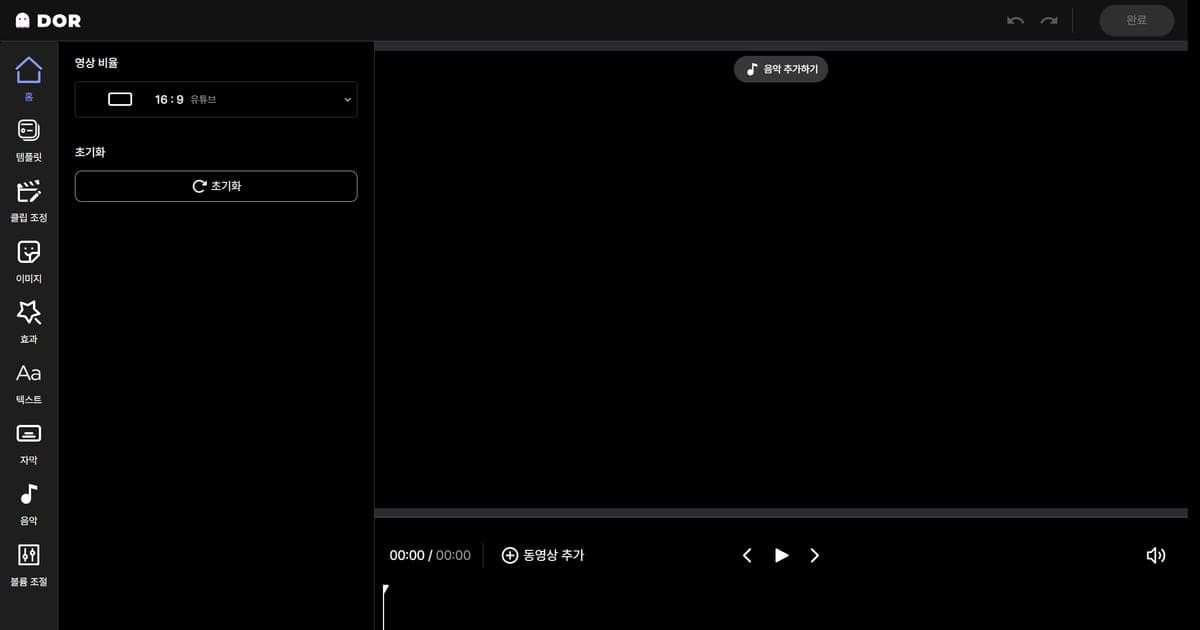
- 5Upload to DOR Studio if you prefer the browser — To work in a browser, upload your OBS recording to DOR Studio. Adjust the clip length on the timeline to set the start and end, and bring in another video with Add Video if you want to join them. When you are done, download the result as mp4 or share it by link.
- 6Play the result and keep the original — Play the saved file from start to finish and check that it begins and ends on the scenes you intended and that the sound is still there. If anything is off, cut again from the original MKV or the remuxed mp4, which is why you should not delete either of them.
Ways to cut an OBS recording at a glance
| Method | How you cut | Good to know |
|---|---|---|
| OBS (Settings > Output > Recording Format, File > Remux Recordings) | Not a cutting step: it handles the MKV to mp4 conversion | Per the official guide, MKV has weak editing software support and may need remuxing, while Hybrid MP4 is listed as the Windows/Linux default with excellent editing software support |
| Windows Photos app | Open the video, choose Trim (Ctrl+E) and move the bottom slider to the start and end | Save as Copy keeps the original, while Save overwrites it. Use it for videos the Photos app can open |
| Clipchamp | Select the clip on the timeline and drag the handles at both ends to change its length | Selecting a clip shows handles at both ends, and dragging a handle back recovers footage you trimmed too much. The timeline zoom buttons help with precise cuts |
| DOR Studio | Upload the video in your browser, then adjust its length on the timeline | Nothing to install, and merging videos, text and music live in the same screen |
Checklist before and after cutting
- Copy the original recording (MKV or otherwise) to another folder before you start.
- If your editor will not open the file, recheck the format and remux first.
- Leave a little room before and after the scene when you place the start and end points.
- In the Photos app, make sure you pressed Save as Copy or Save knowingly, since Save overwrites.
- Play the saved file and confirm both picture and sound are present.
Footage from OBS, or footage recorded from the start
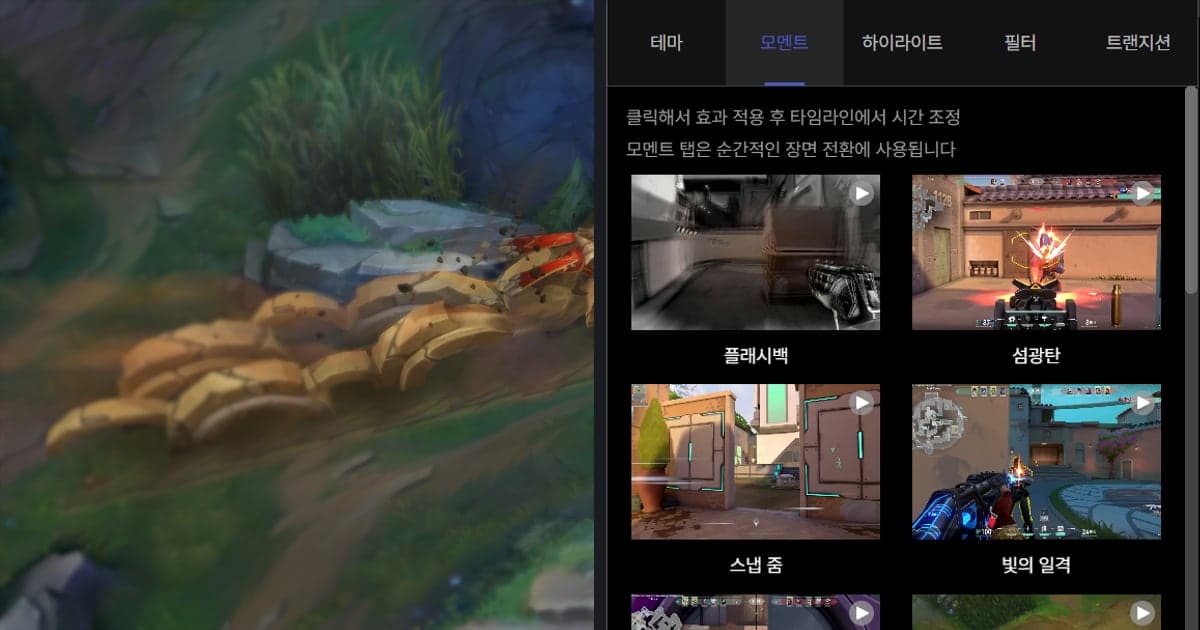
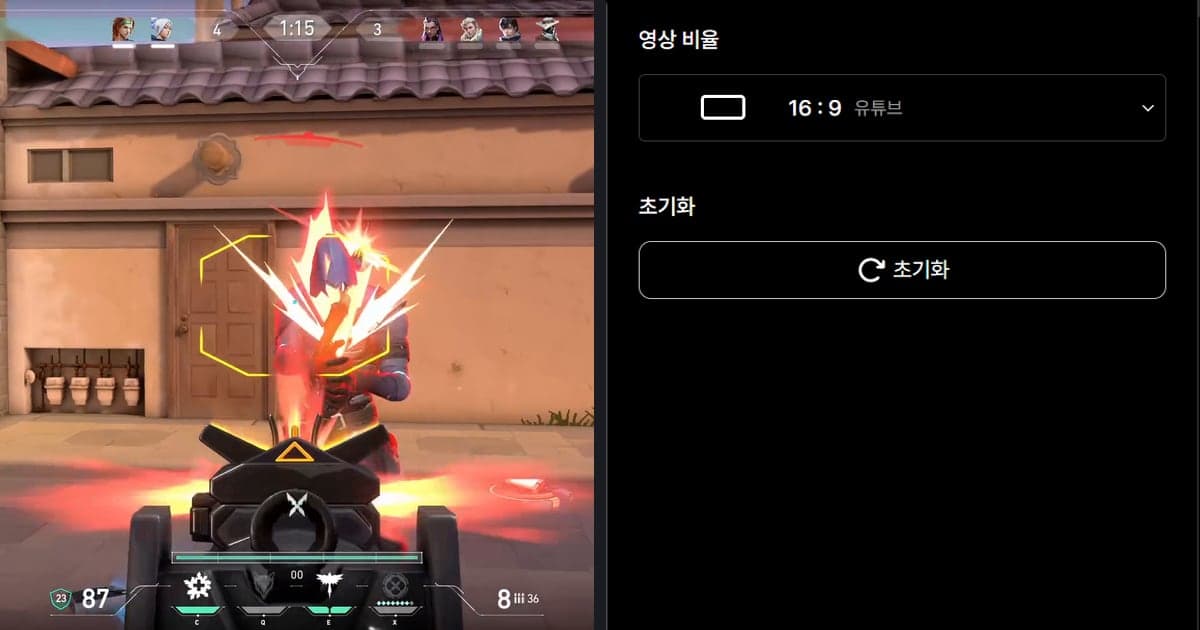
If you would rather have less to cut from the beginning, recording with DOR is another option. Roblox on PC is a game DOR supports, so DOR detects it automatically and saves the full match as mp4; on an NVIDIA graphics card it uses NVENC hardware encoding by default, and it can capture game sound and your microphone together, which suits a long session you will trim down later. Roblox only gets full-match recording, though, not automatic highlight clips, so you pick the scenes to keep yourself. If you already have footage from OBS, DOR Studio lets you adjust its length, merge several videos, and handle text, background music, volume and the video ratio. To add an effect to the trimmed video, open the Effect tab and click an item such as Shake Zoom or Glitch yourself, then adjust the timing in the timeline; DOR does not insert effects for you. The editor screen is walked through in how to edit clips in the DOR browser editor.
Official sources (checked October 6, 2026)
OBS recording formats and remuxing are in the OBS Audio/Video Formats Guide, trimming in the Photos app is in Microsoft Support: edit photos and videos in Windows, and Clipchamp trimming is in Microsoft Support: how to trim videos in Clipchamp. The built-in remux to mp4 is also described in the OBS Standard Recording Output Guide. Format recommendations and menu names can change with updates, so recheck the official pages before you start.