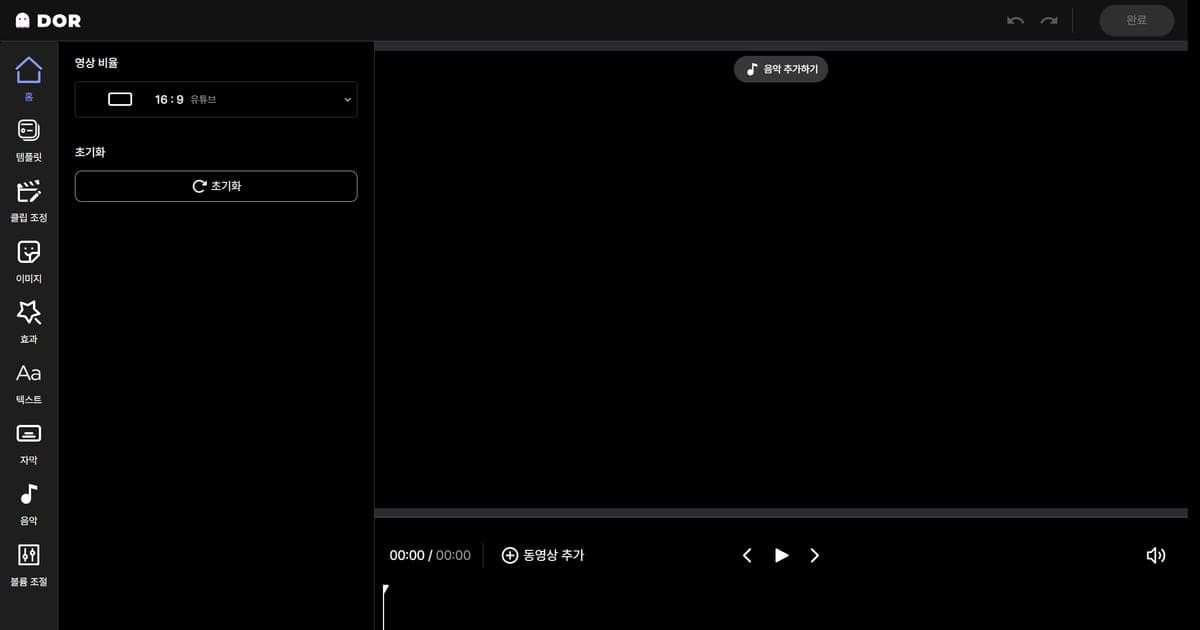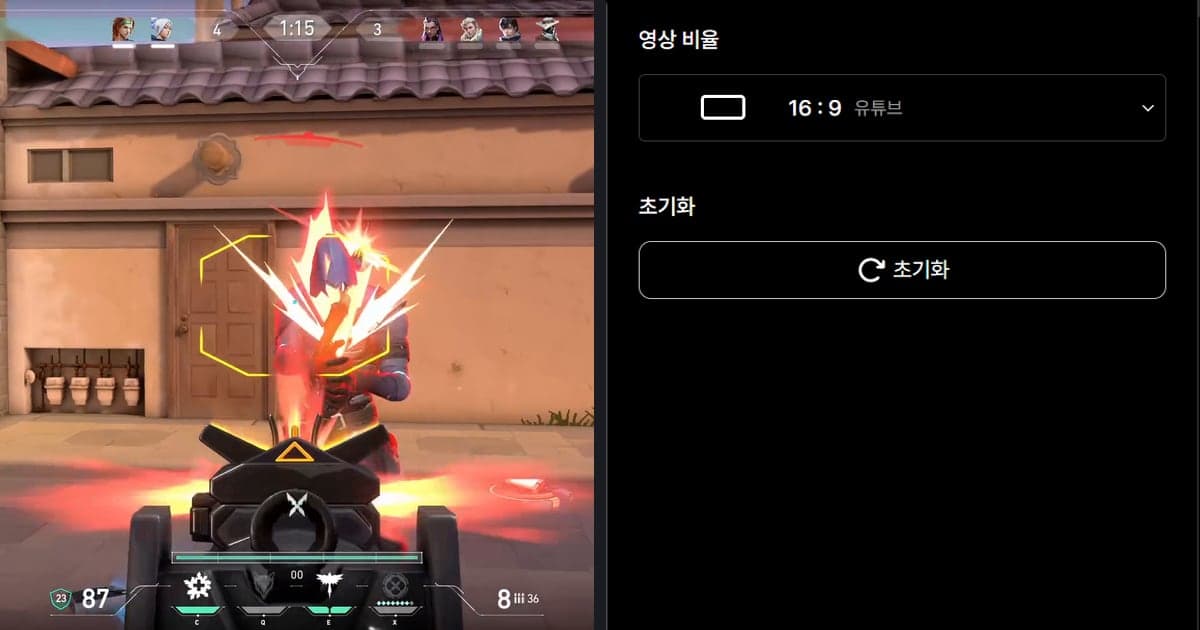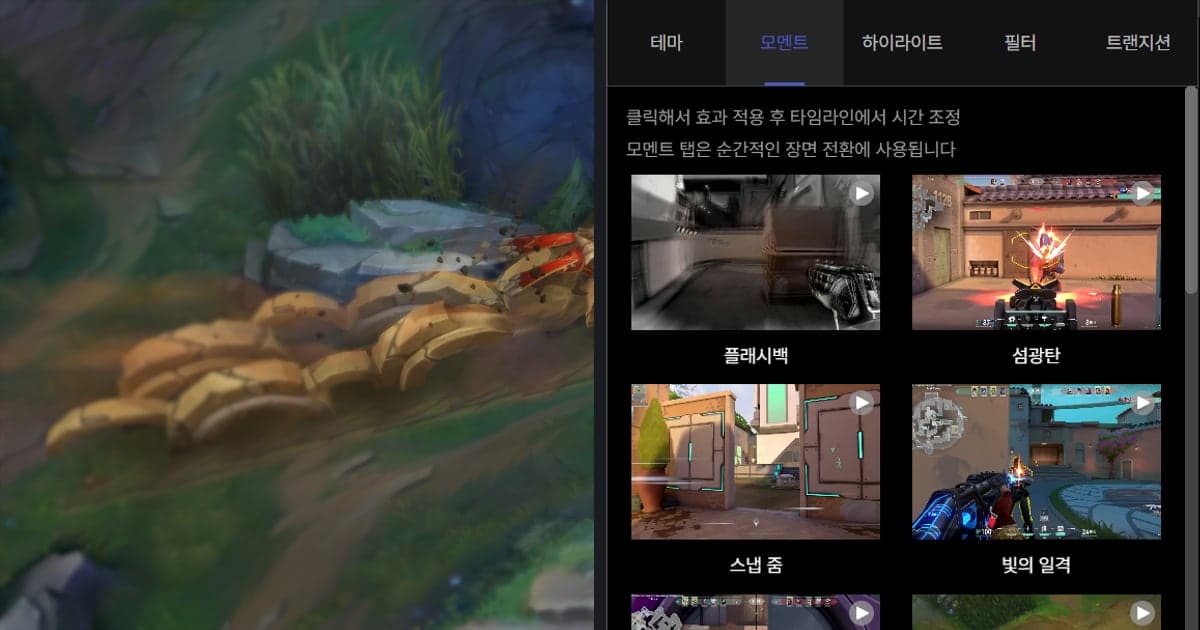
To add effects to an OBS recording, the order is: record in OBS, get the file into mp4, apply the effects in an editor, then export an mp4. This guide uses DOR Studio, a browser editor that needs no install, as the example: you click an effect such as Shake Zoom or Punch Zoom in the Moment tab, then adjust its timing on the timeline (checked on October 6, 2026, Windows PC). The mkv-to-mp4 conversion has its own walkthrough in how to save an OBS recording as mp4, so this page only repeats the menu names confirmed in OBS's official documentation.
The short answer: effects happen outside OBS, and you pick the scenes
There are two things to take away. First, effects go on after you carry the OBS file into an editor; the OBS documentation checked for this guide stops at recording formats and remuxing. Second, in DOR Studio you open one of the Effect panel tabs (Theme, Moment, Highlight, Filter, Transition), click an effect to apply it, and then adjust its timing on the timeline. It does not insert effects for you: you choose the scene and you click. For the editor as a whole, see what the DOR browser clip editor can do. This guide makes no claim that effects change views or audience retention.
Adding effects to an OBS recording, in order
- 1Check the recording format and save location — In OBS, open Settings > Output and look at Recording Format and Recording Path. According to OBS Studio's official source strings, the format list includes Matroska Video (.mkv), MPEG-4 (.mp4) and Hybrid MP4 (.mp4) (checked October 6, 2026). Use the documentation summary in the table below to decide which one to pick.
- 2If it is mkv, remux to mp4 — Open File > Remux Recordings, choose the video with Select OBS Recording... or the '...' button, then press Remux. When it finishes OBS shows a prompt, so play the converted mp4 to make sure it opens.
- 3Open DOR Studio and keep only the part you need — Open dor.gg/studio in your browser; nothing needs to be installed. Upload the mp4 and use length adjustment to keep just the stretch around the scene you want to emphasize, which makes it easier to place effects on the timeline afterwards.
- 4Click an effect in the Moment tab — Studio describes the Moment tab as the one for instantaneous scene transitions. Shake Zoom, Handheld, Punch Zoom, Quick Zoom, Face Smash, Earthquake, Snap Zoom, Glare Impact and Flashback are all in it. As the Studio hint says, click the effect to apply it, then adjust the timing on the timeline. In an OBS Minecraft recording, for example, you could try Earthquake on the moment TNT goes off and Face Smash when a mob jumps into the frame.
- 5Use Glitch from the Transition tab between scenes — If you have more than one OBS recording, merge the videos first. Then click Glitch in the Transition tab and move it on the timeline to the point where the two videos meet. Studio describes the Transition tab as the one for natural transitions between videos.
- 6Set text, music and aspect ratio, then export — Add text, background music and volume if you need them, and pick the aspect ratio for the platform you will post to. Play through the part with the effect to check that the footage does not break up around it, then download an mp4 or share a link. Keep the original OBS file until you are completely done.
Five things to confirm before you take an OBS file into an editor
| What you want to do | What the official documents say (checked October 6, 2026) | What to do in this workflow |
|---|---|---|
| Check which format OBS is recording | OBS's Standard Recording Output Guide (page dated 2023-05-26) says the Recording Format under Settings > Output is the output file format, and recommends MKV in case of unforeseen issues, because MKV does not corrupt the whole file if recording stops ungracefully. | Open Settings > Output and look at Recording Format and Recording Path to see the current format and where files are saved. |
| Turn an mkv into mp4, now or automatically from now on | The Remuxing section of the same guide says to use File > Remux Recordings, press the '...' button to pick the video, press Remux, and OBS shows a prompt when the conversion is done. The Advanced Settings section says that ticking 'Automatically remux to mp4' in Settings > Advanced remuxes the video as soon as you stop recording. | Take the converted mp4 into your editor. The automatic option is on the Advanced tab. |
| Record mp4 but stay safe if the PC crashes | OBS's Hybrid MP4 & Hybrid MOV Formats page (2024-06-06) says Hybrid MP4 arrived in OBS 30.2, stays recoverable if writing is aborted and keeps wide compatibility. Chapter markers are not recoverable after a crash. | It is the 'Hybrid MP4 (.mp4)' entry in the Recording Format list. No official page checked here ranks it against MKV. |
| Decide which tab to open for an impact moment such as an explosion | DOR Studio's Moment tab holds Shake Zoom, Punch Zoom, Face Smash, Earthquake and others, and Studio's hint says to click to apply an effect and then adjust its timing on the timeline. | Pick the scene yourself, then click the effect to apply it. |
| Know whether your editor opens the file | Adobe's Supported file formats help page lists MP4 and MOV. Supported formats differ per editor, so each editor's own documentation is the place to check. | This guide assumes an mp4 uploaded to DOR Studio and does not cover Studio's supported formats or size limits. |
Checklist before you export
- I checked the recording format and save path in Settings > Output, and confirmed the file to edit is an mp4.
- If it was an mkv, I converted it with File > Remux Recordings and kept the original until the converted file played.
- I picked the scene first, then clicked the effect myself in the Moment tab.
- After applying the effect I adjusted its start and timing on the timeline to fit the scene.
- I placed the Glitch transition on the boundary between the merged videos.
- I played the video from start to finish and chose mp4 download or a share link.
If you are also wondering about recording from the start
A video you have already recorded in OBS can go into DOR Studio for effects, merging, text and background music, and if you want an easier start next time, DOR recording is an option too. DOR is a free Windows desktop app that detects a supported game and saves the full match as an mp4 straight away, so there is no mkv-to-mp4 remux step. Roblox on a Windows PC is one such game. DOR records the full match automatically but does not create automatic clips for it, so you pick the scene and click the effect yourself. On an NVIDIA graphics card, NVENC hardware encoding is the default and game sound and microphone are recorded together, so the scene you add effects to already has its audio. The Minecraft scenes in this guide are examples of footage recorded with OBS. For recording Roblox, see how to record Roblox gameplay; for joining several videos, see how to merge game clips.
Official sources (checked October 6, 2026)
The OBS details come from OBS's own knowledge base: the Standard Recording Output Guide (page dated 2023-05-26) and Hybrid MP4 & Hybrid MOV Formats (page dated 2024-06-06). For an example of an editor's supported formats I read Adobe's supported file formats help page. Menu names follow the translation strings in OBS Studio's official source and can change between versions, so everything here is as checked on October 6, 2026.