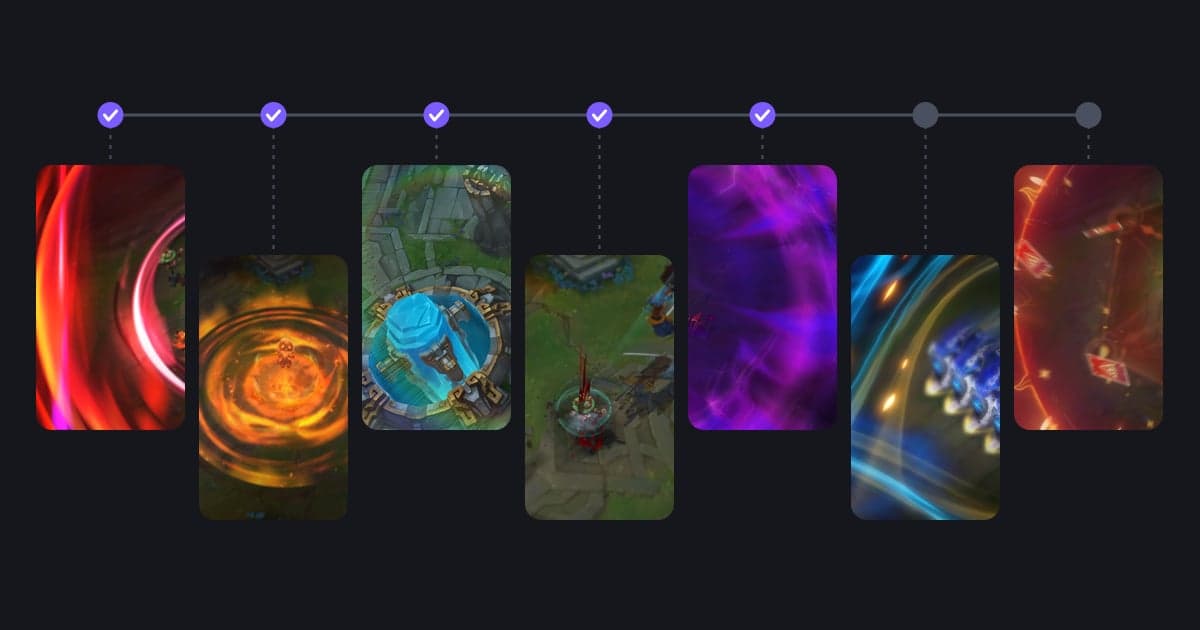
A League of Legends Short takes one moment from one game, crops it to vertical 9:16, and uses text to put back the screen information the crop throws away. League needs a lot of that repair work. The minimap, scoreboard and chat sit in the corners, so a vertical crop wipes out ganks and rotations, while the announcer calling out a multikill becomes the clearest signal of what just happened. Replays let you lock the camera on your champion and film a moment again, but they expire with the patch. This guide is built around those three points and follows the order of picking a moment, trimming, cleaning up the 9:16 frame, adding text and music, and uploading. The usual moments are multikills (double kill through pentakill), solo kills, Baron steals, teamfights, funny mistakes and comebacks; suggested lengths and 9:16 handling for each are in the table below. Recording itself is covered in how to record League of Legends, and making sure a pentakill gets saved is covered in how to save a LoL pentakill clip, so this article only covers turning a moment you have already saved into a Short.
The short answer: cut from your recording, and use a replay only when the camera missed
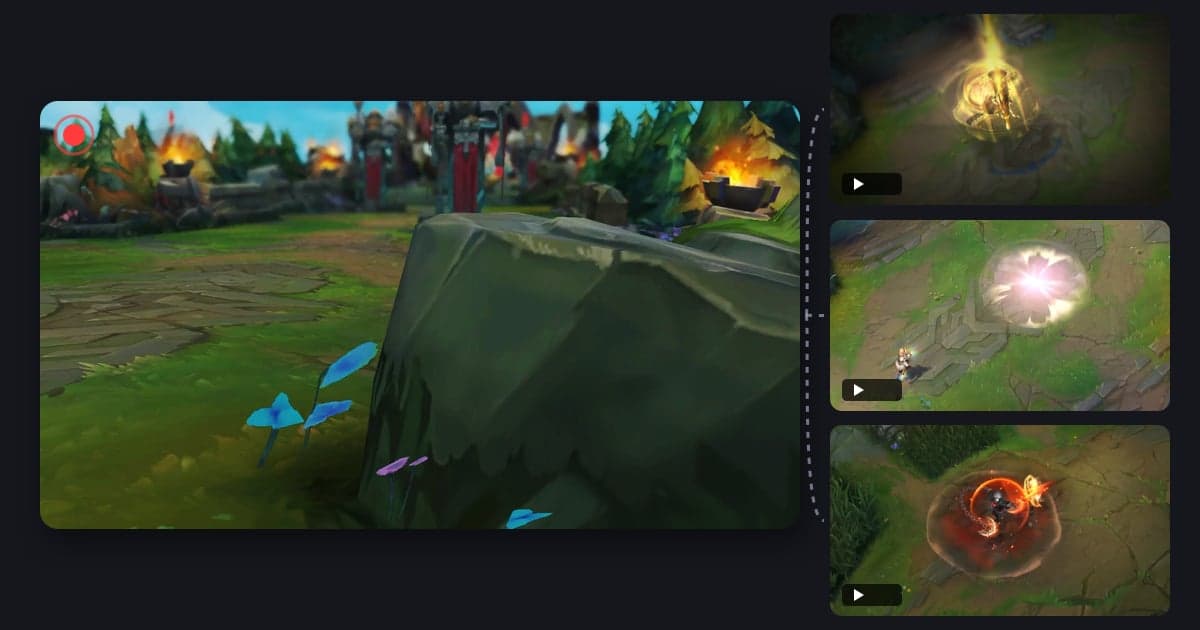
First decide where the moment comes from. Your match recording is the default: it is an mp4 file, so it keeps playing after the patch changes, and it shows exactly what you saw, ready to trim. In a replay, pressing 1 to 5 or Q, W, E, R, T twice locks the camera on a champion, so use replays to re-film moments that are hard to fit into the center of a 9:16 frame, such as a fight your camera was pointed away from or a Baron you stole with a long-range ultimate. According to Riot's official replay FAQ, though, a replay lasts for one patch cycle and expires once you patch, and only your last 20 games are available in the client. In short: use the recording when you have one, and handle only the missing or badly framed moments with a replay before the next patch. The general method for cropping landscape footage to vertical is in how to make a vertical (9:16) game video, and downloading and playing replays is covered in how to watch League of Legends replays.
How to make a LoL Short, from picking the moment to uploading
- 1Pick one moment that can be a ShortUse one moment per Short. The test is whether you can state the result in one sentence: “level 2 solo kill”, “Baron steal over the wall”, “1v3 comeback teamfight”, “flashed into the wall”. If you can say it like that, it works as a Short. A lane where you slowly built a lead, or a game won through macro, needs too much explanation for a short vertical video, so save it for long-form.
- 2Find the moment in your recording or a replayIn a recording, find when the kill happened and check only the few seconds around it. If you need a replay, download it with the button at the upper right of the end-of-game screen or from Match History in the client, then play it. According to Riot's replay FAQ, pressing the same champion key twice locks the camera on that champion, and holding the middle mouse button while panning moves the camera more smoothly. Ctrl + V starts and stops a Highlight recording inside the replay, so record just the stretches you need in short takes.
- 3Trim the start and end, and build the first 1 to 2 secondsSet the start 2 to 3 seconds before the fight begins and the end about 1 second after the last kill or objective. For long sequences such as a pentakill, start just before the first kill and cut every recall and shop visit. Viewers should know within the first 1 to 2 seconds what is coming, so if the opening frame is quiet, plan a text line that announces the result (for example, “pentakill incoming”) over that same stretch. If your reaction after the result is funny, keep those extra 1 to 2 seconds.
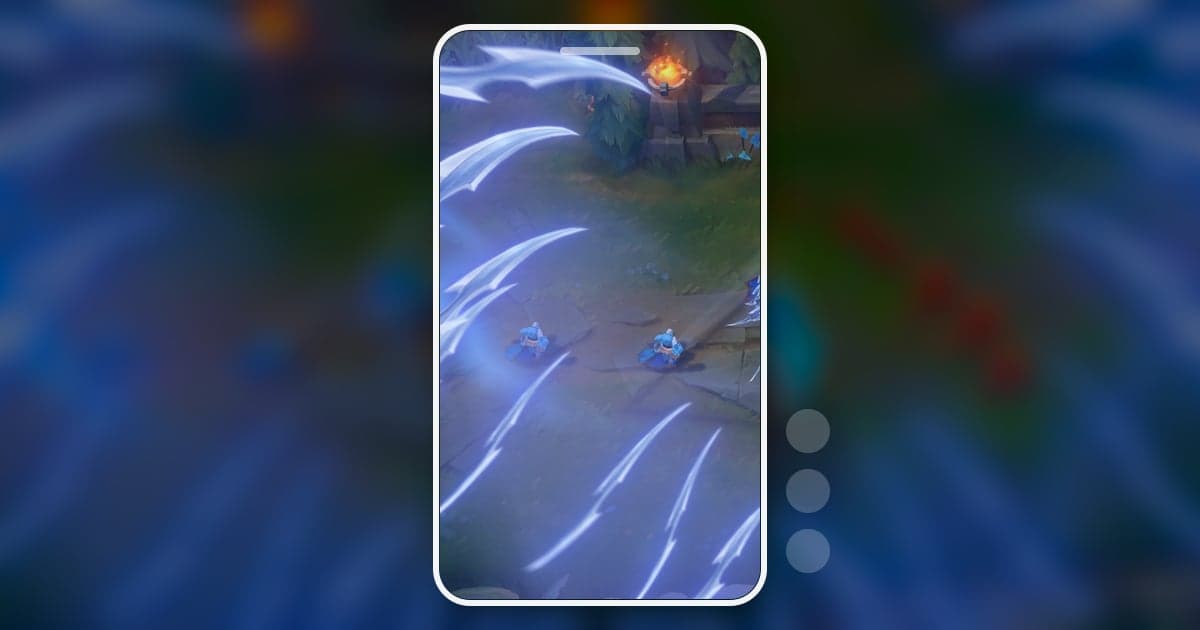
- 4Crop to 9:16 and deal with the minimap, skill bar and kill announcementsIf you keep the full height of a 1920×1080 frame and crop the center to 9:16, the remaining width is about 608 pixels, roughly a third of the screen. That crop removes the minimap at the bottom right, the scoreboard and timer at the top right, the kill feed along the right side and the chat at the bottom left, and keeps only part of the skill and item bar at the bottom center. Without the minimap, viewers cannot see a gank or a rotation, so fill that gap with a text line such as “bot lane 3-man dive”. The announcement text at the top center stays in frame but looks small on a phone, so show the result in large text as well. Exporting at 1080×1920 enlarges the crop about 1.8 times, so recording the source at 1080p or higher helps. A 1:1 crop of the same source keeps 1,080 pixels of width, about 56 percent, so for moments where your champion sat near the edge of the screen, or for wide teamfights, choose 1:1 or film the moment again from a replay with the camera locked.
- 5Add text and musicPut one or two lines of text at the top of the screen naming the champion, the situation and the result. On YouTube Shorts, Instagram Reels and TikTok, the title and buttons sit over the bottom and right side of the video, so keep important text away from those areas. In a LoL Short the announcer calling out the pentakill and the ability sounds tell the story, so keep background music quieter than the game audio and pull it down further at the final kill. How YouTube handles a Short with an active Content ID claim depends on its length, and YouTube Help says the rule for Shorts over one minute changed on September 24, 2026. For anything over a minute, use only music you are cleared to use, and check the current terms in YouTube Help before posting.
- 6Run a final check against Riot's Legal Jibber Jabber policyBefore you post, check three things against Riot Games' “Legal Jibber Jabber” policy. First, it asks for your own original contribution rather than ripping off or adding light commentary to existing content, so build Shorts from your own plays. Second, without a written license you may not use Riot's logos or trademarks anywhere in your project, so keep the League logo off your opening frame and thumbnail. Third, you must conspicuously include the notice the policy specifies. It consists of your project's title, a sentence saying it was created under the policy using assets owned by Riot Games, and a sentence saying Riot Games does not endorse or sponsor the project, so copy it from the policy page and paste it into the Short's description. What the policy allows for ad revenue is covered in the FAQ below.
- 7Upload it vertical and under 3 minutes, then check the classificationAccording to YouTube Help, videos uploaded on or after October 15, 2024 with a square or vertical aspect ratio and a length of up to three minutes are classified as Shorts. Upload the 9:16 mp4 and put the champion name and the situation at the front of the title (for example, “Ahri 1v4 pentakill”). You can post the same file to TikTok or Instagram Reels, but length limits and monetization rules differ by platform, so check each platform's official help for the current conditions.
Suggested length and 9:16 handling by LoL moment type
| Moment type | What to cut and length (suggested) | What to watch in 9:16 |
|---|---|---|
| Multikill (double kill to pentakill) | From 2 to 3 seconds before the first kill to 1 second after the last kill announcement, 15 to 40 seconds | Cut long walks between kills; the kill feed on the right gets cropped out, so show the result, such as “1v4 pentakill”, at the top of the first frame |
| Solo kill | From just before the trade to 1 second after the kill, 10 to 25 seconds | Keep both champions' health bars in frame and explain context such as a level or item gap in text |
| Baron steal | From 1 to 3 seconds before the Smite or ultimate to the Baron kill announcement, 5 to 20 seconds | If you stole it with a long-range ultimate, Baron is not in your original frame either, so film the Baron pit separately in a replay and join two shots: ability cast, then Baron kill |
| Teamfight | From just before the engage to the end of the fight, 20 to 45 seconds | A wide fight gets cut off at 9:16 (about 608 pixels wide), so make it 1:1 (1,080 pixels wide) or keep only the stretch centered on your champion |
| Funny mistake | From 2 seconds before the mistake to the result or reaction, 5 to 15 seconds | Keep it short so people want to rewatch it, and say what is funny in one line of text |
| Comeback and Nexus kill | From the last teamfight to the Nexus exploding, 15 to 30 seconds | The scoreboard is cropped, so state the gap in text, such as “down 8 to 21 in kills”, and keep the Nexus exploding in the center |
Before you post your LoL Short
- The Short holds one moment, and I can state the result in one sentence.
- The first 1 to 2 seconds show, in text or on screen, what viewers are about to see.
- My champion stays visible inside the 9:16 frame from start to finish.
- Where the moment depends on the cropped minimap or scoreboard, I added a line of text.
- The music does not bury the announcer or ability sounds, and anything over a minute uses only music I am cleared to use.
- I did not use Riot's logos, and I put the policy notice in the description.
- Before uploading, I checked that the video is vertical and 3 minutes or shorter.
How to collect LoL Short material and make it 9:16 with DOR
DOR is a free Windows desktop app. When you launch League of Legends, it detects the game and records the whole match as an mp4. LoL is one of the seven games with automatic highlight clips, so kills, multikills from double kill to pentakill, assists, deaths, objectives such as Baron and dragons, turrets and the end of the game are sorted into separate clips, and each match gets one POTG, the clip chosen to represent that game. For step 1, start with the POTG and the multikill clips, look for Baron steal candidates among the objective clips and for funny mistakes among the death clips, and save anything the automatic clips miss with a hotkey during the match. Next, in the app library's trim tool, set the start and end and choose 9:16 as the output ratio to get a vertical video; for a wide teamfight, choose 1:1 in the same tool, where you can also add text. When it finishes, share the dor.gg link and check in your phone's browser how the cropped frame looks. Because library text works only in 1:1, put the result line and background music on a 9:16 Short in DOR Studio, the browser editor at dor.gg/studio that needs no install. There you can adjust length and cut points, merge clips (for example, the two shots of a long-range Baron steal), set 9:16, apply effect templates such as punch zoom and shake zoom, add text in a font you choose, add background music and adjust volume, then download the mp4 and upload it to YouTube Shorts or TikTok. Videos you upload to the studio must be at least 3 seconds long and no larger than 500MB, and each project has a limit on the number of videos. With an NVIDIA graphics card, NVENC hardware encoding is the default, and game sound and your microphone are recorded together.
 #League of Legends