To become a game streamer, you pick one platform, paste its stream key into broadcasting software, go live with just your game and a microphone, stream on fixed days for 30 days, and after each stream post short clips outside it to bring new viewers in. For PC gaming in English, the usual choices are Twitch and YouTube. This guide covers the order of becoming a streamer and a 30-day plan, not detailed encoder settings. If you have not decided yet whether to stream first or make recorded videos first, read game streaming vs recording before you start.
Decide three things first: where, when, and how people will find you
Choose by audience and by how you get paid. Twitch is built around live viewing and chat. Under the Affiliate criteria Twitch loosened in 2026, the goals are 4 hours streamed on 4 different days, a minimum of 3 average concurrent viewers on those days, and 25 followers, and you need Affiliate or Partner status to receive a payout. On YouTube, past streams stay on your channel as regular videos that search and recommendations can surface later, and monetizing a live stream requires the YouTube Partner Program. Keep the schedule small at first: pick a number of streams you can hold for 30 days, such as three a week. Plan promotion at the same time. A new stream is rarely found from the live directory alone, so block out time for picking and posting clips in the same calendar as the streams themselves. If you want to choose a mic and PC specs in more detail, see the game recording setup guide for YouTubers and streamers.
From first stream to promo loop, step by step
- 1Pick one platform and check its requirementsStart with a single platform so your followers are not split. As of October 13, 2026, to live stream on YouTube you need a verified channel and no live streaming restrictions in the past 90 days, and you must be at least 16. A subscriber minimum applies only to mobile live streaming; YouTube lists none for streaming from a PC through an encoder. On Twitch, the Affiliate goals above decide when you can be paid, not whether you can go live.
- 2Install broadcasting software and add your stream keyOn PC, broadcasting software such as OBS Studio combines your game capture and microphone and sends them to the platform. Copy the stream URL (server) and the stream key from your platform's stream settings and paste them into the software's stream settings. On YouTube, click CREATE at the top right and choose Go live to open the Live Control Room, then use the Stream tab. Enabling a live stream for the first time may take up to 24 hours, so do it at least a day before your first broadcast. Anyone who has your stream key can broadcast to your channel, so treat it like a password and keep it off screen.
- 3Keep the mic and layout minimalA first stream needs one game scene and one microphone. A headset mic is fine to start with; what matters is that your voice is not buried under game audio. A webcam, alerts and overlays can come later, once going live feels routine. Add one line of text on screen with your stream days and start time so first-time viewers know when to come back.
- 4Run a short test before going publicDo a 10 to 15 minute test before your first public stream. On YouTube you can set the stream to private for testing; on other platforms, make a short local recording of the same scene with your broadcasting software and play it back. Check the balance between your voice and game audio, any stutter, and the skipped and dropped frame counts in the software's stats panel. For resolution and bitrate, follow the recommended values in each platform's official help.
- 5Set a schedule you can keep and announce itFor the first 30 days, choose something you can sustain, such as three streams a week of two to three hours each, and lock the days and start time. Put the game and the plan for the day in the stream title, for example 'League of Legends ranked, climbing to Gold' or 'VALORANT competitive, 10 games', so people browsing can tell at a glance what the stream is about. Write the same schedule in your channel description and on screen.
- 6Pick 1 to 3 clips after every streamRight after you end the stream, choose one to three moments: the play chat reacted to most, or a match that went well. You can cut them from the platform's VOD or clip tools, or from a separate recording of the game saved on your PC. Trim each one to roughly 30 to 60 seconds and start it at a point where the situation is already clear.
- 7Post to Shorts, TikTok and Reels, then point back to your streamTurn the clips into vertical 9:16 videos and post them to YouTube Shorts, TikTok and Instagram Reels. In the description or a pinned comment, write where you stream, your channel name, and the next stream's day and time; someone who finds your clip on TikTok needs to know which platform to look for. When someone in chat says they came from a short, note which clip brought them, and do more of the games and time slots that produce that kind of moment.
Your first 30 days
| When | What to do | What to check |
|---|---|---|
| The week before launch | Pick one platform, verify your account, install broadcasting software, add your stream key | YouTube may take up to 24 hours to enable live streaming the first time |
| Just before the first stream | Run a 10 to 15 minute test stream or test recording | Voice and game audio balance, stutter, stream key not visible |
| Week 1 | Three streams on your chosen days, 1 to 3 clips picked per stream | Did you start on time and pick clips the same day? |
| Week 2 | Post clips steadily to Shorts, TikTok and Reels with your stream time in the description | Which clips led to more channel visits |
| Week 3 | Adjust games, content and time slots toward the clip types that worked | What streams with higher average viewers and chat have in common |
| Day 30 | Review stream count, average viewers and traffic from shorts together | Whether the schedule is one you can keep for the next 30 days |
Before your first stream: platform, schedule, promotion
- You picked one platform and checked its age and verification requirements.
- The stream URL and stream key are in your broadcasting software, and the key is not visible on screen.
- In a test stream or test recording, your voice is not buried under game audio.
- Your stream days and start time are in your channel description and on screen.
- Your stream title names the game and what you will do that day.
- You know where clips will go after the stream: Shorts, TikTok or Reels.
Collecting off-stream clip material with DOR
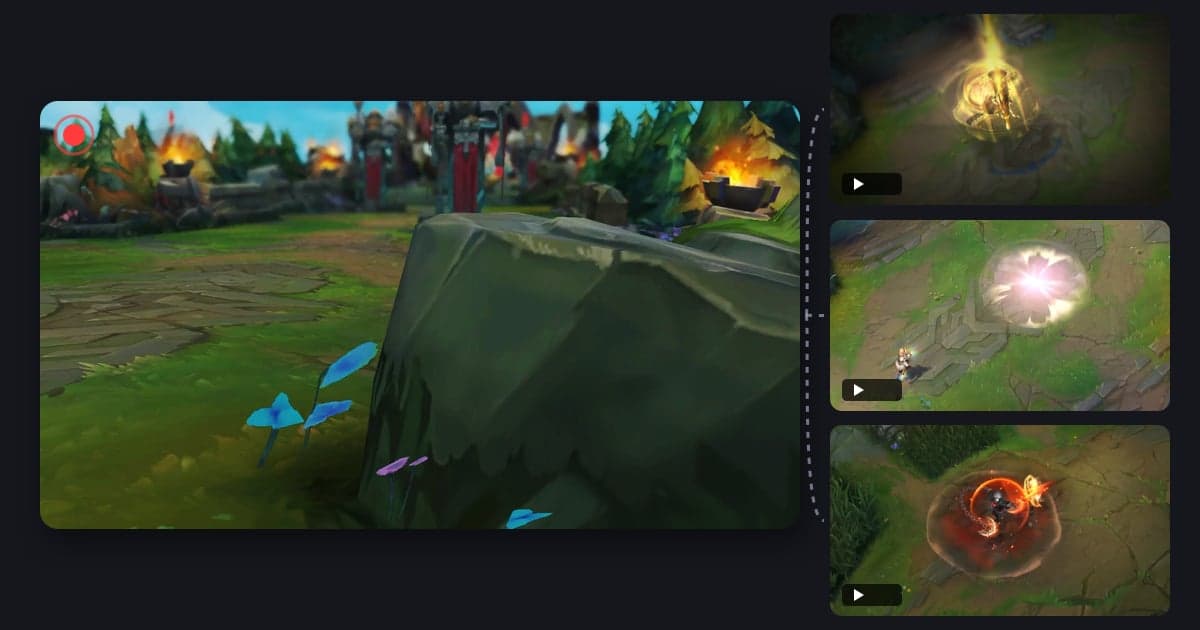
DOR is not broadcasting software: it does not send a stream and does not record your stream output. It is a free Windows desktop app that detects a supported game when you launch it and records that game's screen to your PC as a full-match mp4. Game audio and your microphone are recorded together, but the webcam, overlays and chat you add in your broadcasting software are not, so what you get is the gameplay itself to use as promo clip material. In League of Legends, kills, multikills from double kill to pentakill, and objectives are saved as automatic highlight clips, and in VALORANT, kills and round clips are; both games also get one POTG clip per match, the play picked to represent that game. Automatic highlight clips are made for 7 games only; for other supported games you cut from the full-match recording yourself or save clips with a hotkey. In the app library's trim tool, choosing a 9:16 output gives you a vertical clip for shorts, and how to make a vertical 9:16 game video covers how to fit a landscape scene into a vertical frame. To bundle a week of clips, merge them in DOR Studio in your browser, add text and background music, and download an mp4. If DOR runs while you stream, your PC is encoding twice. With an NVIDIA graphics card, DOR uses NVENC hardware encoding by default, and broadcasting software often uses the same GPU encoder, so check in a test stream that your game frame rate holds and that skipped frames in your broadcasting software do not rise. For setting up a stream and a local recording together in one broadcasting app, see recording settings for streamers.
 #League of Legends