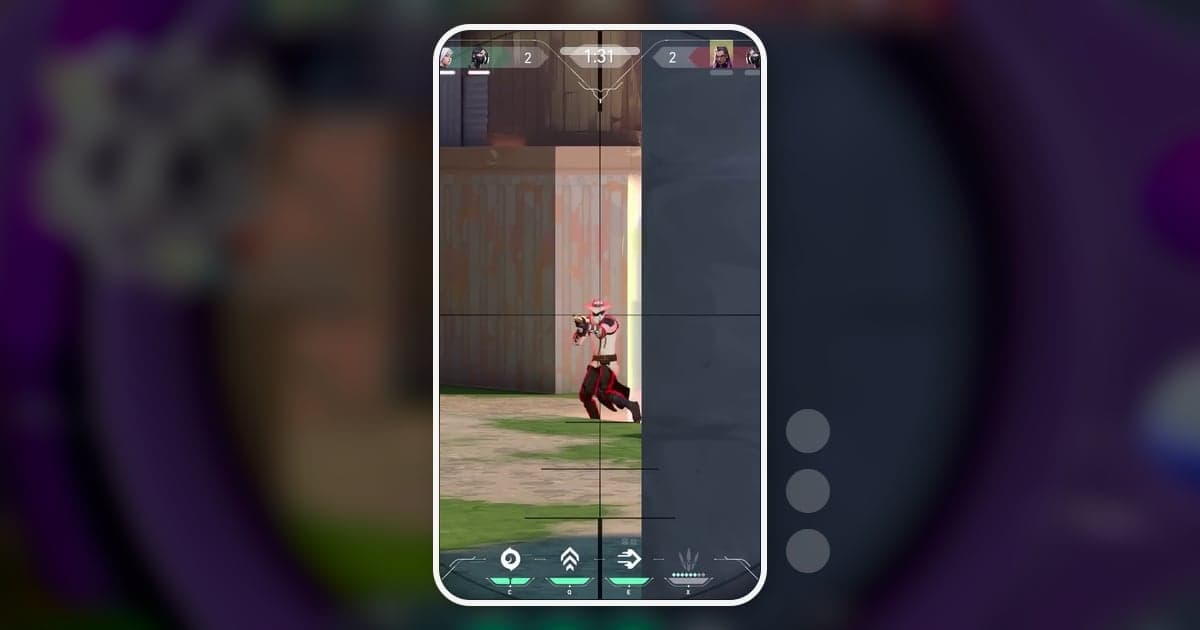
A VALORANT Short is a single round turned into one 9:16 vertical video, and the job breaks into seven steps: pick the moment, get the clip, trim it, check the vertical frame, add the result as text, add one effect and music, then check the upload rules. The aspect ratio is what makes VALORANT tricky. Crop a 1920×1080 frame to 9:16 at full height and you keep a strip only about 608 pixels wide in the middle. The crosshair sits in the center, so it survives, but on the default HUD the minimap in the top left and the kill feed in the top right end up outside the frame. That is why a VALORANT Short has to spell out a round result such as 'ACE' or '1v3 clutch' in text: without the kill feed, viewers cannot tell what they are watching. Saving the moment in the first place is covered in how to clip VALORANT; this guide picks up once you already have the clip and want to edit it into a Short.
Short answer: one round, one result, one line of text
Pick one round with an obvious result, keep only the stretch from just before the first kill to just after the last one, crop it to 9:16, and put the result on screen as text within the first one to two seconds. That is the basic VALORANT Short. Use a zoom effect once, on the final kill, and keep the music low enough that gunshots and footsteps still come through. The general mechanics of turning landscape footage into vertical video, including crop versus background fill, are covered in how to make a vertical 9:16 game video. Your own recorded clips should be the default source; the in-game replay is a backup. A replay lets you watch from any of the 10 players' first-person views and hide the HUD, but it plays only inside the game client and expires, so you have to record the playback a second time. Save it for moments where it clearly fits better, such as a team ace that needs a teammate's view, and see how to watch VALORANT replays for how it works.
How to edit a VALORANT Short, step by step
- 1Pick the round that will work as a ShortThe VALORANT moments that read well as Shorts are the ones where the result is obvious at a glance. The usual candidates are an ace (you alone kill all five enemies in one round), a 1vX clutch, a one-tap that ends a duel with a single first-bullet headshot, an ability combo where utility opens the fight and a kill finishes it, and funny moments such as mistakes or unexpected situations. Put one round in each Short. If one match gives you several good moments, split them into several Shorts instead of stacking them into one.
- 2Get the clip: auto clips, the hotkey, or the full matchPull your material from your recorder's clips or from a full-match recording. With DOR, VALORANT kill and death clips and round clips are created automatically; round clips carry round-result tags such as ace, clutch, team ace and flawless, and a POTG, the match's featured clip, is picked for each match. For moments an auto clip may not contain, such as a funny moment with no kill or death, save a clip yourself with the hotkey or cut it out of the full-match recording.
- 3Trim the start and end around the round resultStart one to two seconds before the first fight and end right after the last kill or the spike defuse. The buy phase, time spent holding an angle, and wandering around after the round ends tend to become dead air in a Short, so cut them. Keep a one-tap to 5 to 10 seconds; for an ace or a clutch, trim the waiting between kills and aim for around 30 seconds so the flow does not stall. These lengths are an editing guideline, not a platform rule.
- 4Check that the crosshair and the final kill stay inside the 9:16 framePlay the 9:16 preview from start to finish. On the default HUD, the crosshair in the center and the timer and score at the top center usually stay inside the frame, but the minimap in the top left and the kill feed in the top right are cut, and the health and ability display at the bottom center may only partly remain. On a wide flick, the enemy can sit outside the frame right before you turn, so check that stretch closely. For a defensive play where minimap position matters, or a moment where several players drop at once, first check how much information the 9:16 crop removes, then fill in what matters with text or consider exporting at 1:1, as described in the tip below.
- 5Show the round result as text firstIn a vertical frame without the kill feed, text carries the result. In the first one to two seconds, put the result in large type, such as 'ACE', '1v3 clutch' or 'one-tap headshot'. The score and round timer sit at the top center on the default HUD and usually survive the crop, so instead of repeating them, add one line the screen cannot tell on its own, such as 'eco-round Sheriff ACE', '1v3 post-plant' or 'pistol round'. Place the text just below the top timer and above the crosshair so it covers neither, and keep it away from the bottom and right edges, where the health and ability display and the platform app's title and buttons tend to overlap.
- 6Use one effect and keep the music under the gamePut a zoom effect such as punch zoom on the final kill or the decisive shot, once. Adding it on every kill blurs where the highlight actually is. Lower the background music until gunshots, footsteps and the spike sound are not buried, and use only tracks whose usage terms you have checked. In a VALORANT Short, the game audio itself carries much of the tension.
- 7Export and check the upload rulesExport an mp4, then check the rules of the place you are posting to. YouTube treats vertical or square videos up to three minutes long as Shorts (details in the FAQ below); for TikTok and Instagram Reels, check each platform's official help for the current length limits. In the description, add the notice Riot's fan content policy asks for: a line saying the video was created under Riot Games' 'Legal Jibber Jabber' policy using assets owned by Riot Games, followed by 'Riot Games does not endorse or sponsor this project.' Also leave Riot logos and trademarks off your title card and thumbnail.
VALORANT Short moments: where the clip comes from and how to edit it vertically
| Moment | Where the clip comes from | Vertical editing tip |
|---|---|---|
| Ace | DOR round clip (ace tag) or the match's POTG, or a cut from the full-match recording | Trim the waiting between kills to around 30 seconds and open with 'ACE' plus the weapon or situation (for example, an eco-round Sheriff) as text |
| Clutch (1vX) | DOR round clip (clutch tag), or a cut from the full-match recording | The time left already shows in the top-center timer, so use the first second to show the player count, such as '1v3', as text, and keep the spike defuse or plant |
| Team ace / flawless | DOR round clip (team ace or flawless tag); the in-game replay if you need a teammate's view | Your screen shows only your own kills, and the kill feed that lists teammates' kills is cut in 9:16, so announce 'TEAM ACE' in text first and record teammates' kills from their first-person view in the replay |
| One-tap headshot | Kill clip, or a clip saved with the hotkey | Cut it to 5 to 10 seconds; the crosshair is centered, so the shot stays visible in 9:16, then add one punch zoom on that shot |
| Ability combo | Kill clip, or a cut from the full-match recording | If the ability use is not at the front of the clip, re-cut from the full match so it starts at the ability, and name the ability in text |
| Funny moment or mistake | Death clip, a hotkey clip, or a cut from the full-match recording | A moment with no kill or death may have no auto clip, so save it with the hotkey and open with one line of text that explains the situation |
Pre-upload checklist
- Each Short holds one round and one moment.
- The result, such as 'ACE' or '1v3', shows as text within the first one to two seconds.
- In the 9:16 preview, the crosshair and the final kill stay inside the frame.
- Any must-know information lost with the kill feed or minimap is filled in with text.
- Text does not cover the crosshair, the top-center timer and score, or the platform app's title and buttons.
- The music does not drown out gunshots and footsteps, and its usage terms are checked.
- For YouTube, the video is vertical or square and three minutes or shorter, the description carries Riot's notice, and no Riot logos or trademarks are added.
Making VALORANT Shorts with DOR
DOR is a free Windows desktop app: launch VALORANT and it detects the game and records the full match as an mp4. Alongside the recording, it creates kill and death clips and round clips automatically; round clips carry round-result tags such as ace, clutch, team ace and flawless, and a POTG, the match's featured clip, is picked for each match. That means you can pick rounds for a Short by looking at the tags on each clip instead of scrubbing through the whole match. Open the clip you picked in the trim tool in the app library, set the start and end, and choose 9:16 as the output ratio. The trimmed video can be shared right away through a dor.gg link. Text in the library trim tool works only at 1:1, so to put result text on a 9:16 video, move to DOR Studio, which opens in a browser with no install. In the studio you can work in 9:16, adjust length, merge several clips, add text with a choice of fonts, apply effect templates such as punch zoom, shake zoom and glitch transitions, and add background music and adjust volume, then download an mp4 or share a link. Videos you bring into the studio must be at least 3 seconds long and no larger than 500MB, and there is also a limit on how many videos one project can hold. When choosing music, see how to find copyright-safe free background music for game videos.
 #Valorant