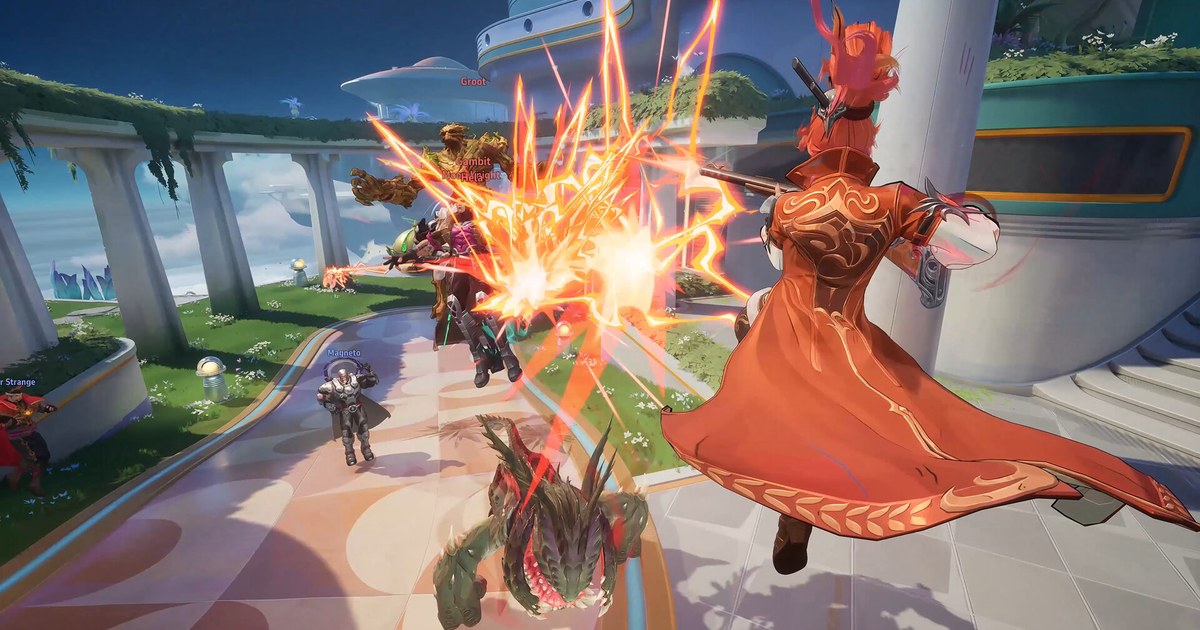
If you want to rewatch the Marvel Rivals match you just finished, use the in game replay. Click the profile icon at the top right of the main screen, open the History tab on your Career screen, and your recent matches are listed there, ready to play back as replays.
The catch is that this history does not stay around for long. Older matches drop off the history list over time, and the game itself does not show an exact retention period. That is why putting off "I'll rewatch that match later" can mean it is already gone by the time you look.
This guide covers, as of November 29, 2026, how to open Marvel Rivals replays, how to switch perspectives and favorite matches so they stick, and how to keep a whole match as a video file. Menu names are given in English as they appear in game.
If you want to go further and check team calls and ult timing while watching, see our separate guide on Marvel Rivals VOD review. Here we focus on watching and keeping.
The answer: replays for a quick rewatch, recordings to keep
Use replays for a quick rewatch and recordings for anything you want to keep, and you will lose the fewest matches. The strengths of game replays are clear.
You can switch from your own view to any other player in the same match, so you can see information your screen never showed, like which route the enemy dove from or which angle your tank was holding. The limits are just as clear.
Matches drop out of your history over time, and there is no official word on how long replays favorited with the star icon are kept.
Replays are records that play back inside the game client, so they do not suit sending to friends or editing as a video file, and the files the game saves for you are short highlight moments you pick after the match.
So if you want a whole match as video, the reliable way is to have recording running while you play. To see how long replays last in other games, check game replay retention compared, which lines Marvel Rivals up next to LoL, VALORANT, Overwatch and more.
How to watch Marvel Rivals replays
- 1Open Career from the profile iconClick the profile icon at the top right of the main screen to open your Career screen. Your Career screen has a History tab.
- 2Pick a match in HistoryThe History tab lists your recent matches with date, time and result. Find the match you want and open Details to see the scoreboard and play the replay. Older matches that are not in the list have already dropped out of your history.
- 3Switch perspectives as you watchIn a replay you can switch to other players who were in the same match. If you lost a team fight, switch to the enemy diver to see which route they took, then to your healer to see where they were standing.
- 4Favorite matches with the star iconClick the star icon below the scoreboard on the match details screen and that match is collected in the Match Replays list under Favorites. Favorite any match you want to keep before it drops out of History.
- 5Save highlights as filesOn the Highlights tab under Favorites, click Save below the highlight you want and confirm the settings, and it is saved to your PC as a video file. When saving finishes, use the location shown or open the folder to find the file.
- 6Keep whole matches with DOR recordingTo keep a whole match as a video file, keep DOR running from your next match. When you launch Marvel Rivals, it is detected automatically and the full match is recorded, with recordings collected in My Clips. Setup through trimming is covered step by step in how to record Marvel Rivals.
Game replays vs DOR recordings (as of November 29, 2026)
| Item | Game replays and highlights | DOR recordings |
|---|---|---|
| Where to watch | Profile icon > Career > History | My Clips in the DOR app |
| Perspective | Switch to other players in the same match | Exactly what you saw while playing |
| How long it lasts | Older matches drop out of History; no official retention period for History or Favorites | Saved on your PC, oldest videos cleared only past the 5GB default share |
| Video file | Only highlight moments save as files | Full match recording, trim and export as mp4 |
| Sharing | Send saved highlight files yourself | Share as a dor.gg link from DOR Studio |
| Editing | Playback inside the game | Trim to 16:9, 9:16 or 1:1 in the app; merge, add text and BGM in DOR Studio |
What to check when a replay is missing or gone
- Did you check the match date in the History tab (older matches drop off the list)?
- Did you add matches you want to rewatch to Favorites with the star icon?
- Before a big season update, did you move must keep moments to a saved highlight or a recording?
- Did you open the highlight save folder to confirm the file was actually created?
- For clips you want to send friends, did you trim them from your recording and share a link (see how to share Marvel Rivals gameplay videos)?
Keep whole Marvel Rivals matches as video with DOR
DOR is a free Windows game recording app. When you launch Marvel Rivals, it is detected automatically and the whole match is recorded, with recordings collected in My Clips in the app.
They stay on your PC as video regardless of your game history, and storage is only tidied when the full gameplay video share (5GB by default) is exceeded, removing the oldest videos first while keeping recent recordings and videos you liked.
Trim the moments you want in the app to 16:9, 9:16 or 1:1, then in DOR Studio (dor.gg/studio) merge several clips, add text, BGM and effect templates, and export as mp4 or share as a dor.gg link. Tips for combining highlights from several matches into one video are in how to merge game clips.
There is no watermark from recording through editing and sharing, and free recording runs at 720p or 1080p, 30 or 60fps (1080p at 30fps by default). On supported NVIDIA graphics cards such as the RTX series, DOR records with NVENC hardware encoding.