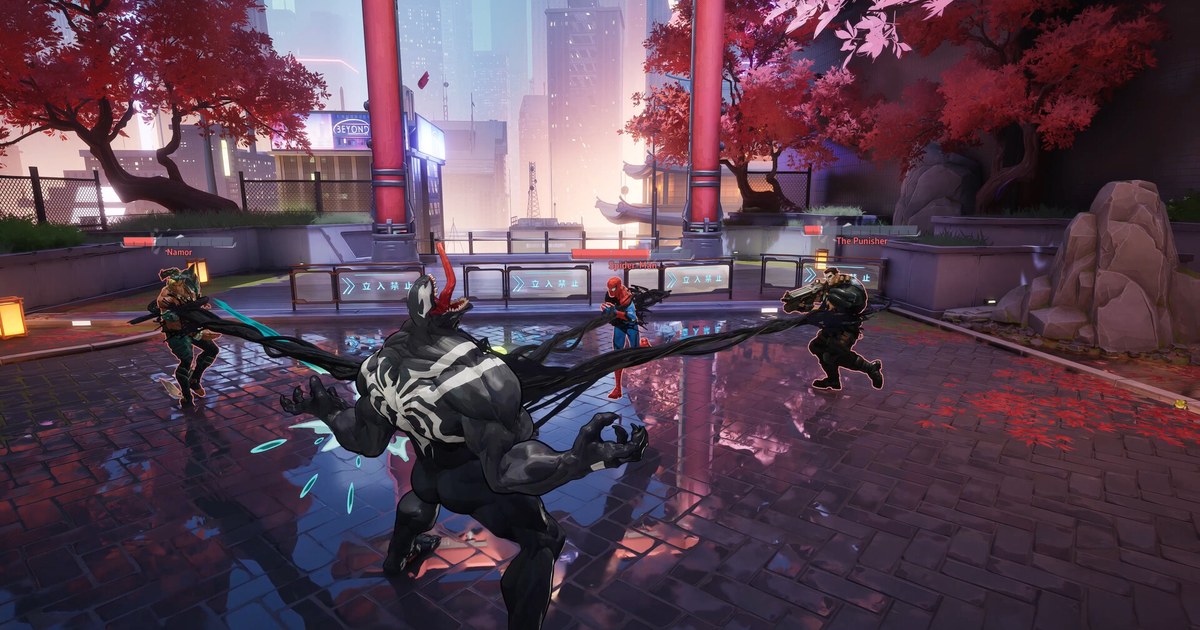
The short answer: the most reliable way to record Marvel Rivals is to turn recording on before you play and trim afterward. When you install DOR and launch Marvel Rivals, the app detects the game automatically and records the whole match, and the recordings collect in My Clips in the app.
Ultimate moments and perfectly timed Team-Up skills pass without warning, so if you press a hotkey at that moment, the lead-up is already gone. With the full match saved, you can pick scenes calmly afterward and trim with generous room before and after.
Marvel Rivals is a free Windows PC game on Steam, and DOR is free on the same PC. The list of games where the app reads events and builds clips automatically, and how that works, is covered in What Is Automatic Game Clipping?.
For Marvel Rivals, you save the full match with automatic recording and trim the scenes you want yourself. This guide follows that order from install to trimming and sharing.
The answer: leave it on, save the full match, trim afterward
Three kinds of scenes are enough to look for in Marvel Rivals: a teamfight where several team skills line up, an ultimate that turns the match around, and a moment you laughed about with friends. All of them are only fun with context, so it helps to start the cut 5 to 10 seconds early.
With a full match recording you can lengthen or shorten that margin as you like. Cutting a range is explained in more detail in How to Trim Game Clips: Keeping Only the Parts You Need, Losslessly, so read that alongside this.
The free recording settings (720p or 1080p, 30 or 60 fps, with 1080p at 30 fps as the default) are enough, and raising it to 60 fps keeps fast teamfights with flashy skill effects looking smoother.
How to record and trim Marvel Rivals
- 1Install DOR and launch the gameDOR is a free Windows app. After installing, launch Marvel Rivals and the app detects the game and starts recording. You do not press a record button for each match, so even your first match is saved. Game sound and your microphone are captured on one track.
- 2Choose quality and frame rateFor free you can pick 720p or 1080p and 30 or 60 fps, and the default is 1080p at 30 fps. Marvel Rivals has a lot of teamfights, so 60 fps looks good if your PC can handle it. 1440p, 4K, and 120 or 144 fps are DOR Pro options. On supported NVIDIA graphics cards such as the RTX series, recording uses NVENC hardware encoding. If you worry about game frame rate, also check Marvel Rivals Best Settings for FPS (2026): Low-End PC Graphics Options.
- 3Find the scene in My Clips after the matchWhen the match ends, open My Clips in the app and pick the match you just played. Move the playback bar and note the times where ultimates and Team-Up skills landed, which makes trimming faster. Narrowing each match down to two or three scenes gives a more polished result.
- 4Trim the range in the appSet the start and end of the scene, then cut and save the range. Leaving about 5 to 10 seconds at the front lets viewers see how the situation began. You can choose landscape 16:9, vertical 9:16, or square 1:1, so saving 16:9 for Discord and 9:16 for Shorts separately is convenient.
- 5Merge, export, or share a linkIf you have several scenes, join them into one video in DOR Studio (dor.gg/studio). Add effect templates such as Shake Zoom and Punch Zoom, text, BGM, and volume, then export an mp4 or share a dor.gg link. The steps for joining are in How to Merge Multiple Game Clips Into a Highlight Video, Transitions Included (2026).
Marvel Rivals from recording to sharing at a glance
| Step | What to do | How to do it |
|---|---|---|
| Install | Install DOR | It is a free Windows app. Run it once after installing |
| Prepare | Check quality | Start with the default 1080p at 30 fps, and raise to 60 fps if your PC has headroom |
| Play | Launch Marvel Rivals | When you start the game, the app detects it and records the full match |
| Organize | Pick the match in My Clips | After the match, the one you just played is waiting in My Clips |
| Trim | Cut the best moment | Leave 5 to 10 seconds before and 3 to 5 seconds after, then set the range and save |
| Share | Pick a ratio and export | Cut 9:16 for Shorts and 16:9 for Discord, then send a link or an mp4 |
Check before you post
- There are at least 5 seconds of lead-up before the moment
- The video holds only two or three scenes, not too many
- The ratio fits where you post (9:16 for Shorts, 16:9 for Discord)
- You checked who can see scenes that show nicknames or chat
- You played the exported mp4 once through to confirm sound and picture match
Recording and trimming Marvel Rivals with DOR
DOR is a free Windows game recording app. When you launch a supported game such as Marvel Rivals, it detects the game automatically and records the whole match, and recordings collect in My Clips. You trim a scene in the app by setting the range yourself and save it as 16:9, 9:16, or 1:1.
Several scenes can be joined in DOR Studio, with effect templates, text, and BGM added, then exported as an mp4 or shared as a dor.gg link. Originals and edited results carry no watermark. Free recording offers 720p and 1080p at 30 or 60 fps, with 1080p at 30 fps as the default.