A proper Marvel Rivals VOD review needs two things: a recording of the whole match, and a record of what your team called during it.
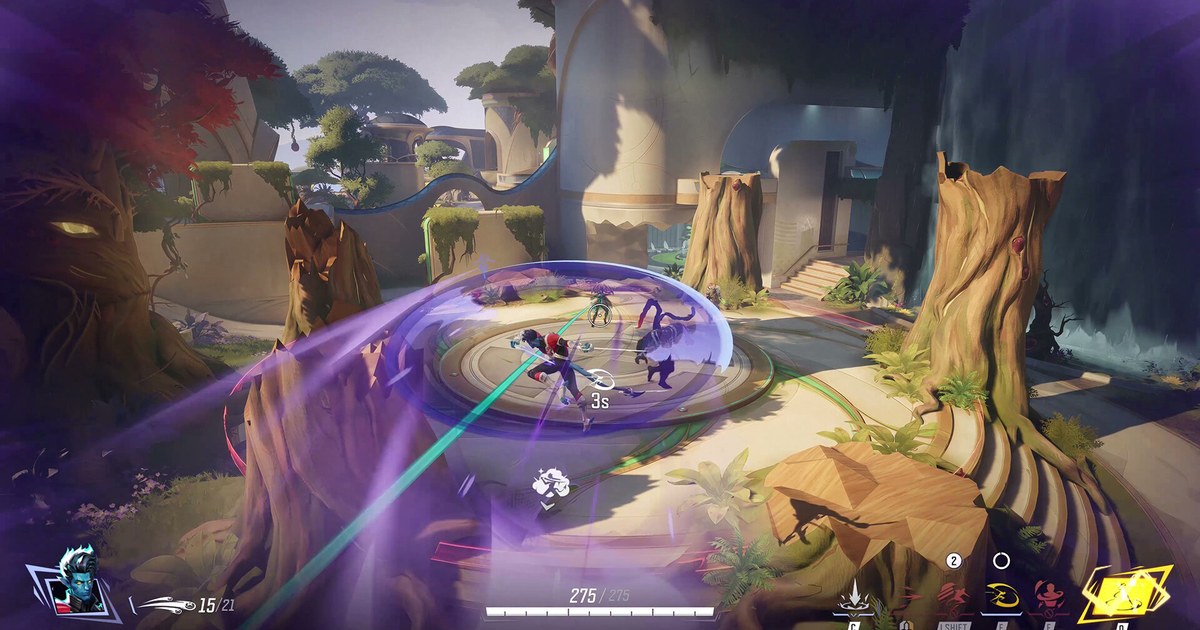
Marvel Rivals is a 6v6 hero shooter where a team fight is often decided the moment two or three ultimates and a Team-Up ability overlap, so footage alone rarely tells you why the ults went in one at a time. Was the call late, did it get lost under other voices, or was there no call at all?
You only know if you can see the Discord conversation next to the video. This guide shows how to put footage and team comms on the same timeline using DOR's automatic recording and Match Notes, released on November 23, 2026 (listed on the site as AI Voice Notes).
The basic review framework is in how to VOD review yourself, and review tips for a similar 6v6 game are in how to VOD review Overwatch, so this article focuses only on checking ult calls in Marvel Rivals.
The answer: record footage automatically and keep calls with Match Notes
For ult call reviews, the answer is to save the video and the conversation together. Marvel Rivals has its own replays in your profile's match history, and you can watch from other players' points of view. That replay is great for seeing where the enemy dove from or which angle your tank held.
However, game replays do not include the team conversation you had on Discord, and older matches drop out of your history. So prepare two things. First, let DOR automatically record the whole match from your point of view and keep it in My Clips.
Second, turn on Match Notes to capture your voice, Discord team voice, and game audio for each match. After the match, while you are not playing, transcription runs on your PC, and you get a note where every line shows who spoke (Me, Discord, or In-game) and when. For a broader look at turning game voice into text, see game voice to text.
How to review Marvel Rivals ult calls
- 1Turn on Match NotesTurn on Match Notes in DOR under Settings > Lab, or switch it on directly from the Notes tab in the match drawer. The first time, you agree once and download the transcription model once (around 900MB). During a game the download pauses and then resumes.
- 2Choose which audio to captureYour microphone, Discord team voice, and game audio can each be turned on or off. If your goal is reviewing ult calls, keep your voice and Discord on. Discord and game audio capture need Windows 10 version 2004 or later.
- 3Play ranked as usualWhen you launch Marvel Rivals, DOR detects it and records the whole match, and also captures that match's audio for Match Notes. Matches of one minute or longer get a note, and transcription runs while you take a break after the match.
- 4Filter to Discord lines and find ult callsIn Match Notes, filter the speaker to Discord and search for the call words your team uses, like "ult", "going in", or hero names. Every line has a timestamp, so you can see at a glance who called what in the seconds before a fight.
- 5Click a line to check that momentClicking a call line jumps to that moment in the video (the clip if it is in one, otherwise the full match video). Compare when the call came with when the ultimate or Team-Up actually went in, and mark whether it was late or went in alone before the call.
- 6Bundle the moments and send them to your teamTrim the moments you reviewed in the app and combine them into one video in DOR Studio. Share it as a dor.gg link so teammates can watch before the next match. See how to share Marvel Rivals gameplay videos for sharing and how to merge game clips for combining.
What to check in an ult call review (as of November 23, 2026)
| Moment to check | How to find it in the note | What to confirm in the video |
|---|---|---|
| Ult combo team fight | Search Discord lines for "ult" | How many seconds passed between the call and the ultimate |
| Team-Up timing | Search for the paired hero names | Whether the two paired heroes were actually together |
| Dive engage | Search engage calls like "go" or "going in" | Whether the tank and DPS went in at the same moment |
| Answering enemy ults | Search the enemy hero name plus "ult" | Whether defensive and movement abilities were saved |
| Focus target | Search the target hero's name | Whether damage actually converged on the called target |
| Right after a lost fight | Skim the lines around that timestamp | Whether there was no call or several calls overlapped |
Check before you review
- Match Notes and Discord team voice capture are both on
- The match lasted at least a minute and transcription has finished (check the note line count badge on the match card on Home)
- Your team uses the same call words, which makes searching easier
- The recording is sharp enough to read ultimate effects (see Marvel Rivals best settings)
- You rechecked important calls against the video audio, since transcription can be wrong
Set up Marvel Rivals reviews with DOR
DOR is a free Windows game recording app. When you launch Marvel Rivals, it detects the game automatically and records the whole match, and recordings collect in My Clips.
You can trim any moment yourself in the app at 16:9, 9:16, or 1:1, then combine moments in DOR Studio (dor.gg/studio), adjust text, BGM, and volume, and export an mp4 or share a dor.gg link. Recording, editing, and sharing are all watermark free.
Match Notes is a free experimental feature that saves who said what and when in each match as text, and clicking a line jumps to that moment. Transcription runs on your PC with your graphics card after the match, and once the note is complete the audio is deleted and only the text remains. On supported NVIDIA graphics cards such as the RTX series, DOR records with NVENC hardware encoding.