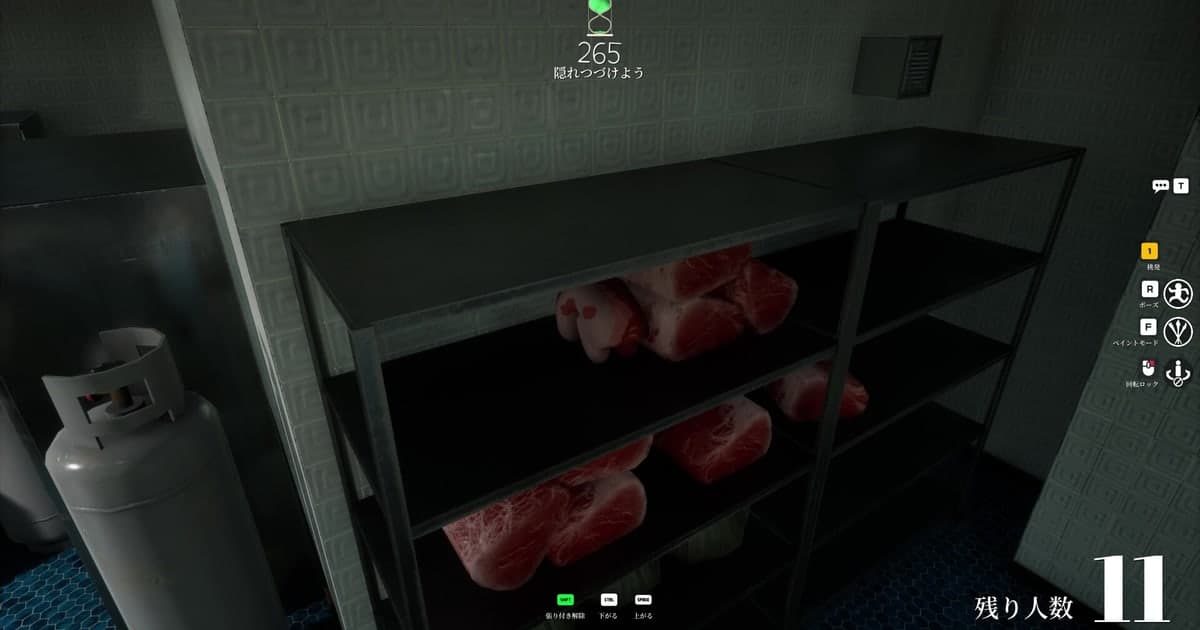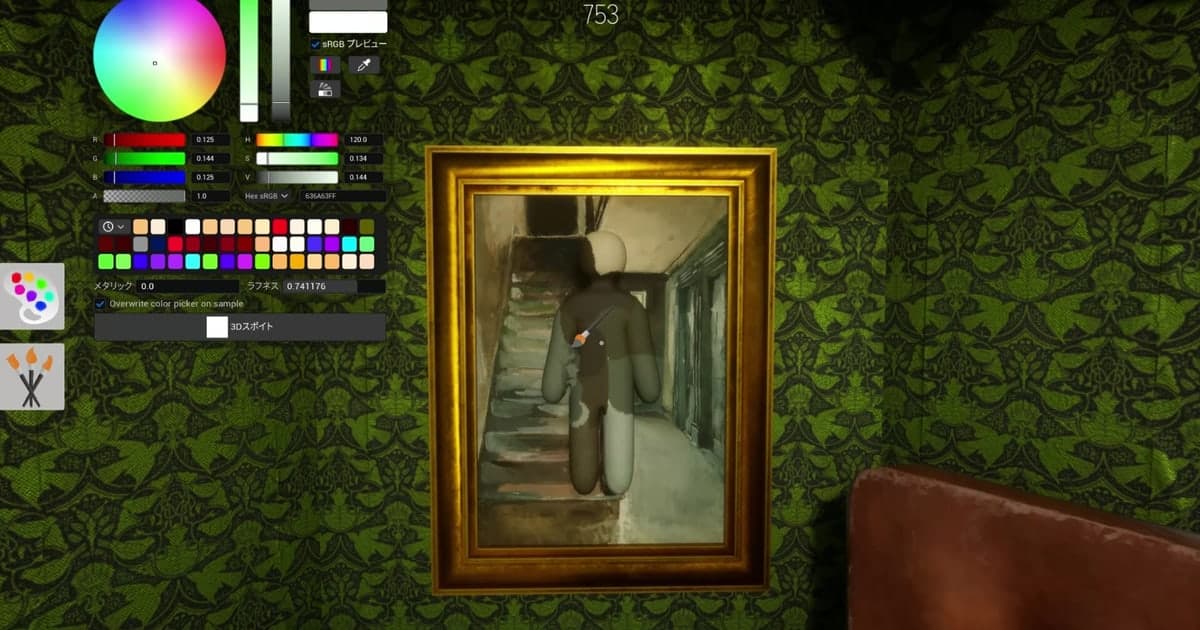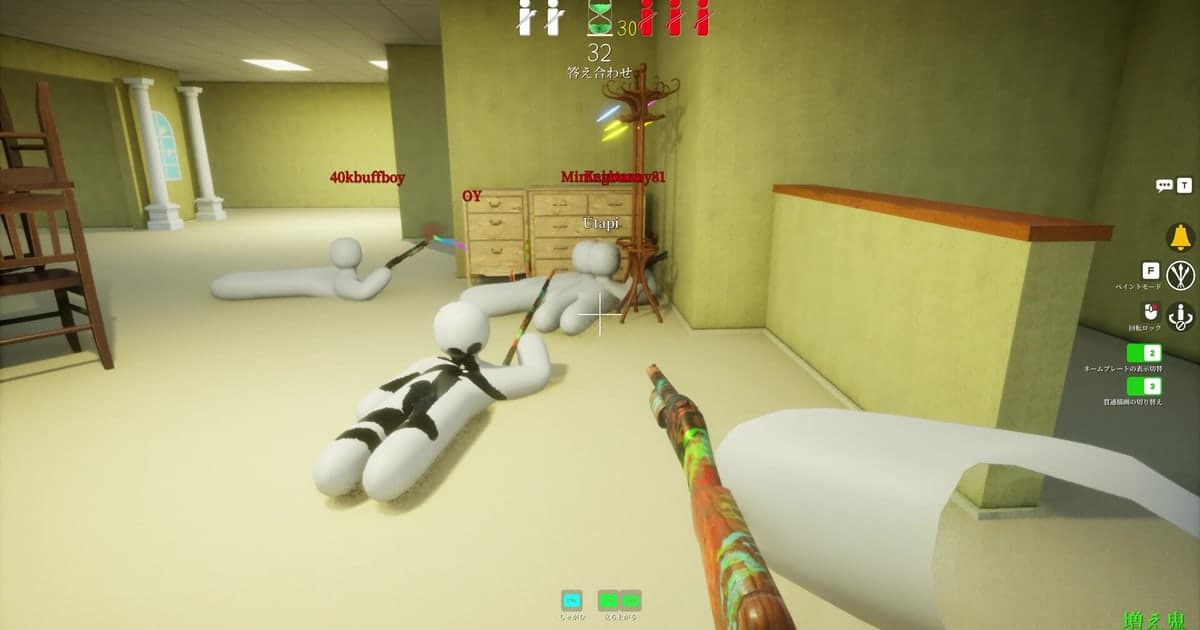
MECCHA CHAMELEON only works with other people. One team seeks, one team hides, and hiders paint their plain white bodies to melt into the stage, so even two or three friends change the whole mood of a match. Getting everyone into the same room is where it stalls. Your friend's room is nowhere in the list, the code you were given does not let you in, or everybody is present and the match still will not start. Most of the walkthroughs you find were written before the 4.1.0 update of 28 August 2026, back when you looked for rooms by server name and password, so they no longer match what you see on screen. This guide uses only the developer's official announcements on the Steam store news page and the store description itself, checked on 16 October 2026. It covers the order to follow when you host or join, what the patch notes actually say about empty search results, and how many players the developer recommends. If the problem is that you have nobody to play with yet, finding gaming friends and parties is covered separately. At the end there is a short section on keeping a recording of the session you finally managed to organise.
The short answer: use the 5-character join code for friends, public search for strangers
The 4.1.0 note says the team replaced the legacy server browser with a 5-character alphanumeric join code search, and adds that join codes can also be verified in-game. So when you play with friends, one person hosts and passes the code around, and nobody has to hunt through a list. The same update also says in-progress games are now hidden during public searches and that this can be toggled in options, and that server elapsed time is now displayed on the search screen, so public search still exists. For strangers, pick a room with a short elapsed time that is still waiting to start, which is exactly what the patch note describes as the point of the change: it helps direct players toward waiting servers. What the note does not say is whether the in-progress toggle lives in the searching player's options or on the host's side, so open the options screen and check it there rather than trusting a guide. If the real problem is that there is nobody in your lobby, look at communities first. How to judge an active server before you join is covered in finding a safe, active Discord server, and how to pick a group you will still be playing with next month in choosing a gaming guild or clan.
Getting everyone into one room
- 1Match your game versions firstThe official announcements raise this twice. The bug fix 1.0.2 note of 10 June 2026 asks players to check the version number on the title screen and states that multiplayer is not available between different versions, and the fix 1.1.0 note of 11 June 2026 repeats that matchmaking is only available between players on the same version and asks you to restart the game to update. One friend whose client has not updated looks exactly like a wrong join code, so compare the version number on the title screen before you start and let Steam finish updating.
- 2One person hosts and decides whether the room is publicOne player becomes the host and creates the room from the server creation screen. The Steam store description says that if you create a server that is not set to private, anyone can join freely. Keep it private for a friends-only session, or leave it public if you are happy for strangers to fill the empty slots. There are fields for a server name and a password, and fix3.3.2 (29 July 2026) fixed an issue where server names and passwords were reset during specific actions. The notes never spell out how the private setting and the password relate, so create the room, then look once at the settings to confirm they held.
- 3Pick the region tag and the server tagsSince 4.1.0 a region tag must be selected. Japan, South Korea and East Asia were added to the region tags in update 2.6.0 on 10 July 2026. Server tags were raised to a maximum of five in update 2.3.0 on 29 June 2026, which also fixed duplicate tags being set. If your room runs without mod maps, the No Mods tag added in 2.1.0 saves everyone time, and the Modded tag added in 2.0.0 does the same for rooms that use them. Tags have been selected by default based on your language setting since 1.4.0, so check them instead of accepting the default when you expect friends from another region.
- 4Read the join code and send it to your friendsCreating a room gives you a 5-character alphanumeric join code. The 4.1.0 note only says that join codes can also be verified in-game, so find where it appears on your screen right after you create the room rather than relying on a screenshot in an old guide. Because the code mixes digits and letters, send it over chat instead of reading it aloud, since 0 and O or 1 and I are easy to confuse. A friend invitation feature is listed in the ver1.2.1 note of 14 June 2026, but the announcements never describe how that invite reaches the other player, so pass the code along as well.
- 5Friends join by code or by friend server searchOn the joining side, enter the code you were given on the search screen. There is also a route that does not need a code: update 3.5.0 on 1 August 2026 added a feature to search for friends' servers, and although the same update removed the friend list from the options screen, fix3.5.1 on 2 August 2026 re-added it with online users prioritised at the top of the list. If you are joining a stranger's room through public search, note that since 1.4.0 search tells you whether a game is in progress, and since 4.1.0 the screen also shows server elapsed time, so favour rooms that were created moments ago.
- 6Check the lobby count and the hunter slot, then startPlayer count can be checked in the lobby since update 2.1.0 on 27 June 2026. The store description recommends around 2 to 10 players and says the maximum depends on the host's network environment, so if a larger group feels unstable, try handing hosting to whoever has the better connection. When everyone is present and the match still will not start, look at the hunter side: since 4.1.0 the game ends if the hunter count reaches 0 while hunters are waiting. If the hiding phase feels long, update 3.8.0 of 14 August 2026 lets the lobby skip the hiding time and the answer reveal by unanimous agreement.
- 7If you want the session on video, set up recording before launchingDOR treats MECCHA CHAMELEON as a full gameplay recording game: it starts recording when it detects the game running and saves the session as one video when you close the game, and on a personal PC it is on by default (off by default in internet cafes). Set Video Resolution and Video Frame under Settings > Video (1080p and 30 frames by default, 60 frames available) and Highlight Length under Settings > Highlight (15, 30, 45 or 60 seconds, 30 by default) before you create the room. If you want your friends' voices in the same track, check that Record All Sounds is on under Settings > Audio; that also captures Discord call audio.
No servers showing: what each symptom means (official announcements as of 16 October 2026)
| Symptom | What the official notes say | What to check |
|---|---|---|
| Search returns almost no rooms | Since 4.1.0 (28 August 2026) in-progress games are hidden during public searches. It can be toggled in options, and the note explains the change as a way to direct players toward waiting servers. The same behaviour first appeared in fix 1.1.0 (11 June 2026). | Use the server elapsed time on the search screen, added in 4.1.0, to pick a room that has just been created. For a friend's room, skip search and enter the join code. |
| A friend's room is not in the list | A room set to private is not open to everyone, as the store description explains, and the issue where servers that had reached maximum capacity still appeared in public searches was fixed in 2.1.0 (27 June 2026). | Join with the code instead. The friend server search added in 3.5.0 (1 August 2026) and the friend list re-added in fix3.5.1 (2 August 2026) also help. |
| The join code simply will not work | Different versions cannot play together. The bug fix 1.0.2 note (10 June 2026) asks players to check the version number on the title screen, and fix 1.1.0 states that matchmaking is only available between players on the same version. | Compare the version numbers on both title screens, update through Steam, and restart the game. Copy and paste the code rather than reading it out. |
| You never meet friends in another region | Since 4.1.0 a region tag must be selected when you create a room. Japan, South Korea and East Asia were added to the region tags in 2.6.0 (10 July 2026), and 1.0.2 changed search results to display private servers even if the region does not match. | Ask the host which region tag they picked and search with the same setting. Server tags have been capped at five since 2.3.0 (29 June 2026) and are selected by default from your language setting since 1.4.0. |
| Everyone is here but the match will not start | Since 4.1.0 the game ends if the hunter count reaches 0 while hunters are waiting. The opposite problem, the game ending while a hunter was still present, was fixed in fix7.3.2 (11 August 2026). | Look at the player count and the role assignment in the lobby; lobby player count has been visible since 2.1.0. If the hiding phase drags, use the unanimous skip added in 3.8.0 (14 August 2026). |
| Nobody knows the real player limit | The Steam store description says the maximum number of players depends on the host's network environment, recommends around 2 to 10 players, and notes this may increase or decrease based on future playtests. | Numbers such as a 24-player maximum, repeated on other sites, have no official source we could find. Update 4.1.1 (16 September 2026) fixed an issue where the maximum player limit was ignored when many users joined at once. |
| You cannot get into any room at all | The announcements state that matchmaking for this game runs on EOS (Epic Online Services), and notices on 14 and 20 July 2026 announced maintenance windows with downtime. | Check the Steam store news page for a maintenance notice first. As of 16 October 2026 the most recent update announcement is 4.1.1 (16 September 2026), with no newer maintenance notice. |
Run these checks when you cannot get into a room
- The join code was entered exactly. It is 5 alphanumeric characters, so copy and paste it rather than typing what you heard, because 0 and O or 1 and I look alike.
- You are on the same version as the host. Compare version numbers on the title screen, update through Steam if they differ, and restart the game.
- You have checked whether the friend's match already started. In-progress rooms are hidden from public searches, so enter the join code or wait for the round to end.
- You have checked the private setting and capacity. A private room is not open for anyone to walk into, as the store description puts it, so go in with the join code; servers at maximum capacity stopped appearing in public searches in 2.1.0.
- You have checked the region tag. Since 4.1.0 a region tag has to be selected when hosting, so a room drops out of your list if the host's region does not match what you are looking at.
- You have checked the lobby count and the hunter slot. The game ends when the hunter count reaches 0 while hunters are waiting, so look at role assignment when nothing starts.
- You have checked the official announcements for maintenance. Matchmaking for this game runs on EOS (Epic Online Services), and the notices of 14 and 20 July 2026 announced downtime.
Keeping a MECCHA CHAMELEON session with DOR: automatic full-session recording and F8 for the last 30 seconds
DOR is a free recording app for Windows PCs. When it detects the executable of the Steam version of MECCHA CHAMELEON it starts recording, and when you close the game it saves the whole session as a single video. Detection for this game has been in the app since version 1.6.0. You turn Full gameplay recording on or off per game under Settings > Game; it is on by default on a personal PC and off by default in internet cafes. When something worth keeping happens, such as the moment a hunter spots you or catches you painting in the wrong place, press F8. The 30 seconds before the keypress are saved as a separate clip, with 15, 30, 45 and 60 seconds to choose from, and the session recording continues uninterrupted. For a longer stretch, such as a full round, press the screen-recording hotkey (F7 by default, changeable in settings) to start and press it again to finish; that captures the whole monitor rather than the game window, so clear away notification windows first. Audio is recorded as one track. With Record All Sounds enabled, a Discord call goes into the same track, so keep in mind that your friends' voices and names end up in the file. Save what you want with F8, or trim it later from the session video. A warning appears when free space drops under 30GB and recording stops once free space falls below 20GB, so if your drive is tight, work through the steps in the Steam game recording low disk space fix.