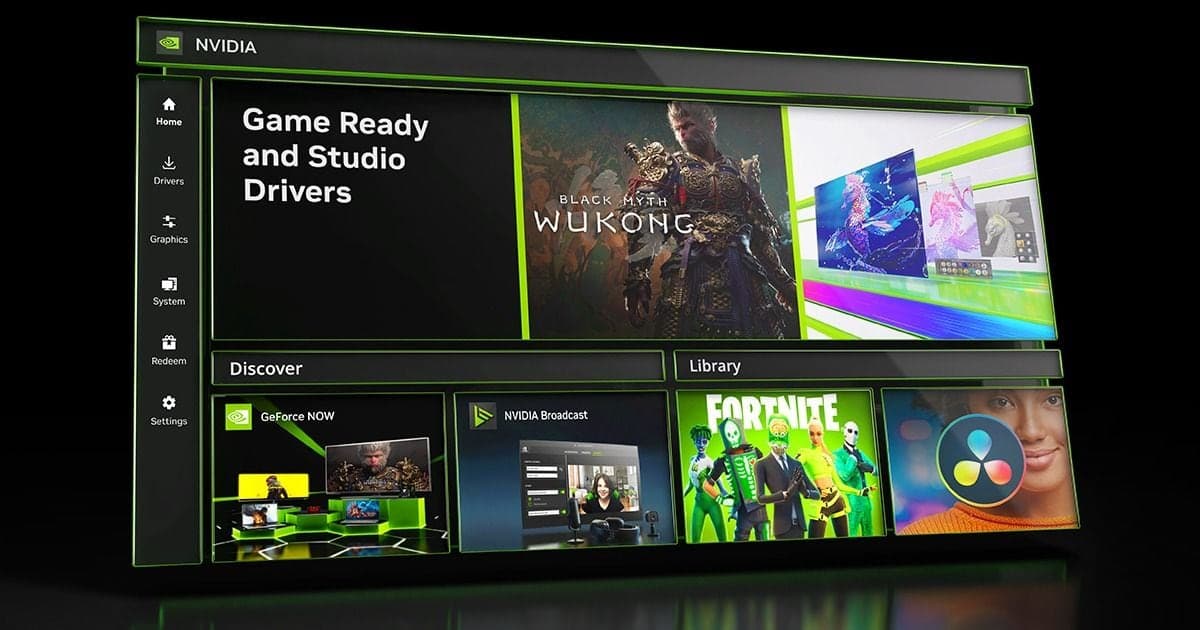
To record with the NVIDIA app, open the NVIDIA Overlay with Alt+Z in game, then click Record or press Alt+F9; press it again to stop. Instant Replay, which keeps only your latest moments, can be switched on from the overlay or with its hotkey, but both features need the overlay enabled in the NVIDIA app and a system that meets NVIDIA's requirements (Windows 10/11, GeForce driver 551.52 or newer, and a GeForce RTX 20/30/40/50 series GPU, as checked on September 30, 2026). Best values for quality, codec, and frame rate live in our NVIDIA game recording settings guide, so this article sticks to the order of steps for your very first recording.
Decide between a full match and a moment
You only need to make one choice up front. If you want a whole match, a tutorial, or a work session from start to finish, use manual Record; if you only want the last few seconds after a kill or a big play, leave Instant Replay running. NVIDIA's own overview splits the two features the same way. If Instant Replay is on but nothing gets saved, or it switches itself off while you share your screen on Discord, go through the symptom list in why NVIDIA Instant Replay is not working. And if the overlay will not even open, check steps 1 and 2 below first, starting with whether it is enabled.
Steps to start recording with the NVIDIA app
- 1Confirm the NVIDIA overlay is enabled — Open the NVIDIA app and check under Settings in the left navigation that the NVIDIA overlay is enabled. NVIDIA's system requirements page lists Windows 10/11, GeForce driver 551.52 or newer, and a GeForce RTX 20/30/40/50 series GPU (as checked on September 30, 2026). Supported-GPU wording differs between NVIDIA documents, so confirm your own graphics card on the official system requirements page.
- 2Open the overlay with Alt+Z — Press the default hotkey Alt+Z or use the button at the top right of the NVIDIA app window. The panel gives you access to video, screenshot, filter, and overlay options, and you can also trigger features directly with their listed hotkeys without opening the overlay. If it does not open, first check under Settings that the overlay is enabled.
- 3Start and stop a recording — Click the Record button in the overlay or press Alt+F9 to record a game, app, or your desktop; it does not stop until you press it again. The beta update article says it keeps recording until you close the game or press Alt+F9 again. Before you start a long match, make sure you know how you will stop it.
- 4Turn on Instant Replay — Instant Replay makes a rolling recording while you play, and NVIDIA suggests it when you want highlights such as kills rather than the full match. Switch it on from the overlay or with its hotkey, and use Instant Replay length in settings to define how much to keep. The save hotkey is described differently in two official articles: the launch article says Alt+Shift+F10 saves a clip, while the beta update says to turn the feature on with Alt+Shift+F10 and then press Alt+F10 in game to save the latest minutes (as checked on September 30, 2026). Check the current key in the hotkeys section of the Settings cog. NVIDIA does not publish a default length in these documents, so none is given here.
- 5Look at Desktop capture under Video capture — Click the Settings cog at the top of the overlay panel and open Video capture to find items such as Codec and Desktop capture. Codec and frame-rate choices are covered in our NVIDIA game recording settings guide, so this step skips them. Turning on Desktop capture lets you record outside games, so switch it on only when you need that.
- 6Switch on microphone recording — In the Settings cog, the Microphone item lets you turn your voice on or off in videos and set a push to talk key. NVIDIA's overview also mentions changing the video sound source and multitrack audio, which records mic input as a separate track. Fixing a microphone that is not picked up is outside the scope of this article.
- 7Check the result in Gallery — After your first screenshot or video capture, Gallery appears in the Alt+Z overlay. It sorts captures by game, lets you view only screenshots or only videos, and lets you click a capture to enlarge or play it. You can also reach the file on disk to share or upload it.
What each feature does and how to open it
| Feature | How to use it (official wording) | Example use |
|---|---|---|
| Record | Overlay Record button or Alt+F9; keeps recording until you press it again | A full match, a tutorial, or a work screen |
| Instant Replay | Turn it on from the overlay or with its hotkey, and set the amount to keep with Instant Replay length in the Settings cog | Saving only a kill or another standout moment |
| Desktop capture | Toggle it on under Video capture in the Settings cog | Recording things outside the game, such as a PC tutorial |
| Screenshot | Alt+F1 | When a still image is enough |
| Gallery | Appears in the Alt+Z overlay after your first capture | Sorting by game, filtering to videos, playing back and sharing |
Pre-recording checklist
- I compared my Windows version, driver (551.52 or newer), and GPU with NVIDIA's system requirements page.
- I enabled the NVIDIA overlay in the NVIDIA app Settings and confirmed Alt+Z opens it.
- I started Record once, stopped it with Alt+F9, and saw the video appear in Gallery.
- I checked Instant Replay length and the clip-save hotkey myself in the Settings cog.
- I will turn Desktop capture on only when I need to record outside the game.
- I confirmed the Microphone toggle is in the state I want before recording.
If you would rather not press anything
If pressing Alt+F9 every match or babysitting an Instant Replay length sounds like a chore, DOR, a free Windows desktop app, takes a different approach. It detects supported games automatically, records the full match on its own and saves it as mp4, and uses NVENC hardware encoding by default on NVIDIA graphics cards. Automatic kill and highlight clips are limited to seven games: League of Legends, VALORANT, PUBG, FC Online, Fortnite, Counter-Strike, and Overwatch; other supported games get full-match recording only. How a "save the last moments" clip works is covered in saving the last few seconds as an instant clip, and getting game sound and your voice into one video is explained in recording game audio and mic together.
Official sources (checked September 30, 2026)
The hotkeys, menu names, and system requirements in this article come from the NVIDIA pages below, which we opened on September 30, 2026: NVIDIA app download and features, NVIDIA app beta update: AV1 and performance tuning, and NVIDIA app system requirements. Menu labels and hotkeys can change between app versions, so trust the official pages if your screen differs. The overlay and Desktop capture notes also draw on NVIDIA support articles at nvidia.custhelp.com (overlay Alt+Z article updated 2024-12-14; Desktop capture articles updated 2024-11-15 and 2025-05-21).