A missing microphone in NVIDIA recordings does not automatically mean a broken headset. Work through overlay mute, the selected USB input, Windows microphone access, per-app levels, competing apps, and the actual saved file to locate the break.
Split the diagnosis at the level meter
If the NVIDIA overlay mic icon or level does not react, check mute, device, and Windows access first. If the level reacts but the file is silent, inspect recording mode, separate-audio behavior, and the playback app. Close another recorder or call app briefly to rule out device contention.
Choose the next check from the symptom
| Symptom | Likely area | Next check |
|---|---|---|
| Mic icon is disabled | Overlay mute | Enable mic under Alt+Z |
| Input level is still | Device or Windows permission | Default input and privacy settings |
| Level moves; file is silent | Track or playback issue | Open the saved file in another player |
| Voice is tiny or one-sided | App level or channel format | Windows input level and device format |
Diagnose without losing a working setting
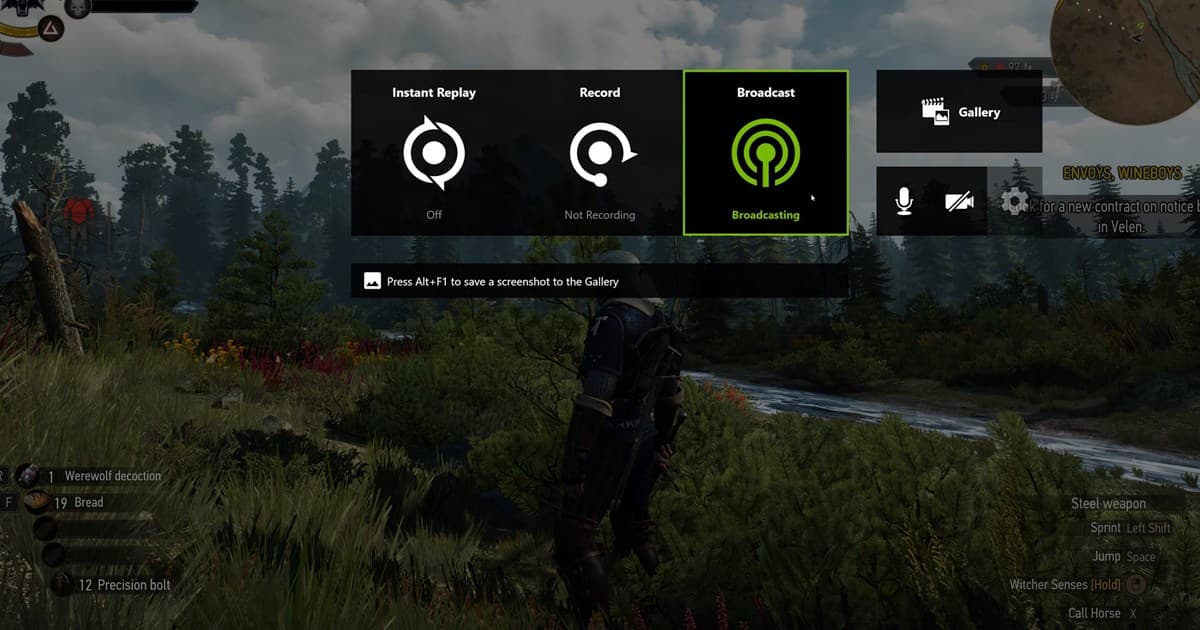
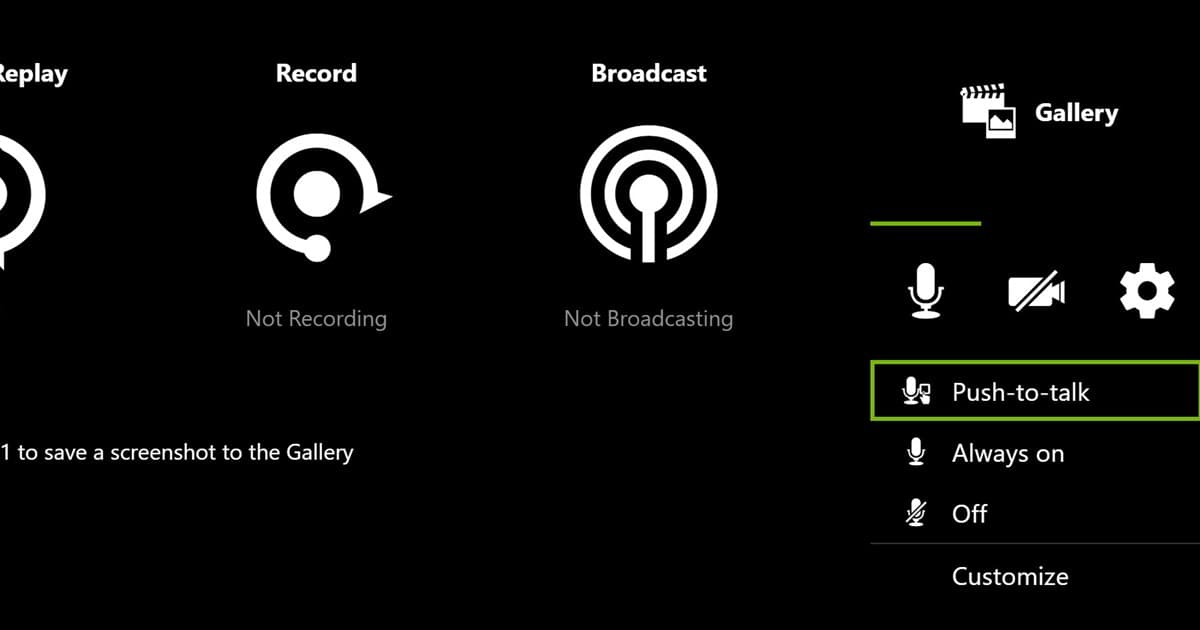
- 1Enable the overlay microphone — Open Alt+Z and confirm the mic is not muted and remains enabled while recording.
- 2Choose the exact input — Select the same physical USB or headset microphone in NVIDIA audio settings and Windows default input.
- 3Check access and level — Review Windows microphone access, app permission, input level, and the headset hardware mute switch.
- 4Close competing apps briefly — Exit call or broadcast software and make a ten-second recording to test device contention.
- 5Inspect the saved file — Open the real output in another player and check voice level and synchronization.
A successful test means
- The mic is enabled under Alt+Z
- The selected input matches the physical device
- Windows access and input level are enabled
- The ten-second test works with competing apps closed
- Voice and video are synchronized in the saved file
What switching to DOR changes—and does not change
DOR does not repair NVIDIA microphone settings or restore a voice that was never recorded. It offers another workflow for future supported-game sessions. Read record game with mic, NVIDIA recording settings, Instant Replay troubleshooting, and DOR automatic recording. For a real game use case, continue to the VALORANT game hub. A game-specific auto-highlight example lives on the PUBG recording hub.
Official NVIDIA App audio guidance
NVIDIA’s official broadcast and overlay guide shows the Alt+Z overlay and microphone control. Labels may change in NVIDIA App releases, so verify the selected device in the current overlay and judge every change from a saved recording.