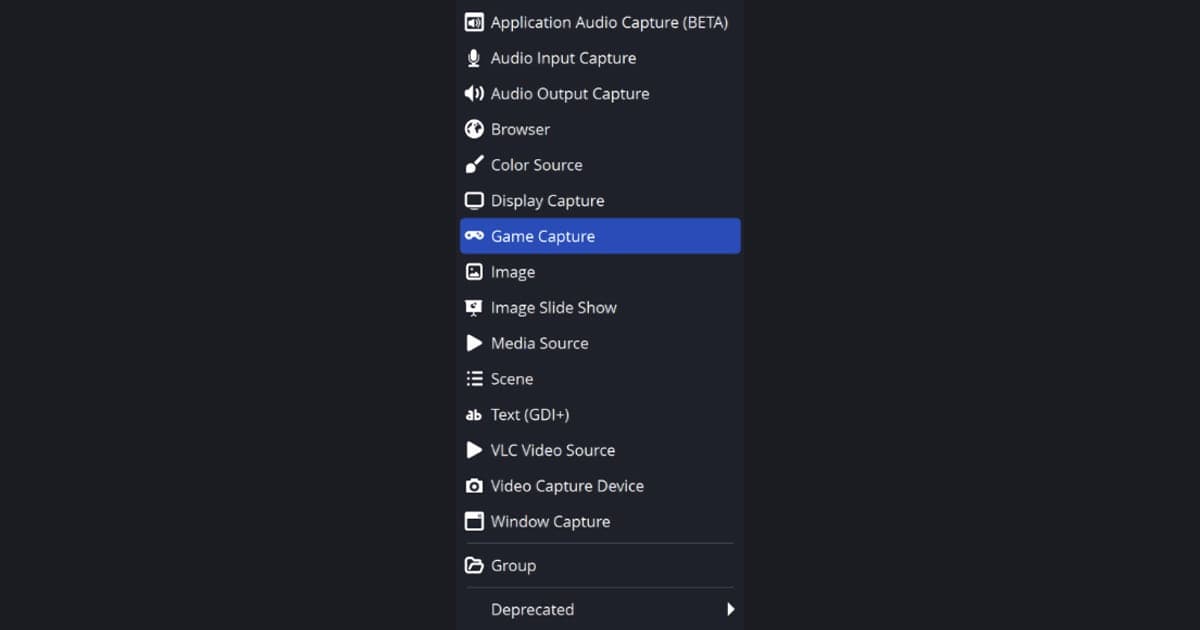
For a DirectX or OpenGL game on Windows, start with Game Capture, which OBS's own documentation calls the most efficient way to add games to OBS Studio; if it stays blank or your game is on OBS's incompatible list, switch to Window Capture or Display Capture, exactly as OBS's built-in message suggests. This guide is checked against the OBS documentation as of September 30, 2026 (OBS Studio 32.x) and covers only how to choose the capture source, so if Game Capture is already selected and the preview is black, follow the OBS black screen fix instead. Game Capture exists only on Windows, which is why this comparison is written for a Windows PC.
Bottom line: Game Capture leads, the rest are fallbacks
Pick in this order: Game Capture for the game itself, Window Capture when Game Capture is blocked or when you want one non-game window, and Display Capture only when showing the whole monitor is acceptable. Do not rank the sources by gut feeling about speed. OBS publishes no numeric comparison between them, and it simply describes Game Capture as the most efficient way to add games. Once the preview shows your game, encoder, bitrate and output choices are a separate step, covered in OBS game recording settings.
Source comparison from the OBS docs
| Source | What the OBS docs say | When to use it and the official caveat |
|---|---|---|
| Game Capture | Windows only. Directly captures the DirectX or OpenGL game you are playing, and OBS calls it the most efficient way to add games to OBS Studio. | First choice for a game. A small number of games remain incompatible, and OBS lists them on its Game Capture Troubleshooting page. |
| Window Capture | Captures one window and its contents. Unlike Display Capture, only the selected window is shown even if other windows overlap it. | Use it for a game where Game Capture is blocked (for example Counter-Strike 2 or Destiny 2 in windowed or borderless fullscreen) or for a non-game window such as a launcher. |
| Display Capture | Captures an entire monitor. | A fallback when showing the whole screen is fine. OBS says you can add only one Display Capture source per display; if you need the same display in several scenes, add references to the existing source instead of creating a new one. |
| Game Capture Mode | Three options: Capture any fullscreen application, Capture specific window, Capture foreground window with hotkey. | The first auto-detects a fullscreen game on the primary monitor, and on a single monitor switching to OBS stops the game rendering. The second is not for non-game windows. The third suits switching between games. |
| Games OBS says to capture another way | Counter-Strike 2 and Destiny 2 do not allow OBS to hook in with Game Capture. Roblox should use Window Capture instead, and San Andreas Multiplayer should use Window Capture or Display Capture. | Run Counter-Strike 2 and Destiny 2 windowed or borderless fullscreen and use Window Capture. For Roblox, use Window Capture. |
| Games that need a tweak or a combination | Call of Duty, Genshin Impact, Honkai: Star Rail and Zenless Zone Zero: run OBS Studio as administrator. Fortnite: switch from DirectX 12 to DirectX 11 if it crashes or has framerate issues. | League of Legends: use Window Capture for the lobby and a separate Game Capture for the match, then switch scenes (OBS 31.1 and later). |
Pre-recording checklist
- I checked the preview while the game was running, not just on the desktop.
- I checked whether my game is on OBS's Game Capture exceptions (Counter-Strike 2, Destiny 2, Roblox, San Andreas Multiplayer).
- For Call of Duty, Genshin Impact, Honkai: Star Rail or Zenless Zone Zero, I ran OBS as administrator.
- If Fortnite crashes or has framerate issues, I tried DirectX 11 instead of DirectX 12.
- OBS and the game run on the same GPU, and Game Capture and Window Capture use High Performance.
- I decided whether I want overlays in the recording, since Capture third-party overlays is off by default.
How to choose and check the source
- 1Add Game Capture first — Add a source in the Sources dock, pick Game Capture, and start the game. Set Mode to Capture any fullscreen application if you want OBS to auto-detect a fullscreen game on the primary monitor, or to Capture specific window and pick the game's window. Capture Cursor is on by default and does not apply to cursors the game draws itself, which are always captured, and Capture third-party overlays (such as steam) is off by default.
- 2Check the preview with the game running — Look at the preview while the game is actually on screen. OBS notes that on a single monitor with the fullscreen mode, switching to OBS stops the game rendering, so a frozen picture right after you switch does not by itself prove the source is wrong. If the preview stays blank, compare the game with OBS's official list in the next step before changing anything else.
- 3Compare the game with OBS's official list — Counter-Strike 2 and Destiny 2 do not allow Game Capture to hook in, Roblox should use Window Capture, and San Andreas Multiplayer should use Window Capture or Display Capture. For Call of Duty and similar titles OBS advises running as administrator, and for Fortnite it advises DirectX 11. OBS Studio 32.x also has a built-in message for some games saying they cannot be captured with Game Capture and to use Window Capture or Display Capture instead; if you see it, follow it.
- 4Switch blocked games to Window Capture — Add a source, choose Window Capture, and pick the game's window under Window. Capture Method is Automatic by default, a BitBlt option exists for compatibility with some programs, and the 32.x list shows BitBlt (Windows 7 and up) and Windows 10 (1903 and up). OBS's docs say BitBlt is less efficient but may help with certain programs, and they give no other comparison between the methods, so treat them only as options to try if the picture does not appear. Client Area, on by default, toggles the window borders.
- 5Use Display Capture as the last fallback — Add Display Capture and choose the monitor under Display. The whole monitor is captured, so any other window you bring up is included. OBS allows only one Display Capture source per display; to use the same display in several scenes, add a reference to the existing source rather than creating a new one. The 32.x Capture Method list shows DXGI Desktop Duplication and Windows 10 (1903 and up), but the docs do not compare them, so none is ranked here.
- 6Match the GPU to the source — On a PC with more than one GPU, or a laptop with integrated graphics, OBS and the game must run on the same GPU, and OBS's GPU Selection Guide recommends High Performance for Game Capture and Window Capture and Power Saving for Display Capture. You set it by adding the OBS executable under Windows Settings > System > Display > Graphics Settings, and if the preview is still black, continue with the guide linked at the top of this article.
When choosing sources feels like too much
If picking a capture source and remembering per-game exceptions is more setup than you want before a match, DOR is one option that skips that step. It is a free Windows desktop app that detects supported games automatically and saves the full match as an mp4, and because it records only the games it supports, OBS remains the right tool for anything outside that list. On an NVIDIA graphics card NVENC hardware encoding is the default, and game sound and your microphone are recorded at the same time, which fits when you want team chat or commentary kept with the footage. For the wider picture see how to record gameplay for free, or read when OBS feels too complicated to decide whether the OBS route is worth it for you.
Official sources and how to check
Checked on September 30, 2026 against the OBS Studio 32.x documentation. Source names, supported operating systems and the incompatible-game list can change between releases, so confirm them on the official pages. Modes and defaults are in the OBS Game Capture source page, Window Capture properties are in the OBS Window Capture sources page, and the per-game notes are in the OBS Game Capture troubleshooting page. The GPU Selection Guide and the League of Legends Capture Guide are on the same obsproject.com knowledge base.