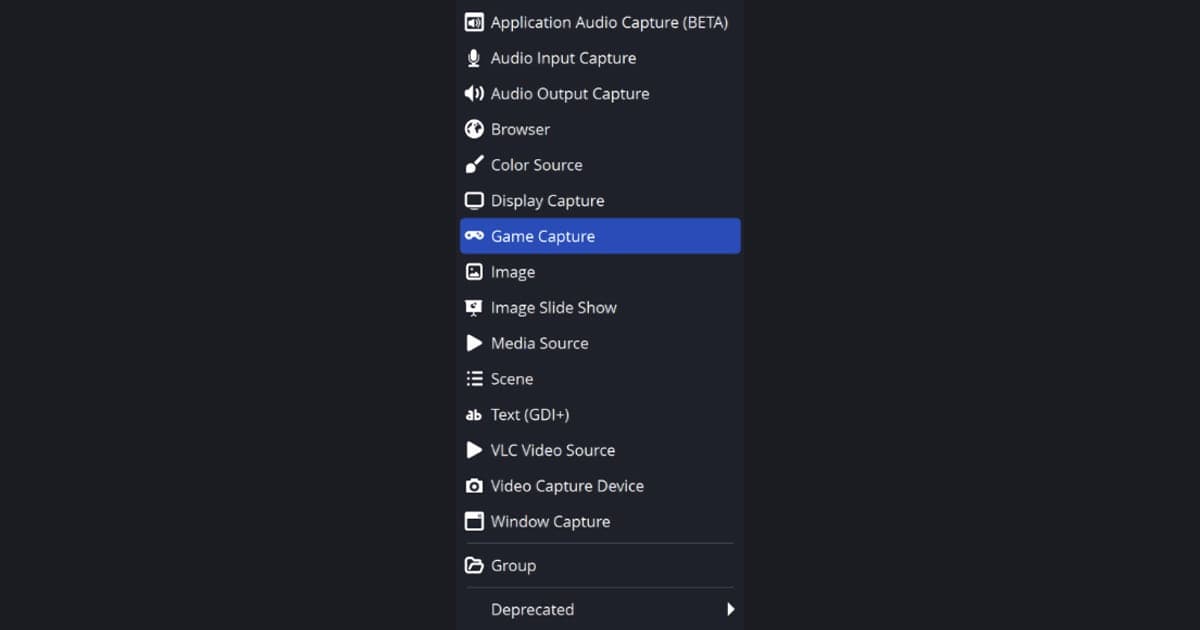
The biggest difference between Medal and OBS is how they work. According to their official sites, Medal runs in the background and is centered on saving your last moments as a clip with a hotkey, while OBS is a general tool where you set up sources such as Game Capture yourself, and saving recent moments means turning on the Replay Buffer and assigning a save hotkey. This guide does not pick a winner. It lays out the choice by need, using values from both official sites as opened on September 30, 2026. If you want the exact OBS steps for saving recent moments, see how to save highlights with the OBS replay buffer.
The short answer by need
If your goal is to keep a moment you just played as a clip and share it as a link, Medal fits that flow well. If you want to control scenes, sources and output formats, and record and live stream from one tool, OBS fits better. If you are already weighing Medal against a wider set of tools, the list of Medal alternatives covers that broader question. Since both are free to start, the surest test is to run each for a short session in the same game.
Medal vs OBS side by side (as checked on September 30, 2026)
| Item | Medal | OBS Studio |
|---|---|---|
| Price | Free on PC and mobile, with optional paid features (Premium). The Premium price is not shown on the pages checked | Introduced as free and open source software |
| Watermark | The Premium page lists downloading clips without the watermark as a Premium benefit. Check that page for the current policy | No watermark information found on the official home page |
| Windows support | Windows 10 or later (iOS and Android apps also exist) | Windows 10 and 11 (latest 32.2.2, released August 14) |
| How clips are saved | Runs in the background; saves the last 15 seconds, 60 seconds, 10 minutes or the whole session; default hotkey F8 (changeable) | Turn on the Replay Buffer and assign a save hotkey yourself; you also build the sources yourself |
| Auto clipping | Toggle under Settings > Auto Clipping > Auto Capture Events; has its own list of supported games such as Valorant and Fortnite | The official pages checked have no game-event auto clipping section |
| Editing and sharing | Built-in editor and cloud share links | Introduced as a tool for video recording and live streaming |
| File format | MP4 (H.264 / H.265) | MKV recommended, MP4 via remux, Hybrid MP4 also selectable |
| Performance notes from official pages | Says it supports GPU acceleration (NVIDIA, AMD, Intel) and CPU-based recording | Says CPU needs vary considerably with encoder, resolution, FPS and scene complexity. The two pages do not compare each other |
Things to check before you pick
- Think about how far back you usually miss a moment, then check that the length fits Medal's 15-second to 10-minute range and OBS's Maximum Replay Time setting.
- If you plan to rely on auto clipping, check whether your game is on Medal's Auto Clipping supported list before anything else.
- If you plan to record and live stream together, check that you have time to build your OBS sources and run a test recording.
- Check that your save hotkey does not clash with game controls and that the file format suits the editor or place where you will share.
- If a watermark-free download matters, read the current benefits on Medal's Premium page.
- Confirm your Windows version: Medal lists Windows 10 or later, OBS lists Windows 10 and 11.
What to set up again when switching between Medal and OBS
- 1Reassign the save hotkey — Medal's PC clipping guide gives F8 as the default hotkey and says you can change it in settings. The OBS overview says the hotkey that saves the buffer must be set in the Hotkeys section. Under Settings > Hotkeys, assign Save Replay to a key that does not clash with your game controls.
- 2Match the length of the recent window — Medal says the buffer can be set between 15 seconds and 10 minutes in its settings. In OBS, open Settings > Output, turn on Enable Replay Buffer, set Maximum Replay Time, then press Start Replay Buffer in the Controls dock so the buffer actually runs. The official pages give no recommended length, so choose one that covers the moments you usually miss.
- 3Check sources and auto configuration — The OBS quick start guide runs the Auto-Configuration Wizard first, then adds Game Capture (Windows only), Display Capture or Video Capture sources with the + button in the Sources dock, and tests with Start Recording. For someone coming from Medal, this preparation stage is likely the most unfamiliar part.
- 4Check the file format — Medal's home page says files are saved as MP4 (H.264 / H.265). OBS's recording guide recommends MKV because the file survives an unclean stop, and says to use Remux Recordings or the automatic remux option on the Advanced tab if you need mp4. OBS 32.x also offers Hybrid MP4 (.mp4) under Recording Format.
- 5Recheck the audio layout — Medal's features page describes multi-track audio with separate volume for game, mic and Discord. In OBS, confirm your devices under Settings > Audio, then make a short test recording and listen for both game sound and your microphone. Treat the first match after switching tools as a sound check.
A third option if you want recording without setup
If choosing a buffer length, a hotkey and sources sounds like too much, DOR is another route. It is a free Windows desktop app that detects supported games automatically, records the full match as an mp4 and keeps it in the in-app library. On an NVIDIA graphics card it uses NVENC hardware encoding by default and records game sound and microphone together, which helps if your worry is missing the moment to press save. Automatic highlight clips such as kills work only in seven games: League of Legends, VALORANT, PUBG, FC Online, Fortnite, Counter-Strike and Overwatch. Other supported games get full-match recording only. You can read how detection works in auto clip detection explained and see the results in DOR auto highlight clips. This is not a claim that DOR beats Medal or OBS, just another way to start without setup.
Official sources checked
Values in this guide were checked on the official pages below on September 30, 2026. Versions, prices, watermark policy and supported game lists change often, so recheck before you decide. OBS Studio official site, Medal official site, Medal Premium page.