
The fastest way to convert an OBS MKV recording to MP4 is the File > Remux Recordings menu inside OBS itself, and if no mp4 appears after you stop recording, either 'Automatically remux to mp4' under Settings > Advanced > Recording is not ticked or the recording type is 'Custom Output (FFmpeg)' or lossless avi, which auto remux skips.
A remux swaps the container without re-encoding, so there is no quality loss, and the original .mkv is left in place.
The basic remux walkthrough and the general mp4 vs mkv comparison already live in a sister guide, so this article concentrates on why 32.2.2 still produces mkv, the conditions under which auto-convert does nothing, and what to check when a remux fails or comes out silent.
As checked on 16 September 2026, the current OBS Studio release is 32.2.2, and since 32.0 (released 22 September 2025) the default recording format for new profiles is Hybrid MP4. If you still get mkv files, the usual cause is a profile created in an older version that kept its MKV setting.
OBS recommended MKV for years because a recording survives a crash, BSOD, or power loss mid-recording. Every label below is quoted from the OBS 32.2.2 interface. Encoder and bitrate choices are a separate topic covered in OBS game recording settings.
Bottom line: remux what you have, check the auto-remux conditions, record Hybrid MP4 from now on
Three moves. First, for mkv files you already have, open File > Remux Recordings, add the files, and press Remux. A .mp4 with the same name appears in the same folder, and the mkv stays.
Second, if you still have a reason to record MKV (several audio tracks, crash insurance), tick 'Automatically remux to mp4' under Settings > Advanced > Recording; OBS then builds the mp4 right after you press Stop Recording.
If it is ticked and nothing appears, check whether the Advanced recording type is 'Custom Output (FFmpeg)' or you recorded lossless avi, both of which auto remux skips, or whether you recorded Fragmented MP4, which comes out as a separate 'name.remuxed.mp4'.
Third, if you have no reason to keep MKV, set Settings > Output > Recording Format to 'Hybrid MP4 (.mp4)'. It stays recoverable after a crash and has excellent editing-software support, so no remux is needed at all.
Recording straight to plain 'MPEG-4 (.mp4)' is what the OBS documentation advises against, because a file that is not finalised cannot be recovered. The basic remux walkthrough and the mp4 vs mkv comparison are in how to save recordings as mp4.
And if your goal is simply full matches of supported games saved as mp4 plus clips you can trim and share, DOR writes mp4 from the start, so there is no format choice and no remux step; if you record games it does not support, or you need per-track audio for editing, OBS is the right tool.
How to convert MKV to MP4 in OBS and get auto-remux working (32.2.2 labels)
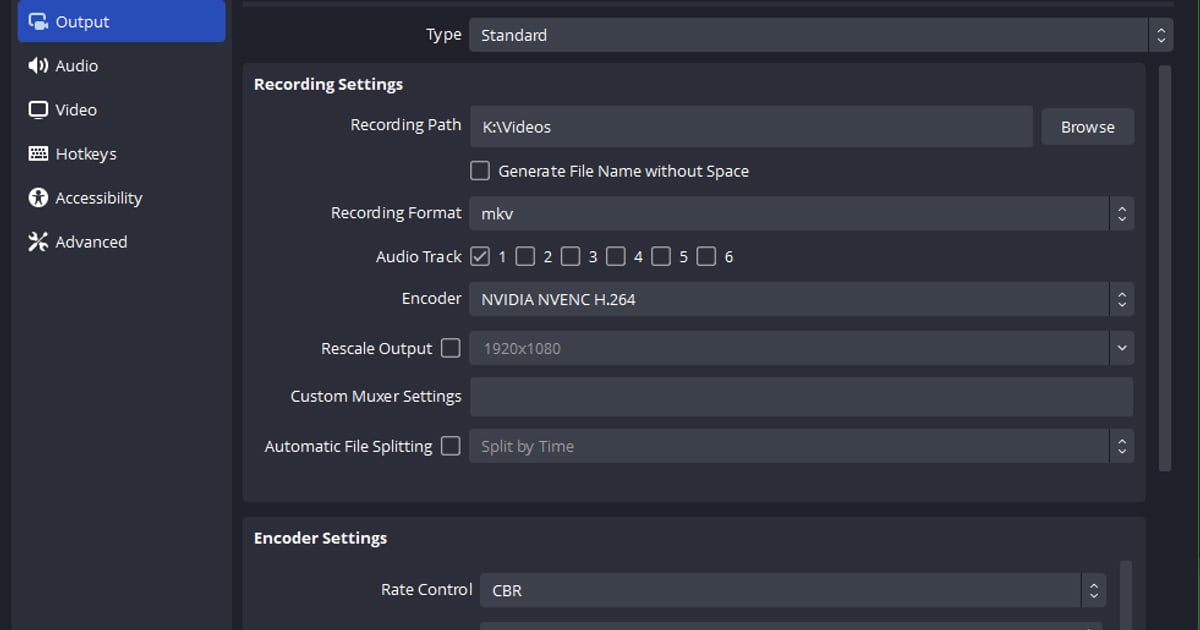
- 1Check why your OBS writes mkvOpen Settings > Output and look at the 'Recording Format' dropdown. If it reads 'Matroska Video (.mkv)', a profile from an older version kept that setting. The same field exists in both Simple and Advanced Output Mode. You do not have to change it yet; the remux below works either way.
- 2Open File > Remux RecordingsFrom the top menu choose File > Remux Recordings. The 'Remux Recordings' window has two columns, 'OBS Recording' and 'Target File', and a hint that reads 'Drop files in this window to remux, or select an empty "OBS Recording" cell to browse for a file.'
- 3Add the mkv and confirm the target fileClick an empty 'OBS Recording' cell and pick the mkv in the file dialog (the filter accepts mp4, flv, mov, mkv, ts and m3u8). You can also drag files, or a whole folder, from Explorer into the window; a folder adds every video inside it at once. The 'Target File' cell fills itself with the same name and folder ending in .mp4. Click it and use 'Select target file...' if you want a different location.
- 4Press Remux and read the finish messagePress the Remux button at the bottom. A remux copies the video and audio streams as they are, so quality is untouched and the file size is almost identical. When it finishes, the 'Remuxing finished' dialog says 'Recording remuxed'. If it instead says 'Recording remuxed, but the file may be incomplete', go to step 7. The original mkv is not deleted.
- 5Make OBS create the mp4 when you stop recording, and when it will notOpen Settings > Advanced and, in the 'Recording' group, tick 'Automatically remux to mp4'. From then on, as soon as you press Stop Recording, OBS writes a .mp4 with the same name in the same folder and the status bar shows "Recording auto remuxed to '…'". The mkv stays, so you use almost twice the disk space. If Recording Format is plain 'MPEG-4 (.mp4)', the option shows '(record as mkv)' after it, meaning OBS records safely to mkv and converts afterwards. Two conditions stop the mp4 from appearing even with the box ticked: auto remux does not run when the Advanced recording type is 'Custom Output (FFmpeg)' or when you record lossless avi. And if you recorded Fragmented MP4, the mp4 already exists and a second file named 'name.remuxed.mp4' is created instead.
- 6Switch to a format that needs no remuxSet Settings > Output > Recording Format to 'Hybrid MP4 (.mp4)'. It arrived as a beta in OBS 30.2 and became the default for new profiles in 32.0; the official description is that it combines the fault tolerance of fragmented MP4 with the compatibility of a regular MP4. It supports H.264, HEVC and AV1 video and AAC, Opus, FLAC and ALAC audio. If your audio encoder is PCM, some applications cannot play PCM in MP4, and the KB suggests Hybrid MOV instead. Update to 32.2.2 first if you are on an older build.
- 7When the remux fails or the mp4 has no soundStart by playing the original mkv to the end; a remux only copies what is already there, so footage lost in a crash does not come back. Next, if you recorded several audio tracks, remember that standard video players play only one track, so the sound may simply be on another track. Send every source to Track 1 via the Audio Mixer gear > Advanced Audio Properties, or pick the track in your editor. Check the PCM case from step 6 as well. If it still fails, open Help > Log Files > Show Log Files and, if you need help, use 'Upload Current Log File' to share it on the OBS forums.
OBS recording formats compared: MKV, Hybrid MP4, Fragmented MP4, plain MP4 (per the official KB)
| Recording Format (label in Settings > Output) | Crash or power loss mid-recording | Editing-software support / remux needed? |
|---|---|---|
| Matroska Video (.mkv) | Safe. An unfinished file stays playable and recoverable (the KB calls it 'failsafe') | Poor support in editing software. May require remuxing to mp4 for editing |
| Hybrid MP4 (.mp4) — default for new profiles since 32.0 | Safe. Written in fragments, then finalised like a regular MP4 ('soft-remux'), so an aborted file is still recoverable | Excellent support in editing software. No remux needed. Chapter markers supported (chapters are lost if the recording crashes) |
| Fragmented MP4 (.mp4) | Safe. Self-contained chunks mean the file needs no finalisation to be usable | Good support in editing software. May need remuxing in some editors when using lossless or uncompressed audio |
| MPEG-4 (.mp4) / QuickTime (.mov) (plain) | Risky. If the file cannot be finalised it may be unrecoverable; OBS does not recommend recording to it directly | Excellent support in editing software. No remux needed |
Post-conversion checklist
- I know what Settings > Output > Recording Format is set to (MKV means an old profile setting survived).
- The finish dialog did not say 'the file may be incomplete'.
- The converted mp4 has the same length as the mkv and plays to the end.
- If I recorded multiple audio tracks, I know players play one track only and either sent everything to Track 1 or chose the track in my editor.
- If my audio encoder is PCM, I switched to AAC or considered Hybrid MOV.
- If auto remux is on, I accept that both mkv and mp4 remain and take almost twice the space.
- For YouTube uploads I checked that MKV is not on the official supported-format list and uploaded the mp4.
The path where none of this is needed: DOR records mp4 from the start
Choosing a format and remuxing in OBS is you solving the problem of keeping a recording alive through a crash while still getting a file editors accept. If all you want is full matches of supported games plus kill clips you can trim and share, that problem can be skipped entirely.
DOR is a free Windows app that detects supported games such as Valorant and League of Legends, records the full match to mp4 automatically, uses NVIDIA NVENC hardware encoding on supported cards such as the RTX series, and captures game audio and your mic together.
In seven games, Valorant, League of Legends, PUBG, FC Online, Fortnite, Counter-Strike and Overwatch, it also cuts highlights such as kills into clips on its own.
The saved mp4 can be trimmed in the in-app trim tool (16:9, 9:16 or 1:1) and shared as a dor.gg link, or opened in the browser editor DOR Studio for trimming, merging, text and background music, then downloaded as mp4 or shared as a link; the steps are in editing and sharing clips in the DOR browser editor.
The limits are just as clear: DOR records supported games only, and automatic highlight clips exist for those seven games. If you need game audio and mic on separate tracks for editing, chapter markers, or audio filters, OBS with MKV multi-track recording plus a remux is the right tool.