OBS NVENC recording is not a contest to choose the lowest CQP number. An unnecessarily low value increases file size and can reduce encoder headroom, especially when the game already holds the GPU near full utilization. Use the official range as a baseline and compare the same demanding minute.
A sensible 1080p60 baseline
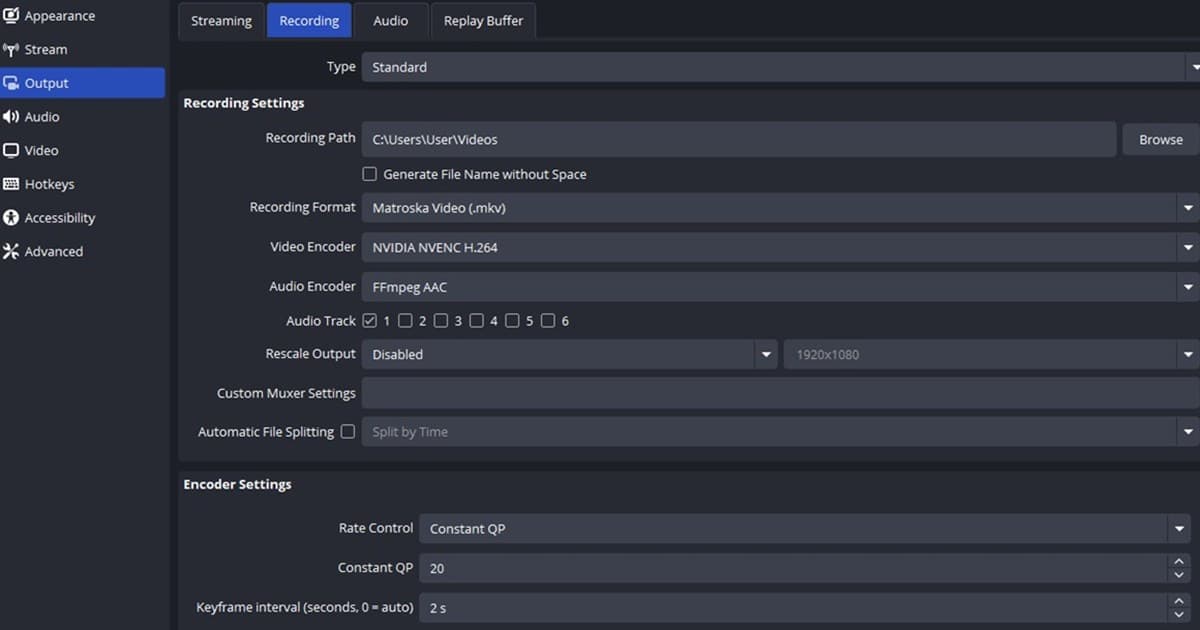
OBS’s official advanced recording guide lists CQP 16–23, a two-second keyframe interval, P5, High Quality, quarter-resolution two-pass, High profile, Look-ahead off, Adaptive Quantization on, and two B-frames for NVIDIA NVENC. Start near CQP 18–20, then create GPU headroom with a sensible game FPS cap if OBS reports sustained lag.
NVENC recording baseline
| Setting | Starting value | How to tune it |
|---|---|---|
| Rate control | CQP 18–20 (official range 16–23) | Lower means more quality and larger files |
| Keyframe / Preset | 2 seconds / P5 | Balance editing compatibility and GPU headroom |
| Multipass / Profile | Two-pass quarter / High | A practical quality-load balance |
| Look-ahead / AQ / B-frames | Off / On / 2 | Test the official baseline per game |
Tune it for your PC
- 1Switch Output Mode to Advanced — In Settings > Output > Recording, choose NVENC and a recording format, and save a screenshot of the old values.
- 2Enter the baseline — Apply CQP 18–20, keyframe 2, P5, High Quality, quarter-resolution two-pass, and High profile.
- 3Leave GPU headroom — Cap game FPS near a useful display target instead of letting the game consume every available GPU cycle.
- 4Record one stressful minute — Use particles, foliage, and rapid camera movement while watching render and encoding lag in OBS Stats.
- 5Change one variable — Lower CQP by one for more detail or raise it by one or two for smaller files, then repeat the same scene.
Before a long recording
- NVENC is the active encoder
- The game leaves some GPU capacity available
- A resilient format and adequate disk space are selected
- A game and microphone audio test was played back
- OBS Stats shows no sustained encoding lag
If you prefer a shorter setup path
DOR does not change OBS NVENC options or fix encoding errors. It is an alternative recording flow for future sessions in supported games. Compare the VALORANT game hub, OBS game recording baseline, free recorder guide, no-audio troubleshooting guide, and DOR automatic recording before deciding.
The official OBS baseline
The OBS Advanced Recording Settings Guide documents these NVENC values and what the controls do. Labels can change with OBS and GPU generations, so read the descriptions in your current version and adjust only one variable per test.