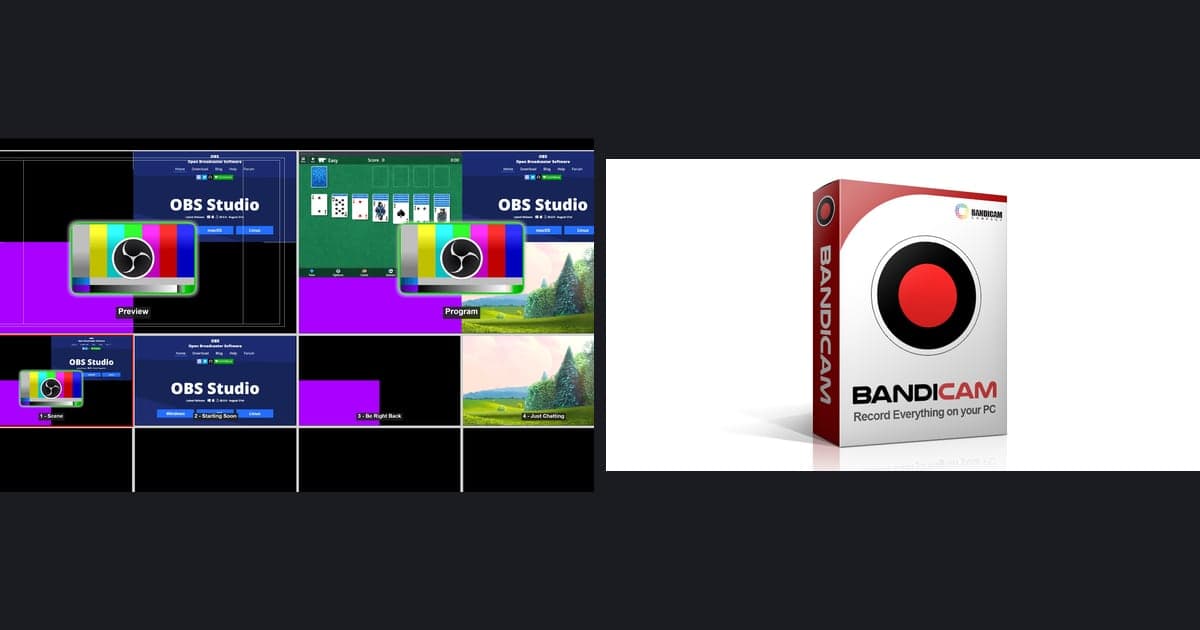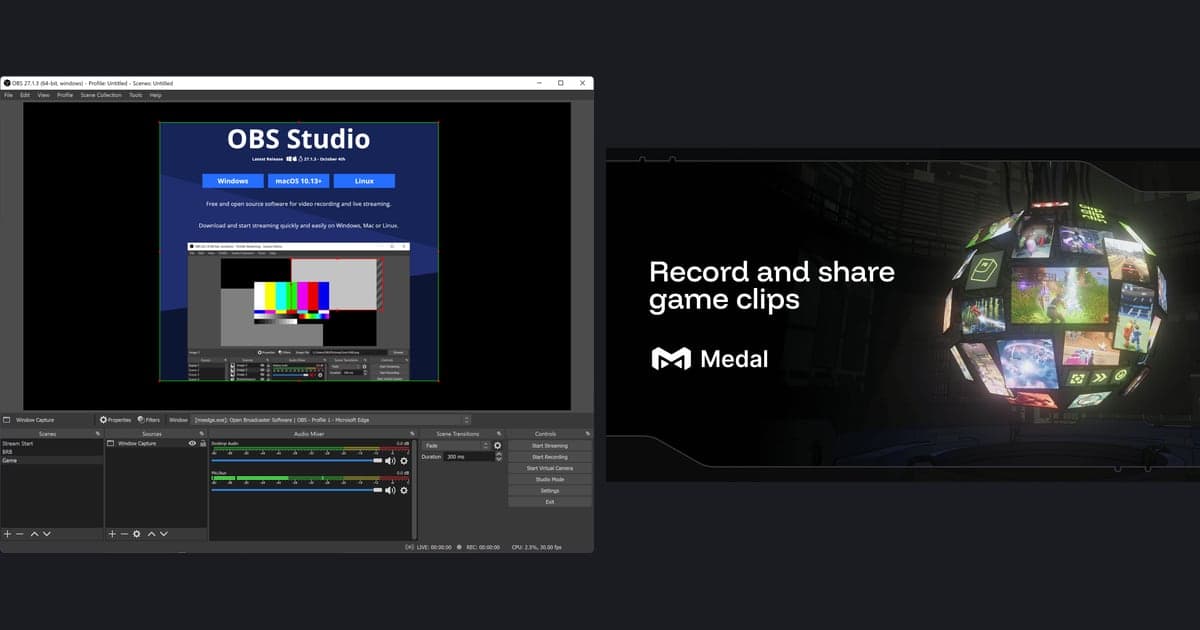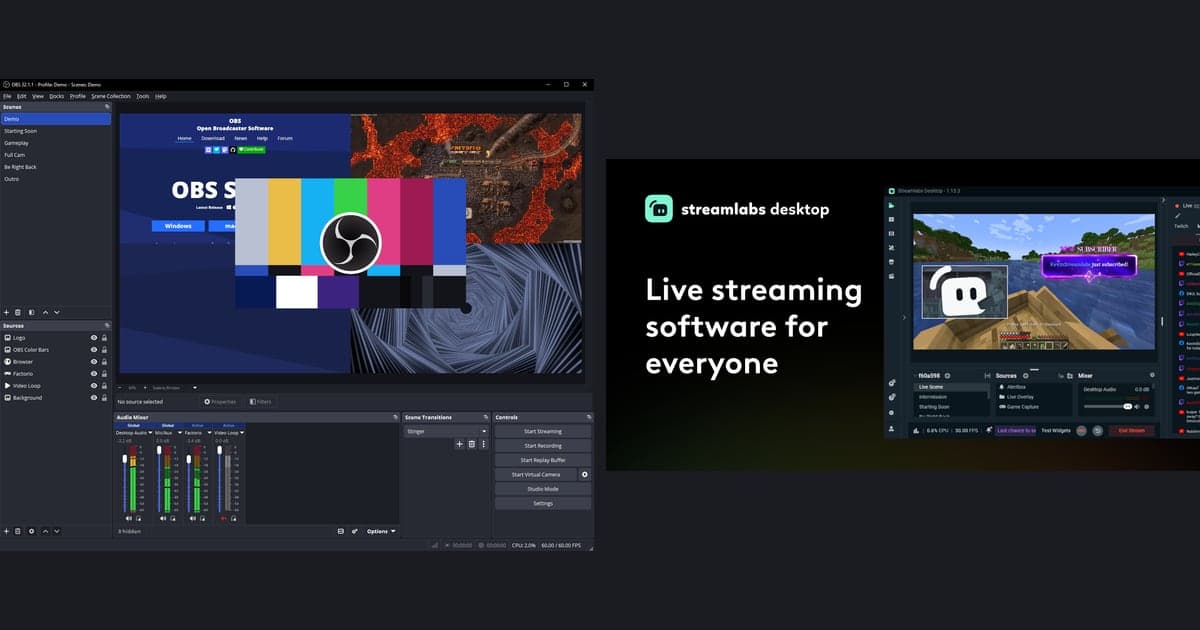
For recording alone there is no single winner; the right pick depends on the setup you want. Choose OBS Studio if you want to build scenes and plugins yourself, or Streamlabs Desktop if you want alerts, overlays and widgets built in from the start, and local recording can be started for free with either. This article compares only these two products, using values checked on their official pages on September 30, 2026. If you want a wider list, see OBS alternatives.
The short answer: pick by situation
Splitting by situation is more accurate than naming a winner. If you want a free, open source tool where you combine scenes, transitions, audio filters and plugins yourself, OBS Studio fits. If you want to get a stream ready quickly, Streamlabs Desktop fits, and Streamlabs describes its own app as OBS-based with an easy setup and built-in alerts, overlays and widgets. For local recording only, the Streamlabs FAQ says there is no watermark or time limit, and the OBS official pages describe no watermark or paid plan. If you want a ranked view beyond these two, read our recording program roundup.
OBS Studio vs Streamlabs Desktop (checked September 30, 2026)
| Item | OBS Studio | Streamlabs Desktop |
|---|---|---|
| Price | The home page presents it as free and open source software and mentions no price or paid plan. | The download button shows Free. Optional features such as multistream and premium overlays belong to Streamlabs Ultra, shown on its page as Starting at $15.75/mo (equal to the $189 annual price in the same page data divided by 12). |
| Watermark and time limit on local recording | The official pages checked describe no watermark or paid tier. | The FAQ says there is no watermark and no time limit on local recordings. The watermark lines on the Ultra page apply to separate web tools such as Video Editor and Podcast Editor. |
| What it is | An open source project developed by OBS Studio contributors, presented for video recording and live streaming. | By Streamlabs' own description, an open source app built on the core OBS engine with creator features such as alerts, overlays and widgets built in. |
| OS support (Windows) | Windows 10 or 11 and a DirectX 10.1 compatible GPU. The latest version shown on the home page is 32.2.2. | Minimum listed: Windows 10 or higher and 8GB of RAM. |
| How specs are described | A compatible system does not guarantee recording or streaming works, and CPU needs vary by encoder, resolution, FPS and scene complexity. The pages checked give no recommended figures. | Recommended: Intel Core i5 (11th or 12th gen) or Ryzen 5000 series or higher, RTX 20 or 30 series or RX 5000 or 6000 series, 16GB+ RAM, 512GB+ SSD. The two styles differ, so they cannot serve as a performance ranking. |
| Main features | Unlimited scenes with transitions, an audio mixer with filters, hotkeys, Studio Mode, a Multiview of up to 8 scenes, plugins and Lua or Python scripts. | Native integrations for Twitch, YouTube, Kick, TikTok, X, Trovo, Facebook and Instagram plus custom RTMP, free Dual Output (one horizontal, one vertical), and Multistream in Ultra. |
| Account and cloud | The official pages checked say nothing about accounts or cloud storage. | No account is needed for recording only; signing in unlocks alerts, widgets, cloud backups and integrations. Cloud storage is shown as 1GB on Free and 10GB on Ultra. |
| Using them together | Streamlabs says its alerts, widgets, overlays and tipping tools can run inside OBS through the Streamlabs Plugin for OBS. | Installed as a standalone app; one Streamlabs ID covers Desktop, Mobile, Plugin for OBS and other Streamlabs tools. |
Checklist for choosing your side
- Do you only need local recording, or also stream alerts, overlays and widgets?
- Is the free scope enough, or do you need multistream or premium overlays that sit in Streamlabs Ultra?
- Are you on Windows 10 or later, with a GPU and RAM that match each official note?
- Do you want to assemble scenes, plugins and scripts yourself, or start fast with built-in features?
- Can you spare the time to re-enter your hotkeys and output settings by hand in the new app?
- Prices and free scope can change, so did you recheck the official page right before paying?
Four steps when you move between them
- 1Export what you use now — If you use OBS Studio, save your current setup with Export Scene Collection in the Scene Collection menu and Export Profile in the Profile menu. The same menus offer Import, so this doubles as a backup if you come back.
- 2Check import support in each app's help — The official pages confirm only that OBS has export and import menus. Whether OBS and Streamlabs Desktop can read each other's files was not confirmed, so do not assume compatibility and read each app's official help before you migrate.
- 3Recheck hotkeys and output settings — In OBS you can review recording, scene-switching and mute keys under Settings > Hotkeys, and recording options under Settings > Output (Output Mode). Streamlabs Desktop's default hotkeys and whether settings carry over were not confirmed on official pages, so open the new app and set them again by hand.
- 4Finish with a short test recording — OBS shows its Auto-Configuration Wizard on first run and lets you reopen it from Tools > Auto-Configuration Wizard, and its quick start guide recommends testing for a few minutes before a real recording. Do the same short test in the new app and confirm video and sound before you commit.
If you want recording without configuring
If choosing scenes and output settings is the part you want to skip, DOR is a third option. It is a free Windows desktop app that detects a supported game automatically and records the full match to mp4. On an NVIDIA graphics card it uses NVENC hardware encoding by default, and it records game sound together with your microphone, which suits players who want their own voice in the footage. Stream alerts, overlays and multistream are part of this comparison and are not part of the DOR description. To see how free recording gets started, read how to record gameplay for free, and for why OBS can feel like too much, see when OBS feels too complicated. This does not mean DOR beats either program; it is simply another route when the goal is game recording with no setup.
Official sources and check date
Every price, OS and feature value here was checked by opening the official pages on September 30, 2026, and versions (OBS 32.2.2) and pricing can change at any time. Recheck current values on the OBS Studio download page, the OBS Studio system requirements page, the Streamlabs Desktop page and the Streamlabs Ultra plans page. macOS is left out because the OBS official pages disagree with each other on it.