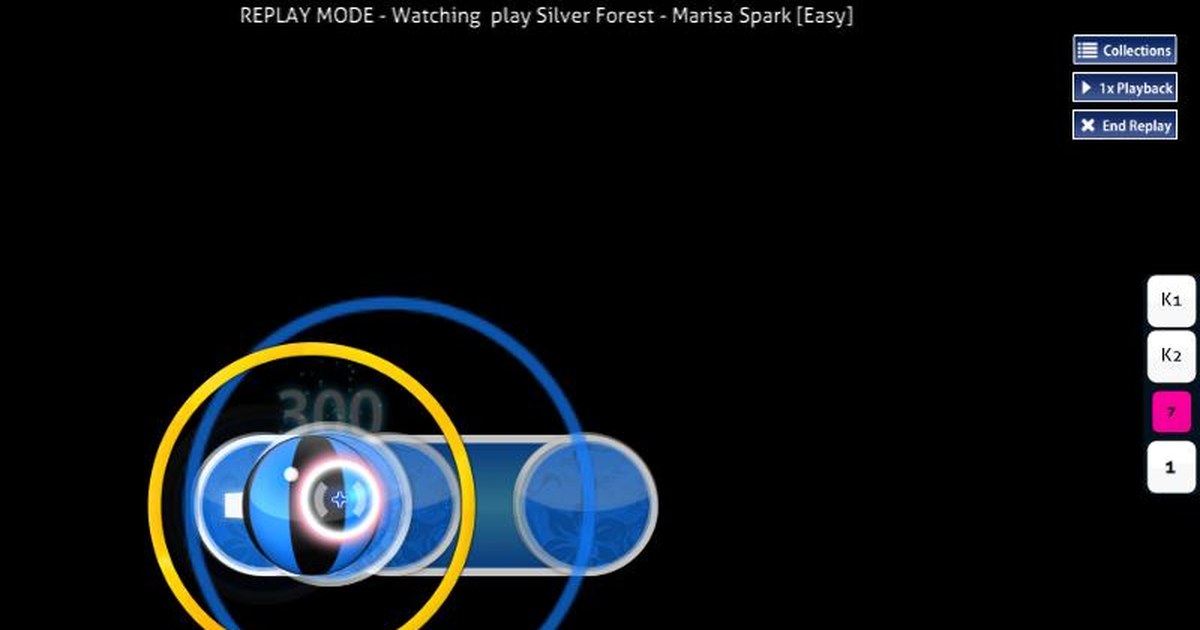
The short answer: turning an osu! replay into a video takes two steps. Press F2 on the results screen after a play to export the replay as an .osr file, then record the screen while osu!
plays that file back. An .osr file is not a video. It is a record of cursor positions and key presses, so it only plays on a PC that has osu!
and the matching beatmap installed. That means if you want to post it on YouTube, Discord, or a group chat, or show it to someone on a phone, you eventually need to capture the playback as a video file such as an mp4. This guide covers, as of November 29, 2026, where replays are saved in current osu!
(lazer based, the default client on the official download page) and in the older osu!(stable) client, what you need to play a replay a friend sent you, and how to record the playback cleanly.
The replay to video workflow is the same idea as in other games, so comparing it with how to save a Fortnite replay as a video makes it quick to follow.
An .osr is an input record, so it only plays in osu! with the same beatmap
According to the official osu! wiki, an .osr file holds the game mode, the beatmap's MD5 hash, the player name, the counts of 300s, 100s, and misses along with the score, the max combo, the mods used, a life bar graph, and the cursor movement and key presses compressed with LZMA.
It is not footage of the screen but a record of where the cursor was and which keys were pressed at each moment of that beatmap, so osu! loads the same beatmap and replays the inputs on top of it. The wiki also states that a replay only plays if the game has the exact beatmap it was recorded on.
So if a replay from a friend will not open, first check that you have the same difficulty of the same beatmap. If the beatmap was updated and its hash changed, it may not match even though the song is the same.
As long as the beatmap matches, a replay is a single file you can rewatch years later, but there is no way to open it outside the game. For a play you want to keep for a long time and show anywhere, saving it once more as a video is the safer choice. How long replays last in each game is covered in replay retention by game.
Steps to export a replay and record it as a video
- 1Export the replay on the results screenWhen the play ends and the results screen appears, press F2. Current osu! creates the .osr file in the exports folder inside its data folder, and osu!(stable) creates it in the Replays folder inside its install folder. The file name includes the player name, song, difficulty, and date, so it is easy to find later.
- 2Find the saved .osr filePress the Windows key and R to open the Run box, then type %AppData%\osu\exports for current osu! or %LocalAppData%\osu!\Replays for osu!(stable) to open the folder directly. This is the file you send to friends or back up.
- 3Play the replay in osu!Double click the .osr file and the replay opens in osu!. If it is a friend's replay, get the same beatmap difficulty first. In current osu!, you can skip back and forward with the left and right arrow keys during playback and open or close the replay settings panel with Ctrl+H.
- 4Capture the playback with DOR screen recordingWith DOR running, put osu! on your main monitor and press the screen recording shortcut set in DOR's settings to start recording. Play the replay from the beginning, and when it ends press the same shortcut once more to save.
- 5Trim the part you need and share itTrim the section you want from the recording and save it in 16:9, 9:16, or 1:1. In DOR Studio (dor.gg/studio), merge several replay videos, add text and BGM, then export an mp4 or share a dor.gg link.
osu! replay saving, playback, and video at a glance (as of November 29, 2026)
| Situation | How or where | Notes |
|---|---|---|
| Export in current osu! (lazer based) | F2 on the results screen | The .osr file appears in %AppData%\osu\exports |
| Export in osu!(stable) | F2 on the results screen | Replays folder inside the default install folder C:\Users\(your user name)\AppData\Local\osu! |
| A failed play in stable | F2 on the game over screen | You can keep plays you did not pass as replays too |
| File format | .osr | A record of cursor positions and key presses, not a video file |
| Play a replay you received | Double click the .osr file | The exact same beatmap difficulty must be installed |
| Someone else's top score | Global leaderboard in game | Per the wiki, the top 1,000 global scores on each beatmap keep their replays on the server |
| Make it a video | Record the replay playback | Capture it with DOR screen recording, trim it, and share as an mp4 or a link |
What to check when the replay video looks wrong
- For a friend's replay, that you have the same difficulty of the same beatmap
- That osu! is set to borderless or windowed mode instead of fullscreen
- That osu! was on your main monitor while recording
- That the recording frame rate is raised to 60fps (DOR's free default is 30fps)
- That you started the replay from the beginning after recording began
A video anyone can watch instead of a replay file
An .osr file only plays on a PC with osu! and the same beatmap, but once you record the playback as a video it plays right away on a phone, in Discord, or in any community.
DOR is a free Windows app, and its screen recording captures the screen with a single shortcut even when you are not in an auto recorded game, so you can record the replay exactly as osu! plays it.
Trim just the part you want to show, such as a full combo section or the final stream, and save it in 16:9, 9:16, or 1:1. In DOR Studio in your browser you can merge several plays, add text, BGM, and effect templates like Shake Zoom, then export an mp4 or share a dor.gg link right away.
Your results have no watermark. If you want your key presses on screen too, see how to show keyboard and mouse inputs in gameplay videos, and to make a vertical video for Shorts, see how to turn a horizontal video into vertical 9:16.